
Export data to GoSystem Tax RS
Once you are done preparing a client's binder, exporting data back to the tax software lets you sync all the captured and updated data back to the tax software. Before you export binder data to the tax software, make sure the tax return that is being exported is currently closed in the tax software.
note
In GoSystem Tax RS, you can export data from SPbinder only when you have imported proforma'd data from GoSystem Tax RS into SPbinder. Don’t delete any proforma'd information before exporting data from SPbinder into the tax software. Any data can be deleted from the tax software as well as SPbinder after completing the export process. Always save the return after it is completed. You can use import and export functionality to transfer your data from SPbinder to GoSystem Tax RS for 1041 binders as well.
Exporting data to GoSystem Tax RS
Follow these steps to export the data to GoSystem Tax RS:
- Select theExport to Tax Softwareicon
 from the SPbinder toolbar. Alternatively, select Binder, point toExport, then selectExport to Tax Software.
 You can also export to tax software from FileRoom. Point to theOPTIONScolumn, then select thePicklisticon
 on that binder. Select Export to Taxfrom the dropdown menu
- When theExport to GoSystem Tax RSwindow appears, selectProceedto initiate the export process.noteMake sure that the locator is closed before proceeding.


- When the export process starts, you will see a progress bar to help you track the export's progress. The Proceed button is disabled during the export process.
- A message indicating the export was completed successfully appears. SelectClose.
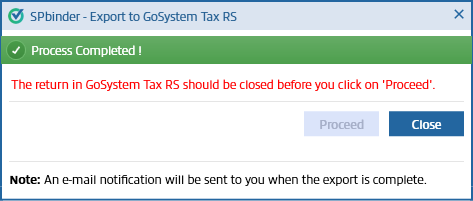
- Open the locator and selectFull Recompute.
- Check that all the data has been imported into the GoSystem Tax RS Locator.
Additional notes
When the data is exported to GoSystem, SurePrep will truncate certain fields according to the field's character limit in GoSystem (e.g., Description fields in K-1 Reclass, Input Forms, etc).
Troubleshooting Import/Export Issues
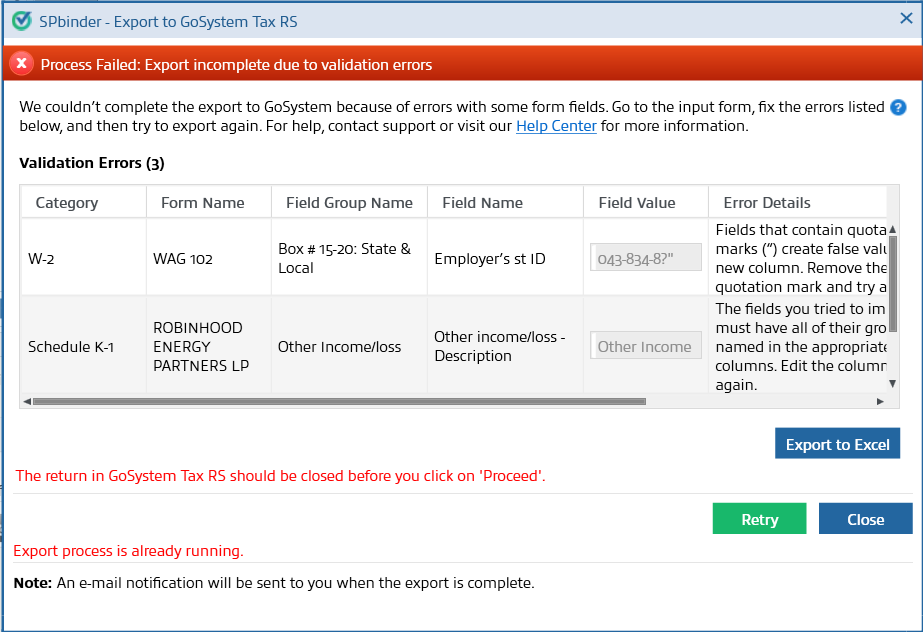
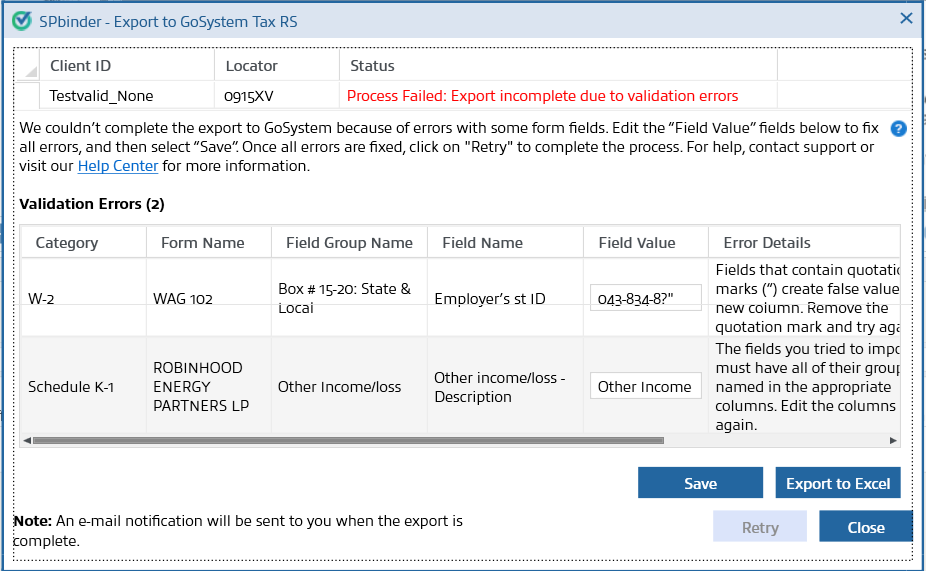
Process Failed: Export incomplete due to validation errors
To successfully export the binder information to GoSystem Tax RS, it's important to ensure that certain fields are formatted correctly, as some formats may be incompatible with the system. For instance, specific fields may only accept alphanumeric characters (e.g., A-Z and 0-9). A field containing special characters, such as a dollar sign or question mark, could result in an export failure. Please refer to the
Error Details
column for guidance on resolving any potential export errors.Troubleshooting Classic Leadsheets validation errors:
- SelectExport to Excelto download the Excel file with all the field values that are in error.
- Go to SPbinderINPUT FORMSand correct the field values.
- After all the field values are corrected, try exporting again.
Troubleshooting Simplified Leadsheets validation errors:
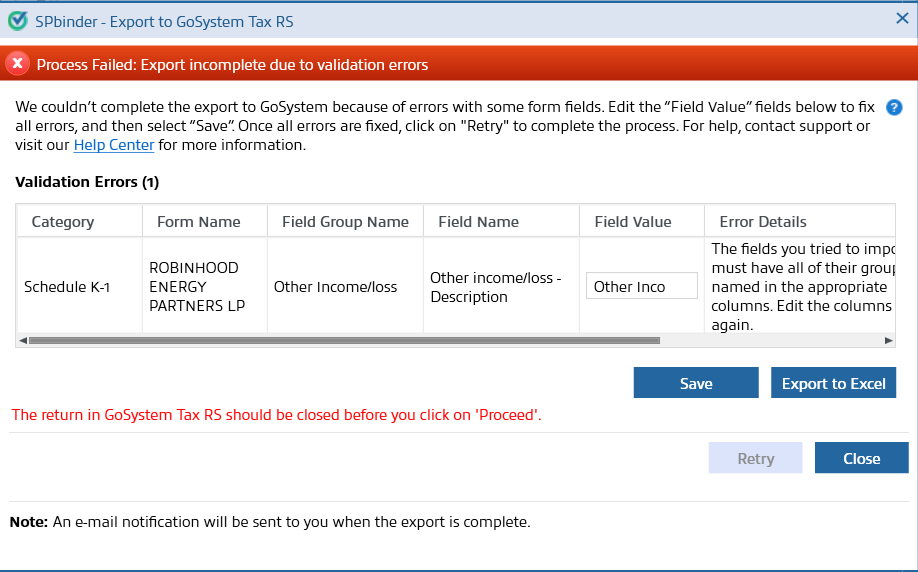
- Go to theError Detailscolumn to learn more about the validation error.
- Fix all the errors in theField Valuecolumn and then selectSaveto save your changes.
- Once all the errors are fixed, selectRetryto complete the export.
Troubleshooting Without (None) Leadsheets binders validation errors:
- Go to theError Detailscolumn to learn more about the validation error.
- Fix all the errors in theField Valuecolumn and then selectSaveto save your changes.
- Once all the errors are fixed, selectRetryto complete the export.
Process Failed: Locator is in use
- If your return is open in GoSystem Tax RS at the time of export, a message indicating "Process Failed: Locator is in Use" appears. Data from the SPbinder to GoSystem Tax RS will not be exported if the GoSystem Tax RS locator is open.

- Close the Locator and selectProceedagain to export the data to GoSystem Tax RS.View details on identifying and correcting duplicate activity numbers in the GoSystem Tax RS locator.
- After exporting data into the tax software, if the user tries to export again without entering any new data in the binder, the following window appears.
 noteFor 1041 returns, only Page 1 and 2 will be imported in the leadsheets. Grantor sheet will not be imported.
Export discrepancy with prior and current year taxes paid
For binders with Classic Leadsheets, there is sometimes a discrepancy between the leadsheet values for taxes paid in the prior year and taxes paid in the current year and the corresponding values in the tax software.
Go to the
Forms
tab, then on the Forms
menu go to Income
, Miscellaneous Income
, then Sch A Info. State/Local Tax Refund.
Scroll down to
State/Local Standard Paid Over Two Years (for Allocating Refund)
.Binders will display fields for taxes paid the previous two years.
For example, 2022 binders will display
Taxes paid in 2021
and Taxes paid in 2020
. If the leadsheet amounts differ from the tax software amounts, capture the tax software amounts on a sticky note and enter them into the binder in these fields.
Limitations for certain fields
1040
- Orange reference fields and T/R Stamps: To avoid data from being mismatched, some 1040 fields don’t export to GoSystem Tax RS. These fields must be manually entered into the tax software:
note
In binders with Forms and Leadsheets these fields are notated as orange references. In binders, without Forms and Leadsheets these fields will have T/R stamps placed next to the field.
1041
- There are currently no known Orange fields for 1041.

