
Creating SurePrep User Group and Users in GoSystem Tax RS for SurePrep - (For Outsource Only)
To submit Outsource returns, you'll need to create a SurePrep User Group and Users in GoSystem Tax RS.
Setting User Group for SurePrep to access GoSystem Tax RS:
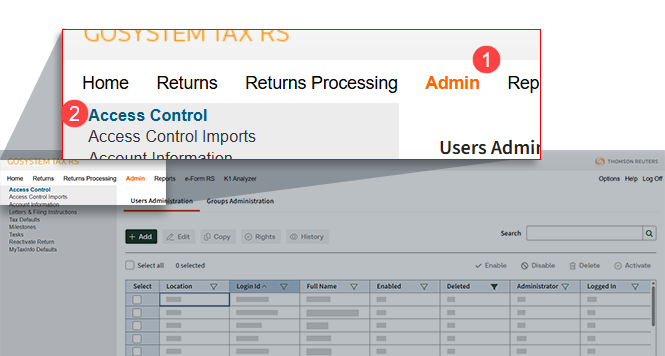
- Log into GoSystem Tax RS as an administrator and selectAdmin, thenAccess Control.
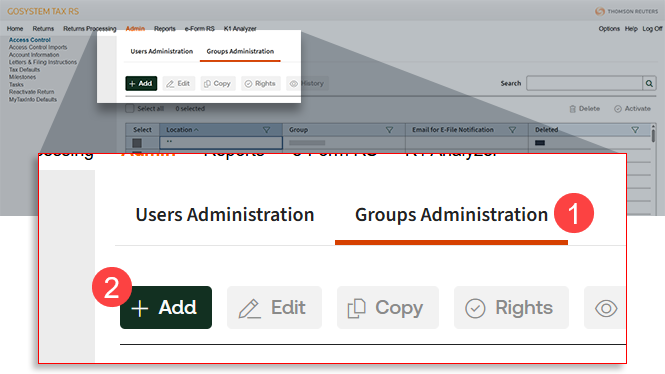
- Select theGroups Administrationtab, then selectAdd.
- Enter the following information for Group Info:
- Name: SUREPREP
- Location: to be set up by your firm.
- Under theAccountstab, select the required accounts that you want SurePrep to have access to, then selectAssign.
Once the account shows up under theAssigned Accountssection, selectCreate.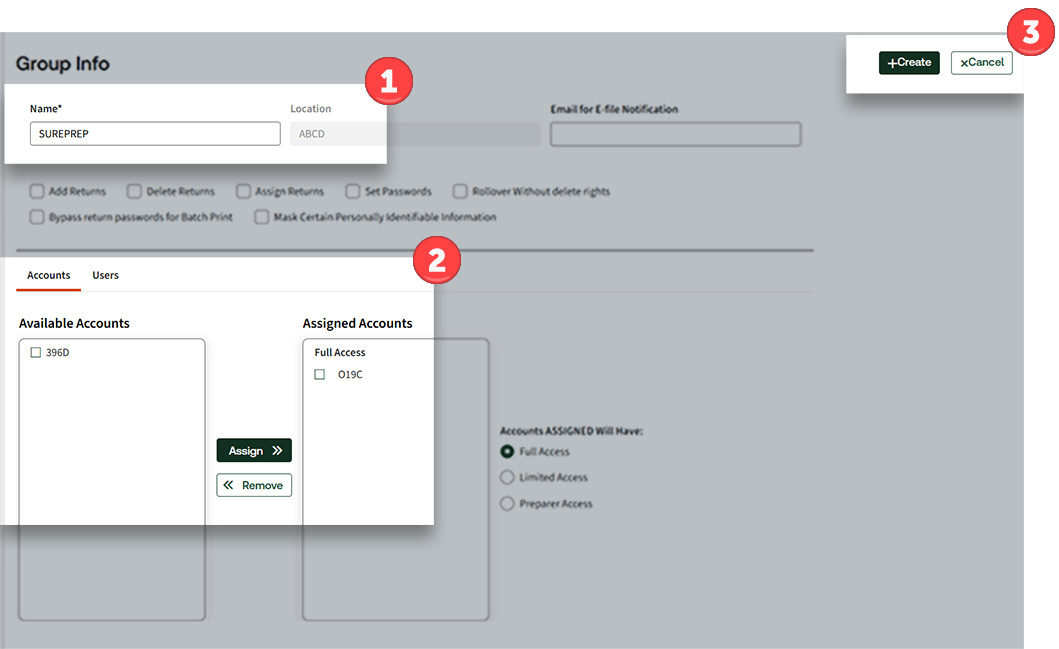
Setting Users and assign them to SurePrep User Group:
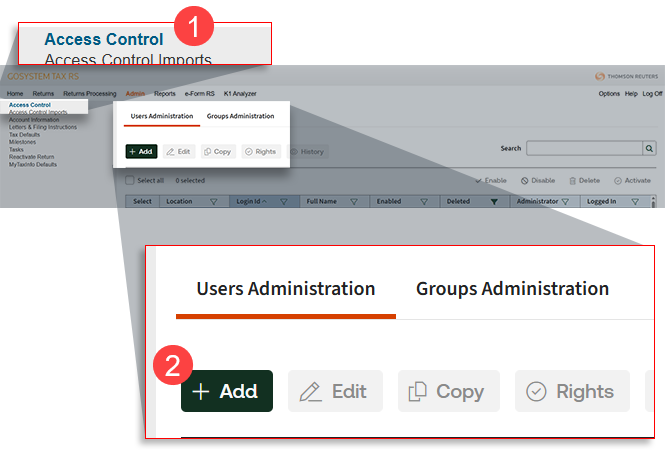
- Go toAdmin, thenAccess Control.
- Select theUsers Administrationtab, then selectAdd.
- Enter the following information for User Info:
- Login ID: PREPARER01.
- Location: determined by your firm in SurePrep Group setup.
- Full Name: Preparer01.
- Password: select a random password that you will remember.
- E-Mail: enter your valid email ID
- Employee ID: enter your valid employee ID
- Under theUser Rightssection, check the box next to the rights you want to assign.
Once all of the information is provided, selectCreate. You can repeat the same steps again to create more users.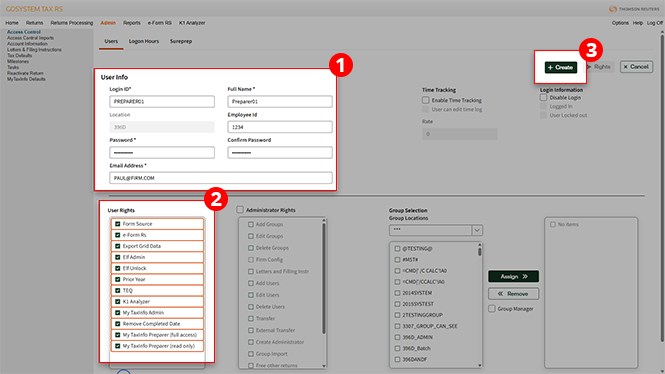
- Next, you will need to provide SurePrep with the login details. Go toAccount Admin, Account Setup, then Tax File Activationto integrate with SurePrep services. Select here to learn more about integrating GoSystem accounts with SurePrep.
Related Content
-
Integrating GoSystem accounts with SurePrep (For Outsource Only)
Format: Article

