
Activating Lacerte
Tax Software Activation allows you to add your tax software credentials to integrate with SurePrep services. Adding your tax software to SurePrep allows you to:
- Create a binder (e.g., select a binder template based on your tax software)
- Select a binder template and import client proforma from your tax software
- Export client data (i.e., Export to Tax) to the tax software
- Import client's tax return data into SPbinder
- Create a Document Request List (DRL) for your client in TaxCaddy.
Integrate Lacerte with SurePrep
Follow these steps to activate Lacerte user login:
Go to
FileRoom
, Admin
, Account Setup
, then Tax File Activation
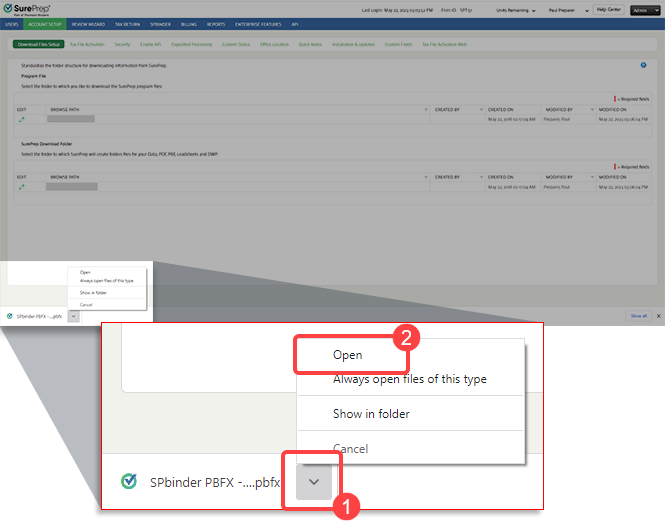
.Open the PBFX file once it completes downloading.
note
The download window might look different based on your browser. In Chrome and Edge, you can select '
Always open files of this type
' to automatically launch the PBFX file the next time you need to create a binder or update your Tax File Activation
settings.- When theTax File Activationwindow appears, select theLacertetab.
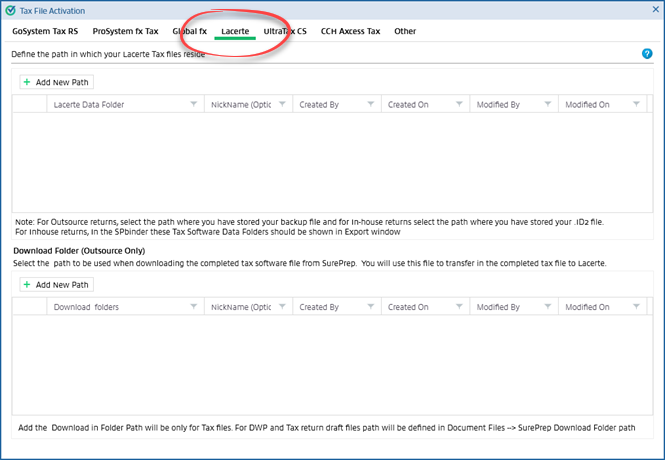
- SelectAdd New Pathto set the network folder location where the Lacerte software files are stored prior to uploading. A new blank row will appear.
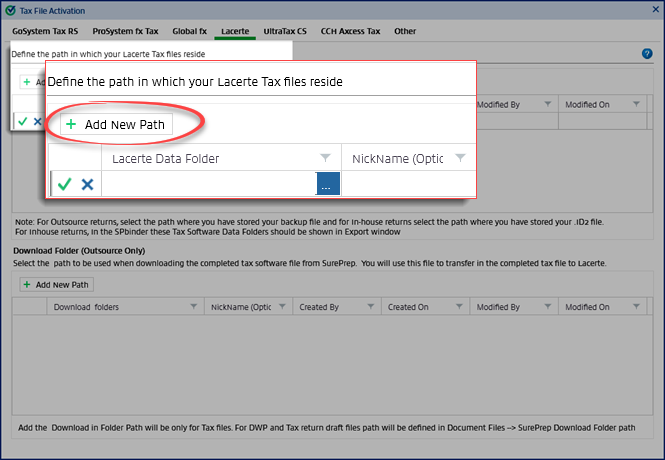
- Select theBrowseicon to select the path.
 For In-house returns, under theLacerte Data Foldersfield, browse to the network or local path where your proforma file is located (example: .ID2, .ID3).noteEach tax year will have a different extention based on the last digit of the tax year. For example: 2022extension is .ID2,2021extension is .ID1, 2020extension is .ID0For Outsource returns you need to choose the path where your backup file is located.
 - On theBrowse For Folderwindow, select the folder path for Lacerte Data Folder then selectOK.noteData Path should be located in the Lacerte installed folder on your network or local path. Add the following folders based on the return type:1040 returns(Individual): Lacerte, Your current tax year,IDATA,DETAIL(for example, L:\Lacerte\22tax\IDATA\DETAIL)1041 returns(Fiduciary): Lacerte, Your current tax year,FDATA, thenDETAIL(for example, L:\Lacerte\22tax\FDATA\DETAIL)

- Select theSave
 icon to save the details or select the Cancel
 icon to close without saving any changes.
 TheCreated By,Created On,Modified ByandModified Onfields will be auto-populated with the User Name and the system date and time.
 - To edit the path after it is added, select theEdit
 icon. To delete the path, select the Delete
 icon.
icon.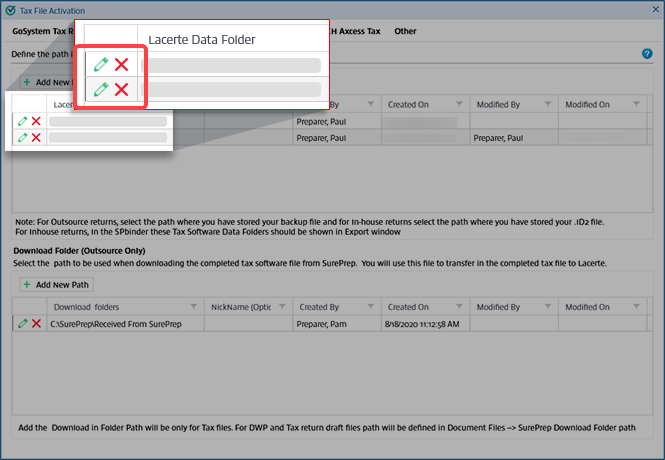
Lacerte Data Path
Follow these steps to view the data path where your tax return files are saved:
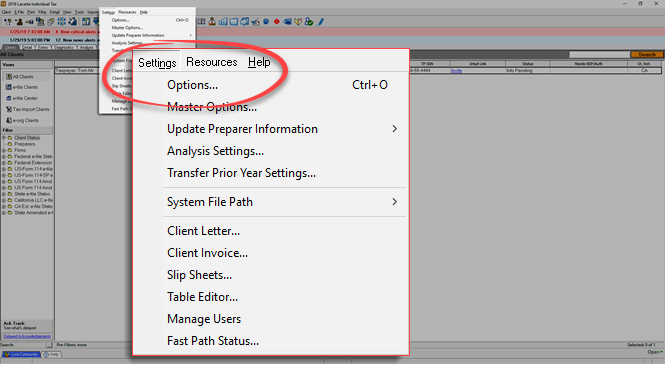
- Open Lacerte, then selectSettingsthenOptions.
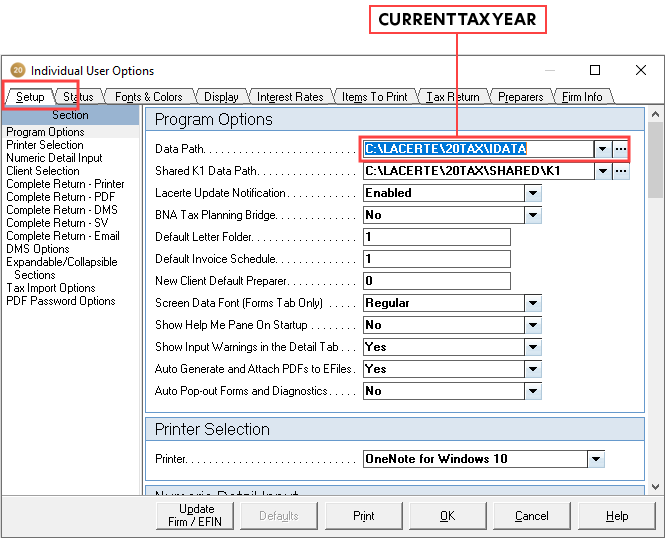
- When theIndividual User Optionswindow appears, you can viewData Pathfield on theSetuptab. You can copy the current tax year path and use it to setup Lacerte tax file activation in SurePrep.
What's Next?
You must install the latest
Lacerte ODBC Driver
to create binders in FileRoom and DRL in TaxCaddy.
