
Export data to Lacerte
Once you are done preparing a client's binder, exporting data back to the tax software lets you sync all the captured and updated data back to the tax software. Before you export binder data to the tax software, make sure the tax return that is being exported is currently closed in the tax software (that is, Lacerte).
note
- Don’t delete any proforma information before exporting data from SPbinder to tax software. You can delete proforma information from the tax software and SPbinder after the Export to the tax software is complete. Save the return after it is complete.
- For SurePrep Outsource binders, don’t use theExport to Taxfeature in this article to export the data into the tax software. You must restore the tax return file instead.
note
Make sure you have the latest version of the Lacerte SDK driver installed on your machine/environment in: Create binders in FileRoom, Export binder data to tax software, Create Custom DRL in TaxCaddy Latest release: December, 19, 2023 . Uninstall the previous version before installing a new version.
Export data to Lacerte
Follow these steps to export data from SPbinder to Lacerte:
- Select theExport to Tax Software
 icon from the SPbinder toolbar. Alternatively, select Binder, point toExport, then selectExport to Tax Software.You can also export to tax software from FileRoom. Point to the
 OPTIONScolumn, then select thePicklist
 icon on that binder. Select Export to Taxfrom the dropdown menu.
- TheExport to LacerteTax window appears. SelectSetup. You can skip this step if you have already set up the export path.

- Select a path from the dropdown that has been set up in theAdmin,Account Setup,Tax File Activation, thenLacerte, since you might have more than one path here. This would be in case you have set up separate locations for different tax years or if you own multiple offices.noteLacerte Data Path for tax year prior to 2018 (that is, 2017, 2016) includes theDetailsfolder (that is,L:\LACERTE\17TAX\IDATA\DETAIL). Lacerte Data Path for the 2018 tax year can now be either be untilIDATAfolder orIDATA\DETAILfolder (that is,L:\LACERTE\18TAX\IDATAorL:\LACERTE\18TAX\IDATA\DETAIL)

- If you folder path is empty, then selectBrowseand select the Lacerte folder, where your tax software file lies.

- SelectOK.

- To access client data, permission is required. You may see theAccess Confirmationwindow minimized in the background. Maximize theAccess Confirmationwindow.
 On theAccess Confirmationwindow, selectGrant. TheAccess Confirmationwindow only appears once, any subsequent attempts to access the client data will only require sign in once every 24 hours.noteInstall the latestLacerte ODBC Driverto access client data. This window won’t appear if the driver is not installed on your machine/working environment.
 On theSign inwindow, enter your Lacerte sign in credentials, then selectSign In.noteYou will need to enter your Lacerte sign in credentials again when your sign in session expires in 24 hours.
- SelectProceedto complete the export to Lacerte Tax.
 noteA window appears if any new states are added that were not proforma'd in the Lacerte tax file. You have to add the newly added states manually in Lacerte.
- The export starts. Wait while the import processes.

- A message indicating the export was completed successfully appears.
 noteAny data entered in your Lacerte tax file after uploading the return in SPbinder will be overridden on completion of the Export process.
 - To view exported data, open Lacerte and selectFile, thenRefresh.
- After Exporting data into the tax software, if the user tries to export again without entering any new data in the binder, the following window appears:

Exporting data to Lacerte with additional states
A window appears if any new States are added that were not originally proforma'd in the Lacerte tax file.

This window appears for the following reason:
For example, if you initially had
AZ
and CA
as proforma states in Lacerte.
Then you manually add a new States in SPbinder (that is,
PA
added through OCR and NY
added manually).
When you export data to Lacerte, you will get a warning window if additional states are detected.
Select
Ok
, to export data to Lacerte without adding a new .Select
Cancel
to cancel data export. You can manually add the following states in Lacerte then reinitiate the Export to tax software
.To manually add the states in Lacerte, open the client data in Lacerte, then select the
Assign entries to
menu to see options.
On the dropdown menu, select
Add State
to add a new state.
When the
Select a State...
window appears, select the new states added in SPbinder (that is, PA, NY), then select Ok
.
After adding a new state, select the
Assign entries to
dropdown menu to verify it has been added.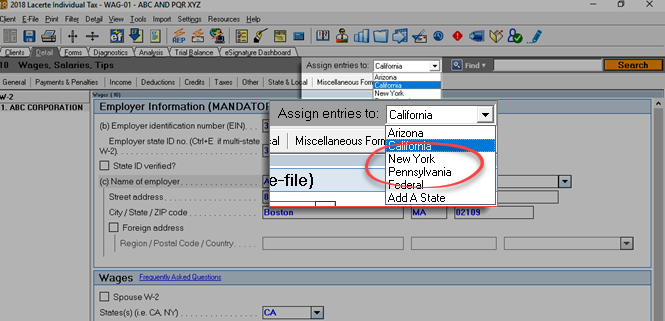
Close Lacerte, and retry the export to Lacerte process again.

