
Install Lacerte SDK (ODBC Driver)
You need to have Lacerte SDK (ODBC Driver) installed for the following reasons:
- Submit (Current Year) binders for Lacerte in FileRoom
- Create Custom DRL for Lacerte in TaxCaddy
- Export data to Lacerte
note
Make sure you have the latest version of the Lacerte SDK driver installed on your machine/environment to:
- Create binders in FileRoom
- Export binder data to tax software
- Create Custom DRL in TaxCaddy
Uninstall the previous version before installing a new version.
note
If you are on a hosted environment, have your IT team contact SurePrep Support during the installation process. Certain permissions are required.
Follow these steps to install Lacerte SDK Driver:
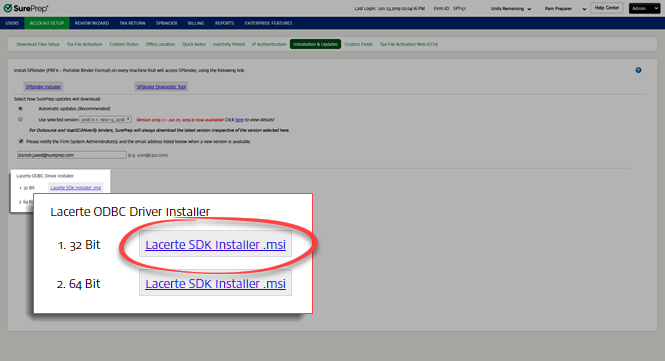
- SelectFileRoom,Admin,Account Setup, thenInstallation & Updates.

- UnderLacerte ODBC Driver Installer, selectLacerte SDK Installer.msito download the installer. Install both the32-bitand64-bitinstaller.You'll need to install Lacerte SDK drivers with Admin rights. Contact your IT department to install these drivers.noteYou'll need to uninstall any previous versions of Lacerte SDK installed on your PC before installing the new version.
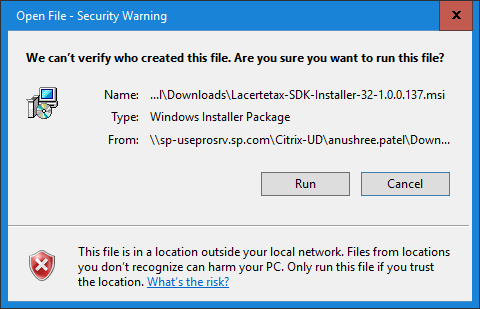
- An Installer will download. Once the download completes, select to open the Lacerte Tax SDK installer and install it with Administrator rights. If you are on cloud hosting, ask your IT to install drivers with Administrator rights.noteFile download window may vary based on the browser and operating system version.
 You can also locate the file in your download location and open it from there. This will initiate the installation process for your local machine.
- When theOpen Filewindow appears, selectRun.
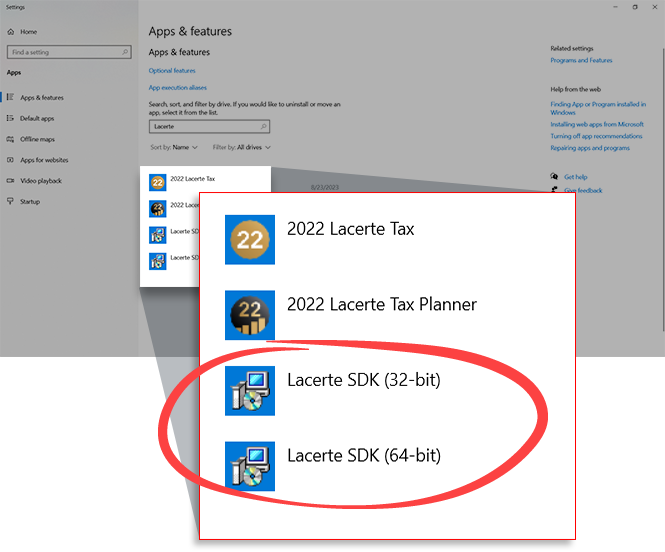
- You can make sureLacerte SDKhas been installed successfully by looking at the list of installed programs in your computer's Control Panel. Verify if the Lacerte SDK installed correctly. If you are creating Custom DRL in TaxCaddy, you should have both 64-bit and 32-bit drivers installed.
- Once the installation process is complete, restart your machine/workstation for the changes to take effect.
- Now you can submit binders for Lacerte tax software and create DRL in TaxCaddy.
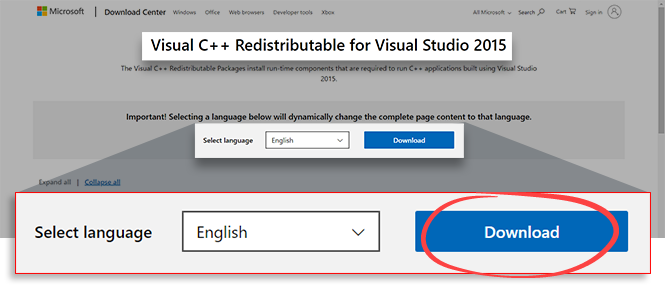
Changes when creating a binder or Custom DRL
When creating a binder or Custom DRL for Lacerte clients, the
Access Confirmation
window will appear. Select Grant
, to grant SurePrep permission to access Lacerte. In some instances, the window may appear in the background, minimize all windows, if necessary.
note
Install the latest
Lacerte ODBC Driver
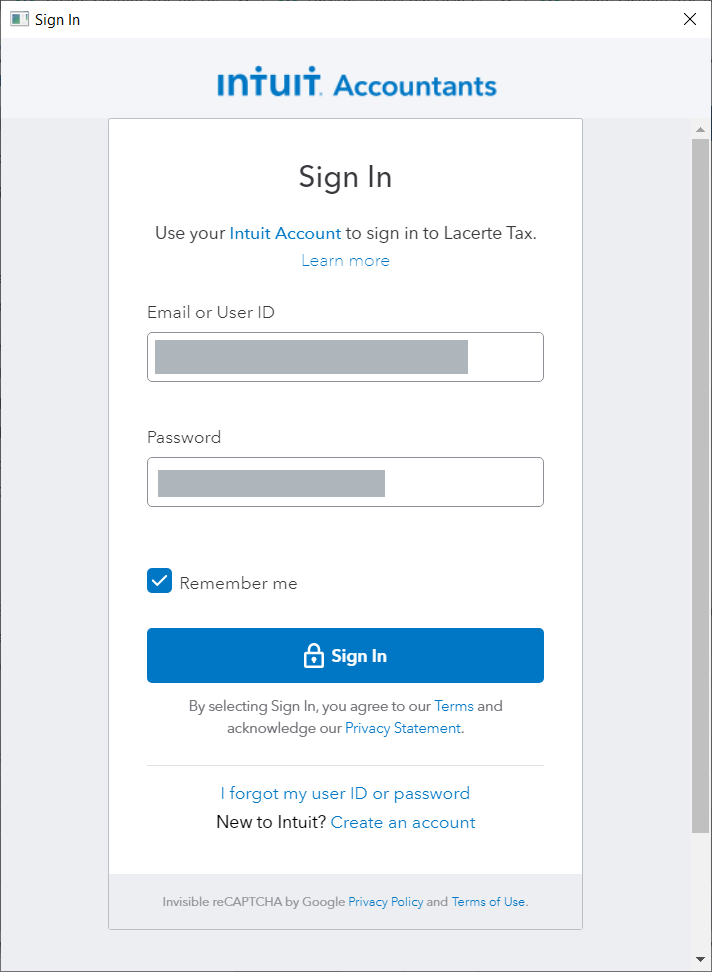
to access client data. This window won’t appear if the driver is not installed on your machine/working environment. Next, you will see the
Sign in
window. Enter your Lacerte sign in credentials, then select Sign In
.note
You will need to enter your Lacerte sign in credentials again when your session expires in 24 hours.
Additional notes
When creating a Custom DRL in TaxCaddy or a new binder, you will see a
Cannot find client
error if you do not have the latest version of Lacerte SDK installed on your machine/environment. Please make sure you have the latest driver version installed from FileRoom Account Admin.
