
Setting up Lacerte Download Folder (Outsource only)
Download Folder (Outsource Only)
Follow these steps to browse and set the download path where you want to save the completed tax software files prior to being restored into Lacerte Tax:
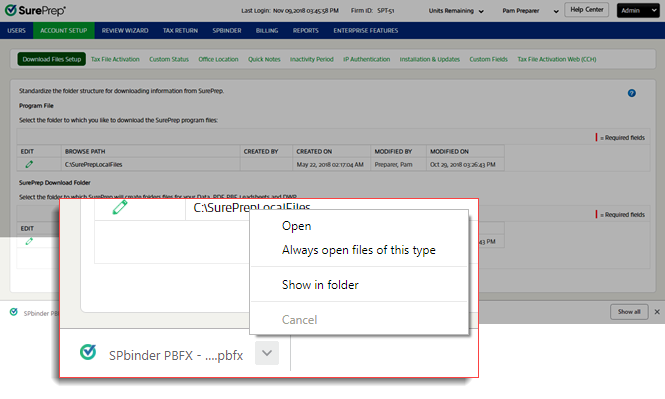
Go to
FileRoom
, Admin
, Account Setup
, then Tax File Activation
.
Open the PBFX file once it completes the download.
When the
Tax File Activation
window appears, select the Lacerte
tab.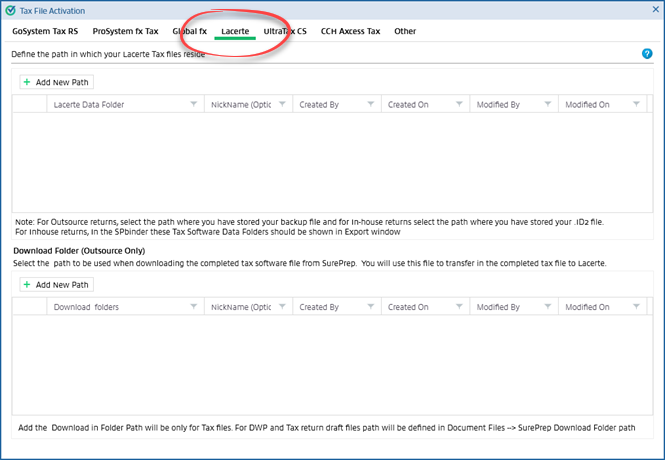
Under
Download Folders (Outsource Only)
, select Add New Path
button. A blank field will appear.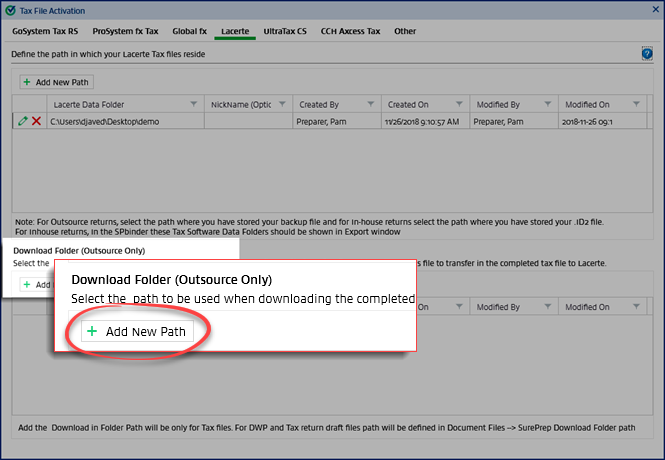
Select the
Browse
icon to select the network drive where the Received from SurePrep
folder is located to restore client data.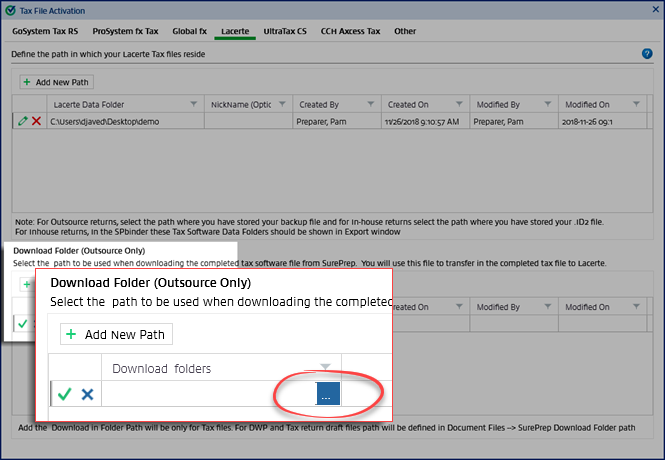
note
The download folder path for Outsource returns can never be a local folder path. It will always be a network path.
On the 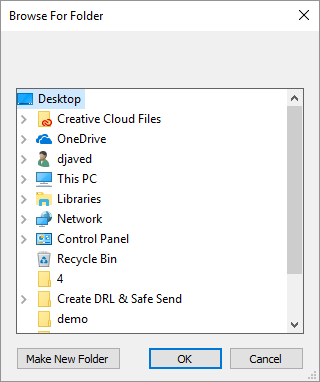
Browse For Folder
window, select the folder path then select OK
. Additionally, you can also enter a nickname, if needed.
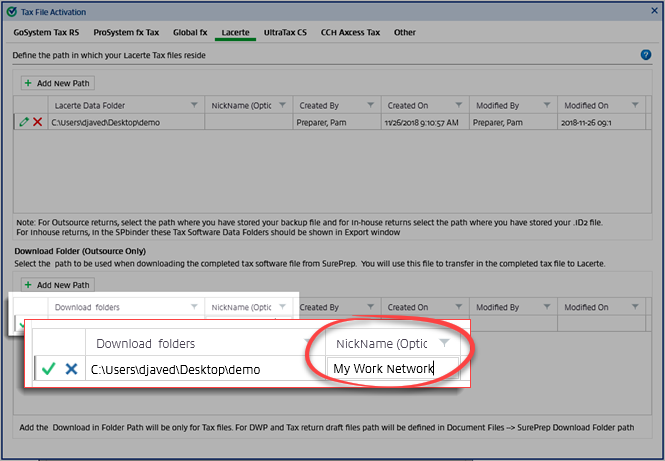
Select the  to save the details or else click the
  to close without saving any changes.
Save
icon to save the details or else click the Close
icon to close without saving any changes.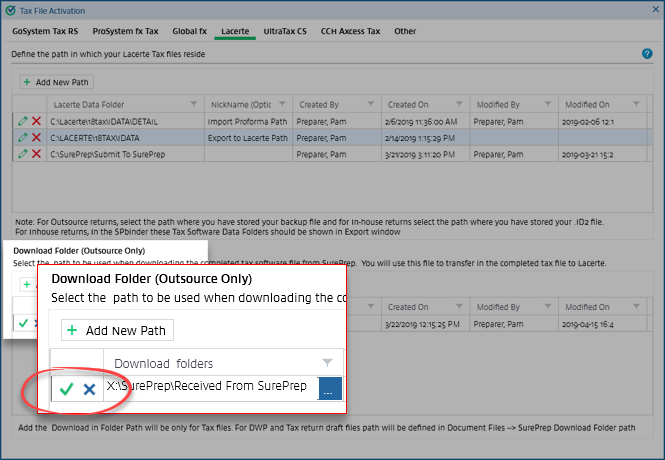
The
Created By
, Created On
, Modified By
and Modified On
fields will be auto-populated with the User Name and the system date and time.Once saved, you can select the  to edit the path. You can the
  to delete the entry.
Edit
icon to edit the path. You can the Delete
icon to delete the entry.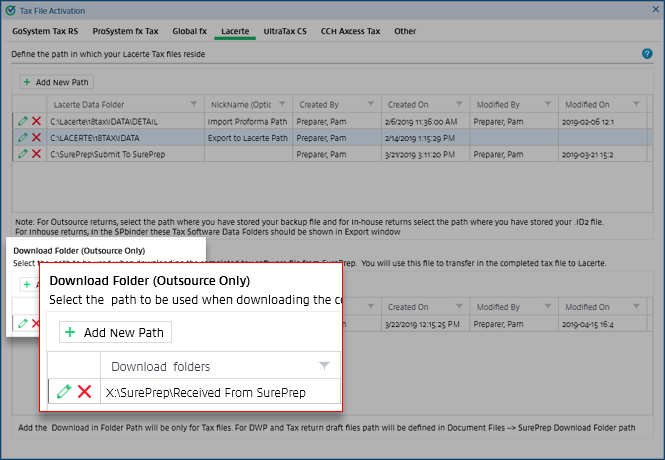
You can select the  to see the help section for Lacerte tax file activation.
Help
icon to see the help section for Lacerte tax file activation.
