
Activating ProSystem fx Tax (2022 & Prior Years Only)
note
Starting from the 2023 tax year, SurePrep no longer supports integration with ProSystem fx Tax
. In FileRoom and TaxCaddy, you won’t be able to create ProSystem fx Tax clients, binders, or DRLs from 2023 tax year onwards. SurePrep will continue supporting the 2022 tax year and prior years. You can set and define Import and Export options and paths to import data from ProSystem fx Tax to FileRoom, inversely, you can Export data from FileRoom to ProSystem fx Tax.
It enables you to define the path for your ProSystem fx tax data folder(s), which is typically the
wfx32
folder. Adding a New Path
Go to
FileRoom
, Admin
, Account Setup
, then Tax File Activation
.
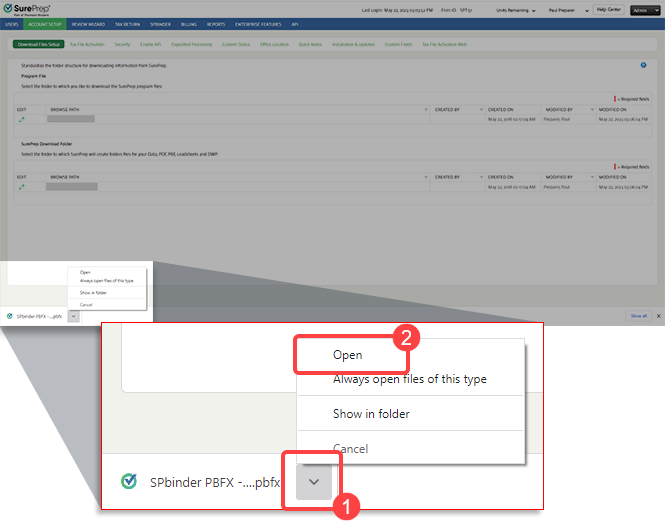
Open the PBFX file once it completes downloading.
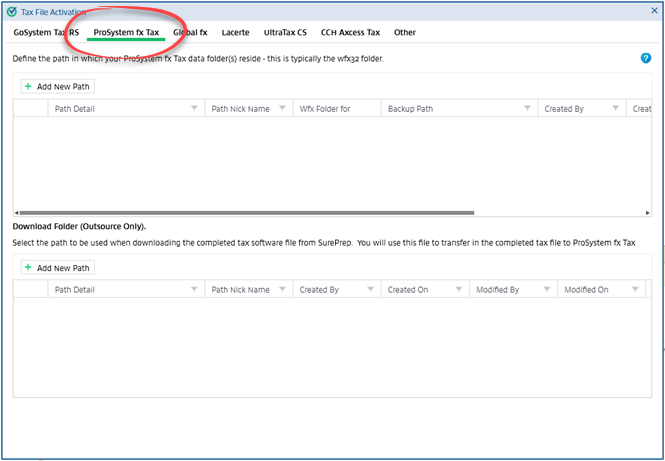
When the
Tax File Activation
window appears, select ProSystem fx Tax
.
Select
Add New Path
to set the new account. A blank row will be displayed.
Select the
Path Detail
field, browse to the network or local path where your wfx32 folder is located. Browse to a backup path where you want to save a backup of the tax file. Add a nickname if required.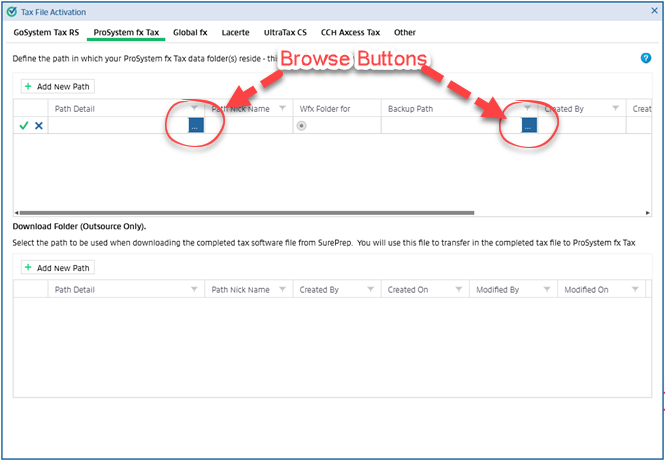
Select the  to save the added path.
Save
icon to save the added path.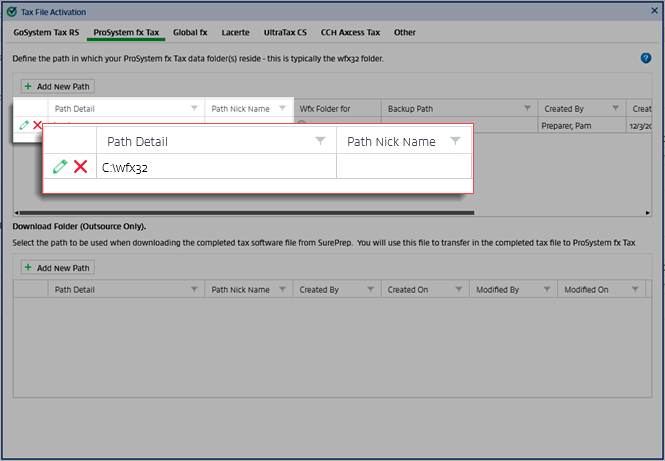
The radio button for
Wfx folder for
will be auto-selected for each newly added path. If this option is selected, then the path selected in the Path Detail
column will be used to export the data.Note:Only the selected path will be visible in the binder export window.
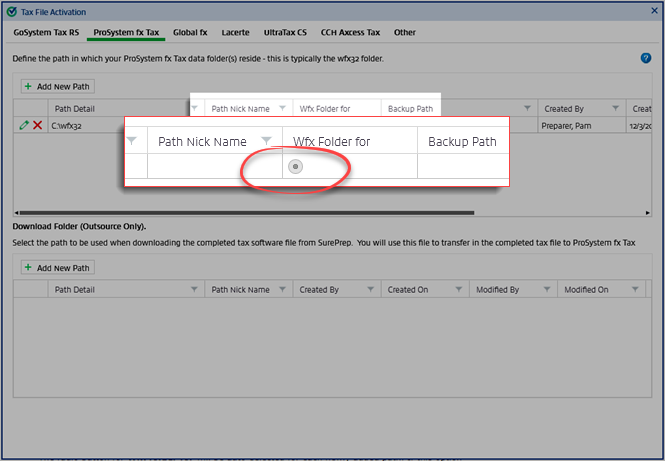
The
Created By
, Created On
, Modified By
and Modified On
fields will be auto-populated with the User Name and the system date and time.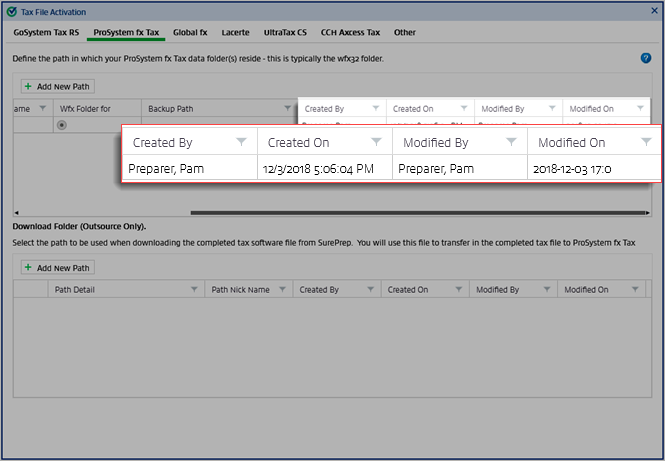
If you need to modify the path after it is added, click the  icon to edit it. To delete the path, select the
  icon.
icon.
Edit
icon to edit it. To delete the path, select the Delete
icon.Download Folder (Outsource Only)
In this section, you can set a download path by browsing in which to place the completed tax file, prior to it being restored into ProSystem fx Tax.
Select
Add New Path
. A blank field is displayed.Select the
Path Detail
field, browse to the network drive where your ProSystem fx folder structure is created to restore client data.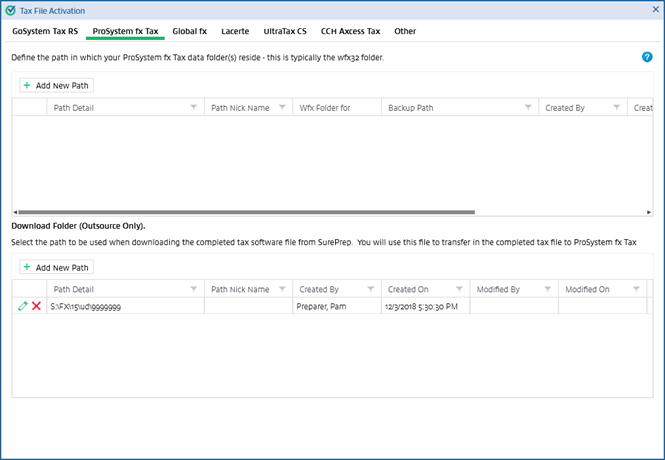
You can also add a nickname, if necessary.
The
Created By
, Created On
, Modified By
and Modified On
fields will be auto-populated with the User Name and the system date and time.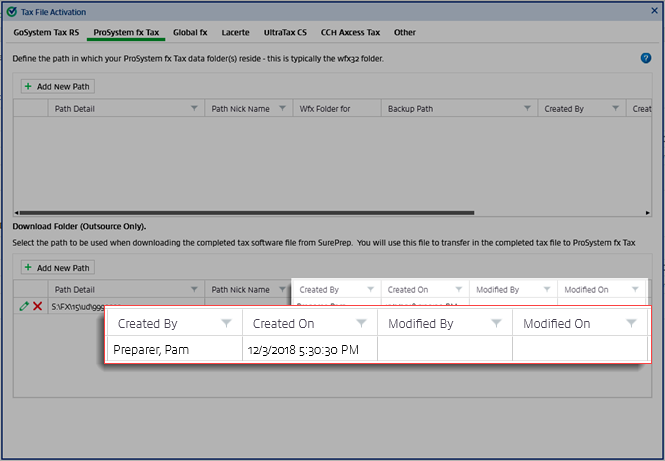
You can select the to edit any existing information.
Edit
icon to edit any existing information.
