
Export data to ProSystem fx tax
Once you are done preparing a client's binder, exporting data back to the tax software lets you sync all the captured and updated data back to the tax software. Before you export binder data to the tax software, make sure the tax return that is being exported is currently closed in the tax software.
note
For SurePrep Outsource binders, don’t use the
Export to Tax
feature in this article to export the data into the tax software. You must restore the tax return file instead. Follow these steps to export data from SPbinder to ProSystem fx Tax:
- Select theExport to Tax Software
 icon from the SPbinder toolbar. Alternatively, select Binder, point toExportand then selectExport to Tax Software.
 You can also export to tax software from FileRoom. Point to theOPTIONScolumn, then select thePicklisticon
 on that binder. Select Export to Taxfrom the dropdown menu.
- TheExport to ProSystem fx Taxwindow appears. Select the desired option (Export new data only or Export all data) and then selectSetup.
- Select the path corresponding to where the proforma ProSystem fx Tax file exists.The path that is selected under the ProSystem fx Tax File Path Setup will appear in the dropdown for
 Select the wfx32 folder. It is that path where ProSystem fx Tax files are located – Network or Local drive:\wfx32.
 - If required, you can also go to that path. Using this method will replace the proforma file in that path with the completed export tax file.
- To create a backup of the ProSystem fx Tax proforma file, selectBackup ProSystem fx tax file to:
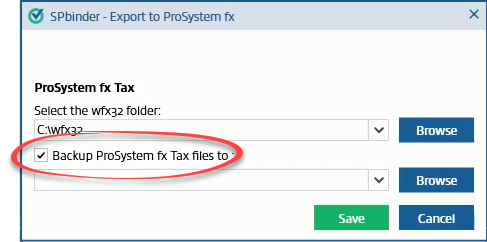
- SelectBrowseand select a location to save the backup. SelectOK.
- SelectSave.
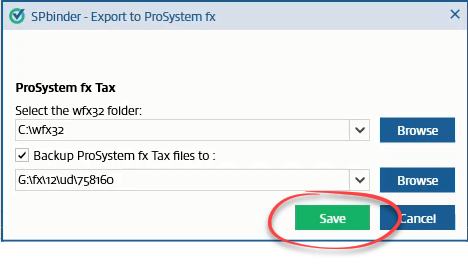
- SelectProceedon the mainExport ProSystem fx Taxwindow.
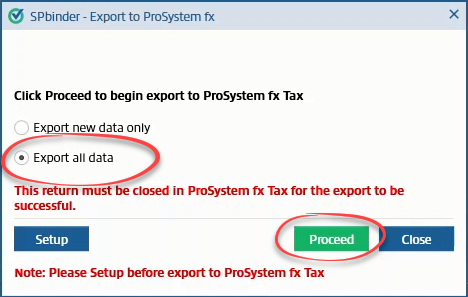
- The export process starts. The Proceed button is turn off while the export processes.

- A message indicating the export was completed successfully appears. SelectClose.
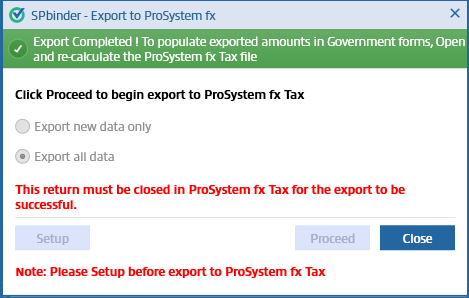
- Open ProSystem fx Tax software and pressCtrl+Rto recalculate and reflect all the exported data in the tax software. Performing a recalculate is a mandatory step to retrieve all the exported data.

Import not completed
- If the export process is not completed successfully a message indicating the export was not completed appears. SelectOKto close the window.
- Data that was not exported from SPbinder to ProSystem fx Tax appears in theProfx Error Logwindow. The details such as the name of the form/field, its entity/sheet/box number in ProSystem, the amount and the reason are provided in the sectionBelow fields not exported due to error(s).
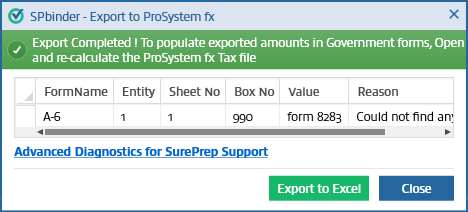 Advanced Diagnostics for SurePrep Supportopens a log of the data that was not exported to ProSystem fx Tax. This will be used by SurePrep support in troubleshooting an issue related to data or form that is not exported to ProSystem fx Tax. The Export to Excel feature lets you export the data of this error log and save it at your end for reference or to provide it to support staff for resolving issues.
 - After Exporting data into the tax software, if the user tries to export again without entering any new data in the binder, the following window appears:View the Import/Export issues in ProSystem fx Tax.


