
Create a binder in ProSystem fx Tax (Tax year 2022 and earlier only)
note
Starting from the 2023 tax year, SurePrep no longer supports integration with ProSystem fx Tax
. In FileRoom and TaxCaddy, you won’t be able to create ProSystem fx Tax clients, binders, or DRLs from 2023 tax year onwards. SurePrep will continue supporting the 2022 tax year and prior years. When submitting binders in FileRoom, you'll need to upload the client's most recent tax application file details. You can upload binders as in-house or outsource services based on the tax application configured by your firm. If you've selected an
Other
tax application template, you don't have to attach the tax files.note
- If you are using1040SCANverify Onshoreor1040SCANverify Offshoreservices then follow the instructions listed under theIn-housesection.
- SurePrep Outsource service is not available for ProSystem fx Tax. Contact your SurePrep representative for more information.
In-house binders
- Confirm that home state, SSN, and filing status are all entered in the ProSystem fx Tax file.
- Calculate and save the ProSystem fx Tax file.
- In FileRoom, point to theCreate New Bindercaret icon.

- Point to1040.

- Select from the following services:
- 1040 SCAN PRO
- 1040SCAN ORGANIZE
- SPbinder
- * 1040SCANverify Onshore&1040SCANverify Offshore
 *while1040SCANverify Onshore/Offshoreare not In-house services, the same instructions can apply as other In-house services.
 - Open the PBFX file once it downloads completely.

- TheCreate New Binderwizard opens. UnderSelect Binder Template, select the template with the tax year andProSystem fx Taxas the tax application.

- When theSelect ProSystem fx Tax returnpanel appears, theSelect ProSystem fx Tax File Pathfield will display the path set inTax File Activation, thenProSystem fx Tax.View Tax File Activation for ProSystem fx Tax.
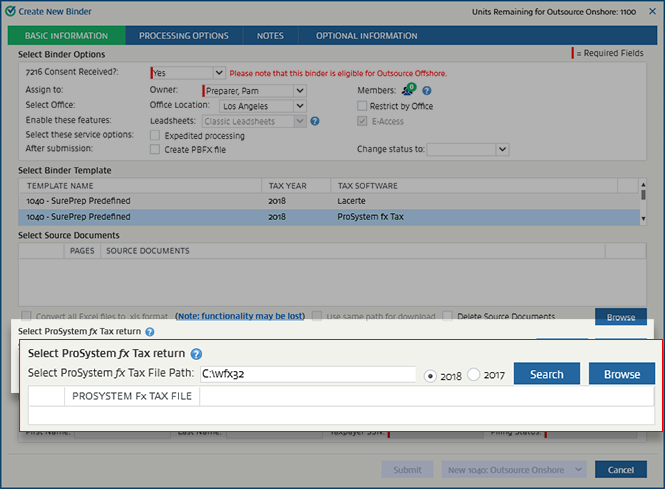
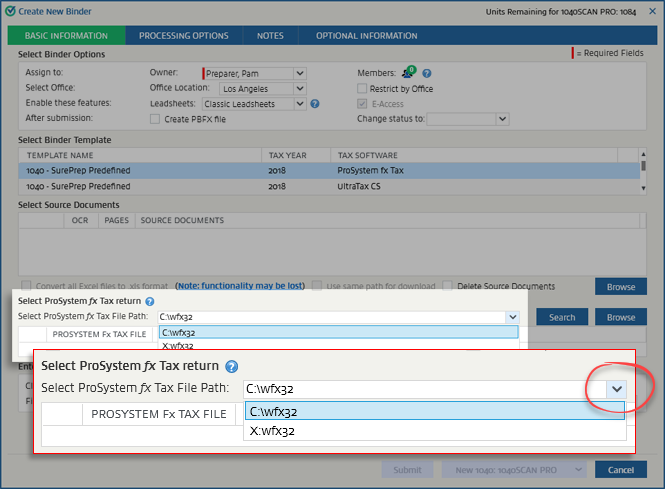
- If you need to change the file path, select the path, then select the path you want to use.note
- The default data path should be located in thewfx32folder (that is, C:\wfx32)
- If more than 1 path exists, the path that was last selected will be remembered, and you won’t be required to reselect it.
- UnderSelect Source Documents, selectBrowse.
 Select your source documents, then selectOpento attach the source documents.
- If the name of the 1st selected source document matches the tax file, then theClient ID,First Name, andLast Namefields are populate based on the data in the tax file.

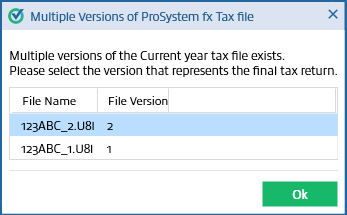
- If the name of the 1st selected source document matches the Client ID and there is only 1 version of the ProSystem fx Tax file, the file will be automatically attached.If the name of the 1st selected source document matches the Client ID and there are multiple versions of the ProSystem fx tax file, theMultiple Versions of ProSystem fx Tax filewindow will open. Select the version, then selectOk.
- Search for ProSystem fx Tax filewindow appears if the name of the 1st documents is not the same as the Client ID. Type theClient IDthen selectSearch.
 If the tax application file exists at the selected folder path, it will be attached automatically. If it doesn’t, you'll receive an error. SelectOKand try again.
- If you're unable to attach the tax file in the ways previously described, you can attach it manually. UnderSelect ProSystem fx Tax return, selectBrowse.
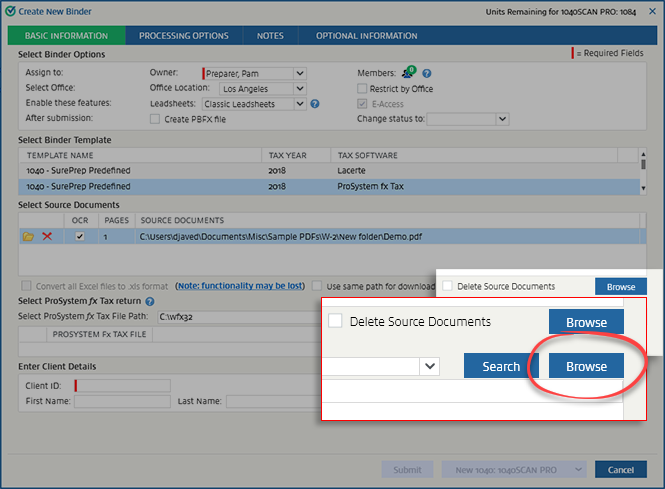 Select the required tax file, then selectOpen.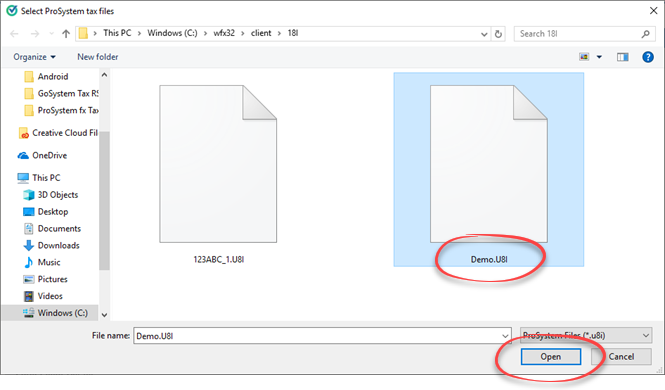
- The last digit indicates the version number (that is, 1, 2, 3)
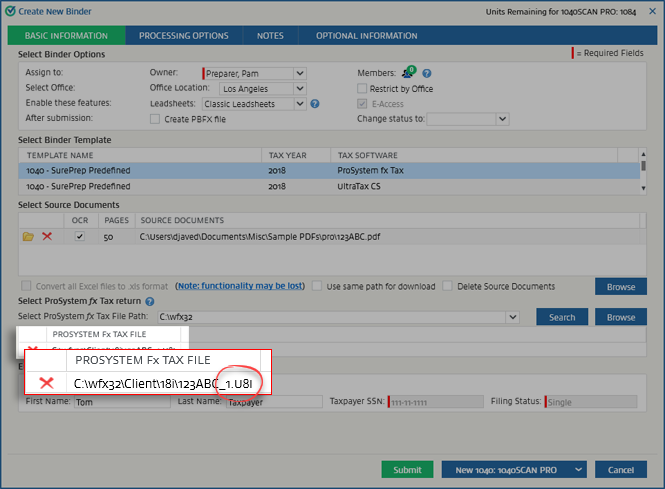 In FileRoom, the version number of the tax file will be reflected next to the Client ID.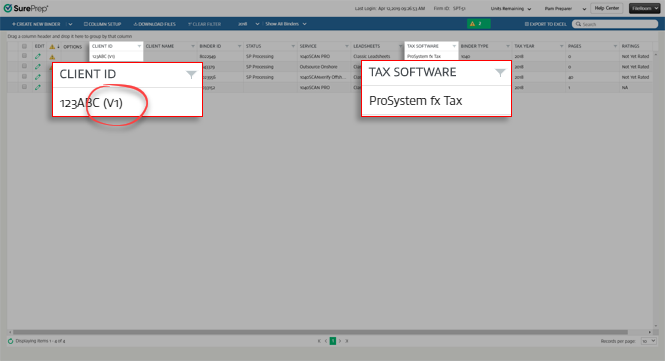
- If the ProSystem fx Tax file isn't calculated before submitting the tax file, you'll see the following error messageFile Data not proper, Please recalculate the return in ProSystem fx Tax. In that case, selectOK. Open the return in ProSystem fx Tax, recalculate it, and try again.noteFill in all the required fields then recalculate again.

- When the tax file is attached, theClient ID,First Name,Last Name,Taxpayer SSN, andFiling Statuswill be populated automatically under theEnter Client Detailssection.

- If you selected the incorrect version or tax file and want to remove it, selectDelete.
 SelectYesin the confirmation.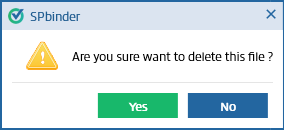
Outsource binders
note
SurePrep Outsource service is not available for ProSystem fx Tax. Please contact your SurePrep representative for more information.

