
Export data to UltraTax CS in Virtual Office CS or SaaS
Once you are done preparing a client's binder, exporting data back to the tax software lets you sync all the captured and updated data back to the tax software. Before you export binder data to the tax software, make sure the tax return that is being exported is currently closed in the tax software.
note
For SurePrep Outsource binders, don't use the
Export to Tax
feature in this article to export the data into the tax software. You must restore the tax return file instead. Follow these steps to export data from SPbinder to UltraTax (Virtual Office CS or SaaS)
- Select theExport to Tax Software
 icon from the SPbinder toolbar. Alternatively, select Binder, point toExportand then selectExport to Tax Software.You can also export to tax software from FileRoom. Point to the
 OPTIONScolumn, then select thePicklisticon
 on that binder. Select Export to Taxfrom the dropdown menu.
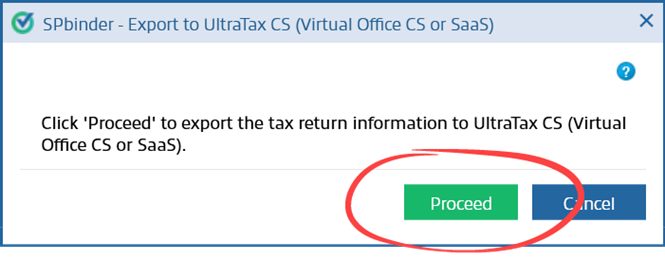
- SelectProceedto export the data to UltraTax CS.
 AnAuthentication Failederror will appear if your firm's API authentication token is missing or if the path has been updated in UltraTax Virtual Office.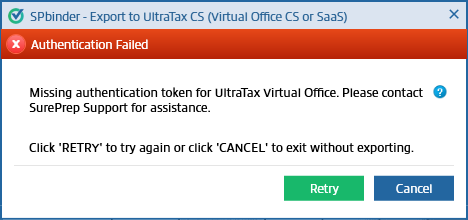
- The export begins. Wait while the export processes.

- A message indicating that the export was completed successfully appears.

- Information exported from SPbinder will automatically update in UltraTax CS (Virtual Office CS or SaaS) when you open the return. Wait 1 minute after you export, then open the client's tax return in UltraTax CS. If the client's tax return is already open, then close and reopen the tax return to complete the import process in the tax software.After you export the data to UltraTax CS, you will not be able to add additional documents until you open the tax return in UltraTax CS.
Setup
By default, SPbinder exports data to the location that was selected when the binder was created. However, you may notice an error if the tax file was moved to another location after the binder was created. If you moved the client's tax file to another location or firm ID in UltraTax (Virtual Office CS or SaaS), select
Setup
, then select the new Firm ID
and Data Location
.

Export issues and solutions
Data not matching in UltraTax after subsequent export
Issue: If you delete data that was already exported to UltraTax, subsequent exports will not sync in the correct order (duplicated data may appear, or certain information may not appear as deleted in UltraTax).
Solution:
To delete non-proforma data:
- Delete the data from the binder.
- Next, manually delete the data from UltraTax.
To delete a proforma data:
- On theFORMStab, select theAdd
 icon, then place a reference on a page.
 - Select theDelete
 icon to remove the reference from the row (that is, field group).
 - Export the data.
- Then delete the row from theFORMStab and then delete the same data from UltraTax.
No new data has been identified for export
After exporting data into the tax software, if the user tries to export again without entering any new data in the binder, the following window appears:
note
Any data entered in your UltraTax CS file after uploading the return in SPbinder will be overridden on completion of the Export process. UltraTax CS Import\Export features would be compatible with UltraTax CS Version 14.3.0.
Once the export process is complete, the user will have to restore the
.ENCR
file from the selected path (i.e. J:\Ultra Exported Files).- Open UltraTax CS. Go toFilemenu and selectRestore.
- TheRestorewindow appears.
- Select theClient XMLoption from the dropdown.
- In the left-hand window pane, select the client you want to restore, then select theSelectbutton.
- The client will be moved to the right-hand window pane. Select theRestorebutton.
- You can now check the exported data in the UltraTax CS (Virtual Office CS or SaaS).noteIn case you have checked out the UltraTax CS (Virtual Office CS or SaaS) file, then the tax file must be restored back into UltraTax to clear the checkout before the XML data can be restored. Otherwise, you’ll receive a message similar to this:
UltraTax CS organizer pages for depreciation will bookmark only
The Organizer Pages for 'Depreciation – Asset List' and 'Depreciation – Asset Acquisitions' will only be bookmarked. There will be no transfer of data between SPbinder and UltraTax for the asset details reported on such Organizer Pages.
Settings to view data exported from Organizer Pages (8829, Auto, Sale, 8824, 4684B)
Requirement of settings in UltraTax CS to view data exported from Organizer Pages of 8829, Auto, Sale, 8824, 4684B
The data from the Organizer Pages of 8829, Auto, Sale, 8824, 4684B that is exported from SPbinder into UltraTax can be viewed in UltraTax CS only if a certain setting is turned off.
Follow these steps to turn this feature off:
- In theClient Properties, go toAdvanced Properties.
- Select the tabEnter Asset Detail.
- If the fieldEnter asset detail informationis checked, you won’t be able to view the forms 8829, Auto, Sale, 8824, 4684B in UltraTax CS.
- Uncheck this option.
- This displays the forms 8829, Auto, Sale, 8824, 4684B.
- You can then view the data exported from SPbinder in these forms.
Exported SurePrep Data Delays in UltraTax (Applicable for the latest version of UltraTax)
If you are experiencing delays in SurePrep data exporting to UltraTax CS, please confirm you are on the latest version of UltraTax CS. Once confirmed:
- Open UltraTax.
- Navigate toHelp>Repair.
- Select theClientstab.
- Choose the appropriate client and selectRequest SurePrep datato manually initiate retrieval.
Exported data taking longer than expected time to appear (2024 tax year)
Some firms using UltraTax CS (Virtual Office or SaaS) may have multiple office locations assigned in the tax software. If you're experiencing delays exporting data from SPbinder to UltraTax CS (Virtual Office or SaaS), then you may need to disable SurePrep Integration and re-enable it again.
Follow these troubleshooting steps if you're experiencing delays in getting the information to appear in UltraTrax CS (VO/SaaS)
- Go toSetup,System Configuration, thenSurePrep APItab.
- Clear theEnable SurePrep Integrationcheckbox > selectOK.
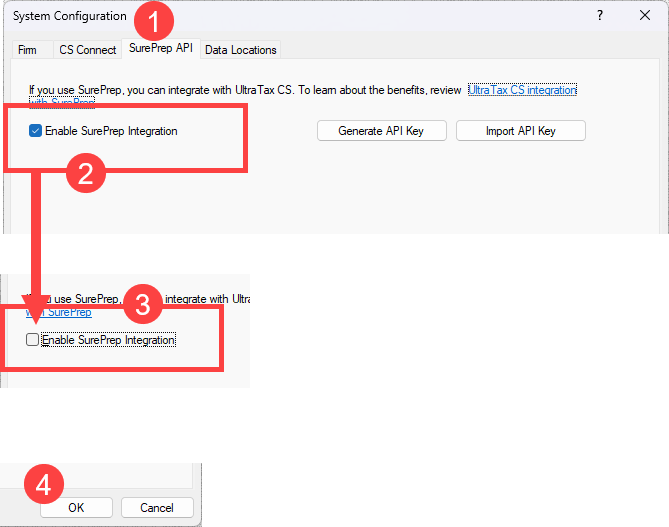
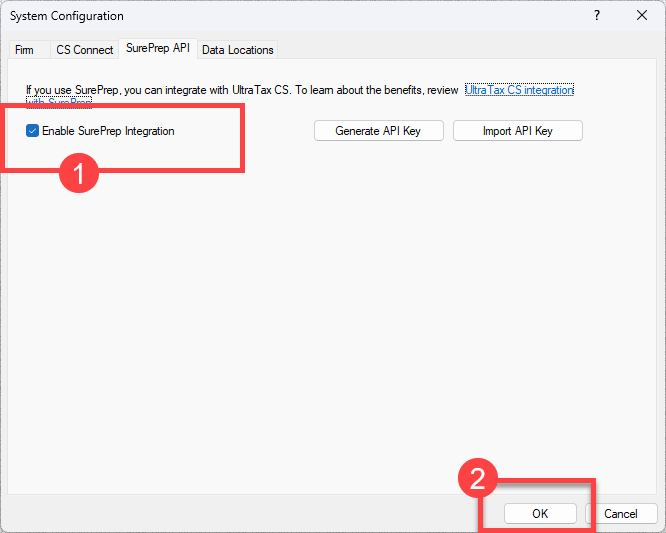
- Open theSystem Configurationwindow again, reselect theEnable SurePrep Integrationcheckbox to enable SurePrep Integration again, then selectOK.
- On the taskbar, double-click the red plug icon to open theCS Connect Background Serviceswindow.You should now see which computer is currently selected as the designated agent for downloading updated information.
 CS Connect Background Serviceswindow lets you check if the downloads resumed from the designated user's workstation. Use this link to learn more about which user is assigned the Virtual Office CS portal ID.
- Wait 1 minute then open the tax return to check if the exported information is now available.

