UltraTax CS (Virtual Office CS or SaaS) Folder Setup - (only for tax year 2021 and earlier)
note
This article only applies to tax years 2021 and prior years. Starting with the 2022 tax year, you no longer need to complete this setup.
You can define the default location for UltraTax CS and UltraTax CS (Virtual Office CS or SaaS).
Follow these steps to define the default location:
Go to 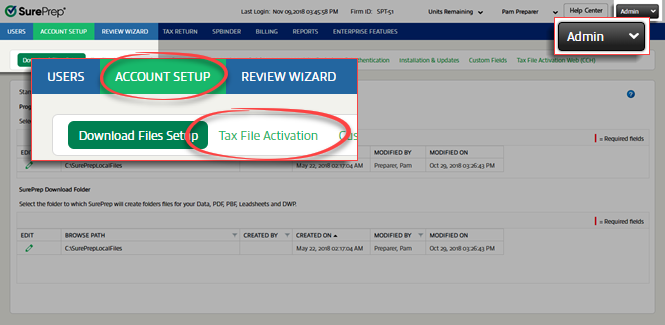
FileRoom
, Admin
, Account Setup
, then Tax File Activation
.Open the PBFX file once it completes downloading.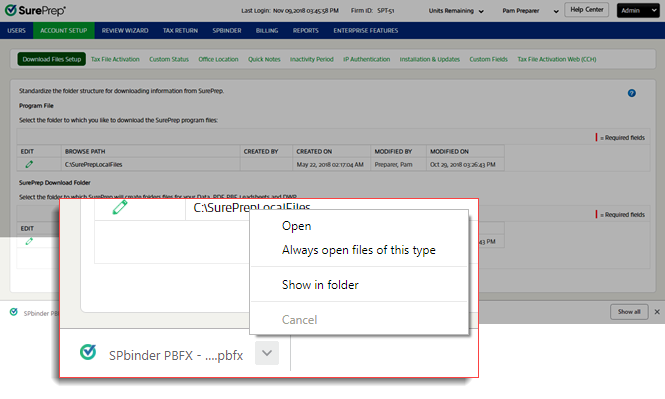
When the
Tax File Activation
window appears, select the UltraTax CS
tab.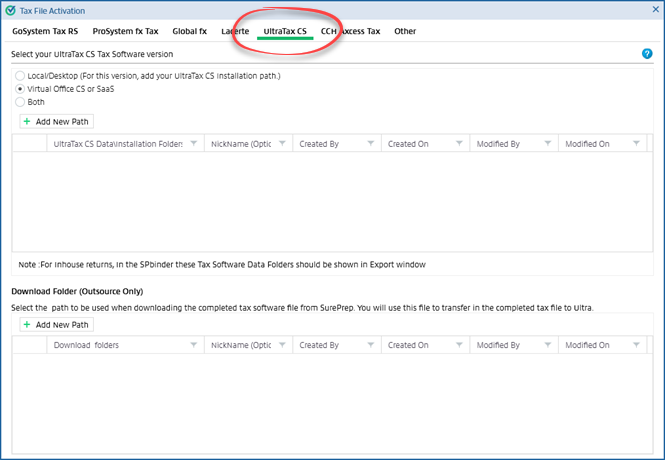
There are three options to select UltraTax CS tax software:
- UltraTax CS (Local/Desktop)
- UltraTax CS (Virtual Office CS or SaaS)
- Both
According to the option selected here, the template will be displayed in the
Create New Binder
window.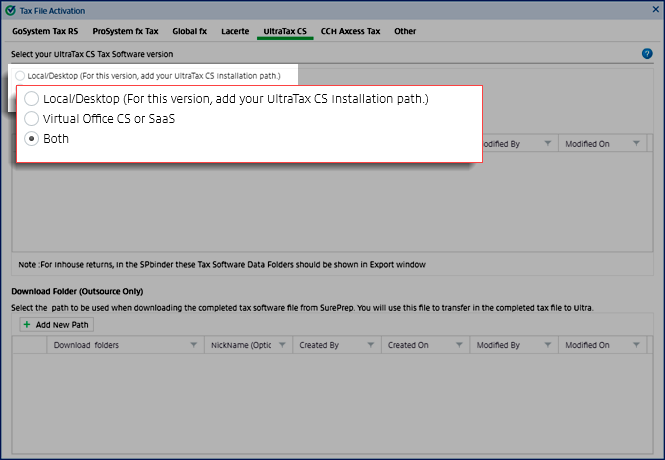
Select
Add New Path
to set up a new account. A blank row will appear.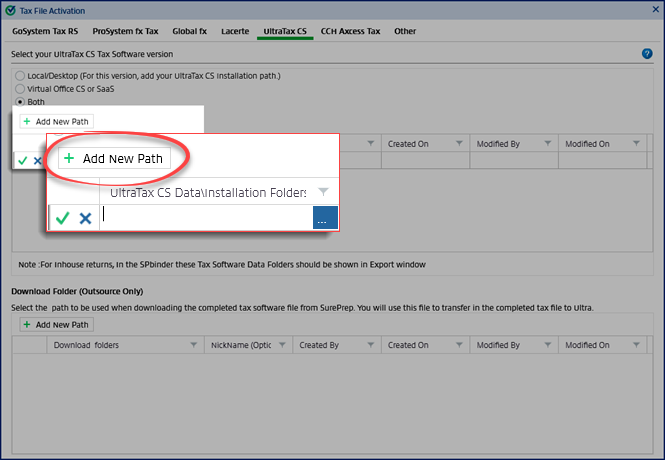
On the
UltraTax CS Data\Installation Folders
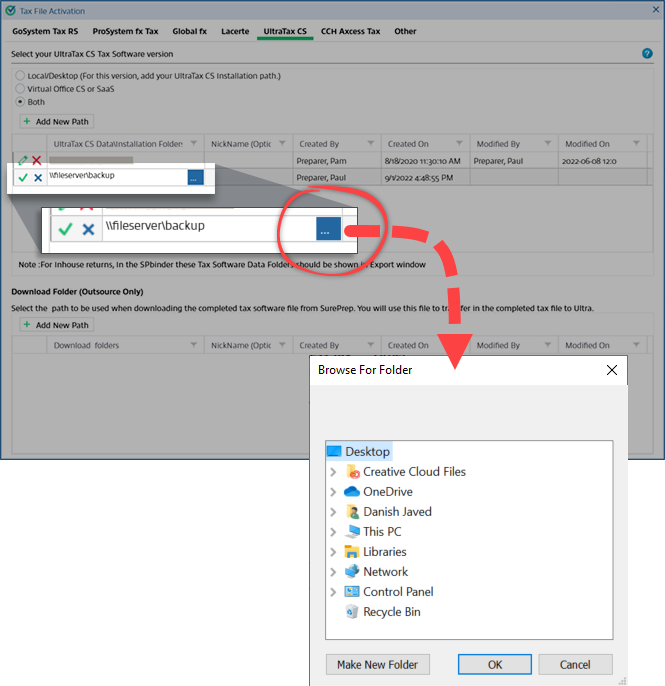
field, go to the network or local path where the UltraTax CS file is located.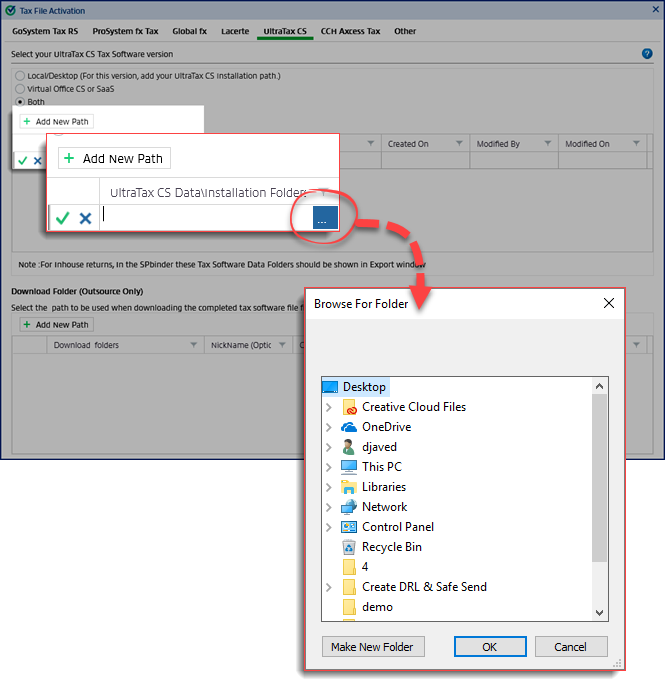
UltraTax CS:
View instructions on what UltraTax CS installation folder path needs to be selected. Backup
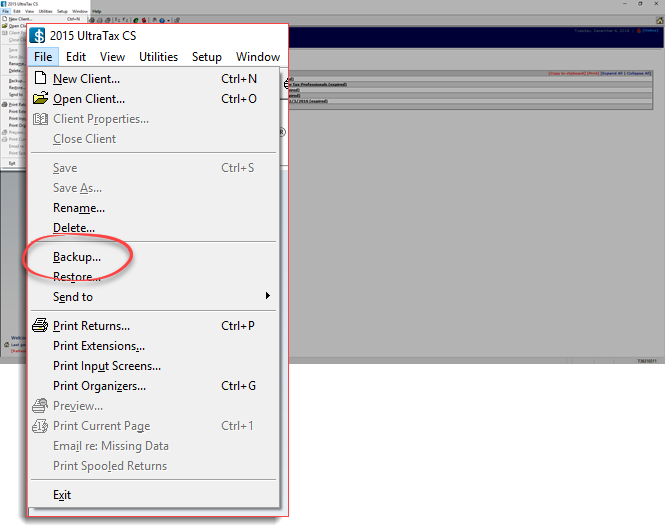
Before uploading a binder in FileRoom, you need to make a backup of UltraTax CS (Virtual Office CS or SaaS) files.
From UltraTax CS go to the
File
menu, then select Backup
.
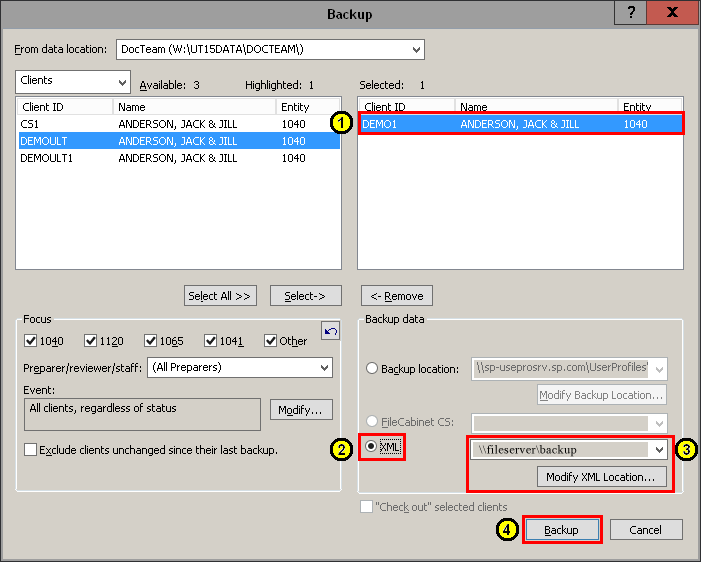
- When the Backup window appears, select theclientyou want to back up.
- From theBackup datasection, select theXMLradio button.
- Select theModify XML Locationbutton to change the file path to save the file. You can select any desired path on the network to save the file (for example, \\fileserver\backup\). To successfully backup, the network path must be accessible to all users.
- SelectBackup.Note:The Check out selected clients" option will be unavailable while making a backup of the XML.
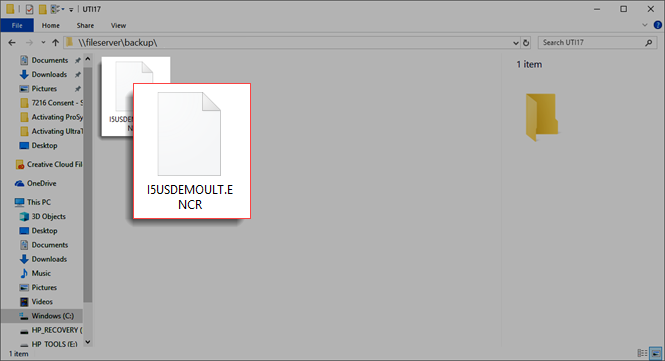
View the backup files at the specified location.
Go to the path as mentioned in the previous links and select
OK
.
note
Data Path should be located in the UltraTax CS installed folder on your network (for example, \\fileserver\backup\) or local path (for example, L:\WINCSI\UT20\). The last two digits of the path indicate the installed tax year.
Tip: You can also provide a nickname if needed.
It is necessary that the location specified for backup be set up in the
Tax File Activation
window, then UltraTax CS
tab for UltraTax CS (Virtual Office CS or SaaS) to attach the tax file automatically in the SurePrep 'Create New Job' window.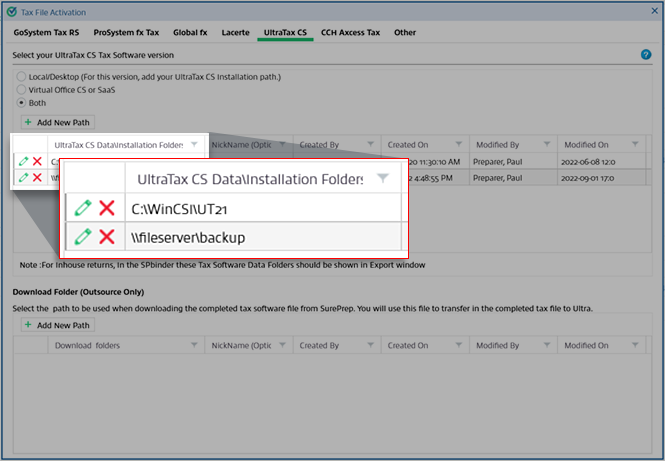
Select the  icon to save the details or select the
  icon to close without saving any changes.
Save
icon to save the details or select the Cancel
icon to close without saving any changes.The
Created By
, Created On
, Modified By
and Modified On
fields will be auto-populated with the User Name and the system date and time.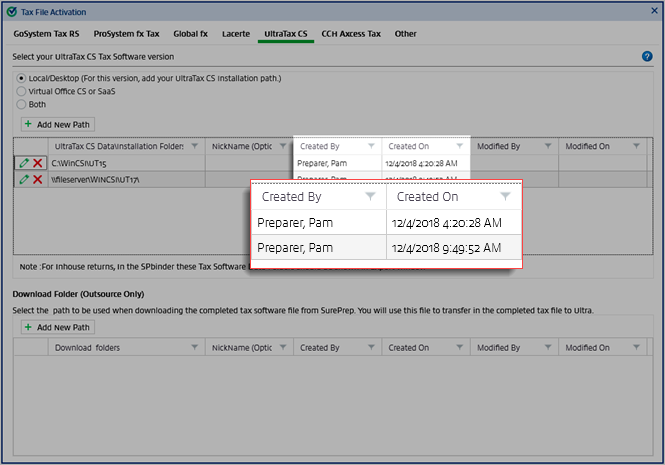
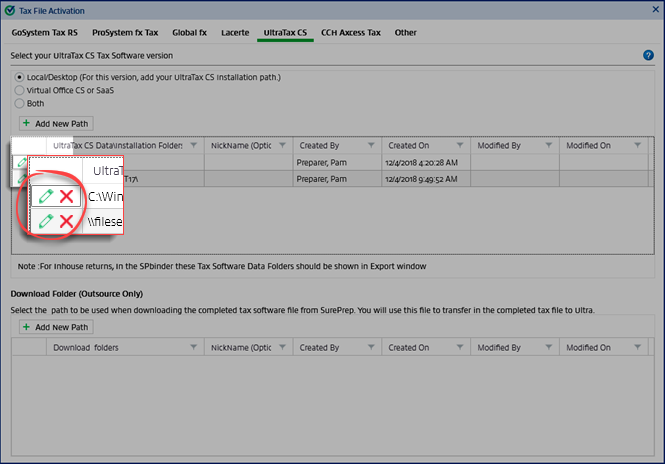
To edit the path after it is added, select the  icon. To delete the path, select the
  icon to delete the path.
Edit
icon. To delete the path, select the Delete
icon to delete the path.