Get started with Additive-SurePrep integration

Additive AI is an advanced document processing solution that uses generative AI to automate complex Schedule K-1 workflows. It is designed specifically for firms that deal with a number of Federal and State K-1, K-3, and supplemental forms. Additive transforms PDF tax documents into structured Excel data that can be sent to the binder with high accuracy. It will also give you extracted footnotes, foreign income, state allocations, and supplemental forms.
Key capabilities:
  • High accuracy:
    Reliably extracts income details and footnotes, even those with complex formatting.
  • Comprehensive extraction:
    Captures data from K-1s, K-3s, State K-1s, and supplemental forms that are supported by SurePrep document coverage.
  • Time savings:
    Eliminates hours of manual data entry per return
  • Structured output:
    Generates organized Excel workpapers and annotated PDFs for easy review and reconciliation

Step 1: Configure SurePrep API Credentials (Admin Only)

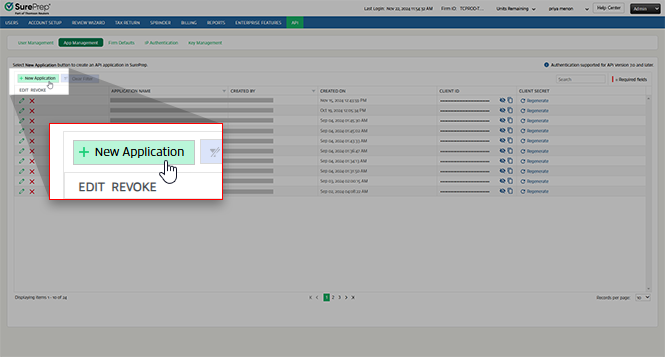
  1. Go to SurePrep FileRoom,
    Admin
    ,
    API
    .
  2. Select the
    App Management
    tab, then select the
    New Application
    button.
    Select New Application.
  3. Enter an application name (for example, "Additive Integration")
  4. Select the
    Save
    icon (the green checkbox)
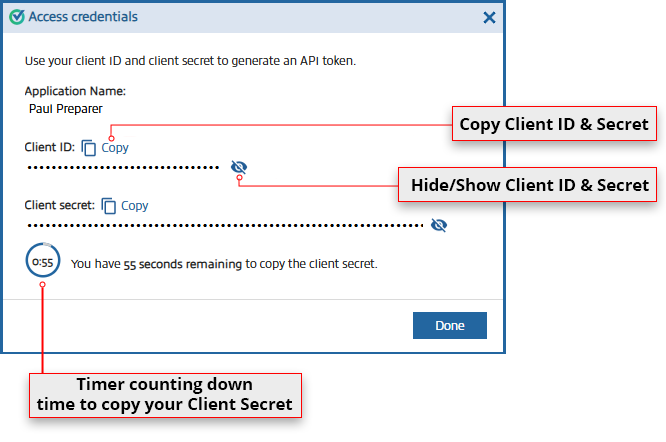
  5. A dialog box will display your Client ID and Client Secret. Copy both and securely store these credentials (they are shown only once).
    Diagram of the Access credentials window containing Client ID, Client secret, and a timer.

Step 2: Connect Additive to SurePrep (Admin Only)

  1. This step must be completed by an Additive organization administrator.
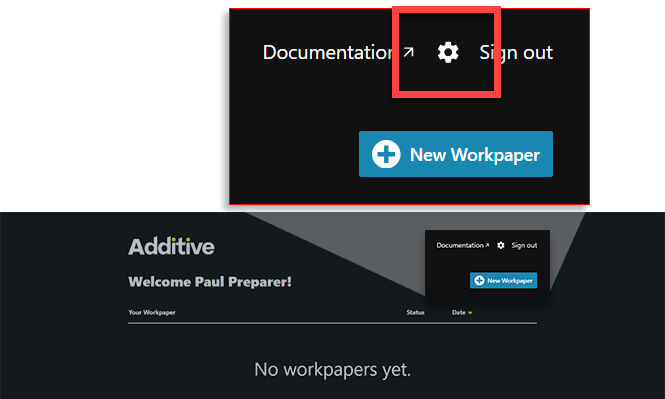
  2. Sign in to Additive Settings. You can also select the
    Settings
    icon in the upper corner of the screen.
     icon on the top section takes you to the Settings page
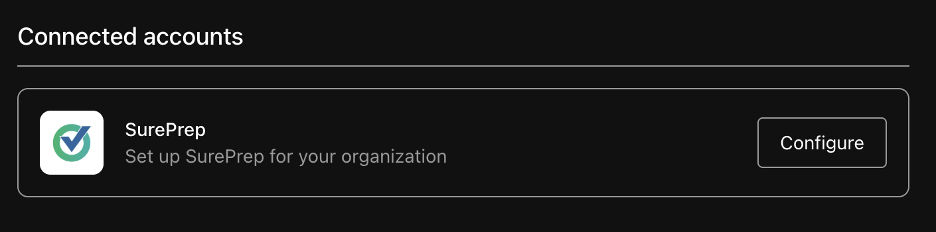
  3. Select
    Configure
    next to SurePrep under
    Connected Accounts
    .
    Button says Configure
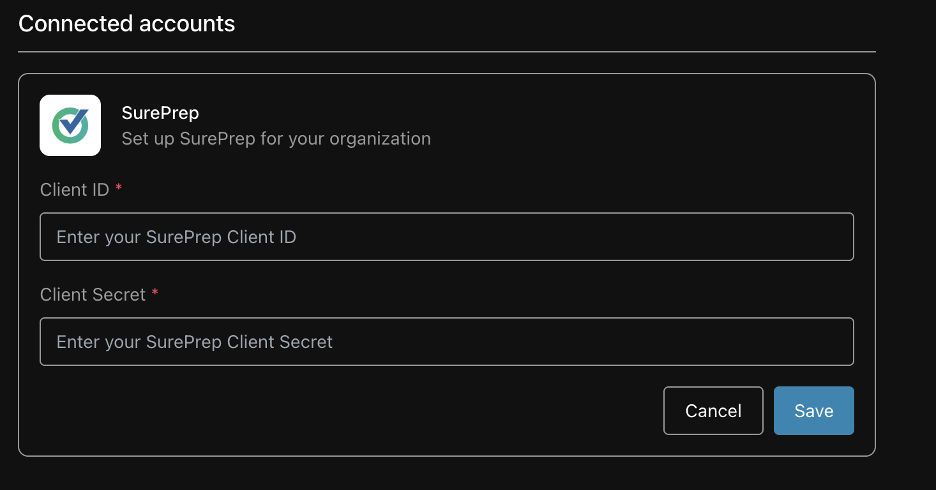
  4. Enter the SurePrep
    Client ID
    and
    Client Secret
    you copied earlier.
    Two form fields, Client ID and Client Secret
  5. Select
    Save
    .
  6. (Optional) Select
    Add Another Domain
    to configure additional SurePrep domains.
Your Additive account is now connected with SurePrep

Step 3: Install the Additive Excel Add-In

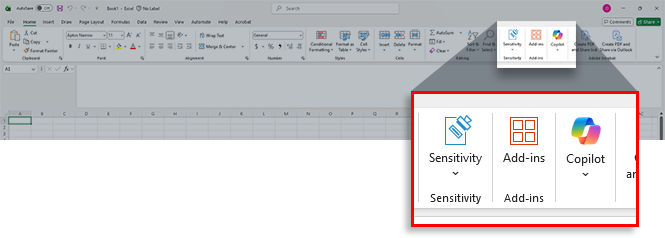
  1. Open Microsoft Excel, then select
    Add-ins
    on the
    Home
    tab.
    Internal only
    Excel Add-ins button on homepage
    If you do not see the
    Add-in
    button on the toolbar, right-click the toolbar, then select
    Customize the Ribbon
    , select the
    Developer
    checkbox to add it to your toolbar. Then you can select
    Add-ins
    through the Developer toolbar
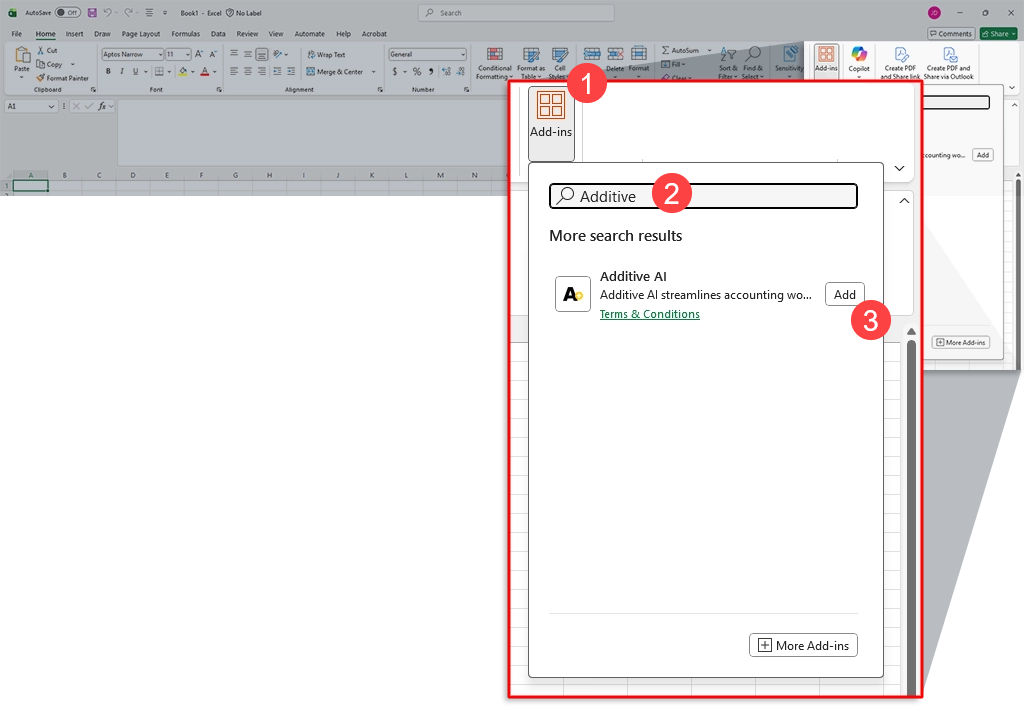
  2. Search for "Additive" in the Microsoft Store, select
    Add
    to install the Additive AI add-in
    Internal only
    Search for Additive AI, then select Add
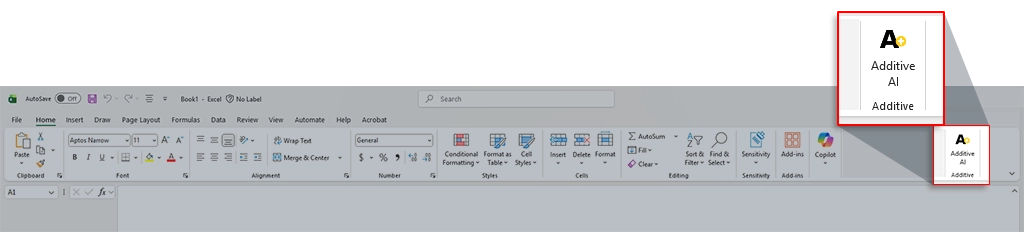
    A new Additive icon will appear in your Excel toolbar
    Additive add-in icon
    If you cannot install the Additive Excel Add-in, check whether your organization allows Office add-in installation.
You are now fully set up to transfer Schedule K-1 data from Additive to SurePrep binders.
Requirements
Specification
Details
API
Must be enabled at Account Admin, Account Setup, and enable API.
Tax Year
2024 tax year onwards
Services
Additive account and service purchased
SurePrep: Any of the following SurePrep services
  • 1040SCANverify
  • 1040SCAN PRO
  • Outsource
Leadsheet
  • None (Without Leadsheets)
  • Classic Leadsheets binders
  • Simplified Leadsheets binders
Binder Type
  • 1040 binder type
Tax application
  • GoSystem Tax RS
  • CCH Axcess Tax
  • UltraTax CS (TY 2025 only)
Applications
  • Microsoft Excel with the ability to install add-ins (specifically Additive)
  • Install SPbinder

error-icon

Triva isn't available right now.

Check out the support page for our phone number and hours

error-close