
TaxCaddy and SafeSend returns integration
The following article and video showcase the TaxCaddy & SafeSend Returns integration including a one-time setup, sending tax returns, and the taxpayer experience.
Integrate TaxCaddy with SafeSend returns
You can use SafeSend Returns (SSR) to send your client's tax return for review and e-file authorization for signature. Once everything is reviewed and signed the documents can be automatically stored in TaxCaddy.
- SelectAdministrative, thenADMIN SETTINGS.
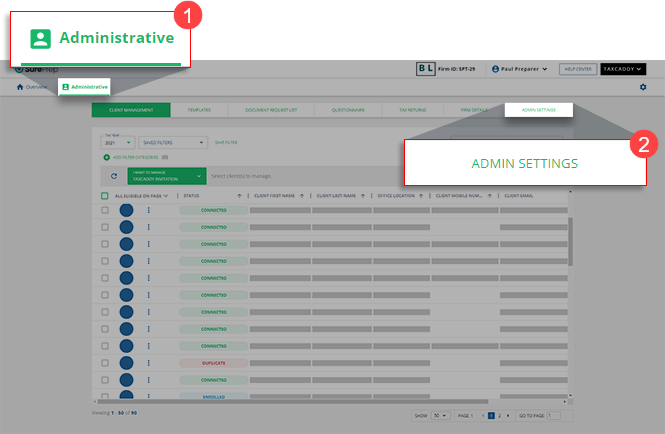 noteYou'll need to have Access to TaxCaddy Admin permissions (withAll Tabsselected) to open theAdmin Settingstab.
 - On theAPItab, selectCopyto copy the API key to your clipboard.
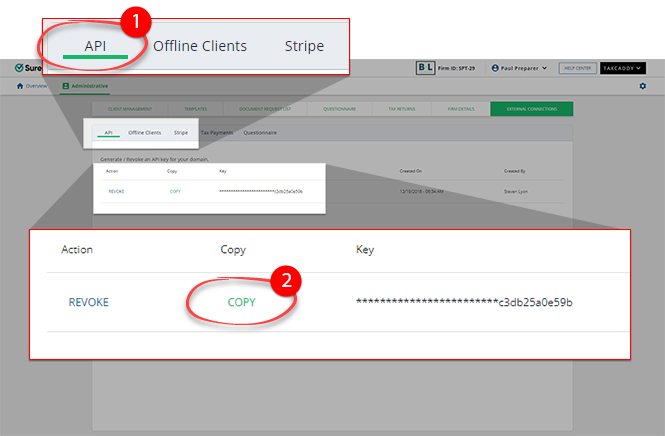 If you don’t have an API Key, then selectGenerateto create one. Once the API Key is generated, selectCopy.
- Log in to SafeSend Returns.
- SelectSettings
 , then General.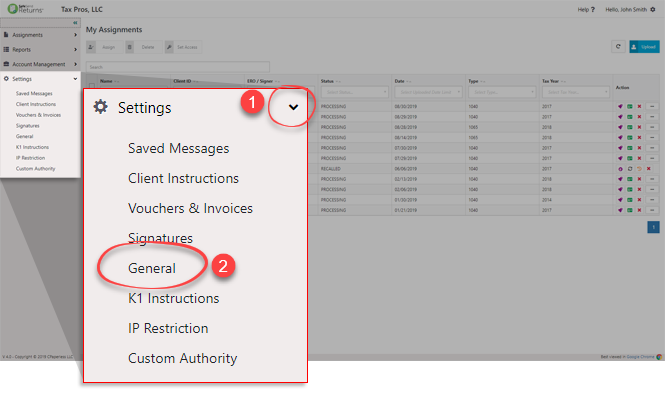
- Enable theTaxCaddyintegration option toON, then select theSettings icon.
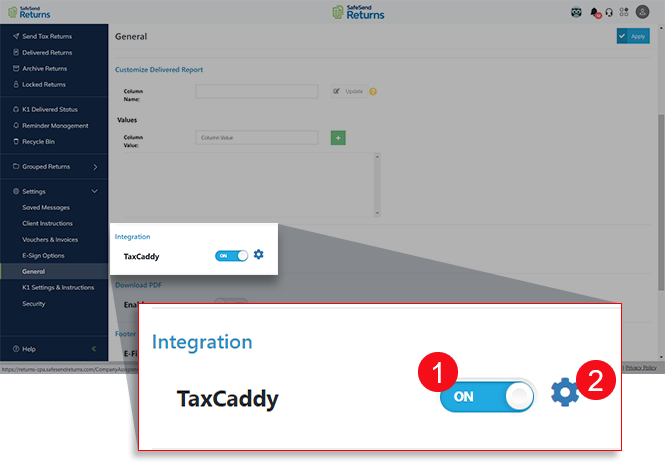
- In the TaxCaddy Reporting Channel Settings window, underFirm Keyspaste the API key you copied earlier from TaxCaddy (see step 3). SelectCtrl+VthenEnter.noteIf your firm has multiple TaxCaddy domains, you can add each domain's API key separately.
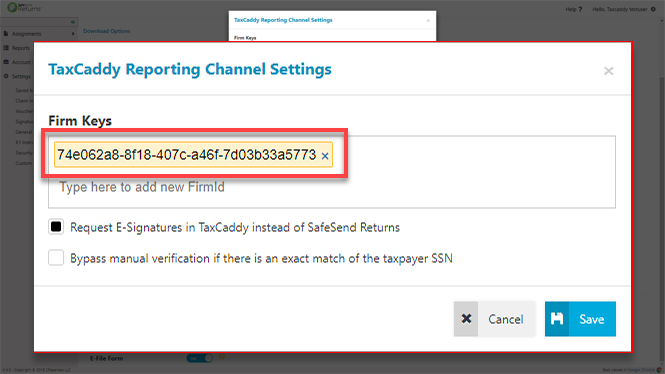 If you want to streamline the entire eSign process directly through TaxCaddy, selectRequest E-Signatures in TaxCaddy instead of SafeSend Returns. If this option is enabled, your clients can eSign documents directly from a single platform via TaxCaddy.noteTaxCaddy will charge a Deliver unit once for the selected tax year/tax return if a client is sent a request to sign with Knowledge-Based Authentication in TaxCaddy (that is, e-file Authorization).If you want to delete an API key, selectXat the end of the API key to delete it, then selectSave.
 - Once the API key is saved, selectSave.
- SelectApplyto save your settings.
- SelectSend Tax Returns.
- Select the initials for the tax return you want to upload.
- When theUpload Documentwindow appears, drag the tax document to the upload section.
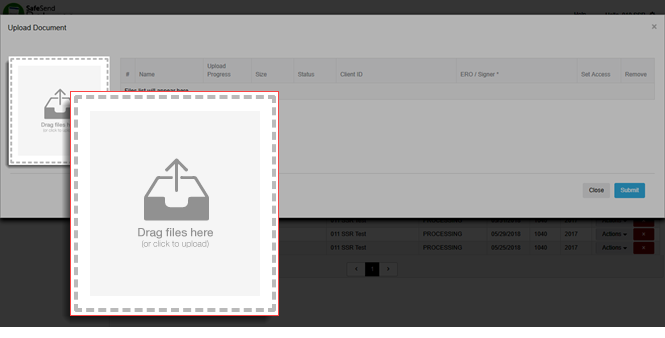 You can also select the upload section to select the file from theOpenwindow.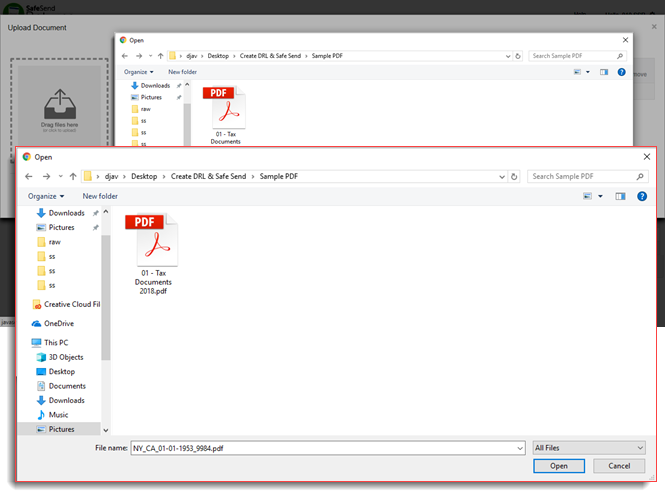
- SelectAdministrative, thenClient Management. Search for the client and copy the Client ID.
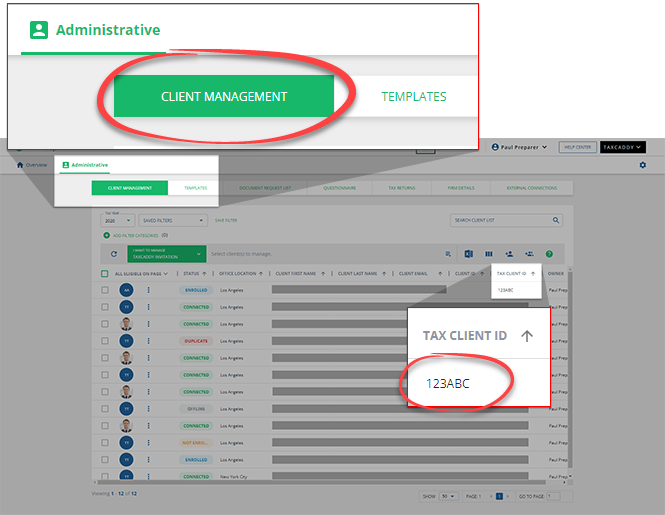
- In SafeSend Returns, when theStatuscolumn updates toUploadedstatus, enter the (Tax)Client IDandERO/Signer, then selectSubmit.noteERO/Signercan be the Owner assigned to this client andClient IDis theTax Client IDcopied fromTaxCaddy>Administrative>Client Management.
- Once the tax document uploads successfully, selectOK.
- The tax document may take a few minutes to process, once the tax documentStatuschanges toREADY, select theProcess Returnsicon
 under the Actioncolumn.noteYou can also double-click to open the tax document.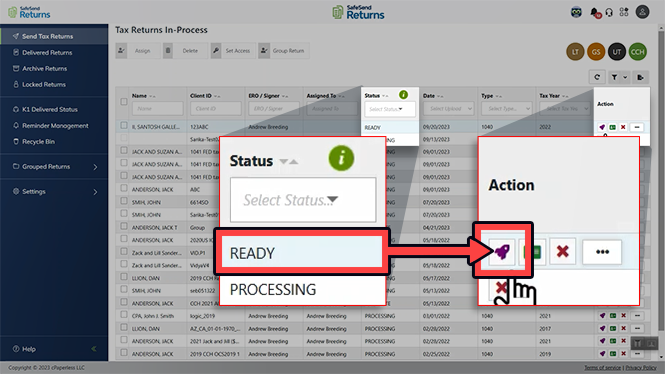
- Once the tax document loads, on theClient Infotab, verify the following fields. SafeSend Returns will let you to match clients if any of the following fields match with TaxCaddy:
- SSN- Primary method used to identify the client. SSN is on client record after the Document Request List (DRL) is created in TaxCaddy.noteThe Client's SSN won’t be generated or available for match if the DRL is not created.
- Client ID- Used to Identify the client if the SSN doesn’t match.
- NameandEmail- Used to identify the client if SSN and Client ID don’t match.noteDon’t use an email address with a+(plus sign) in it.
- Tax Year
noteDOB (Date of Birth) and email address have to be entered manually.
- Select theDelivery Optionstab.

- Scroll down toSignature Options, ifE-Signis not selected, then select theE-Signoption.
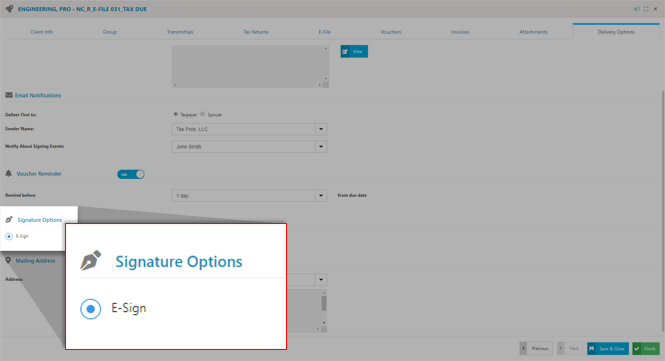
- Select theClient Infotab, thenFinish.

- SelectDeliver with TaxCaddy.
- You will see a side-by-side comparison when a possible match is found.SelectAcceptif a match is found in TaxCaddy then selectSendto send documents to the client's profile.SelectRejectif a match hasn’t been found in TaxCaddy then selectSend.A match won’t be found if (1) the taxpayer hasn’t yet connected with the firm in TaxCaddy or (2) your firm hasn’t created a DRL for the client.
- The tax return Status will update toDELIVERED.If you didn’t selectE-Signatures through TaxCaddy, then SafeSend Returns will send an email with the subject linePlease review your tax return and sign your e-file forms to the taxpayer.
- SelectDelivered Returns. The Status will update toAwaiting E-Sign,E-SignedorUploaded.The tax return will be delivered to the client's profile in TaxCaddy.If your client or their spouse signed the document outside of SafeSend Returns, then you can manually change the Status toManually Signed. To change the status manually, select the client checkbox, then selectChange Status.
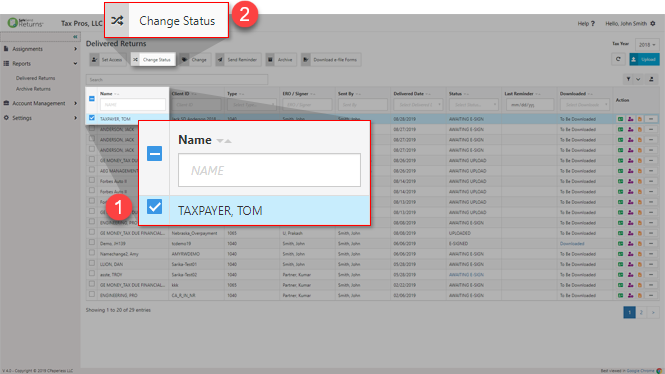 On theChange Statuswindow, change the Status toManually Signed, then selectSave.
If you selected
Request E-Signatures in TaxCaddy instead of SafeSend Returns
, then your client will e-sign the document directly in TaxCaddy.If you didn’t select
Request E-Signatures in TaxCaddy instead of SafeSend Returns
, then your client will receive an email directing them to SafeSend Returns where they will complete the signature request.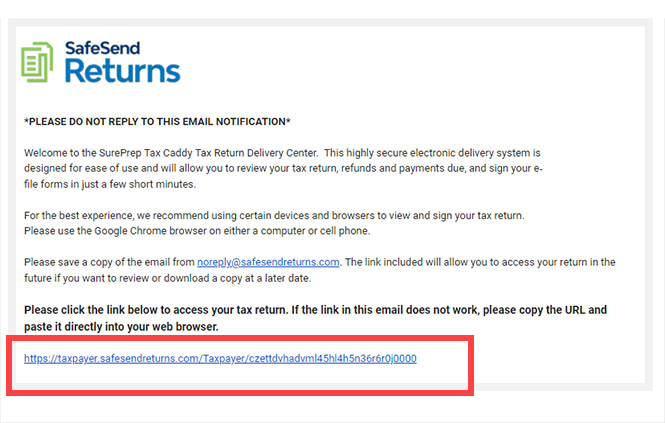
note
- You'll need to be in theCONNECTEDstatus in Client Mangement.
- SSN will only be available to match if the DRL was created for the client.
Resend reminder
If your client hasn’t received an email with the subject line
Please review your tax return and sign your e-file forms
then follow these steps to resend the reminder:- SelectDelivered Tax Returns.
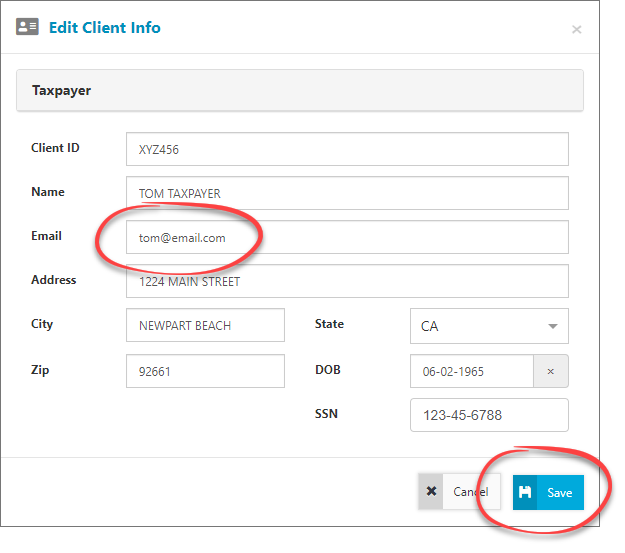
- To verify the client's email address, select theEdit Client Info
 icon.
icon. - When theEdit Client Infowindow appears, verify the email address, then selectSave.noteDon’t use an email address with a+(plus sign) in it.
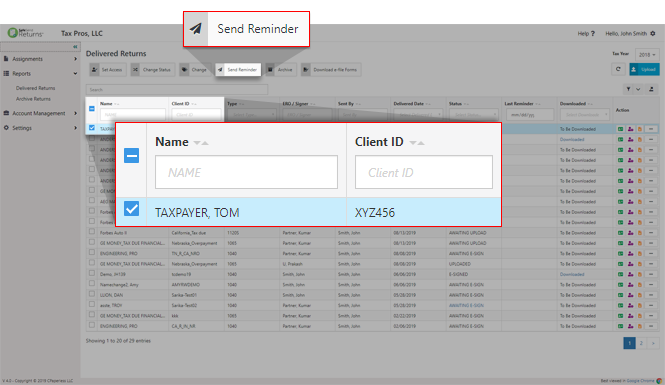
- Select your client, then selectSend Reminderto resend the email.
Recalling tax return
If you need to recall a tax return that has already been delivered, go to the client's profile in TaxCaddy then delete the desired e-file, tax payments, and tax returns.
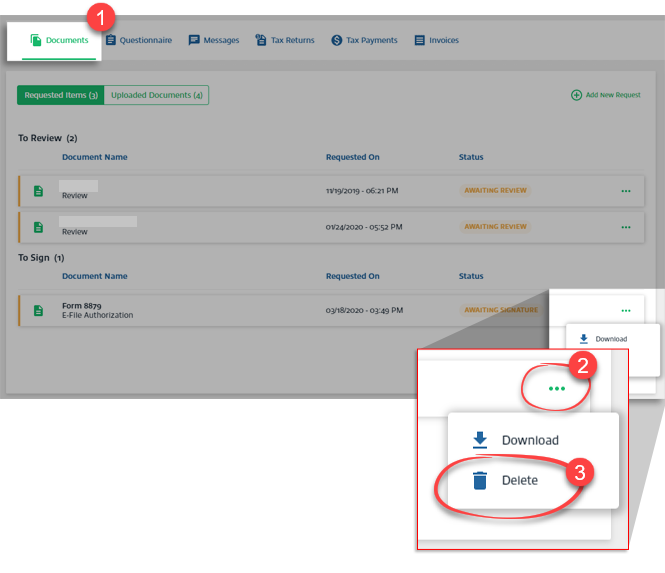
To delete the e-file, go to  then select
Documents
, select the Menu
icon then select Delete
.
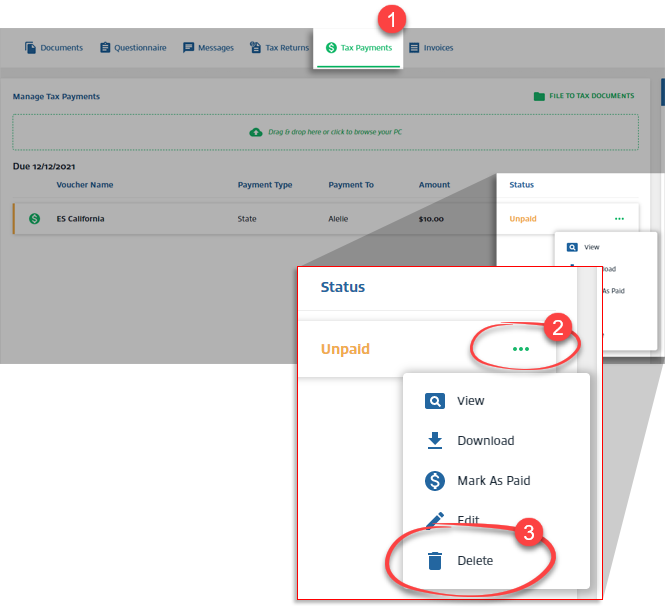
To delete a tax payment voucher, go to icon then select
Tax Payments
, select the Menu
icon then select Delete
.
To delete a tax return, go to icon then select
Tax Return
, select the Menu
icon then select Delete
.
You can safely delete the obsolete delivered tax return record in SafeSend Return.

