
Get started with the SurePrep API
Before interested users can integrate SurePrep and TaxCaddy APIs into their workflows, configure your firm to use our APIs.
Enable your domain
Follow these steps to enable the SurePrep API for your domain:
- Go to https://production.sureprep.com and sign in as aFirm System Administratoruser.
- SelectAdminfrom the dropdown menu.
- SelectAccount Setup, thenEnable API.
- Mark theEnable API accesscheckbox to enable API access for your firm. Refresh the page to display the API navigation tab.
note
If your firm plans to use TaxCaddy API calls, contact SurePrep Support at SurePrep.Support@thomsonreuters.com to enable the TaxCaddy API for your domain.
Account Admin setup
With proper authorization and FileRoom setup, your application can securely communicate with the SurePrep API. Depending on the version your firm is implementing, your Account Admin setup process will include creating the necessary records for API usage.
Version 7 users
When using Version 7 of SurePrep and TaxCaddy APIs, the next step after enabling APIs for your firm is to add a
New Application
for each user. This generates a unique Client ID
and Client Secret
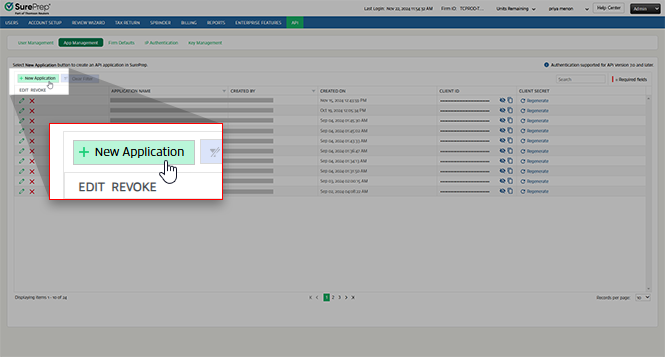
for each application.- Once you've enabled the API for your firm, go to theApp Managementtab at .
- SelectNew Application.
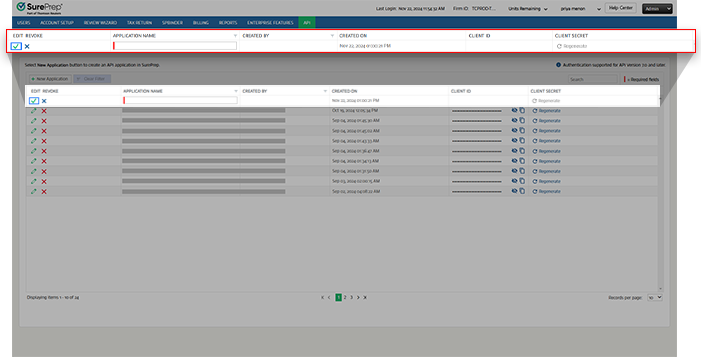
- Enter a name for theNew Application.
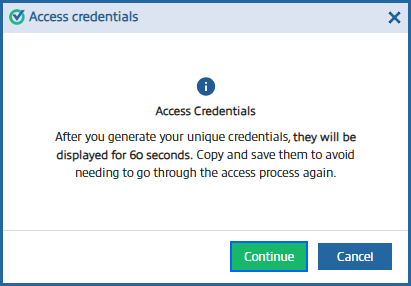
- TheAccess credentialswindow will appear asking you to confirm the creation of your new application. SelectContinueto create your application, otherwise, selectCancelto return to theApp Managementscreen.
- You have 60 seconds to copy your newly generatedClient IDandClient Secret. After this time elapses, you will need to return to theApp Managementscreen.noteYou can use theCopyfeature to copy each of these values to your clipboard. If you'd like to review these values, selectShow/Hide
 to reveal them.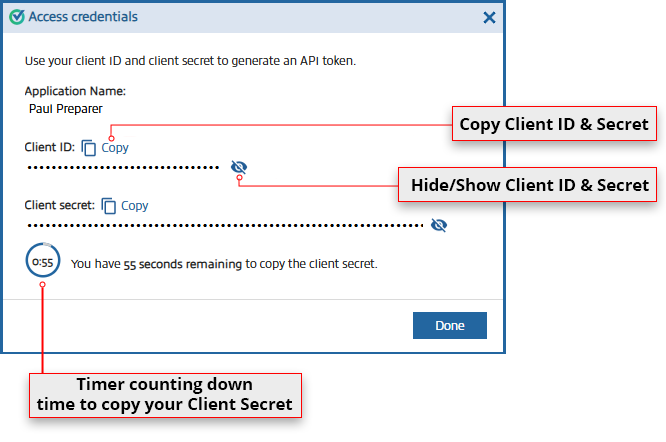
- If your 60 seconds elapse before you're able to copy yourClient Secret, you canRegeneratea new one to save to your records.

- Once you have theClient IDandClient Secret, you can use the V7GetToken (POST)API call to get an API Authorization token. SurePrep uses the token to authenticate the user for each API call made.
Version 5 users
important
Version 5 of SurePrep and TaxCaddy APIs will be sunset on August 31, 2026 and will no longer be supported after this date. We do not recommend this method.
When using Version 5 of SurePrep and TaxCaddy APIs, the next step after enabling APIs for your firm is to add API users, create an API token, and prepare firm default settings.
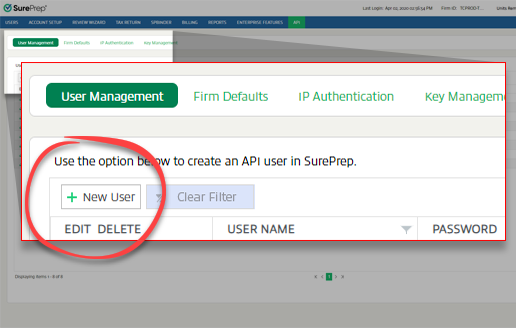
- Once you've enabled an API for your firm, aFirm System Administratormust then create users capable of utilizing the API.
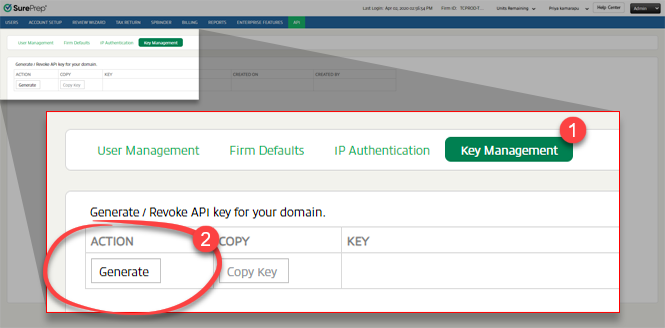
- After the new API user credentials have been created, they must nowGeneratean API key to authenticate their API requests.
- Once you have theUSERNAME,PASSWORD, andAPI Key, you can use the V5GetToken (POST)API call to get an APIAuthToken. SurePrep uses the token to authenticate the user.
TaxCaddy user account setup
If your firm plans to use the API to make TaxCaddy calls, you will need to complete the following task:
- Contact SurePrep Support to enable the TaxCaddy API for your domain.
- Certain TaxCaddy calls require the user to have administrative access.
Domain Setup
Adjusting domain settings will let your application run seamlessly and give you greater control over the process. Before you get started, you may want to consider making the following configurations:
Field | Required/Optional | Description |
|---|---|---|
Office Location | Required , at least 1 Office Location must be configured. | Add your firm's Office Location to your domain settings. Office Location is required to calculate billing, API calls, and restrictions based on location (if enabled). |
Tax File Activation | Required , must activate a tax file to import/export tax software data to/from SurePrep. | Connect your firm’s tax software with SurePrep. Go to . |
Custom Status | Optional | Add custom statuses to your domain settings. FileRoom, SPbinder, and API can change binder status. The API can then use custom status to determine the next course of action. |
Print on status change | Optional | The domain can automatically print a binder when a status change is triggered based on the configuration. Contact your SurePrep Support to enable this option. |
Download path | Optional | Setup a default download path where SurePrep can download files to a designated folder. |
API firm default settings | Optional | Set firm default settings that your API calls can fall back on if a parameter is missing. You can also automate tasks according to firm preferences. Go to . |
Related Content
-
2026-06-17 Retiring Version 5.0 of SurePrep APIs
Format: Article

