
Step 7 - Finalization
The Finalization wizard indicates the completion of the Review process. This step appears only if you submitted a binder without leads or with Simplified Leadsheets.
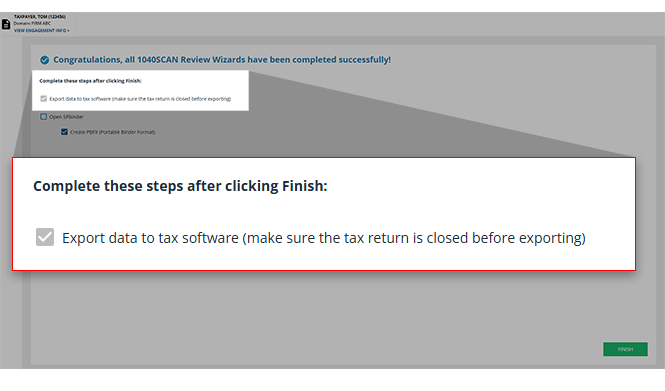
When working in a client's binder made without leads, the
Export data to tax software (make sure the tax return is closed before exporting)
checkbox will be auto-selected by default. Applicable to 1040SCANverify and 1040SCAN PRO. The ability to auto-export data is not available for UltraTax CS and Lacerte.
note
In the New Form Review (NFR) step, SurePrep verifiers (i.e. 1040SCANverify service) may leave some documents unmatched if a clear match cannot be found. However, if your firm has chosen to skip the NFR step, the unmatched form will be added as a new entity in the INDEX TREE tab in SPbinder.
In the Finalization window, if you have opted to automatically export data to the tax software (i.e., "Export data to _____"), the exported data will appear as a new form in the tax software instead of populating the existing proforma form. To avoid this, we recommend closing the export window when it launches.
Open SPBinder
Open SPbinder will be auto-selected by default. Below this, you will see the following option: Create PBFX (Portable Binder Format):
- Will give you the ability to access and save the binder at the desired location.
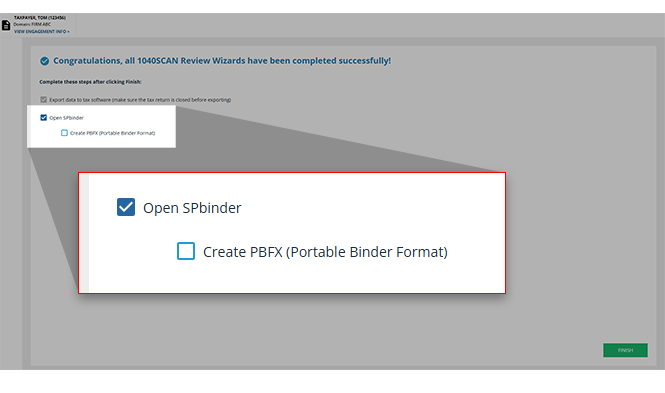
Create PBFX (Portable Binder Format)
Select the
Create PBFX file (Portable Binder Format)
checkbox to save the binder to your preferred location on your device. You will be able to access the binder from the location you choose.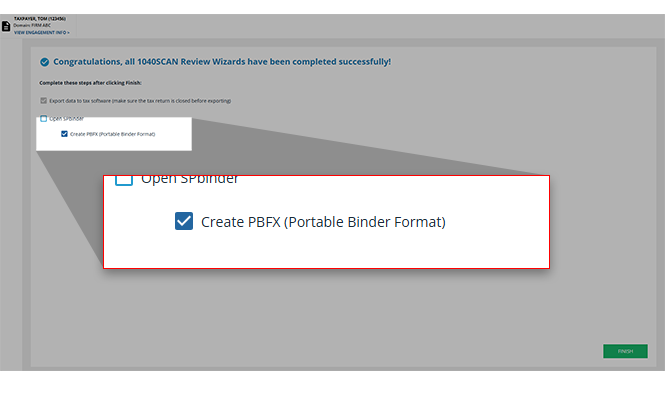
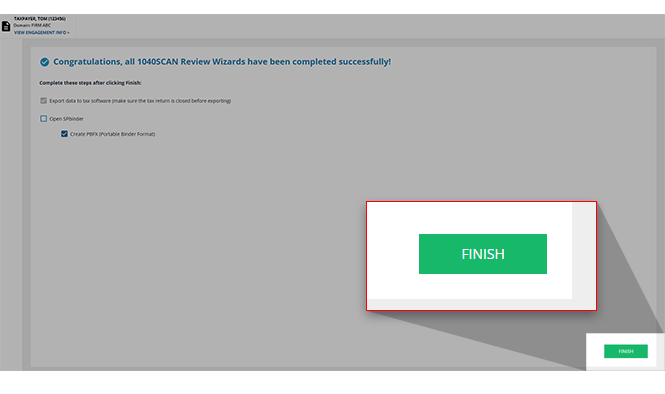
After you've indicated your preferences in the Finalization wizard, you can select
FINISH
.
If you've chosen to select the
Create PBFX
checkbox, the download will begin and the PBFX successfully downloaded
window will appear indicating that you've selected FINISH
. Select OK
to close this dialog box and return to Review Wizard.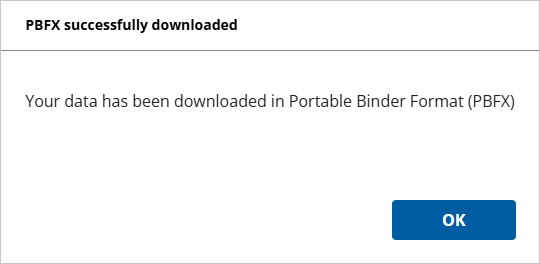
note
The downloaded PBFX file will be titled
exportToTaxSoftware-binderId_[current binder ID].pbfx
.Create SPbinder PDF
The
Create SPbinder PDF (you can also do this in SurePrep FileRoom)
checkbox enables the creation of a bookmarked PDF file containing the source documents of the binder submitted. Select this checkbox if you'd like to generate this SPbinder PDF.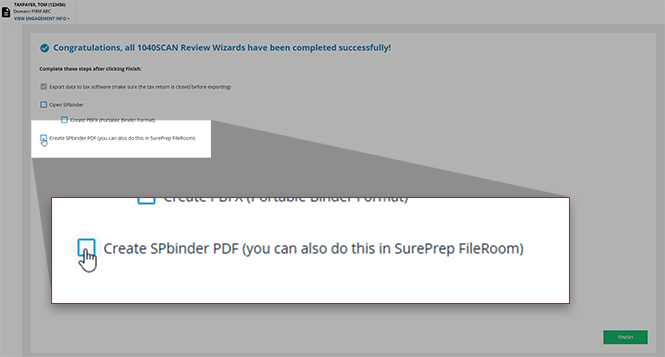
note
This option will only appear when viewing binders without leadsheets. Binders with leadsheets will not display the
Create SPbinder PDF
checkbox.If you'd prefer to create an SPbinder PDF at a later time, you can do so either from FileRoom using the
SPbinder PDF
feature, or you can create the PDF from SPbinder directly.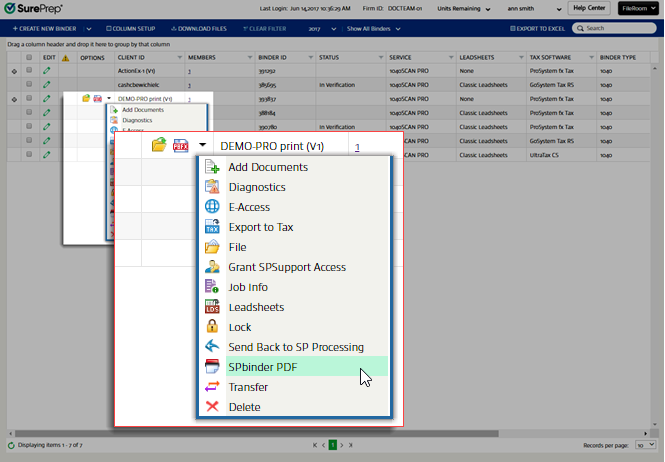
Related Content
-
Review Wizard on Web is here!
Format: Article

