
Tax File Activation on web for GoSystem Tax RS API
Tax File Activation (on Web) allows SurePrep to communicate with your tax software using your tax software's API. Firms using GoSystem Tax RS and SurePrep integration must complete this additional setup to use the integration for tax year 2024 and onward.
note
Without completing this step, users will not be able to create a Document Request List (DRL) in TaxCaddy or create binders in FileRoom, GFR, TaxCaddy, or API for the 2024 tax year.
Before you begin
Complete the following checklist items before proceeding:
- Go to the Thomson Reuters Developers page at https://developers.thomsonreuters.com.
- SelectCreate an accountto create a developer account.noteWe recommend a user with GoSystem Tax RS admin rights create a developer account.

- After creating a Thomson Reuters developer account, download and fill out the GoSystem Tax RS API request form.
- Submit the GoSystem Tax RS API request PDF form to SurePrep. If you will be using the Live Sync feature, then request the Support expert to enable Live Sync for your firm.noteIt may take a few business days to fulfill the API request. After your firm's GoSystem Tax RS API application is registered, you can sign in to the Thomson Reuters Developers page to see the application. Go to the next section to learn more.
Connect GoSystem Tax RS API with SurePrep
After you submit the GoSystem API request form, please wait 1-5 business days, then follow these steps to connect GoSystem Tax RS API with SurePrep:
- Sign in to the Thomson Reuters Developers page.

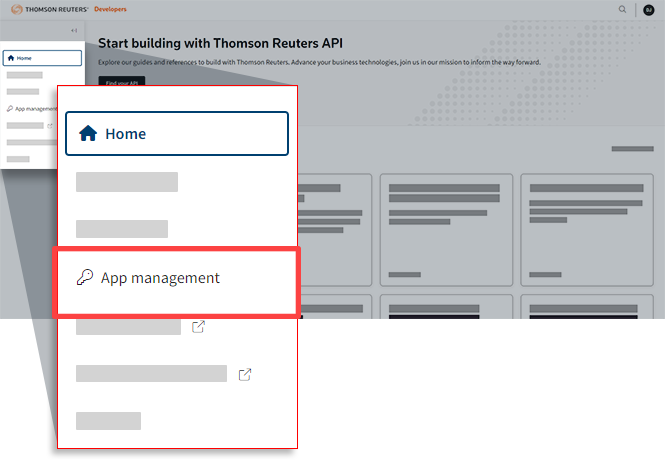
- SelectApp management.
- You will see your firm's API app. SelectManage settings.
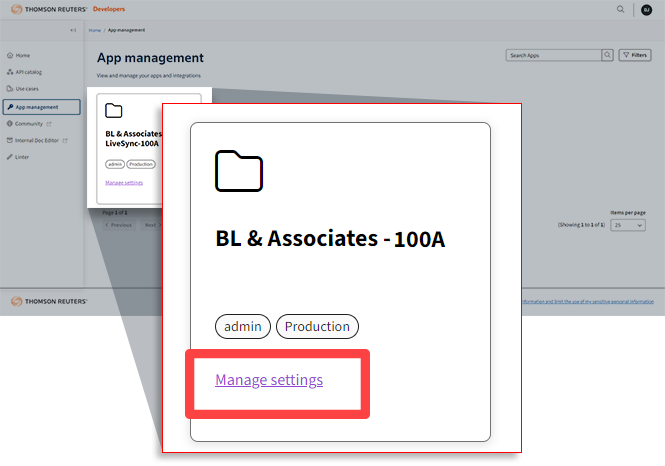 noteYou may not see an app underApp managementuntil your GoSystem Tax RS API request form to SurePrep is fulfilled. The API app may appear in 1-5 business days.
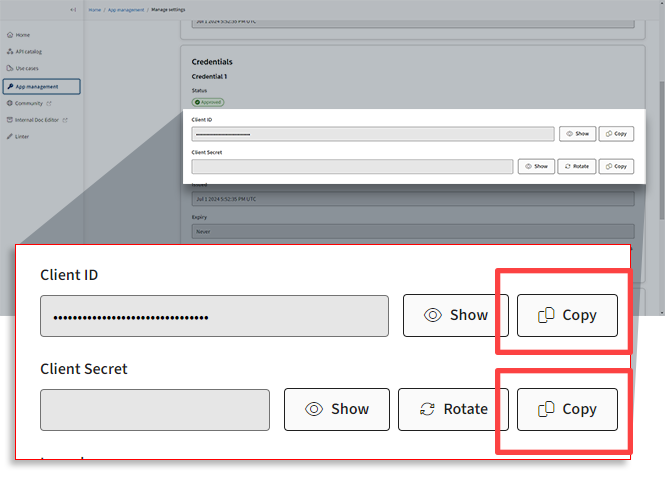
 - Locate theClient IDandClient Secret. Keep the current tab open since you'll need these 2 fields soon.
- Open a new tab, go to SurePrepFileRoom,Admin,ACCOUNT SETUP, thenTax File Activation Web.

- SelectGoSystem Tax RS.

- Enter information for all the fields. Use the following table to get the details:Form FieldStepsFirm1. Enter your firm's designated account ID in GoSystem Tax RS.This is a 4-digit alphanumeric account ID used during the GoSystem Tax Login process (for example, 100A, 200B, 300C)If your firm has a parent Firm ID and multiple sub-accounts, please enter the parent Firm ID here. You can enter the sub-accounts in the Tax File Activation window step.Consumer Key2. Switch back to the Thomson Reuters Developers tab, then selectCopyto copy theClient ID.3. Paste theClient IDto theConsumer Keyfield in SurePrep'sAccount Admintab.Consumer Secret4. Switch back to the Thomson Reuters Developers tab, then selectCopyto copy theClient Secret.5. Paste theClient Secretinto theConsumer Secretfield in SurePrep's Account Admin tab.
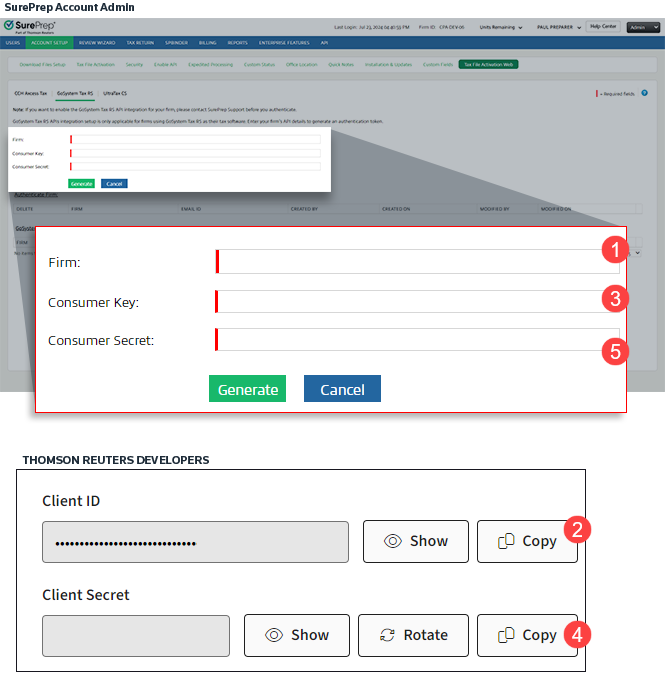
- After entering all the fields, selectGenerate.
- Your firm's GoSystem Tax RS API authentication token will appear in the list.

- Next, activate your new account. Select theAdd New Accountbutton. A new row will appear, selectFIRMfrom the drop-down list, then enter yourGOSYSTEM ACCOUNTin the next field. Select the save icon to complete the integration.
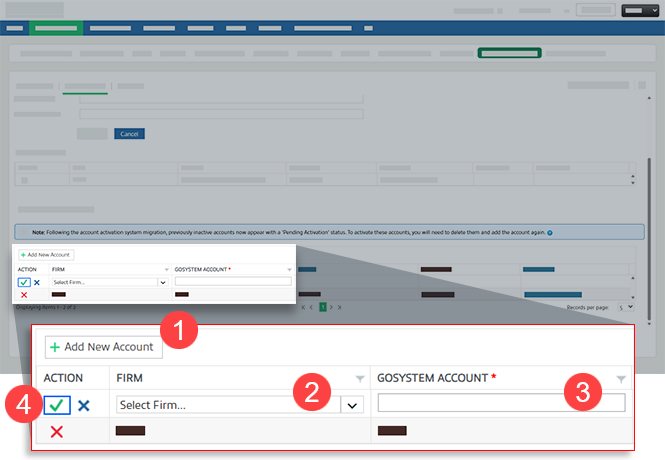 noteFor most firms, your GoSystem Account will be the same as your GoSystem Firm ID. If your firm has more than one account associated with the Firm ID, then add them both individually.
 - Your account status should appear activated.
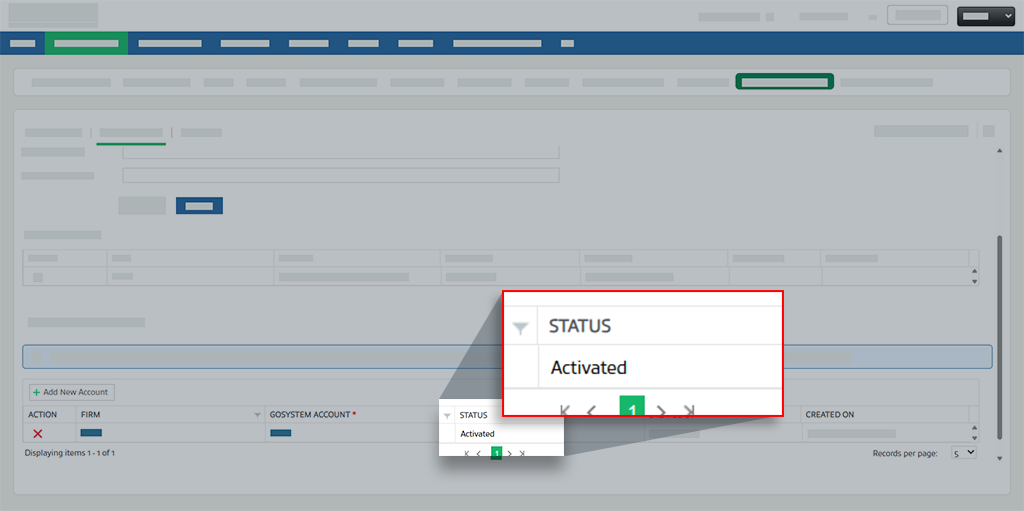 noteFirms migrated from the legacyTax File Activationwindow will see their existing account migrated to theTax File Activationweb screen. Any account that were already initiated will appear inPendingstatus.
What's next?
After completing the setup, you are now ready to use the following features:
Features available after GoSystem Tax RS API token authentication | Product | Description |
|---|---|---|
Create a Custom Document Request List (DRL) | TaxCaddy | Automates the task of requesting tax documents from your clients based on the proforma information in the tax software. |
Create binders | SPbinder | Starting point where you can submit your client's tax documents and have them processed through OCR, get verified, and go into SPbinder for preparation. |
Live Sync | SPbinder | Your firm can use the Live Sync feature to automatically synchronize information from SPbinder into the tax software in real time. Before you enable Live Sync, you will need to first set up GoSystem Tax RS API authentication token with SurePrep as described in this article. |
Fetch Deliverables | Reviewer Dashboard | Fetch deliverables lets you get tax returns, tax payments, and e-file authorizations directly from GoSystem Tax RS and deliver them to your clients' TaxCaddy account. You save time from manually printing the tax return, splitting it, and then manually uploading the PDF. |
 Article

