
Two Year Comparison (TYC) checklist
The Two-Year Comparison (TYC) checklist gives you the ability to compare the current year’s (CY) tax return amounts with the prior year's (PY) amounts. A side-by-side comparison helps you detect any differences that stand out.
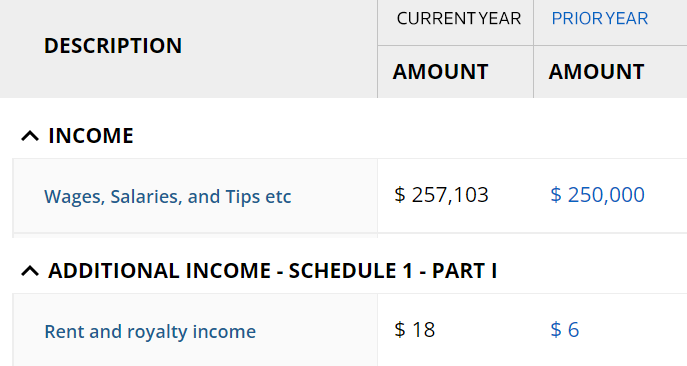
The client's data is imported into the Two Year Comparison Leadsheet in SPbinder - which can then be seen in the
Two Year Comparison
checklist.As a firm user (firm partner, signer, or reviewer, etc.), the TYC checklist is key to optimizing your time, accuracy, and performance. You save time reviewing clients' data in the web browser without opening a binder for each client. You can improve your accuracy and performance by catching any irregularities. If a W-2 form is incorrectly captured or missing, you will notice a considerable difference in your client's Income for the current year.
Navigate to Two year comparison
- Open FileRoom and find a binder you would like to open the Two year comparison for.noteThe Two year comparison feature's availability will depend on the binder's current stage in the process. You can select thePreparation/Review/Finalizationtab to exclusively view elligible binders.

- Select theMore Optionsmenu, then selectReview Module.

- TheReview Modulefor the selected binder will open in a new tab of your browser.
Two year comparison (TYC) checklist
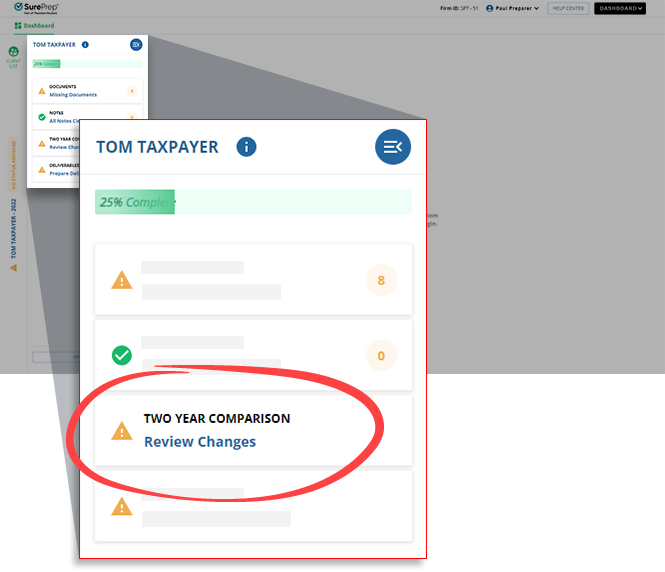
Go to a client's checklist, and select
TWO YEAR COMPARISON
.
note
The
Two Year Comparison
checklist only appears for clients with Leadsheet binders in FileRoom. When viewing the
Two Year Comparison
checklist, you may want to get more screen space and minimize horizontal scrolling.Select  to hide the 1st panel.
Collapse
to hide the 1st panel.Drag the  to the left or right to resize the panels as desired.
Panel Resize
to the left or right to resize the panels as desired.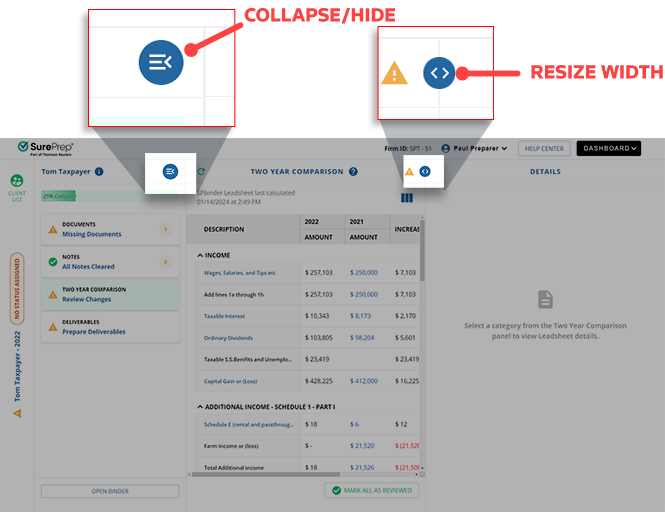
The prior year and current year amounts will appear in the middle panel. A side-by-side comparison will help you review any variances.
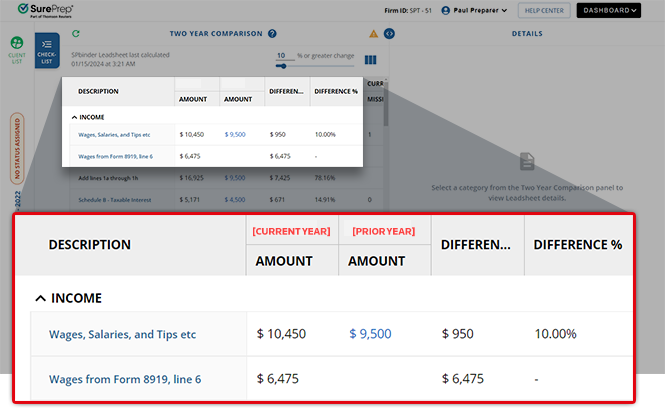
You will see the following columns for review:
Column | Description |
|---|---|
[Current Year] | The current year's amounts and details. |
[Prior Year] | The prior year's amounts and details. |
Difference | The difference is based on amount value. |
Difference % | The difference is based on percent. |
Missing | The number of prior year accounts that are missing in the current year. |
Received | The number of prior year accounts that are also received in the current year. |
N/A | The number of prior year accounts missing in the current year. However, the client has made sure that the accounts are not applicable this year. |
New Accounts | The number of new accounts that was received this year for the 1st time. |
Comments | The comments added to the row in the binder. |
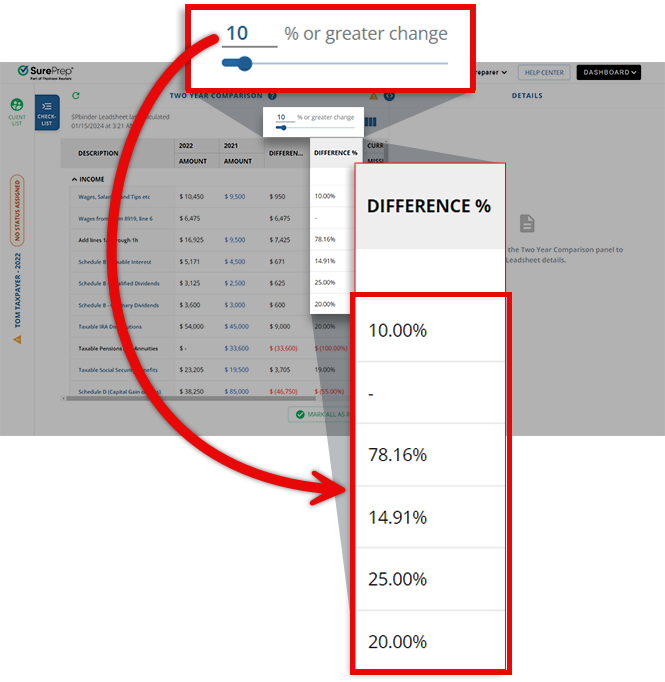
You can also focus on certain amounts based on the margin of error. On the upper right section, enter the percentage amount or drag the slider on top to filter the amounts to show amounts greater than a certain percentage amount.
To show or hide columns, select  then:
then:
Column Management
then:- Select the checkbox to show the columns
- Clear the checkbox to hide the columns
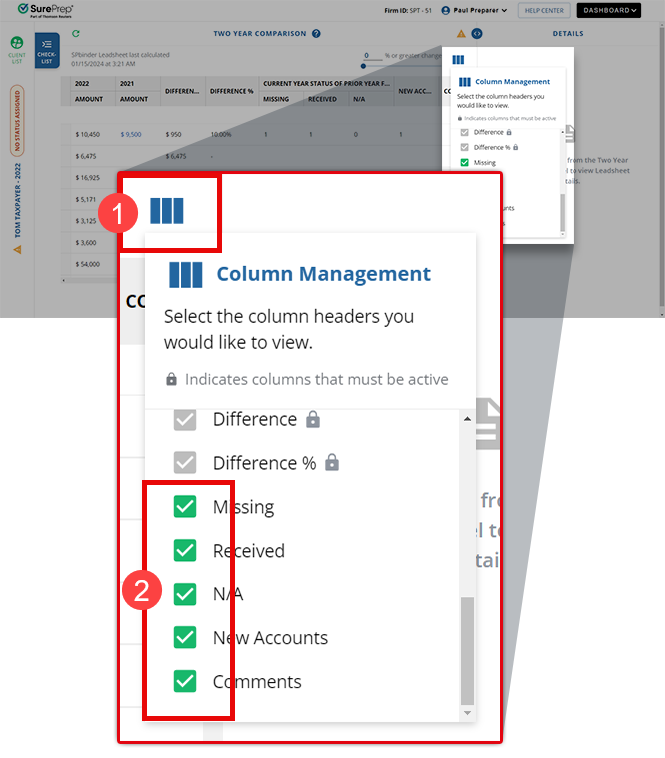
Certain mandatory columns are locked and can't be hidden.

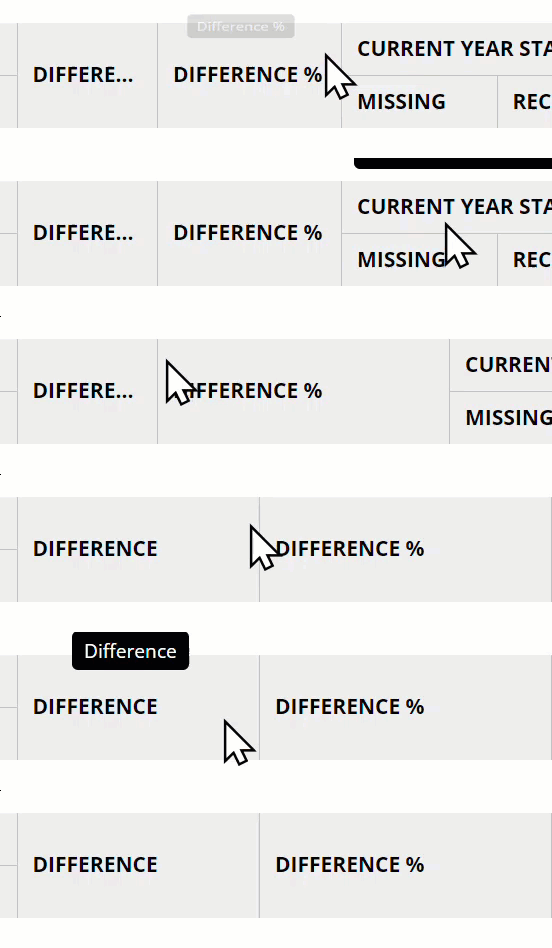
You can also resize column widths for certain columns. Place the cursor in the middle of 2 column headers, when the icon changes, select and drag your cursor back and forth.
To inspect where the amounts originate from, select an amount in the middle panel to see full details in the last panel.
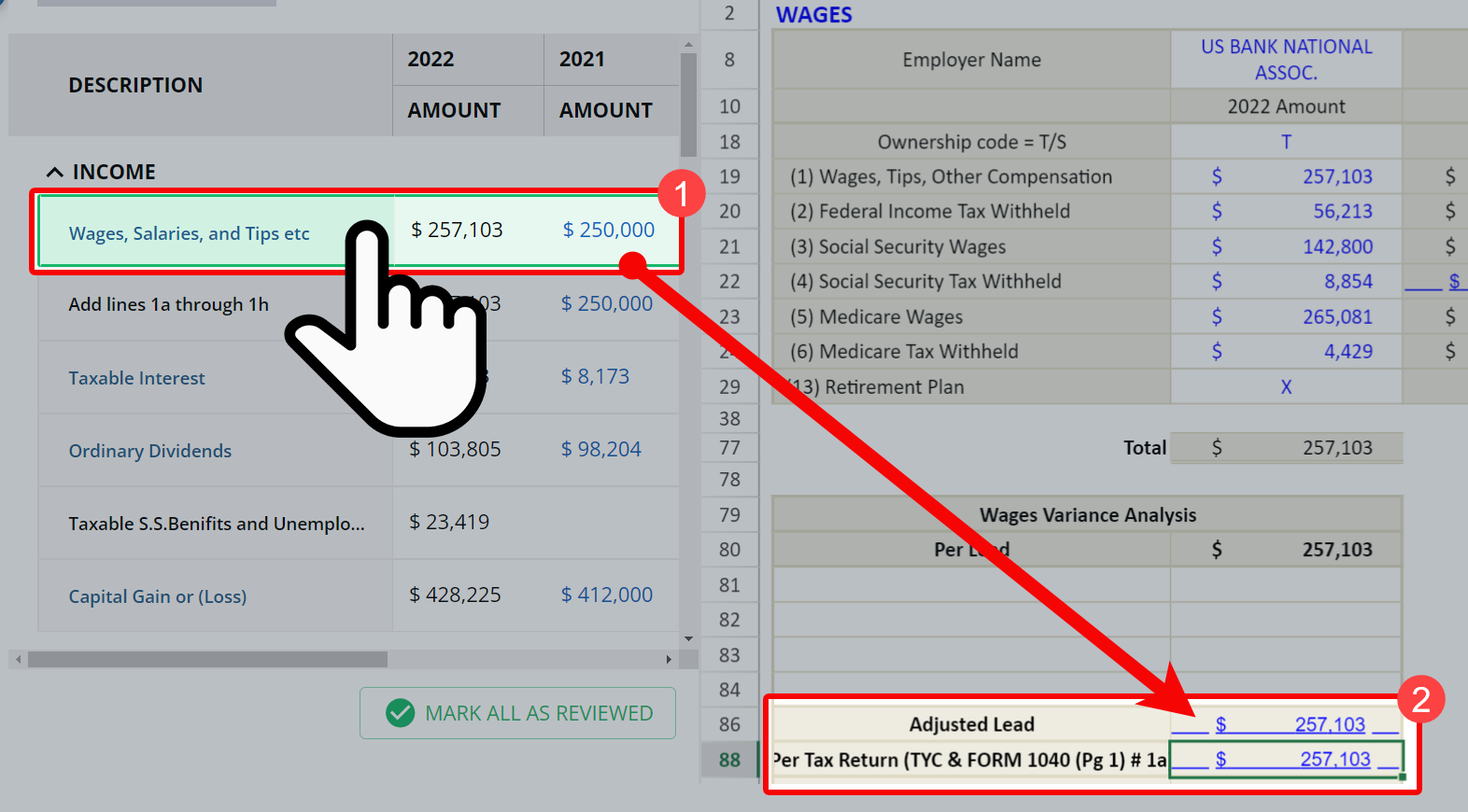
On the
DETAILS
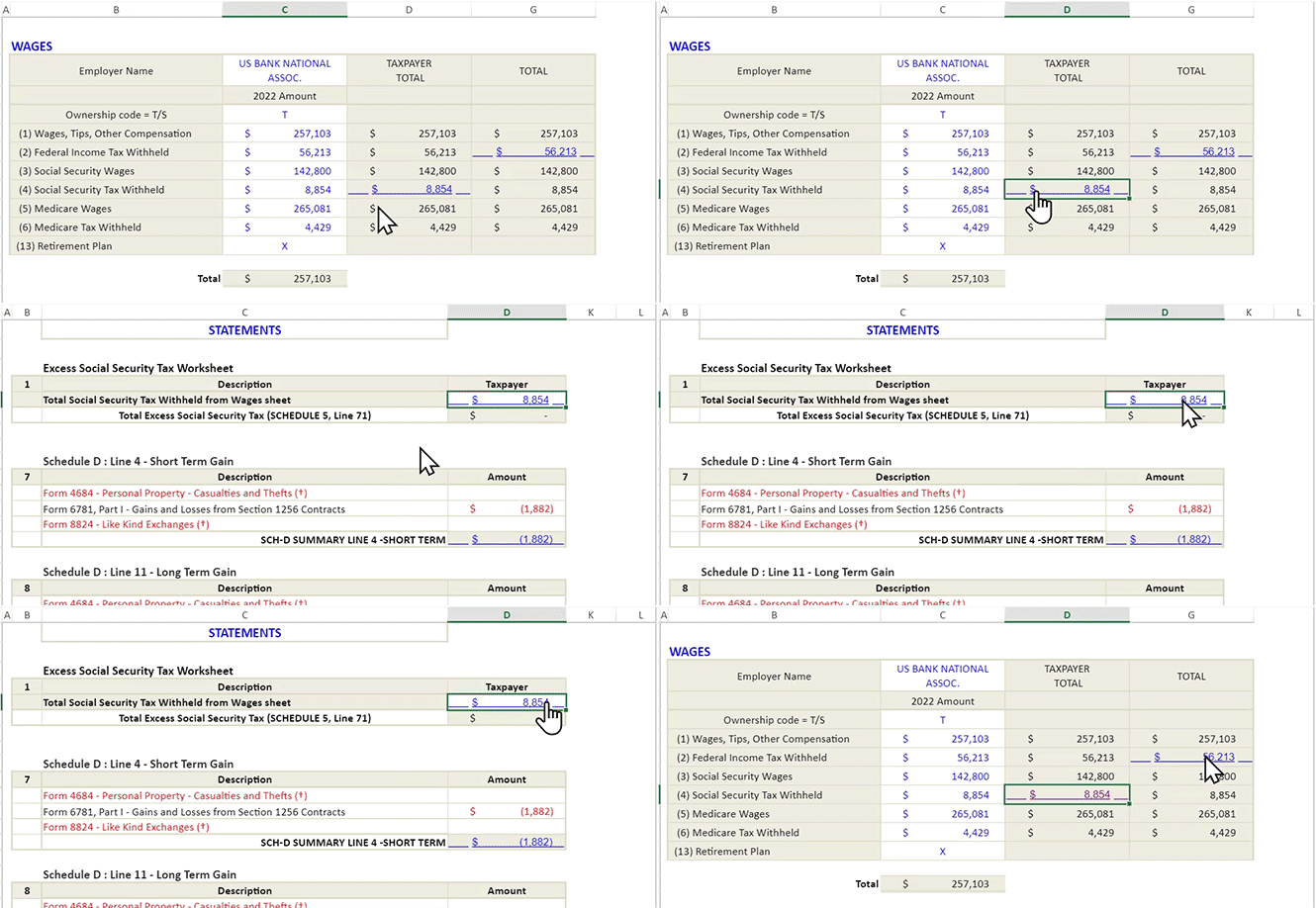
(last) panel, select the Reference Link (blue hyperlink with an underline) to where the amount is referenced. The Reference Link will show the Leadsheet for that specific line.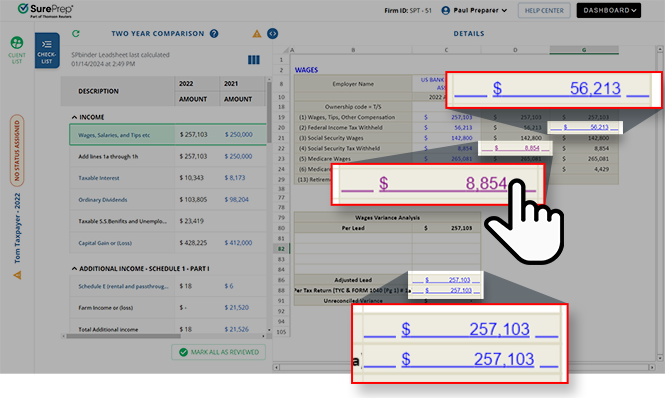
As you go through each category and review, select  or
or  to expand or collapse a category. You can collapse or expand each category to view and focus on the next section.
Show
or Hide
to expand or collapse a category. You can collapse or expand each category to view and focus on the next section. 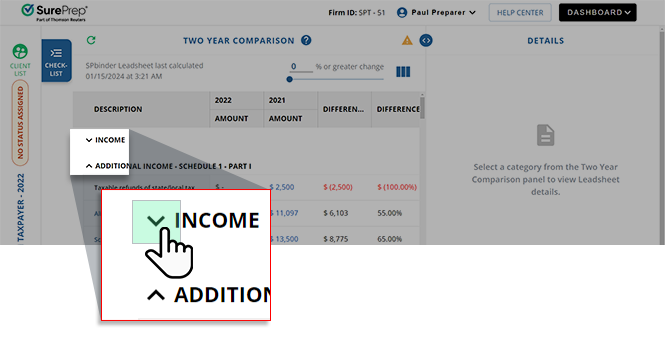
Updating amounts
During your review, if you notice amount differences that need to be corrected, open SPbinder then:
Leadsheet type | Steps |
|---|---|
Classic | 1. Update/Correct the details in the FORMS tab2. Export the changes to the tax software (via Export to Tax or Live Sync ) |
Simplified | 1. Update the amounts in your tax software 2. Go into SPbinder and complete Import TR . |
You should see the new amounts in your SPbinder Leadsheets. If you don't see the new amounts, try
Recalulate
.After you're done updating the values, select  to see the updated values.
Refresh
to see the updated values.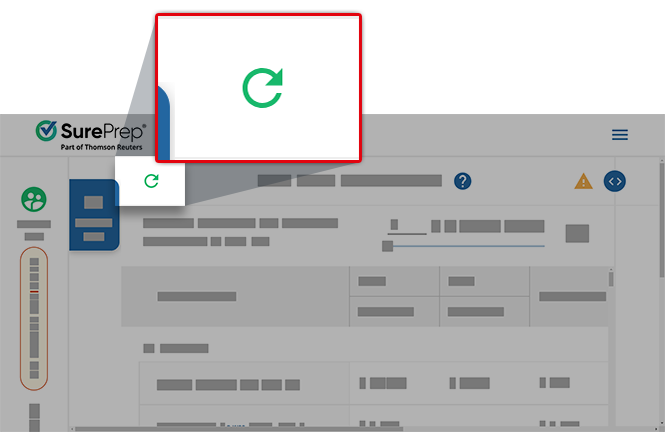
Select if you made any of the following updates in SPbinder:
Refresh
if you made any of the following updates in SPbinder:- Add, edit, or delete the data in the forms in SPbinder (For Classic Leadsheet)
- Whenever import TR updates (manual import TR or auto import TR) are made
- Add documents with or without OCR
note
- It may take a few minutes for the updated values to appear in the Two Year Comparison checklist.
- If the values don't update after refresh, close the binder then try refresh again.
- After TYC checklist was marked as reviewed, if then the binder is modified/updated, then refresh will revert the Two Year Comparison checklist as unreviewed for each user.
Once the amounts are updated, you will see the last calculated date and time.
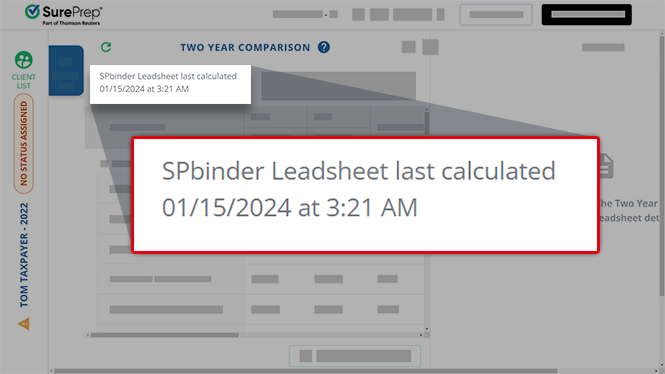
Mark the Two Year Comparison checklist as complete
Once you're done reviewing the amounts and are ready to sign off, select
MARK ALL AS REVIEWED
.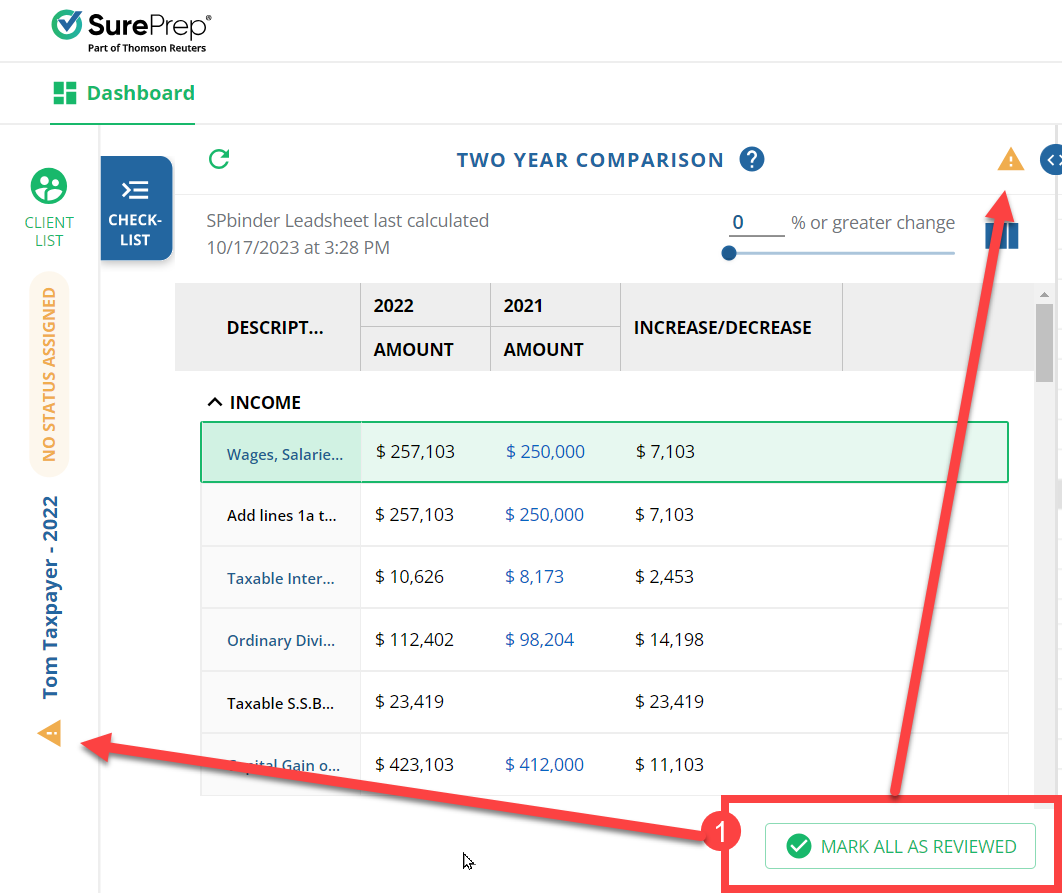
The  (Needs Review) to
  (Complete) after you select the checklist as reviewed.
TWO YEAR COMPARISON
checklist status will change from (Needs Review) to (Complete) after you select the checklist as reviewed.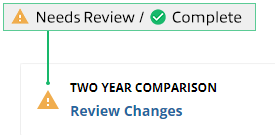
Unlike other checklist items, the
TWO YEAR COMPARISON
checklist will be marked complete on a user level. Only you can see the TYC checklist that you marked as Complete
and the percentage update for TYC.note
Marking the TYC as reviewed only marks the checklist item as reviewed. It won’t sync back to SPbinder and mark the Two Year Comparison Leadsheet as Reviewed.
Requirements
Your client's binder must meet the following requirements for you to see the TYC checklist appear:
Binder Type |
|
Tax Years |
|
Binder Status |
|
Leadsheets |
|
Services |
|
Tax Software |
|
Related Content
-
2026-06-29 Release (FileRoom, Review Wizard, API)
Format: Article

