
Verification Feedback
Verification Feedback (formerly known as Report Verification Error or RVE) lets you report 1040SCANverify, and Outsource verification errors from SPbinder (that is, typos, incorrect value captured). When you report a verification error, a notification is automatically sent to SurePrep managers to track and analyze any mistakes. Verification Feedback helps SurePrep verification managers improve verification quality by allocating proper resources to address the issue and avoid any repeated mistakes.
note
The
Get Verification Feedback
feature only appears on the shortcut menu for 1040SCANverify and Outsource services.Get Verification Feedback
Follow these steps to report an error:
- Once you have located the error, right-click the reference/T/R stamp.
- On the shortcut menu, selectGet Verification Feedback. Verification error will be reported automatically. You don’t need to take any further action.SPbinder without Leads:
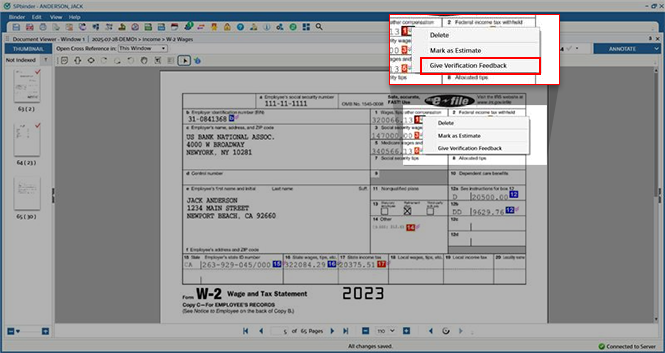 SPbinder with Leads:
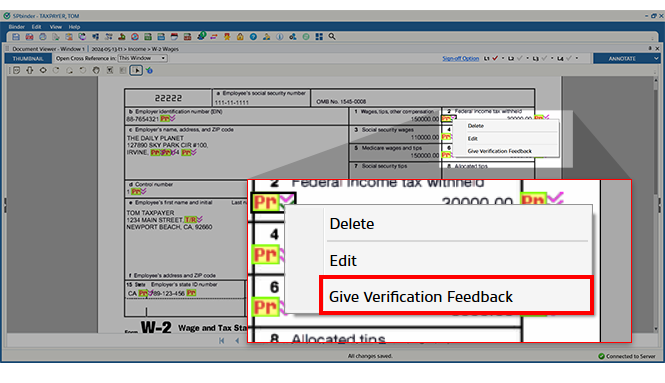 Get Verification Feedbackwill not be available under the following conditions:
- References were added by OCR when documents were added for In-house verification.
- Reference was added by a verifier at your firm.
- If the error has already been corrected.
- On theGive Verification Feedbackwindow, you can specify the reason for the reported verification error. Select a predefined option, then you can enter additional details in the text field. Once you are ready to submit the verification error, selectSubmit.

- If you reported a verification error by mistake and want to cancel, right-click the reference/T/R stamp, then selectCancel Reported Erroron the shortcut menu to remove/clear the check select.
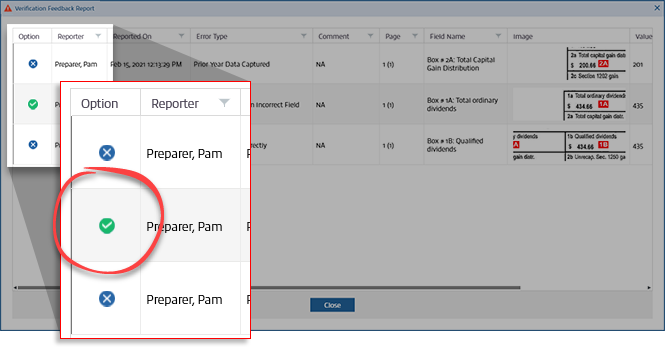
- You may now correct the reference value.noteOnce the reference has been edited or corrected, it can no longer be reported as a verification error. Report verification errors before correcting the value.
After you have reported a verification error, an email notification will be sent to SurePrep verification managers automatically to help them improve verification quality. SurePrep won’t be contacting you. Once reported, you can correct the error immediately. You don’t need to take any further actions.
Review Verification Feedback Report
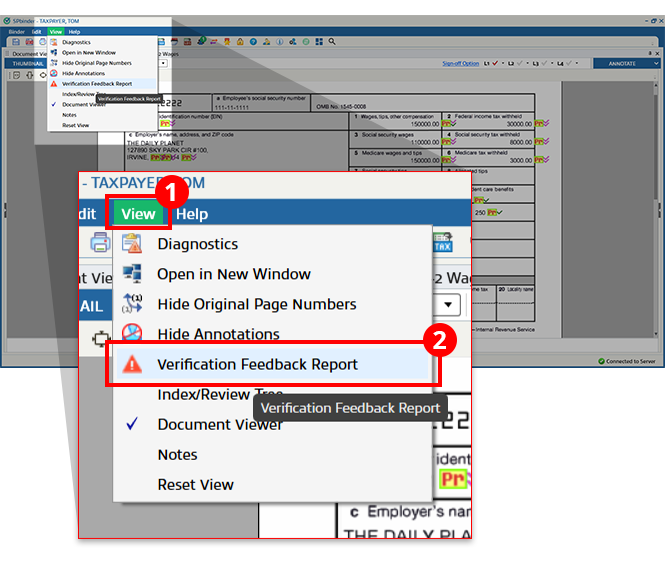
You can review all the reported verification errors for the current binder in a consolidated list. To view reported verification errors, go to
View
, then Verification Feedback Report
.
note
You can also review reported verification errors for all binders from
Account Admin
, Reports
, then Verification Feedback Report
. When the
Verification Feedback Report
window appears, you can review each reported verification error and its details. You can also view comments from SurePrep on the last column. You may need to scroll.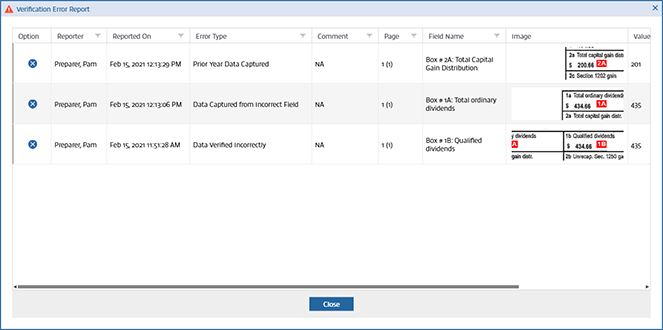
You can also use the Filters feature on each column header to narrow down the reported errors if necessary. Select your filter options from each field then select
Filter
. You can also select Clear Filter
to remove a previous filter.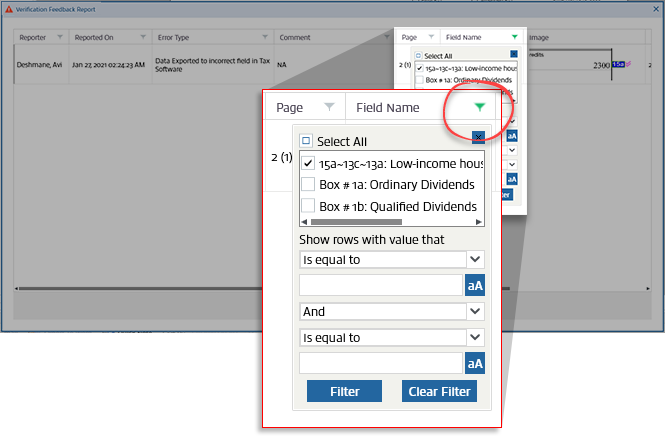
To cancel the reported verification error, select the  icon on the
Remove
icon on the Option
column. On the confirmation window, select
Yes
to cancel reporting the verification error to SurePrep.A  icon will appear once the reported error is canceled. Canceled verification errors will be removed from the current list after you close the window.
Confirmation
icon will appear once the reported error is canceled. Canceled verification errors will be removed from the current list after you close the window.Related Content
-
2026-01-20 (Verification Feedback)
Format: Article

