Logging Events
Logging Events
shows a detailed description of all the activities done by the users. To view Logging Events, go to
FileRoom
, Admin
, then Reports
.
Select
Logging Events
.All captured events will appear on the
Logging Events
screen. For example, login failed, logged in successfully, locked account due to multiple failed login attempts, delete binder, etc.
You can visit additional records by navigating between different page numbers. You can also view additional records on a page by changing the
Records per page
on the lower right side.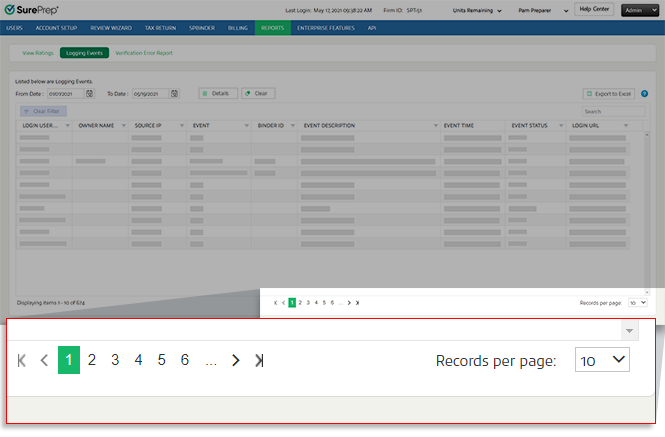
You can expand or narrow down details by selecting the desired date range. Choose the start date from the  next to
  . You may also enter the dates manually within the textboxes.
Calendar
icon next to From Date
, and the end date from To Date
. You may also enter the dates manually within the textboxes.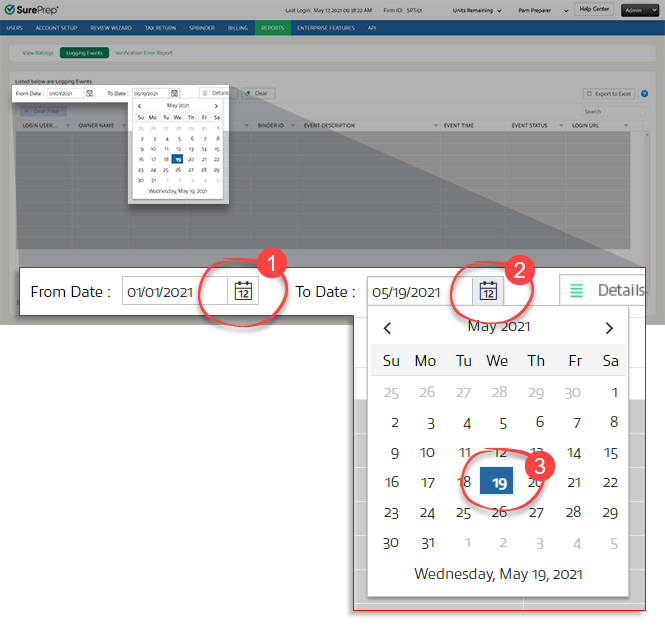
Select the  button.
Details
button.
The following logging details will be shown:
- Login Username:Who performed the event.
- Owner name:The owner on whom the event was performed.
- Source IP:Machine Name or IP Address from which event was performed.
- Event:The action performed.
- Binder ID:Binder ID of the binder accessed.
- Event Description:A detailed description of the action performed.
- Event Time:Time/Date Stamp for the event.
- Event Status:Status of the event.
- Login URL:URL that has been used to Login
To clear the data on the screen, select the  button. Clearing removes the data from the screen only, not from the database.
Clear
button. Clearing removes the data from the screen only, not from the database.
To export the results, select the
Export to Excel
button.
Once the download completes, open the Excel sheet with the exported data. Select
Save
to save the data to a new path.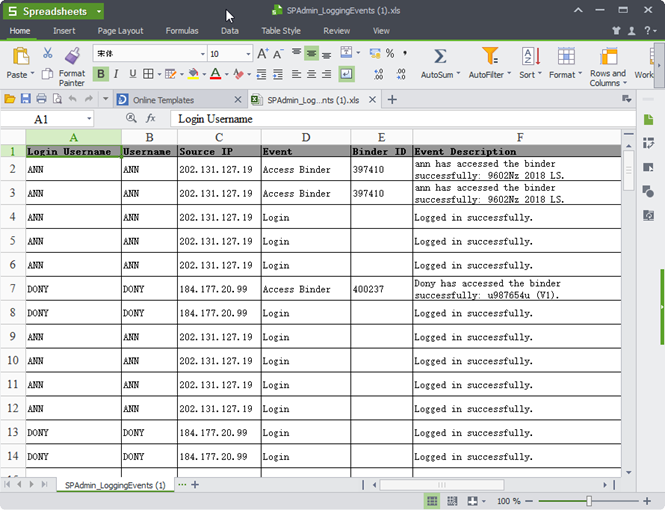
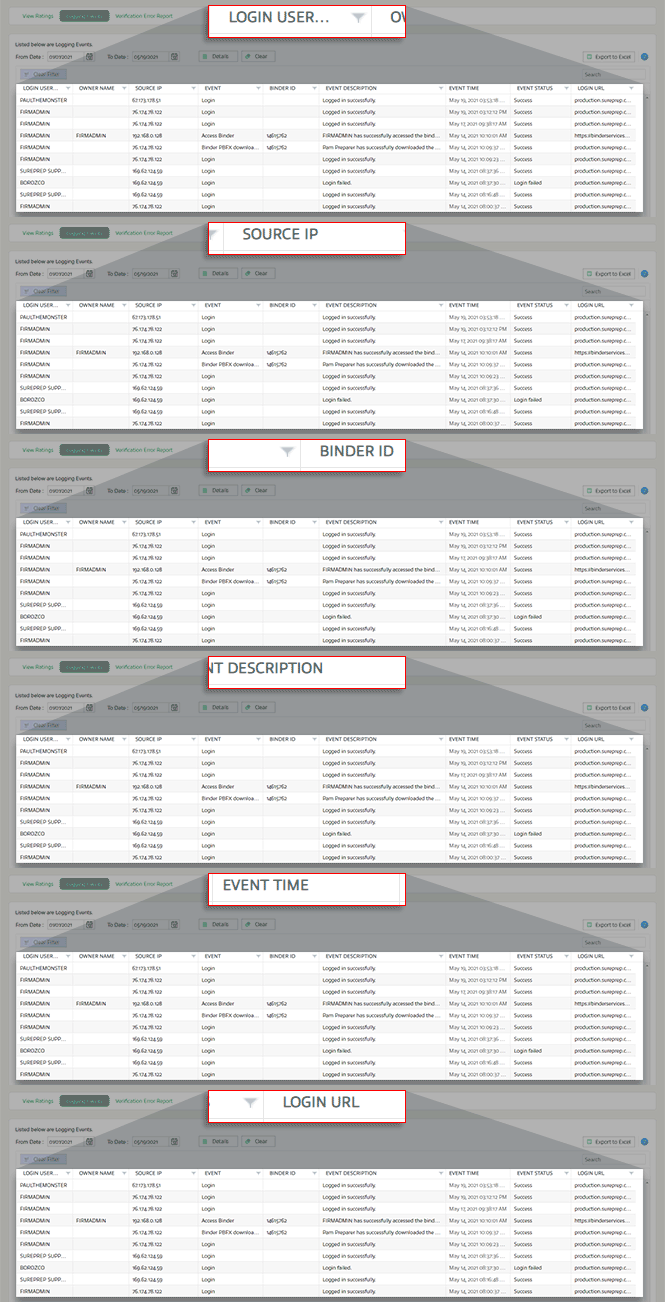
Filter
If you want specific data to be exported, use the filter functionality on individual columns then export the filtered data using
Export to Excel
.
The 
Clear Filter
button removes all filters that have been either applied on individual columns or when the search option has been used.
note
The
Clear Filter
button gets activated when the filters are applied on columns or when the Search box is used for searching a desired row. Otherwise, it remains inactive or grayed out.Search
Use the Search box to search for the desired data. The search functionality is applicable to the following columns under the
Logging Events
tab:- Login User Name
- Owner Name
- Source IP
- Event
- Event Description
- Event Status
- Login URL

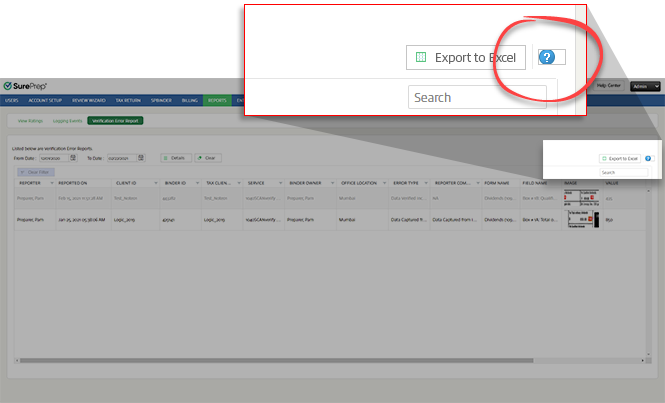
To view the help page, select the  icon besides the
Help
icon besides the Export to Excel
button.