View Ratings
You can view an overview of all SPbinder ratings and comments once the binder has been reviewed.
Follow these steps to review SPbinder ratings:
Go to
FileRoom
, Admin
, then Reports
.
Select
View Ratings
if it isn't already selected.
Select the
Tax Year
from the list.
You'll see a list of all the binders and their ratings for the selected tax year.

Select the  button to view individual ratings.
Details
button to view individual ratings.
The following details will appear for the owner:
- CLIENT ID
- CLIENT NAME
- BINDER TYPE
- EXPEDITED
- TAX SOFTWARE
- COMPLEXITY
- RATING*
- STATUS
- COMMENTS*
note
*
1040SCANverify and Outsource Onshore/Offshore binders only. 
Select
Back
to return to the main screen.
Select
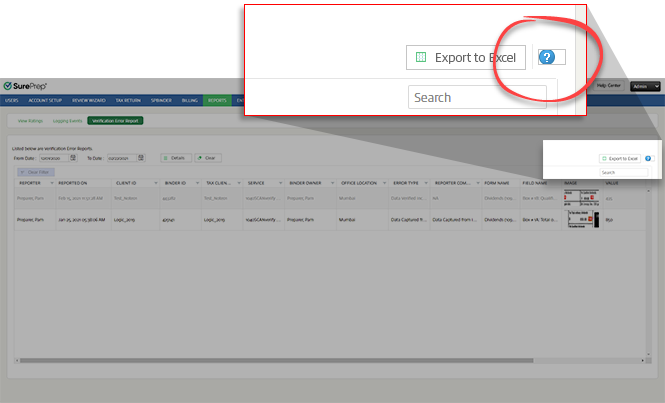
Export to Excel
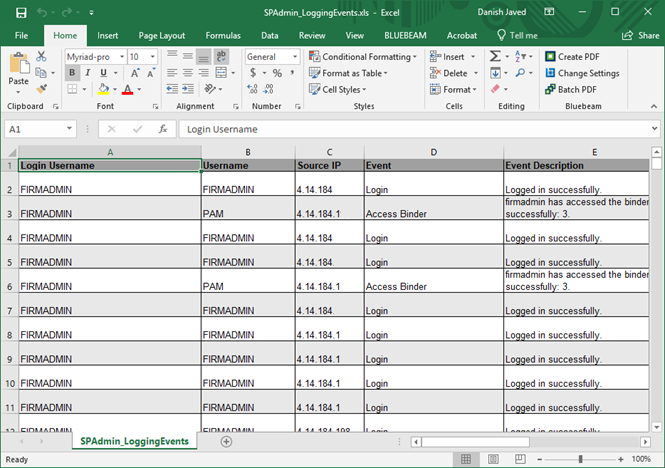
to export the details to an Excel sheet.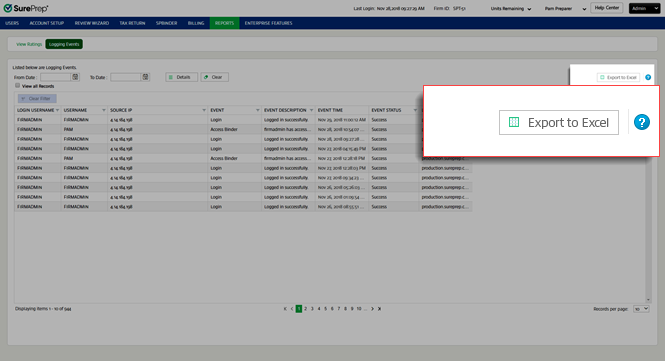
Once downloaded, open the Excel sheet from the download path.
Filter
If you want specific data to be exported, use the filter functionality on individual columns then export the filtered data using
Export to Excel
.
The  button removes all filters that have been either applied on individual columns and any search results that are currently active.
Clear Filter
button removes all filters that have been either applied on individual columns and any search results that are currently active.note
The button gets activated when the filters are applied to columns or when the search is currently active. Otherwise, it remains inactive or grayed out.
Clear Filter
button gets activated when the filters are applied to columns or when the search is currently active. Otherwise, it remains inactive or grayed out.
Search
Use the Search box to search for the desired data. The search functionality is applicable to the following columns under the
View Ratings
tab:- Owner Name

The . In the  section, the search functionality is applicable to the following columns:
Export to Excel
, Clear Filter
, and Search
functionalities are also available for each of the Owner details . In the section, the search functionality is applicable to the following columns:- Client Name


Under the
View Ratings
tab, you can select any of the hyperlinked numbers on the bottom to view binder list details.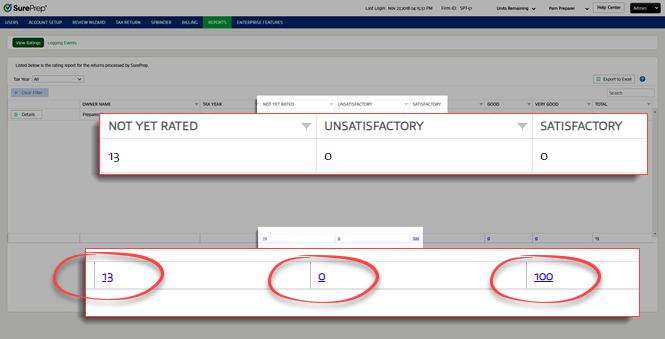
Select the  icon on the upper right side to view this help page.
Help
icon on the upper right side to view this help page.