
Deliverables checklist
When you reach the end phase of tax preparation, how do you send your clients their tax returns and tax payments? The
Deliverables
checklist item in the Reviewer Dashboard lets you automate the task of sending deliverables, such as Tax Returns, Tax Payment Vouchers, and E-file Authorizations, to your TaxCaddy clients. By sending deliverables through the Reviewer Dashboard, your firm can eliminate many steps and make the process seamless for your clients. You can prepare deliverables in 2 ways: either upload a single return PDF or use the Fetch feature to get the deliverables directly from the tax software.The delivered documents will appear in their respective sections in the client's profile in TaxCaddy. You can even send Deliverables to Standard unconnected clients and have them access their deliverables via Dynamic Password.
note
Only users with proper permissions can use the
Deliver
feature. Step 1. Select deliverables checklist
To send deliverables, go to
FileRoom
, then Dashboard
and select a Standard (online) client.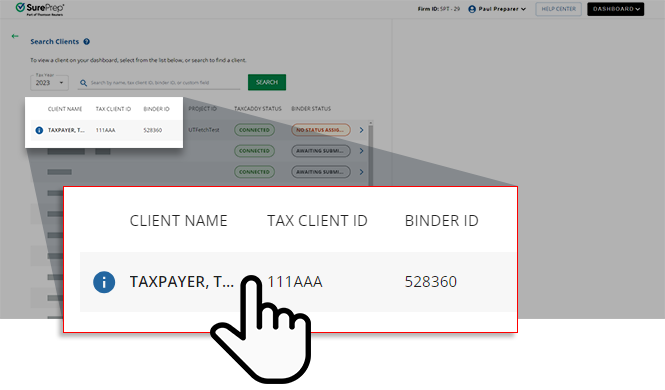
note
You can't send deliverables to
Offline
or Duplicate
client records. To address this, add a Standard
client record type for the same client, and then select the standard client record from the client list. You can't send deliverables to clients who don't have a tax software record in Client Management.Select
DELIVERABLES
on the client's checklist to view the deliverables panel.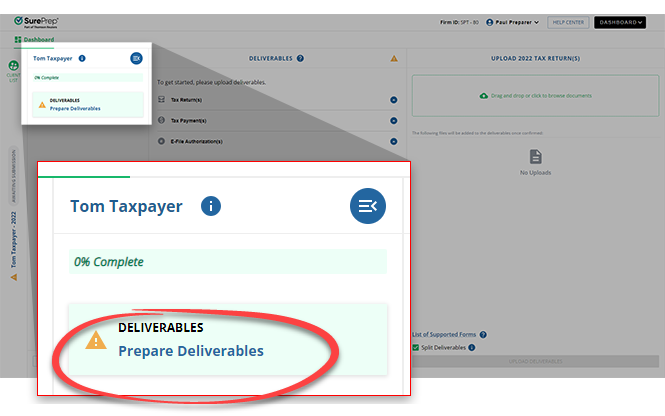
note
Create or import a standard (online) record for a client who only has an offline record in
Client Management
to send deliverables through TaxCaddy. The
DELIVERABLES
checklist will appear in the middle panel.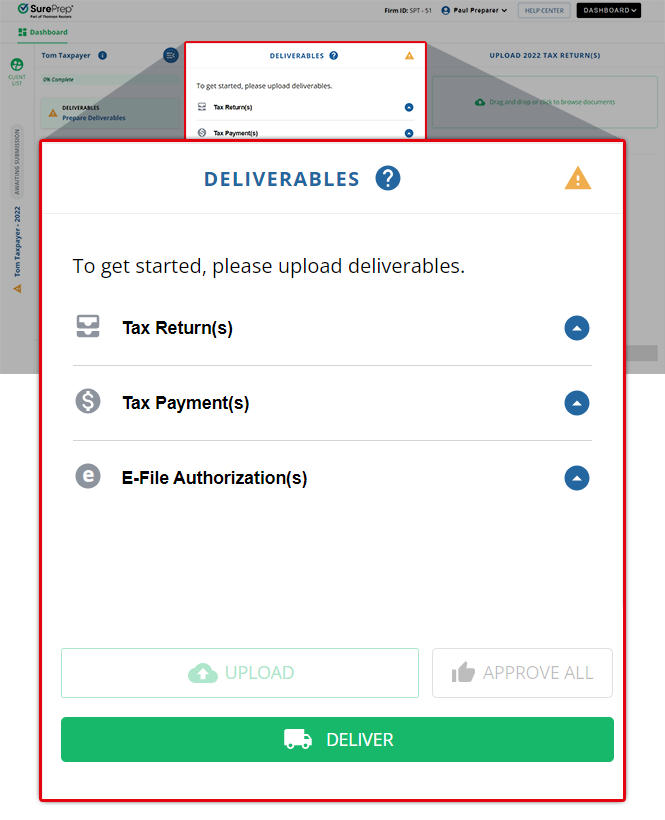
note
Select  icon to expand or collapse the 1st panel, providing more viewable area in the other columns when you are working on a smaller screen.
Expand/Collapse Checklist
icon to expand or collapse the 1st panel, providing more viewable area in the other columns when you are working on a smaller screen.The deliverables checklist will appear on the
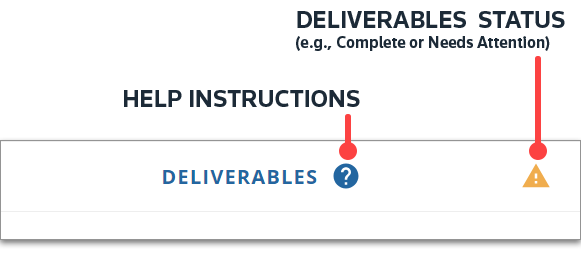
DELIVERABLES
(middle) panel. Icons on the top right indicate the following statuses:Status | Description |
|---|---|
 | Complete
Deliverables have been approved (or sent) to the client's profile in TaxCaddy. |
 | Attention
Deliverables haven’t been fetched or approved for delivery.
|
note
You can select the  icon to view this article.
Help
icon to view this article.Deliverable Categories
Deliverables fall into 3 categories:
Tax Returns
, Tax Payments
, and E-file Authorizations
. Initially, the list starts empty by default. You can populate the deliverables by uploading a PDF of the tax return (Client's Copy) or fetching the deliverables directly from the tax software. 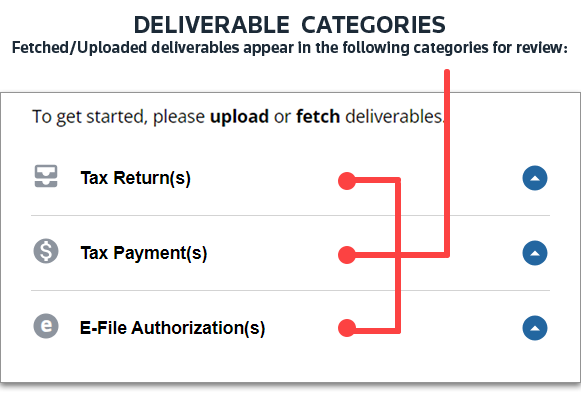
You can either fetch the deliverables directly from the tax software or print a
Client's Copy
of the tax return and upload it to the Deliverables
checklist. The ability to fetch deliverables is available for GoSystem Tax RS and UltraTax CS (local and virtual Software as a Service).
FETCH
saves you time by automating certain steps (manually printing and uploading each tax return PDF). You will complete the Deliverables checklist in the following sequence:
- Fetch or upload deliverables
- Review deliverables
- Approve and deliver
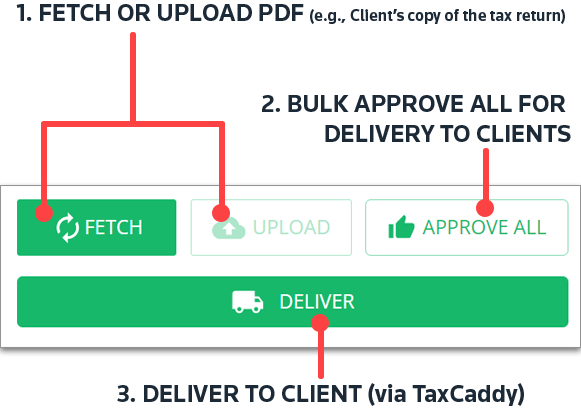
Step 2: Fetch or upload deliverables
There are 2 ways of preparing deliverables:
Method | Description |
|---|---|
UPLOAD | You can upload a Client's Copy of the tax return and let SurePrep split the document, process it, and prepare it for delivery to your TaxCaddy client. When uploading the tax return, you can select Split Deliverables (One Click Split) to automate the process of splitting deliverables into individual documents. SurePrep supports uploading deliverables for all supported tax software. |
FETCH | Firms using GoSystem Tax RS, UltraTax CS, and CCH Axcess Tax (with an API license to print tax returns) have the option to fetch deliverables in Reviewer Dashboard , aside from uploading them. Instead of uploading a PDF, you can skip a few steps and save time by automating the document delivery process. |
Review the list of available form coverage for the 2023 tax year before completing delivery.
Select your method of uploading or fetching deliverables.
Show all hidden content
Upload deliverables
Upload your client's deliverables
You can either send the entire tax return as a single document to TaxCaddy or use
Split Deliverables
to divide individual deliverables into separate PDFs when uploading a tax return. To ensure correct delivery, you'll need to print a Client's Copy of the tax return PDF with bookmarks.You can move the Client's Copy of the tax return PDF into the (green) file upload zone or select to add a file on the
Upload Tax Returns
panel.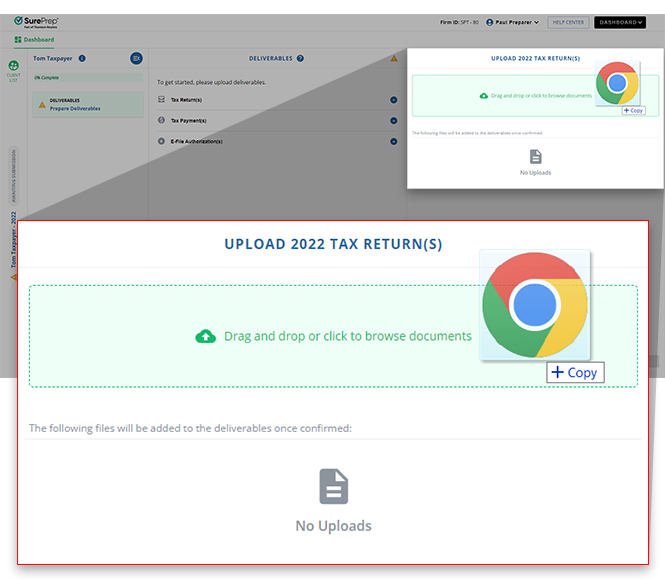
Select
Upload
to upload a PDF of the tax return (Client's Copy).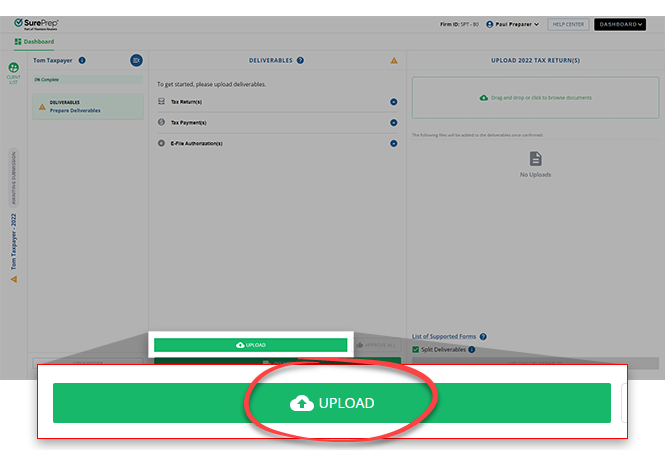
You can point to the file name, then select  to edit the file name before uploading the deliverable. However, if you are planning to use the
Edit
to edit the file name before uploading the deliverable. However, if you are planning to use the Split Deliverables
feature, then the split PDFs will be renamed automatically according to the deliverable type.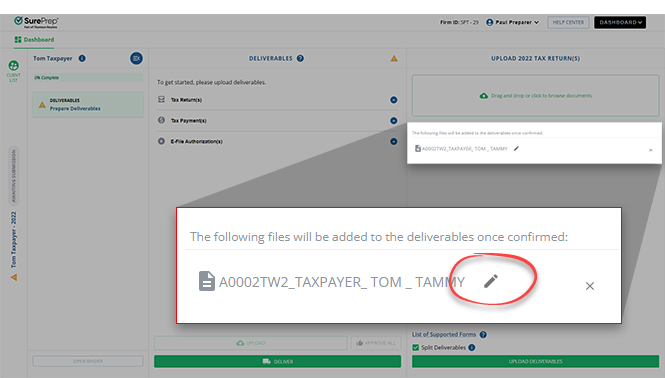
If you are uploading a single PDF with multiple deliverables, then you can select the
Split Deliverables
checkbox to extract each deliverable as an individual PDF. SurePrep will scan the document and prepare the PDFs for delivery to TaxCaddy.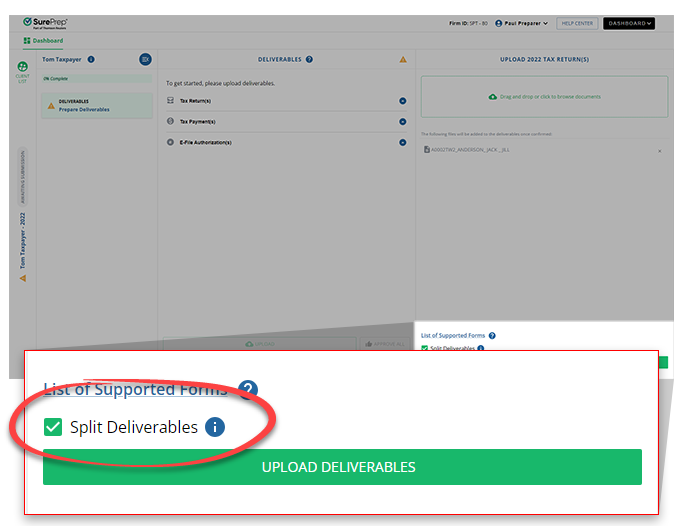
note
The
Split Deliverables
checkbox will be deactivated if your firm doesn't have TaxCaddy units available to perform the task. Select
UPLOAD DELIVERABLES
to upload the documents and have it processed through OCR.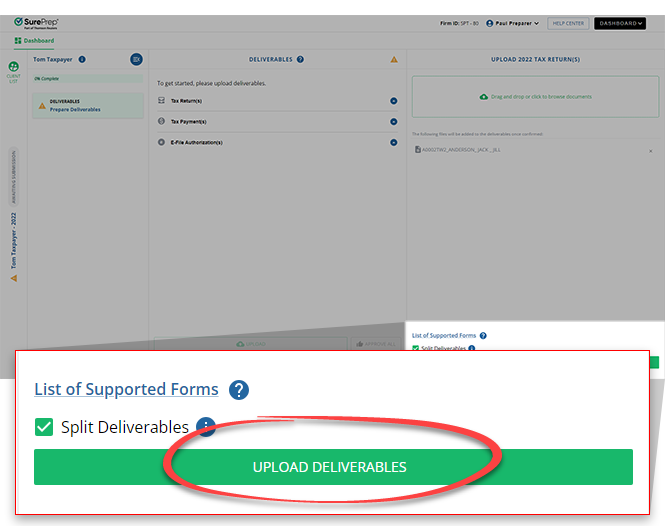
If you selected
Split Deliverables
and the PDF contains Filing Instructions, Federal tax return, State tax returns, Tax Payment Vouchers, and E-file Authorizations, then Split Deliverables
will extract the individual deliverables into separate PDFs.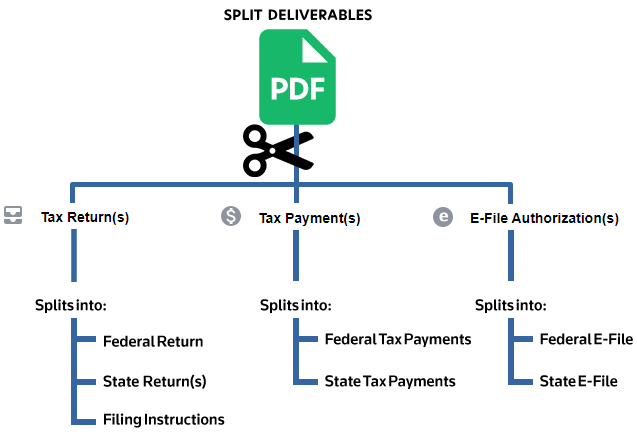
The OCR process splits the Client Copy of the tax return into Filing Instructions, Federal Tax Return, and State Tax Returns. Additionally, the system places the separated PDFs under their respective deliverable categories, such as Tax Returns, Tax Payments, and E-file Authorizations.
note
Splitting deliverables may take a few minutes while it is in progress; You can return back later to continue reviewing your deliverables.
Unable to split PDF
You'll encounter the following error if you uploaded a tax return without bookmarks. Print a Client's Copy of the tax return PDF with bookmarks then upload the document again.
The system couldn't split the file name. Ensure the files are PDFs with bookmarks from supported tax software, or re-upload the files without using the Split Deliverables option.
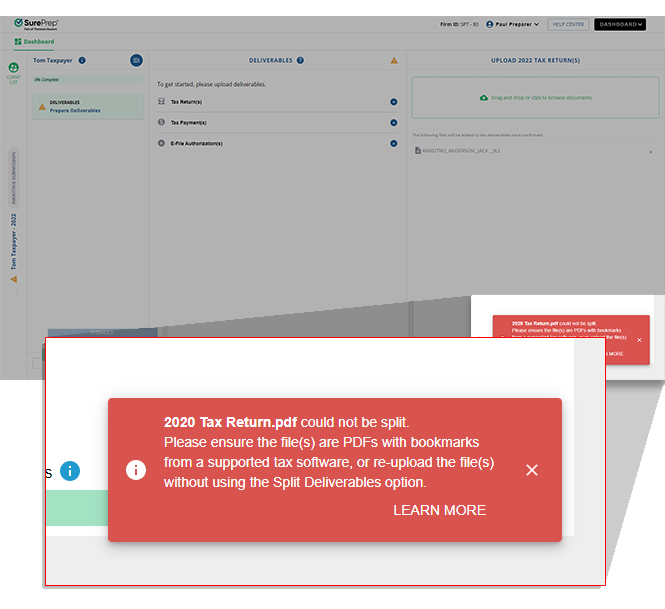
Once you print the Client's Copy of the tax return PDF with bookmarks, you can upload the document again.
Alternatively, if you don't want to split the document, upload the deliverable without selecting the
Split Deliverables
checkbox. The system will deliver the tax to the taxpayer as a single federal tax return.note
UltraTax CS clients only: If bookmarks are deactivated in your UltraTax CS settings, the uploaded client's copy of the PDF won't split Federal and State in the Reviewer Dashboard. All deliverables will appear as a single federal return item.
Fetch deliverables from GoSystem Tax RS
GoSystem Tax RS
Before you start (required)
Complete setting up SurePrep integration with GoSystem Tax RS API before you can fetch deliverables from the tax software.
note
Fetch
will appear after the previous step is complete. Fetch
is only available from tax year 2022 onwards.Once your GoSystem Tax RS integration with SurePrep is complete, you can begin fetching deliverables.
Fetching deliverables from GoSystem Tax RS (watch demo):
https://youtu.be/mOWav6hKohIFetch Deliverables from GoSystem Tax RS
Select
FETCH
to fetch deliverable items from the tax software. 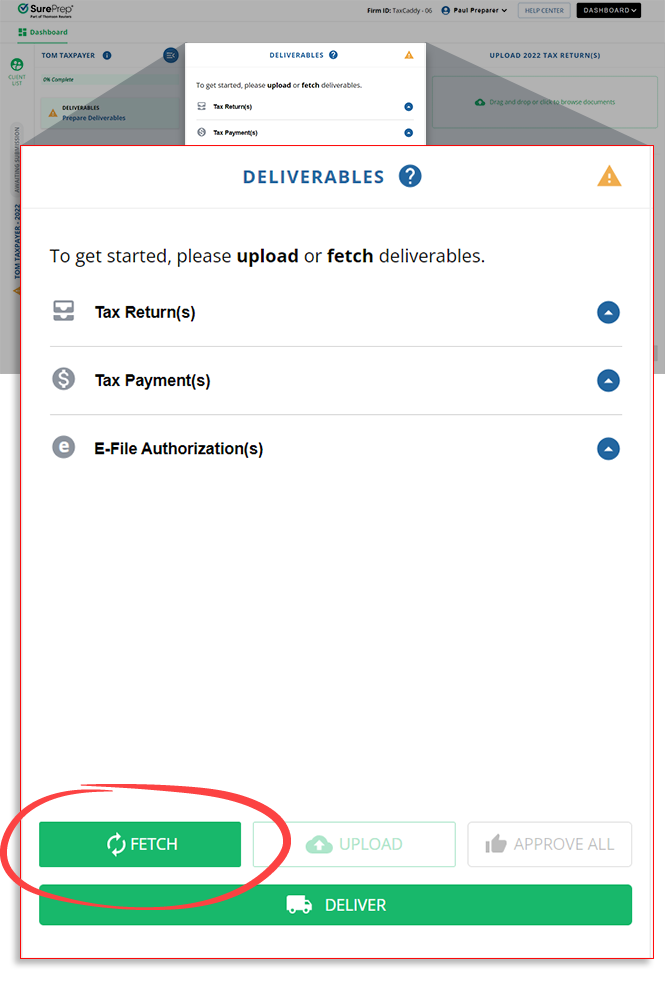
Fetch
will be deactivated while fetch is in progress. Fetching deliverables may take several minutes. You can continue to work while waiting for the fetch to complete.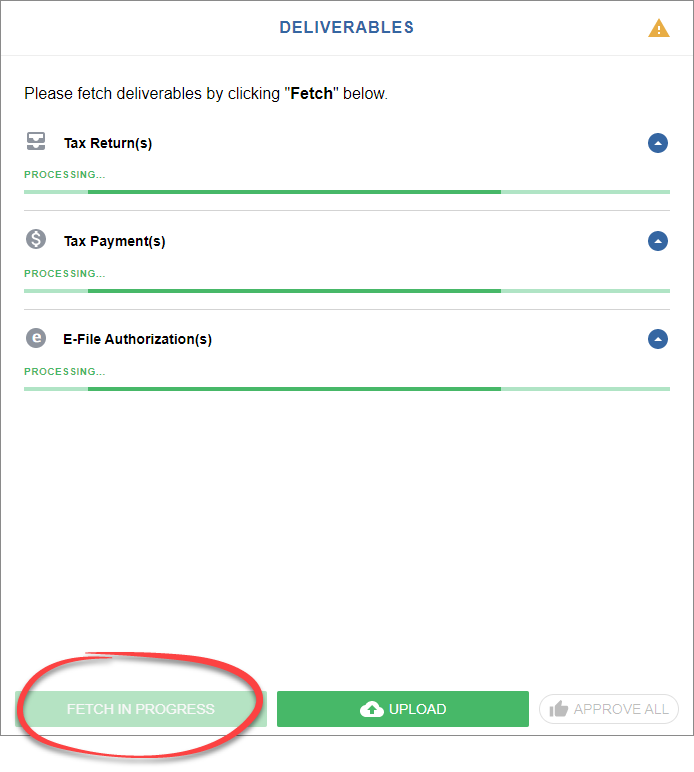
note
To fetch deliverables again, you must remove all the fetched items from the
Deliverables
checklist then select Fetch Deliverables
.Fetch deliverables from UltraTax CS (Local and VO/SaaS)
UltraTax CS (Local and VO/SaaS)
Before you start (required)
Complete setting up SurePrep integration with UltraTax CS API before you can fetch deliverables from the tax software.
note
You may need to restart UltraTax CS after completing integration.
Once your UltraTax CS integration with SurePrep is complete, you can begin fetching deliverables.
Watch fetching deliverables from UltraTax CS (demo):
https://youtu.be/MU_BQvD8YvoFetch deliverables from UltraTax CS
Before fetching the deliverables, you'll need to print a client's copy of the tax return from UltraTax.
- Open the client's tax return.
- Go toFile, thenPrint Returns(or pressCtrl+P).
- Clear theGovernment Copycheckbox if it is selected.
- Select theClient Copycheckbox.
- Select theElectronic deliverycheckbox.
- SelectSurePrep. If you don't seeSurePrepas an option, restart UltraTax CS and try again. If you still don't see SurePrep as an option, make sure you have SurePrep Integration enabled in UltraTax CS.
- SelectAssemble.
note
You can print and deliver multiple clients in bulk.
Select
Fetch
in the Reviewer Dashboard to fetch deliverable items from the tax software. note
Fetch
will only be visible to firms that have completed the prerequisites. Complete setting up SurePrep integration with UltraTax CS API. If your firm has more than 1
DATA LOCATION
setup, a confirmation window will appear. Select the data location where your client's data is located. 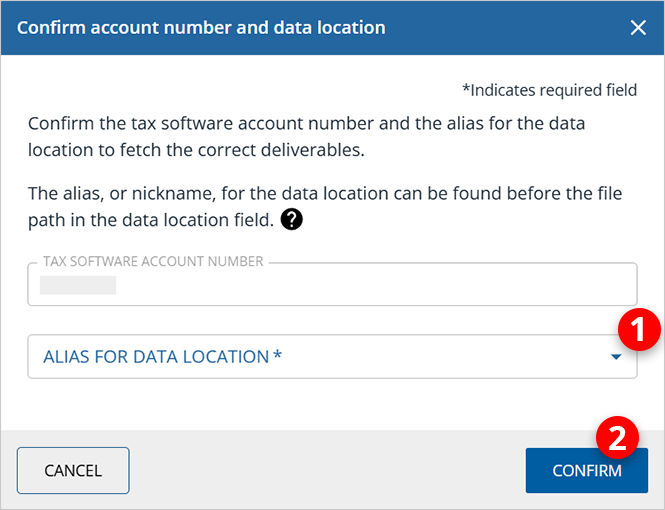
Fetch
will be deactivated while fetch is in progress. Fetching deliverables may take several minutes; You can continue to work while waiting for the fetch to complete.note
To fetch deliverables again, you must remove all the fetched items from the
Deliverables
checklist then select Fetch Deliverables
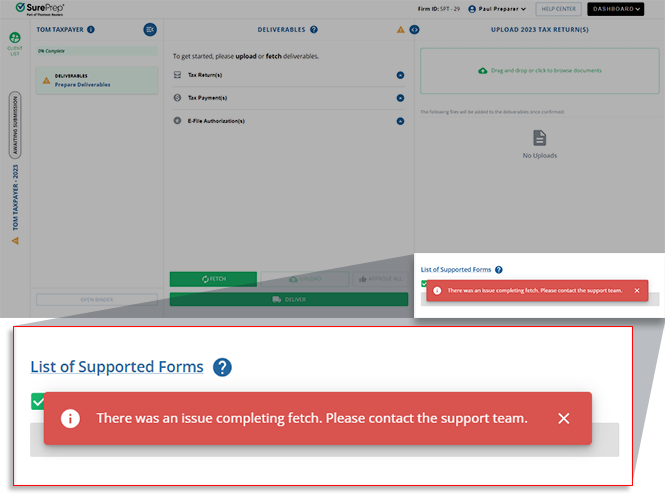
.You may see the following notification if the fetch fails:
"
There was an issue completing fetch. Please contact the support team.
"
Possible solutions:
- Missing Information: Your UltraTax CS client is missing information inTax Client IDin TaxCaddy. Add a Tax Client ID to your records.
- Incorrect or non-existent ID: The Tax Client ID is either entered incorrectly or doesn't exist in UltraTax CS. Check if the Tax Client ID exists in UltraTax CS and is entered correctly in TaxCaddy.
- Service Disruptions: SurePrep is experiencing service disruptions. Try again later.
- Further Assistance: If neither of these options resolves your issue, contact SurePrep Support for assistance.
Fetch deliverables from CCH Axcess tax
CCH Axcess tax
Select
FETCH
to fetch deliverable items from the tax software. Requires CCH Axcess Tax with API license to print taxFetch
will be deactivated if the fetch is in progress or deliverables are already present. Fetching deliverables may take several minutes; You don't need to wait for the fetch to complete.note
To fetch deliverables again, you must remove all the fetched items from the
Deliverables
checklist then select Fetch Deliverables
.You can only use
Fetch
if you have CCH Axcess Tax with the associated license. If your firm has the license tax returns aren't being fetched, contact SurePrep Support to request configuration for your domain to pull the tax returns.Step 3: Review deliverables
After the deliverables are uploaded/fetched, you can review the deliverables before delivering them to your client.
If you see the
Confirm Client Information
window, select your client's resident state, then select SAVE
.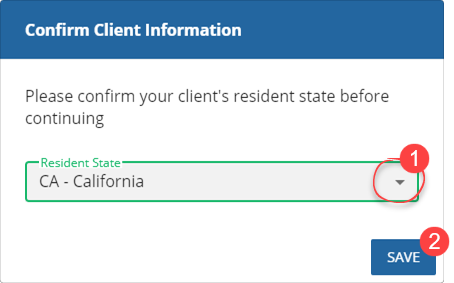
Selecting a Resident State will update the resident state field for all Tax Payment Vouchers.
Fetched/Uploaded deliverables will appear under their respective categories:
- Tax Returns
- Tax Payments
- E-File Authorizations
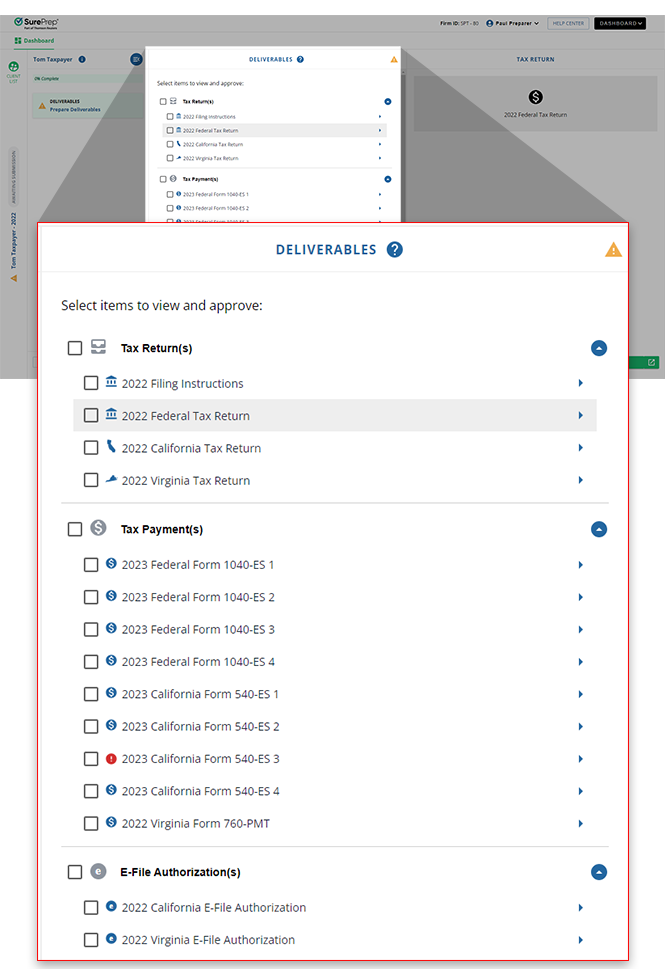
note
If you opted to upload the Client's Copy of the tax return without the
Split Deliverables
checkbox selected then the entire tax return will appear as a single deliverable item under the Tax Return
category.note
You can select the  or
or  icon to show or hide each category.
Expand
or Collapse
icon to show or hide each category.Tax Returns
Tax Return(s)
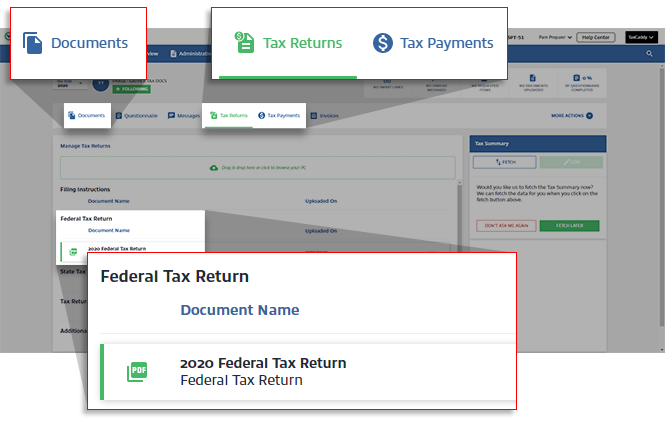
deliverables category shows filing instructions, federal, and state tax returns uploaded or fetched from the tax software. If delivered, the documents will appear on the client's Tax Return
screen in TaxCaddy . 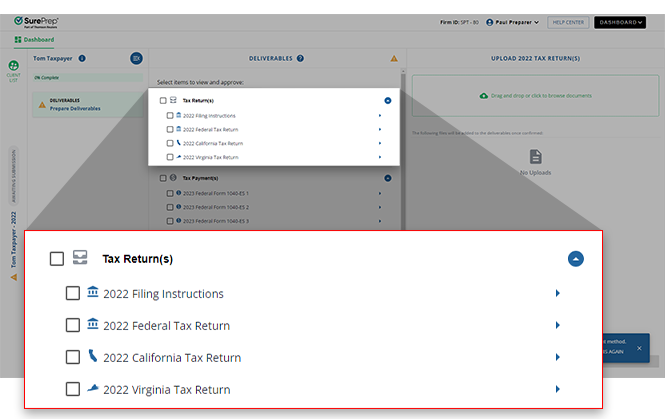
note
The
Split Deliverables
feature doesn’t separate federal and state tax returns printed from Lacerte tax software.You can select a tax return in the  icon to view the document in a new tab on your browser.
DELIVERABLES
(middle) panel, then select View Return
in the last panel to view the document. You can also select the Open New Window
icon to view the document in a new tab on your browser.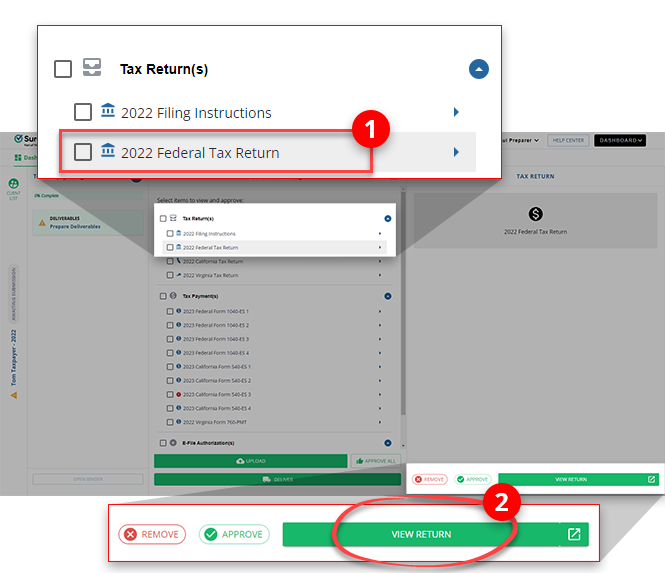
The document will appear in the Document Viewer.
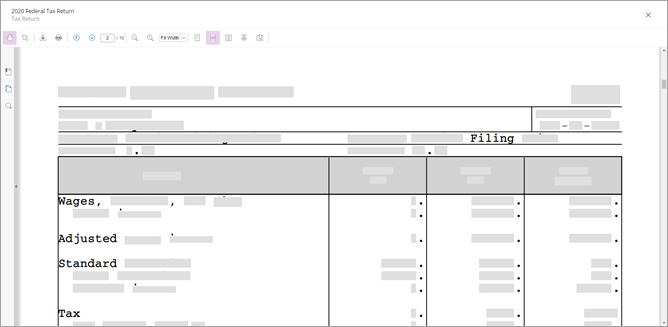
note
City tax returns will be integrated with Federal Tax Returns.
State application for extension
Under the
Tax Returns
section, the following states don’t require an application for an extension if a federal extension has already been obtained:- Georgia Form IT-303
- New Mexico Form RPD-41096
- North Dakota Form 101
You will see an  icon next to the state name, you can remove these extension application forms. However, you'll need to attach a copy of the approved federal extension form when filing the tax return (during the extension period).
Attention
icon next to the state name, you can remove these extension application forms. However, you'll need to attach a copy of the approved federal extension form when filing the tax return (during the extension period).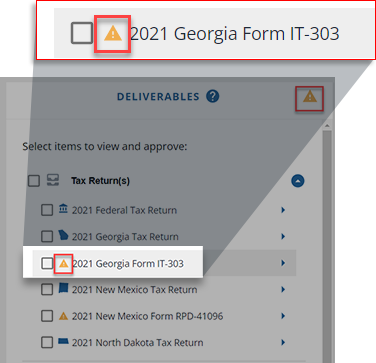
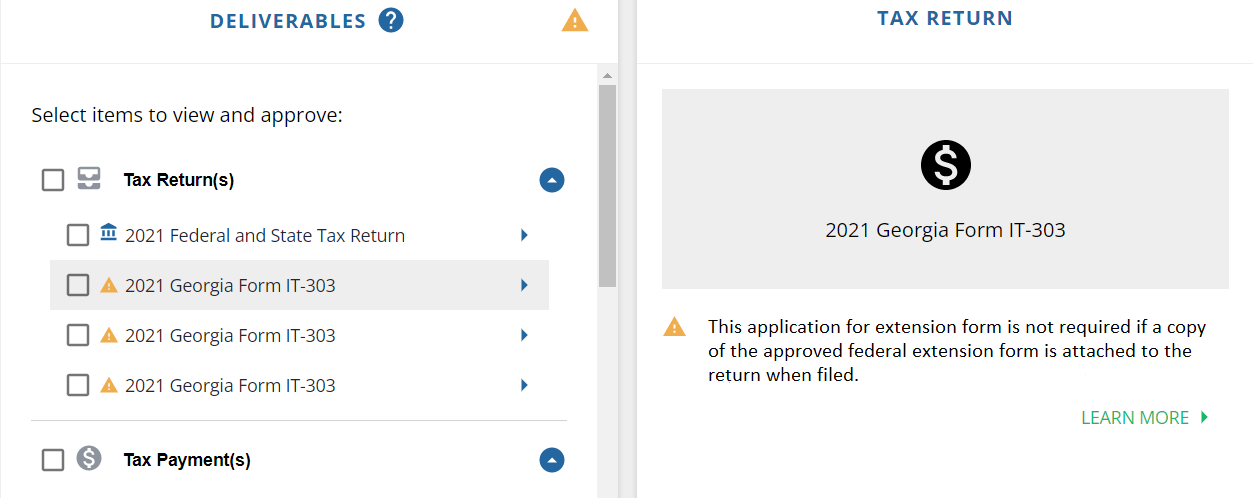
note
The following message will appear on the last panel: This application for extension form is not required if a copy of the approved federal extension form is attached to the return when filed.
Tax Payments
Tax payment(s)
deliverables category shows tax payment vouchers uploaded or fetched from the tax software. If delivered, the documents will appear on the client's Tax Payments
screen in TaxCaddy. 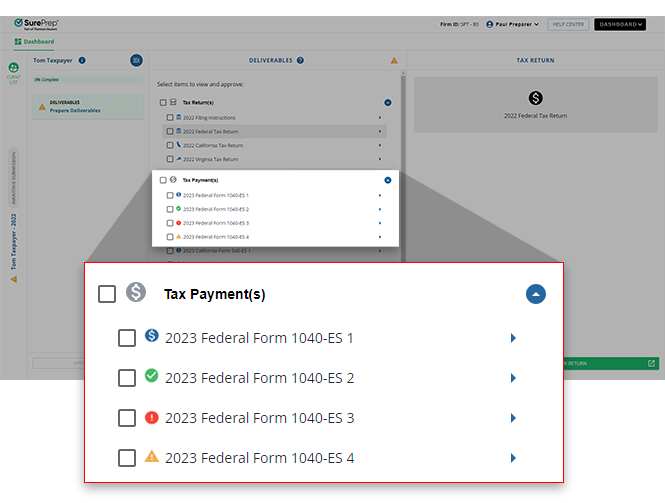
The
Tax Payment Voucher
indicates the following statuses:Status | Description | |
|---|---|---|
 | Official Voucher (Pending Approval) | Can be mailed to the taxing authority and Marked as Paid in TaxCaddy.Next steps: 1. Select Payment Method to prepare for approval.2. Approve deliverables. |
 | Approved for Delivery | Tax Payment Voucher is approved and marked for delivery. Next step: After all the deliverables are approved, send the deliverables to your client. |
 | Missing Field | This field is mandatory and must be populated and verified before the deliverable can be approved. |
| | Requires Attention | If the tax return was uploaded using Split Deliverables then some fields on the Tax Payment Voucher need to be verified (for example, the deliverable uses a non-standard font).Also appears if the deliverables were fetched and can't be mailed to the tax authority. The tax payment voucher is only available for record-keeping purposes to be Marked as Paid in TaxCaddy. |
Select the
Tax Payment
voucher name to view details for review.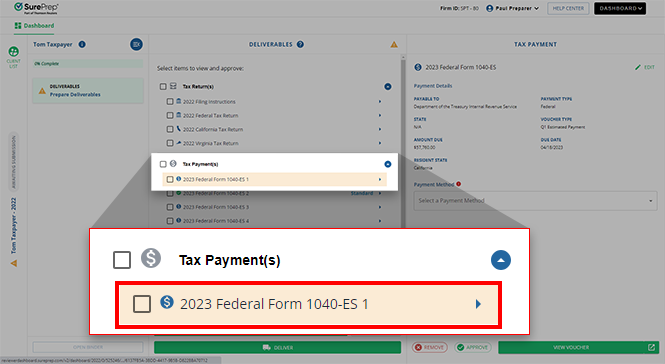
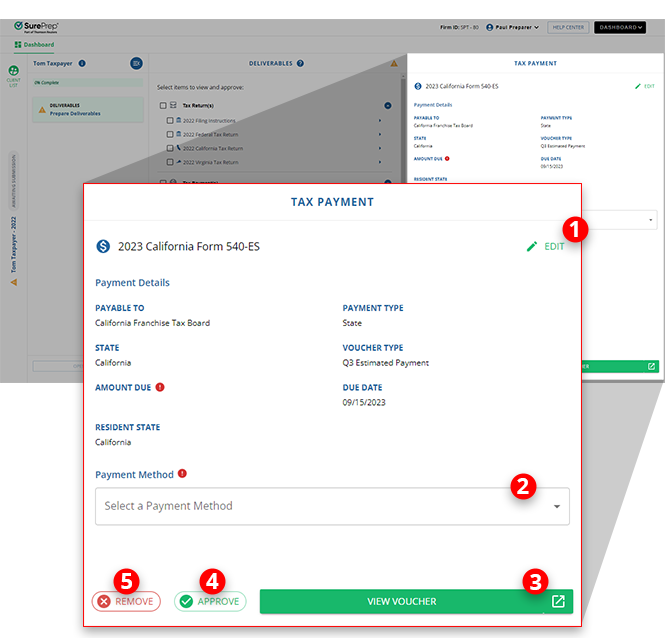
Tax Payment Voucher details will appear on the last panel where you can perform the following actionable items:
- Edit: Lets you edit the Tax Payment Voucher details before sending them to a client.
- Payment Method: Lets you select a payment method for the tax payment voucher.
- View Voucher: Lets you view the uploaded PDF document in a Document Viewer window.
- Approve: Lets you individually approve the Tax Payment Voucher for delivery to TaxCaddy.
- Remove: Lets you delete the current Tax Payment Voucher from the list of deliverables.
(Tax Payments) Missing Field: Edit Invalid Fields
You will see if the mandatory information is missing on the Tax Payment Voucher.
Missing Field
if the mandatory information is missing on the Tax Payment Voucher. 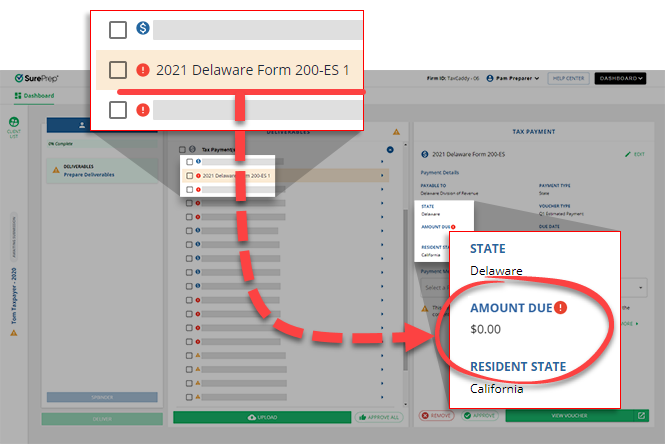
To approve deliverables, you must enter information for all mandatory fields. Select
Edit
to update the Tax Payment Voucher.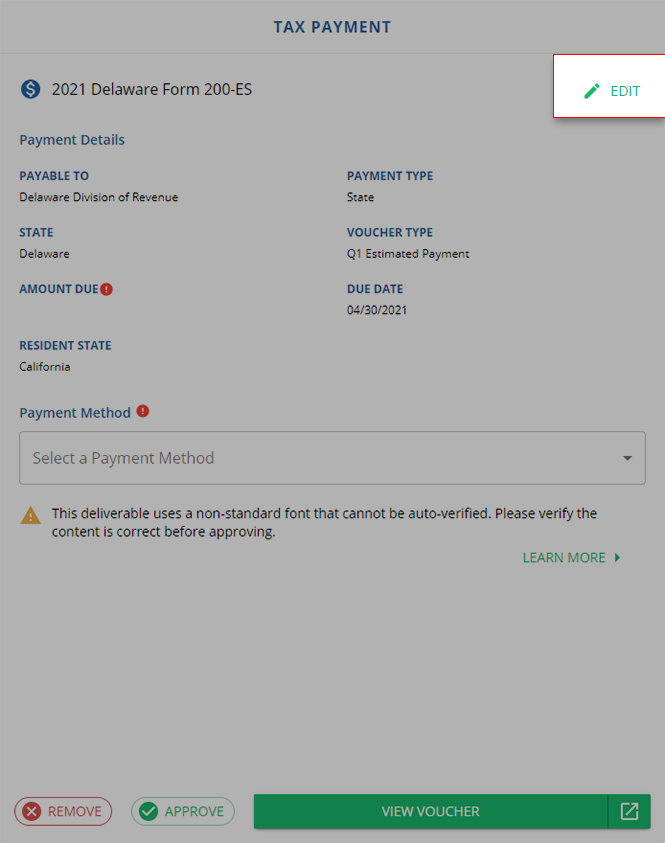
Enter any missing information in the text field (Tax payment name, Payable To, Payment Type, State, and Voucher Type). Fields with missing information are marked with the icon.
Missing Field
icon.- If you are missing an amount, then enter the amount seen on the source document.
- If the amount is $0.00, then either remove the tax payment voucher or set it a non-zero amount (if applicable).
- If you are missing a due date, then enter the date seen on the source document or select theDate
 icon to use the calendar.
You can point to the icon to view the tooltip for additional information about the missing field. For reference, you can select
Missing Field
icon to view the tooltip for additional information about the missing field. For reference, you can select VIEW VOUCHER
to verify or find the relevant information on the source document.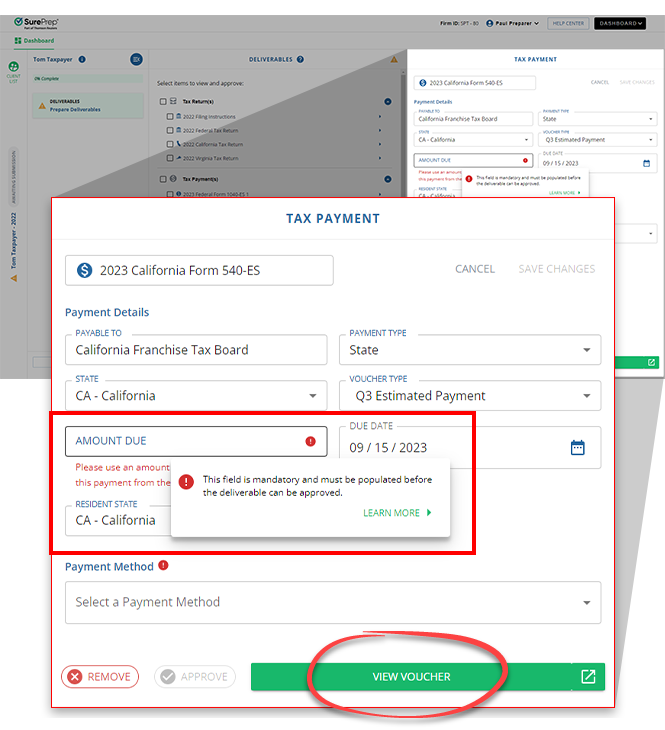
note
If the Tax Payment Voucher doesn’t show the due date then SurePrep will auto-populate a pre-defined date (Payment Voucher - April 15, Quarter 1 - April 15, Quarter 2 - June 15, Quarter 3 - Sept 15th, and Quarter 4 of January 15 of the following year).
After making the changes, select
SAVE CHANGES
to update the Tax Payment Voucher.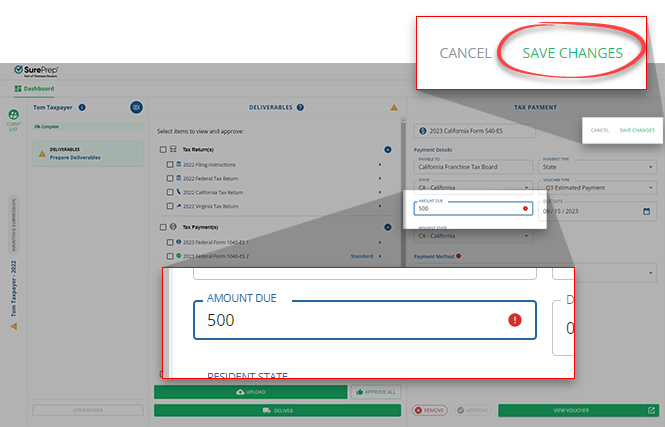
The Tax Payment Voucher icon status will update to the Official Voucher icon. To approve and deliver all the deliverables, you must address all Tax Payment Vouchers with  missing information and select a payment method.
icon. To approve and deliver all the deliverables, you must address all Tax Payment Vouchers with missing information and select a payment method.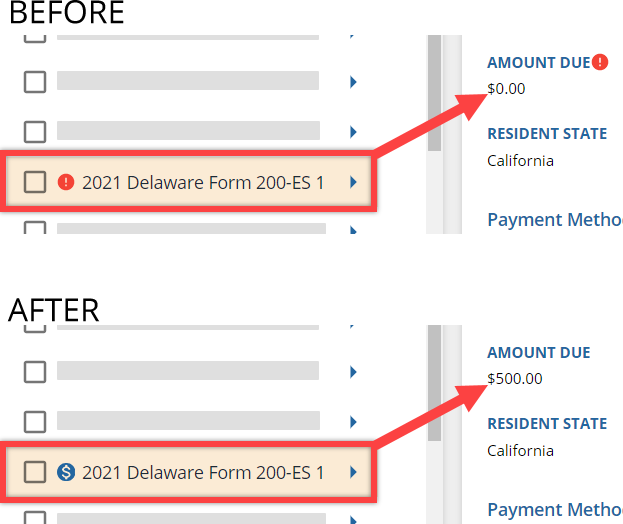
If the Tax Payment Voucher should not be delivered then you can select
Remove
to remove the tax payment voucher. (Tax Payments) Payment Method Requires Attention
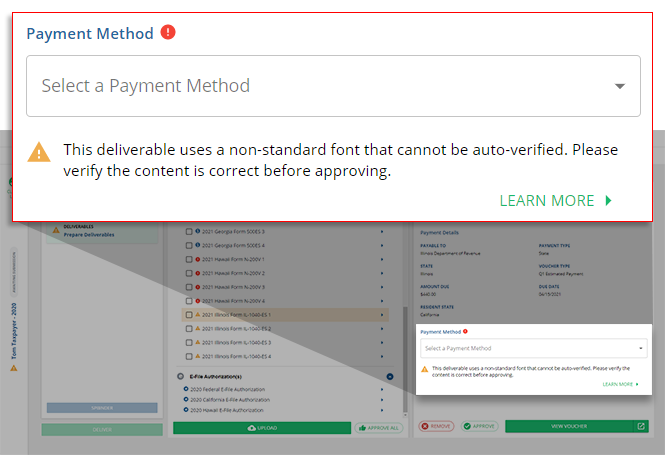
If you uploaded a Tax Payment Voucher that couldn’t be auto-verified then you will see "
This deliverable uses a non-standard font that cannot be auto-verified. Please verify the content is correct before approving
".
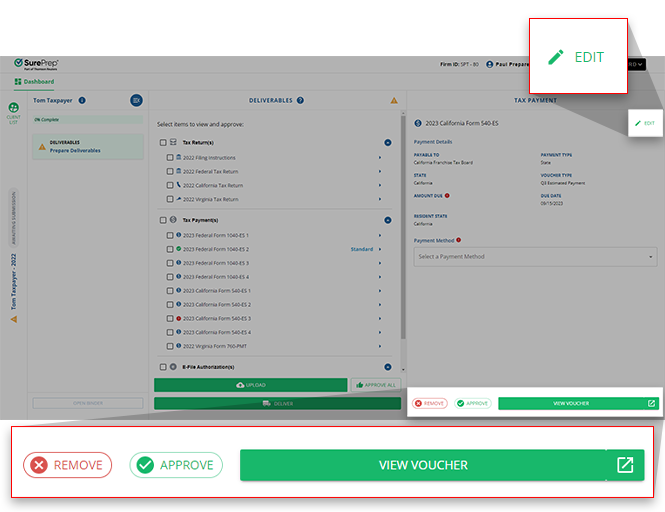
Select
View Voucher
to view the source document and verify if all the data is correctly captured on the last panel. To modify the details, select Edit
.
When selecting a payment method for an unofficial tax payment voucher, you will see "
This tax payment voucher is a place-holder that will not be valid for mailing to the taxing authority
". Tax Payment Vouchers can be delivered to TaxCaddy, however, they can't be mailed to the taxing authority. Tax Payment Vouchers will only available be valid for record-keeping purposes to be Marked as Paid
in TaxCaddy. 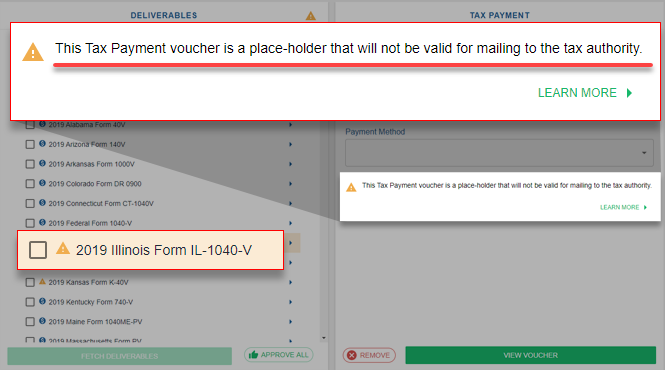
(Tax Payments) Official Voucher: Select Payment Method
Before you approve deliverables, you must first address each tax payment voucher by selecting a payment method for that tax payment voucher or removing it as a deliverable item. You can select payment methods individually or in bulk.
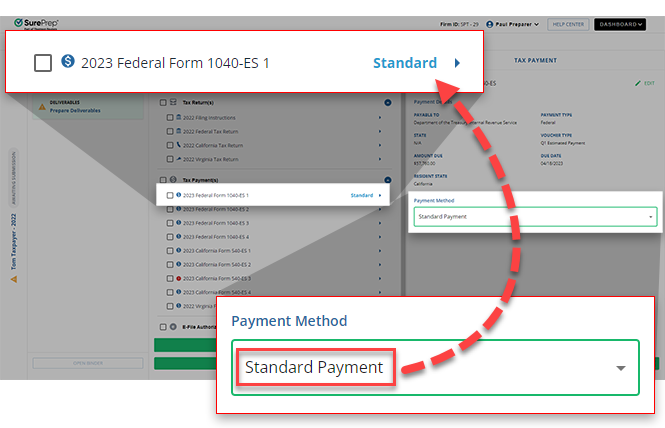
To select a payment method individually, select a tax payment voucher in the middle panel, then on the right panel, select the picklist  under
under
under Payment Method
.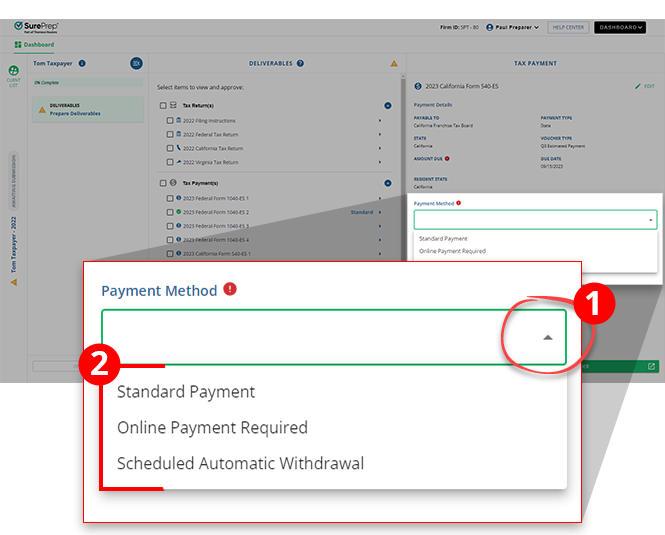
Select from the following payment methods:
Payment Method | Description |
|---|---|
Standard Payment | Indicates to the taxpayer they can make their payment using their preferred method. This includes, if applicable, the ability to pay by check through TaxCaddy. If the taxpayer made the payment without using TaxCaddy, then you or the taxpayer can mark the tax payment as paid. |
Online Payment Required | It indicates to the taxpayer that this payment should be paid online and should not be mailed in. |
Scheduled Automatic Withdrawal | It Indicates to the taxpayer that this payment has already been scheduled for automatic withdrawal or payment. You or the taxpayer can mark the tax payment as paid once they have verified the payment has been processed. |
After you select a payment method, the tax payment voucher (middle panel) will update to show the selected payment method.
You can expedite the selection process by updating payment methods in bulk. Select checkboxes for multiple tax payment vouchers then select the
Payment Method
option on the bottom.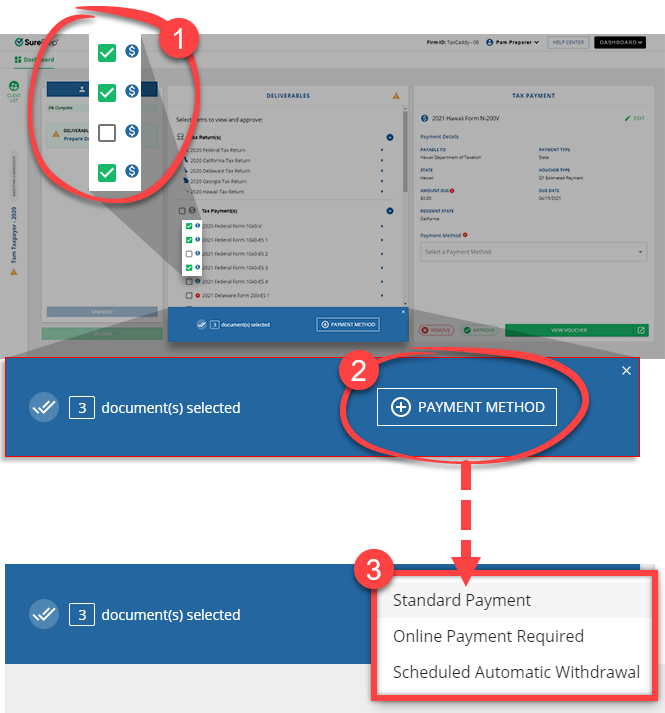
To bulk select all tax payment vouchers (checkboxes) with the same payment method, select the
Tax Payment(s)
checkbox on top of the list then select a payment method.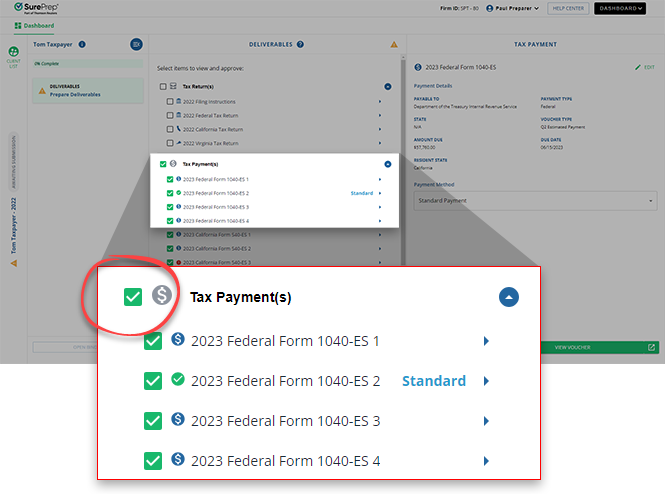
Payment Method
must be selected for all tax payment vouchers before you can approve. 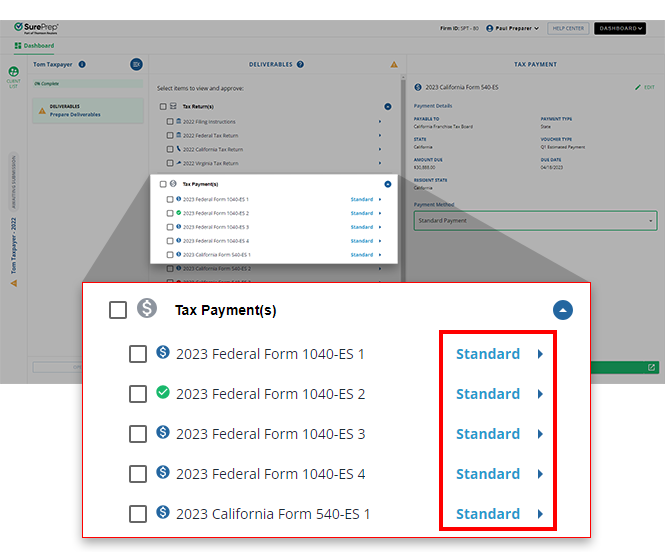
E-file Authorization
E-file Authorization(s)
category shows documents that will be sent to the client as eSign requests. If delivered, the documents will appear on the client's Documents, Requested Items, then To Sign
screen in TaxCaddy. 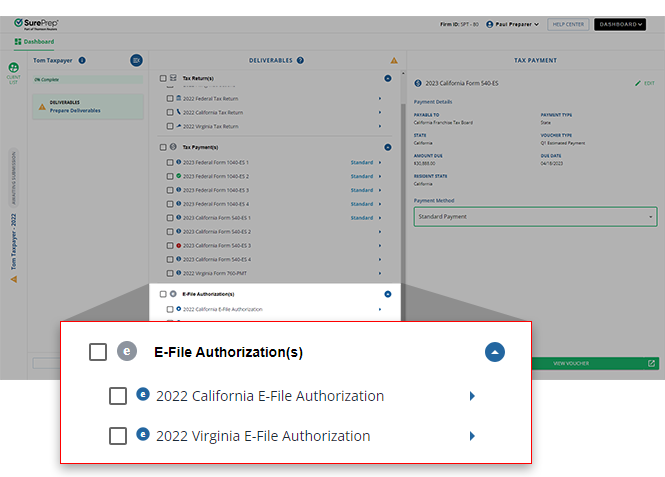
note
If applicable, Reviewer Dashboard will generate and deliver New York E-File authorization to TaxCaddy. You can remove the deliverable E-File Authorization if you do not want it be E-Signed.
Remove Deliverables
To remove a document from being delivered (sent) to TaxCaddy, select the document name in the
Deliverables
panel then select Remove
on the last panel.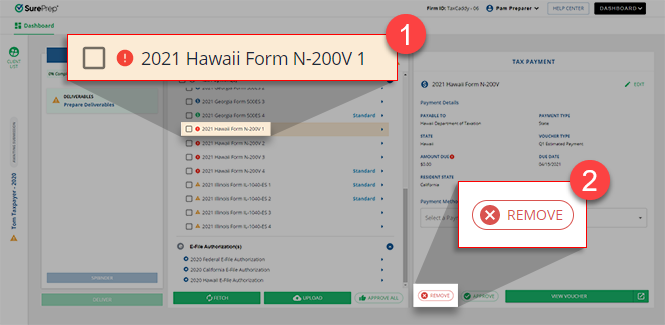
On the
Remove Deliverable
window, select Confirm
to remove the deliverable item.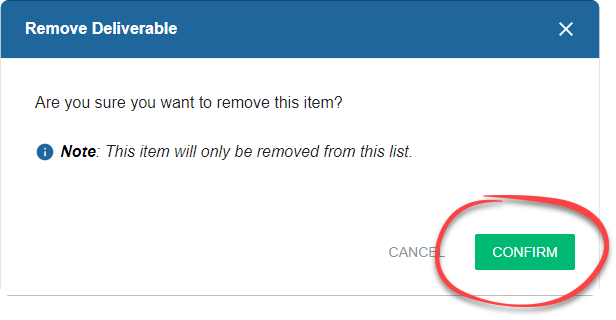
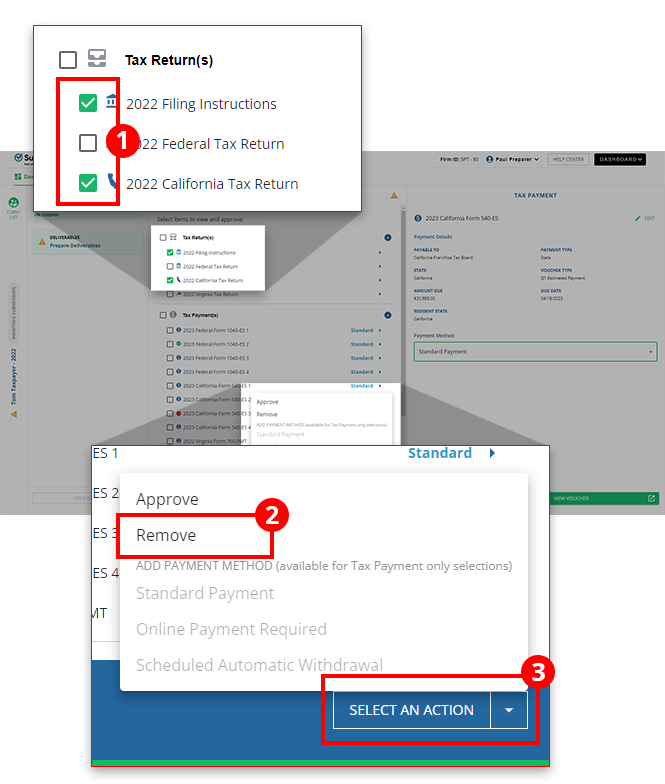
You can also approve or remove multiple Deliverables simultaneously by selecting the checkbox next to each Deliverable. You can select the parent category checkbox (for example, Tax Returns, Tax Payment Vouchers, and E-file Authorizations) to select all Deliverables in that category or you can individually select/clear checkboxes as desired.
To remove the selected deliverables, select
Select An Action
, then Remove
.
If you accidentally deleted a deliverable item and want to restore it before it is delivered, select
Upload
to upload the deliverables again. All existing deliverables will be removed from the middle panel and replaced with new fetched/uploaded copies.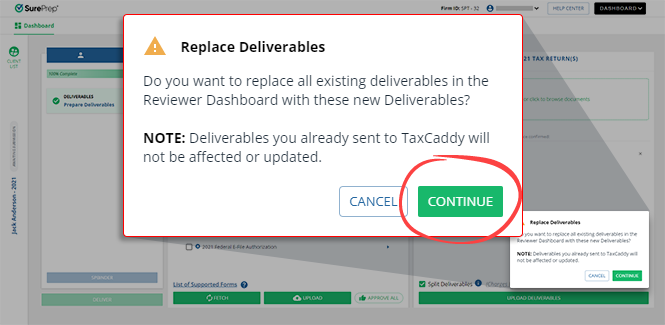
Uploading deliverables without using the
Split Deliverables
feature will amend the document to the existing list.Step 4: Approve and deliver
While reviewing a deliverable, if you are satisfied with a deliverable document, select the document name in the
Deliverables
panel then select Approve
on the last panel. This allows you to individually approve each deliverable.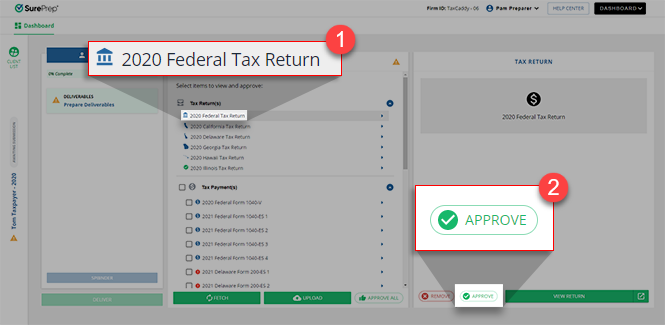
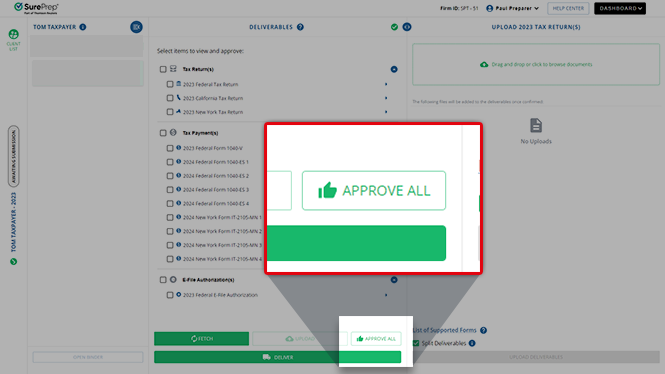
To approve the Deliverables in bulk, select
Approve All
.
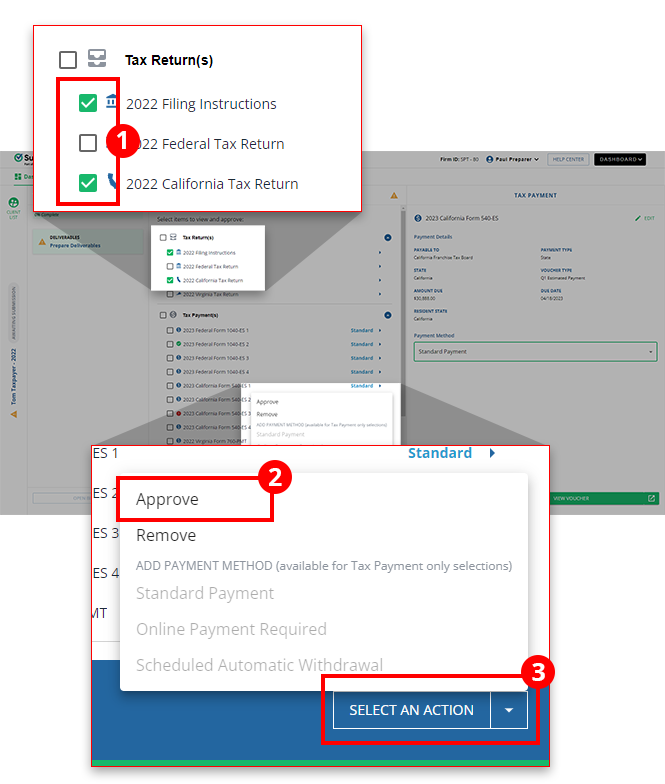
You can also select deliverables checkboxes, then select
Select An Action
, then Approve
.
note
Tax payment method can't be changed from the Reviewer Dashboard once the deliverables have been approved.
After you approve the
Deliverables
checklist, the button will update to Approved
status.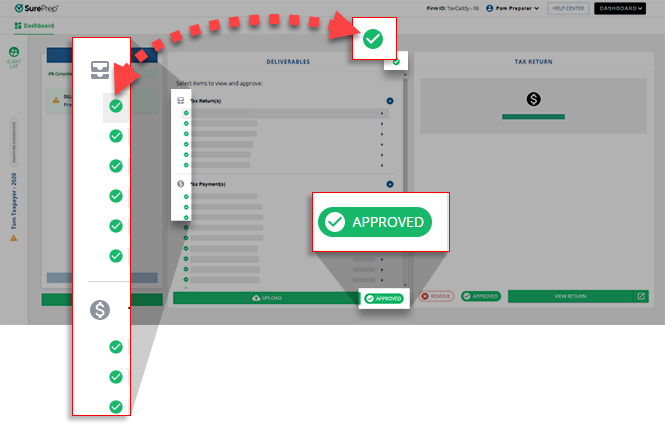
You may see a (
Assign Payment Method)
notification if one or more tax payment vouchers are missing a Payment Method
. Select a Payment Method
for the tax payment voucher before you can approve the deliverables for delivery.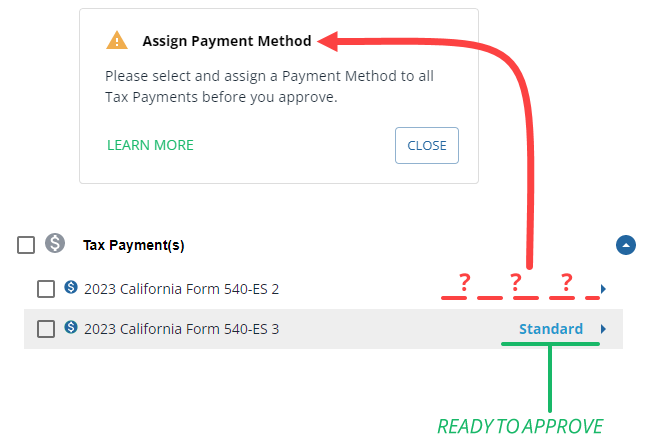
Select
Deliver
to send tax documents to TaxCaddy. The Deliver
option will only be enabled if:- The fetched documents have been approved but not yet delivered
- You belong to a user group with theCan Deliverpermission.
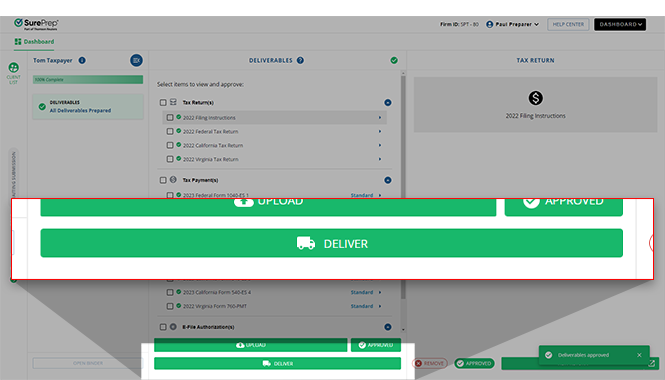
note
Deliverables will be removed from the Reviewer Dashboard after being delivered to TaxCaddy.
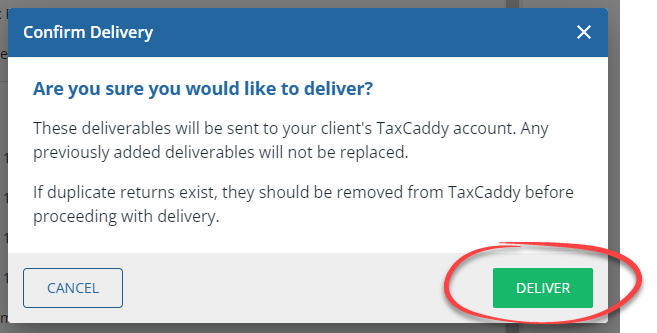
On the
Confirm Deliver
window, select Deliver
. 
Delivery may take up to 5 minutes before the deliverable documents appear in TaxCaddy. You don’t need to wait for the delivery to finish. Delivered documents will appear in their respective category in the client's profile.
Create a support ticket if the deliverables take longer than the maximum time limit (5 minutes).
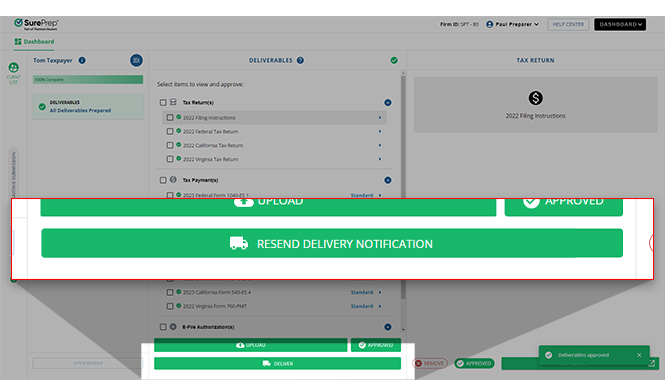
Clients will automatically receive an email notification after the deliverables are sent to TaxCaddy.
Deliver
will change to RESEND DELIVERY NOTIFICATION
. Adding new deliverables (via Fetch or Upload) will revert back to Deliver
.note
If deliverables have already been sent by accident or newer copies need to be sent, go to
Client Profile
, then delete each delivered items individually from its respective area in TaxCaddy (Documents, Tax Payments, and Tax Returns). Once you are done, deliver the latest documents again from Reviewer Dashboard. Deleting deliverables from TaxCaddy first lets you avoid sending duplicate deliverables. Resend delivery notification
Clients automatically receive an email notification after the deliverables are sent initially. Using the
RESEND DELIVERY NOTIFICATION
feature lets you manually resend a new notification email if desired. This feature can be useful if your client's previous Dynamic Password link expired (after 2 weeks) or they accidentally deleted their Dynamic Password email. Clients using a Dynamic Password (without a personal password) to sign in will receive an email notification with a new Dynamic Password link. Client's that have already set up their TaxCaddy account with a password can sign in using their personal password.
To resend the deliverables notification, select
RESEND DELIVERY NOTIFICATION
. 
For security reasons, the previously sent Dynamic Password link will expire. Your client must use the new link to sign in.
note
- RESEND DELIVERY NOTIFICATIONappears after you send the deliverables.
- You can resend the delivery notications at any time after the initial delivery. However, the previous email link will be invalidated for clients using Dynamic Password; client must use the updated link from the new email.
- Uploading or fetching deliverables again will revert theRESEND DELIVERY NOTIFICATIONbutton back to theDELIVERbutton.
Approve warnings
When approving deliverable items, you may see a warning messages if the deliverables need your attention.
Missing amounts error
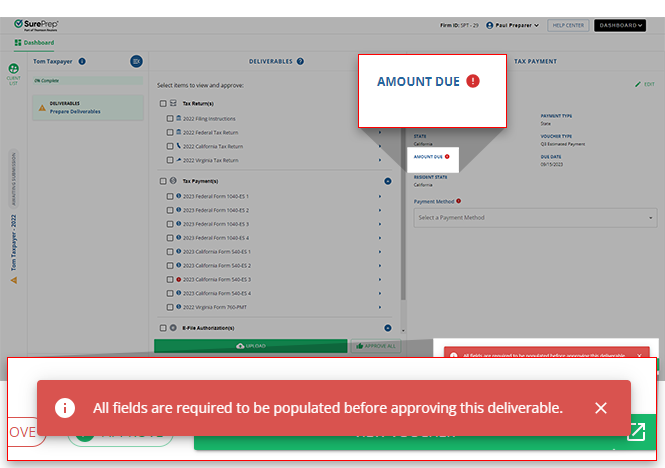
You'll see the following error notification if a required field is missing:
All fields are required to be populated before approving this deliverable.
Resolve
: Edit the Tax Payment Voucher with the missing information or remove the Tax Payment Voucher from the list. Similarly, the following
Missing Fields
error notification appears when you select Approve All:
You can't use
Approve All
until all the required fields are populated. The following deliverables have missing data.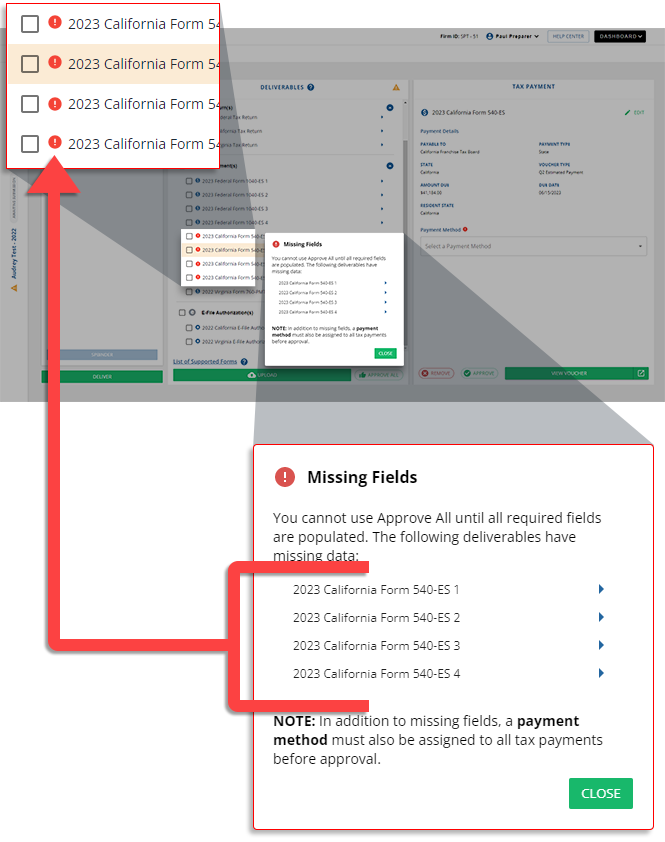
Resolve
: Enter the required information for each deliverable then select Approve All
again. note
Select the deliverable on the
Missing Fields
notification to view the deliverable information.If there are items that require attention , select the tax payment voucher to verify if the information is correct and eligible for payment by mail to the taxing authority.
, select the tax payment voucher to verify if the information is correct and eligible for payment by mail to the taxing authority.You can select
Continue
to approve these deliverables.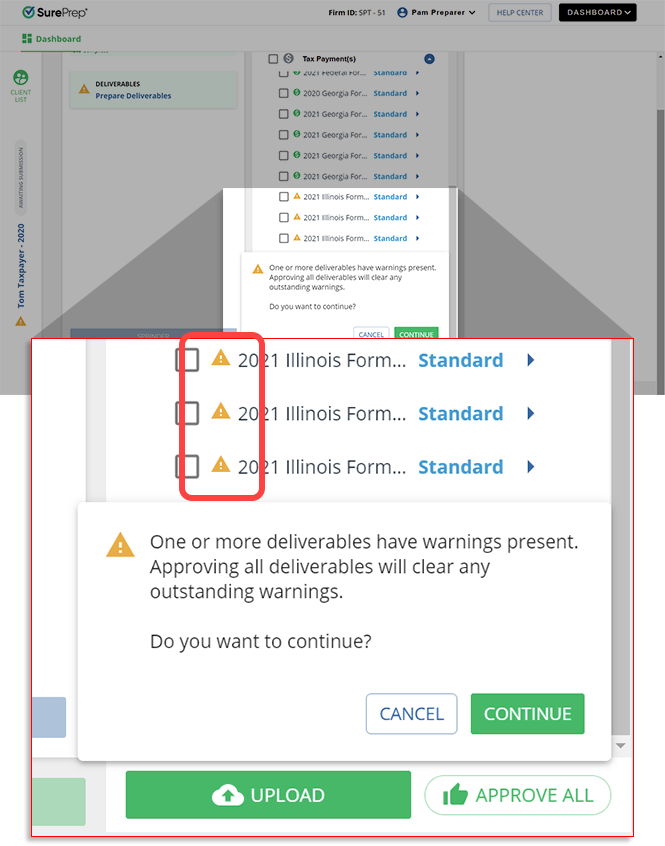
Assign payment method
When approving all deliverables, you may see an alert if one or more tax payment vouchers are missing a payment method. You can select a payment method or remove the tax payment voucher from delivery. Address all tax payment vouchers without a payment method.
Delivery error notification
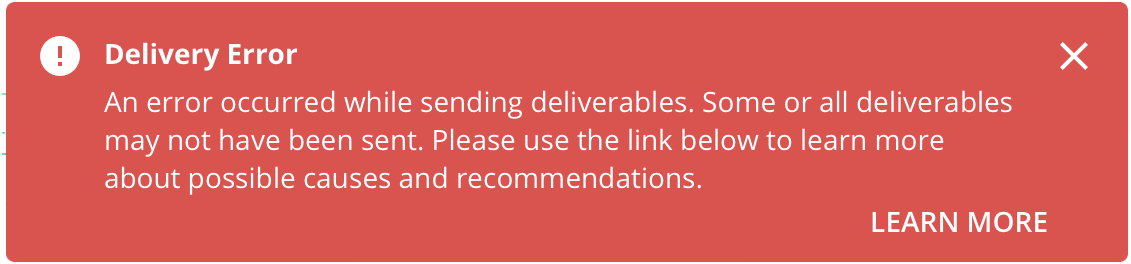
You may see a
Delivery Error
notification for any one of the following reasons:If one or more tax payments have an amount of $0.00, remove the $0.00 payment then try again.
- The client's record in TaxCaddy is missing a phone number.
- You may be experiencing network connectivity issues. Please check your network connection then try again.
- SurePrep is experiencing service disruptions. Please try again.
If neither of these options resolve your issue then, contact SurePrep Support for assistance.
Unable to Deliver window
You'll see a
Unable To Deliver
window when you are attempting to send deliverables to a client. The window will list the reason the deliverables can't be sent.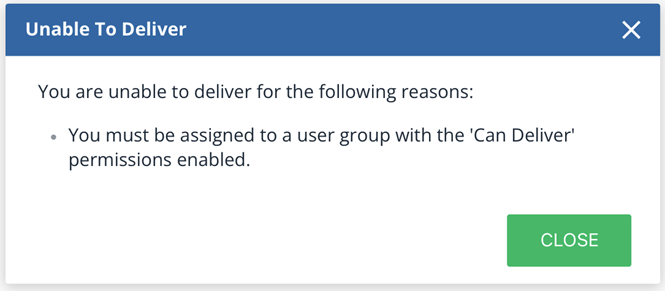
Message | Cause |
|---|---|
You must be assigned to a user group with the Can Deliver permissions enabled. | You are assigned to a user group that doesn’t have the ' Can Deliver permission enabled. |
This client record is for a FileRoom binder that is not linked to a TaxCaddy client profile. Please link this client's binder to a TaxCaddy client profile. | The client you selected in the Reviewer Dashboard is a binder, this (binder) client doesn’t have a TaxCaddy Client linked to it. To send deliverables, you need to add your client to TaxCaddy. If the client already exists in TaxCaddy, link this binder client to their counterpart in TaxCaddy profile, then try again. If the client doesn’t exist in TaxCaddy, create a client in TaxCaddy, then link this binder client to their counterpart in TaxCaddy profile. |
Deliverables not approved. Mark the deliverables as approved, then try again. | First approve the deliverables, then initiate the delivery. Deliverables you don't want to approve can be removed. |
Client has a '[Invalid Status] ' status. | Client's status is incompatible for delivery. Offline : Since you can't send deliverables to Offline clients. The Offline status in TaxCaddy is incompatible. Disconnected / Connected Elsewhere : Clients that are disconnected or connected elsewhere can't be sent deliverables. |
To send deliverables to an unconnected taxpayer, you'll need to have a phone number listed in TaxCaddy's Client Management for this client. | A standard client is not connected and does not have the client's mobile phone number on record. Go to Client Management , edit the client record with the correct email address and mobile phone number, then Deliver again. |
Previous delivery is currently in progress, try again later. | The previous delivery is in the queue and will be sent soon. Please wait and try again later. If you are still unable to send new deliverables after some time, then contact SurePrep Support for help. |
Requirements
The following is required to send the client's Deliverables to TaxCaddy:
Tax Software | Upload/Split Deliverables
* Client must have a tax software on record in Client Management . † The Split deliverables feature doesn’t separate federal & state tax returns PDFs that were printed from Lacerte tax software. ------------------- Fetch button
|
Binder Type |
|
TaxCaddy Client Status | You can send deliverables to Standard client records with the following status:
* Clients without user credentials (i.e. password) can access their deliverables using a Dynamic Password link sent to their email and a verification code sent to their mobile phone after they select the link. |
Deliverables | Deliverables have to be approved and not yet delivered. |
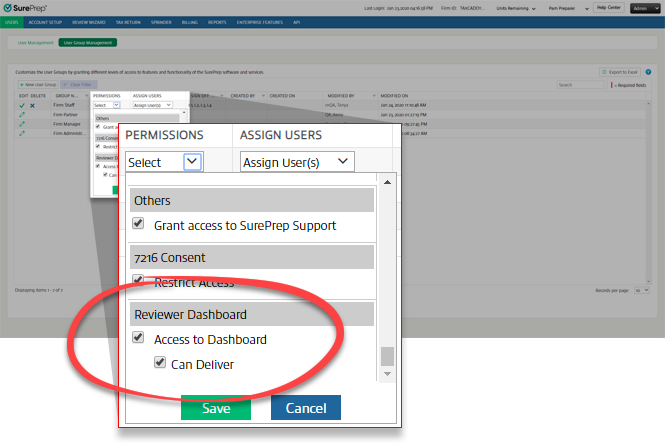
User Group Permissions | Users must have the Can Deliver permissions enabled in Account Admin. |
FAQ
- How can I remove deliverables after they are delivered to the client?If the deliverables are already sent, then go to the client's TaxCaddy Client Profile then delete the documents individually from their respective sections.
- When and how many times can I resend notifications?TaxCaddy automatically sends your client an email notification once the deliverables are sent to the TaxCaddy Client Profile. You can resend a delivery notification at any time after the deliverables have been sent. Note: Clients logging in with Dynamic Password will no longer be able to sign in using the link in the previous emails and must access TaxCaddy using the link in the latest email. Users logging with sign in credentials (password) won’t be impacted.
- Why is the tax return PDF that I uploaded not splitting the deliverables?When uploading the tax return PDF, check the following:
- Print the client's copy of the tax return with the correct setting in your tax software.-
- Select theSplit Deliverablescheckbox.-
- TheSplit deliverablesfeature doesn’t separate federal & state tax returns from PDFs that were printed from Lacerte tax software.
- Please make sure the printed tax return matches the tax software assigned to the taxpayer in TaxCaddy'sClient Management. Example: In TaxCaddy, your client account is listed with UltraTax CS. However, your firm switched tax software and printed the tax return from CCH Axcess Tax instead. You will need to update the client inClient Managementto match the printed tax return, then trySplit Deliverablesagain.
Billing deliverables
Charges will apply when you use the
Split Deliverables
or Fetch
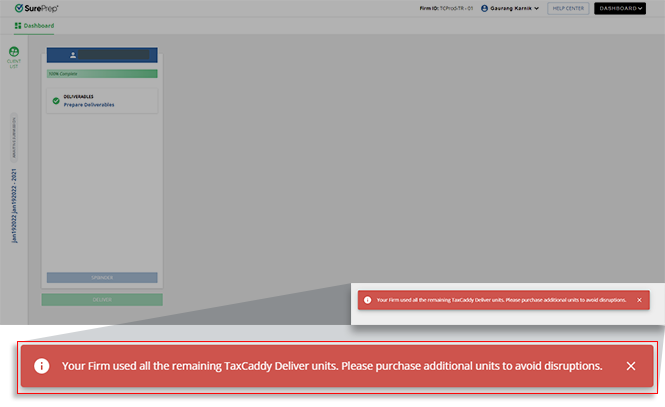
feature. You will only be charged 1 TaxCaddy unit once per return even if you are doing multiple deliveries. You will see a notification if your firm is low on TaxCaddy units or has consumed all TaxCaddy units.Your firm used all the remaining TaxCaddy Deliver units. Purchase additional units to avoid disruptions.
The
Split Deliverables
checkbox isn't available if your firm doesn’t have any TaxCaddy units available. Contact your SurePrep Sales representative to pre-purchase additional units.

