
Documents checklist
The
Documents
checklist item in the Reviewer Dashboard lets you quickly review the client's documents without opening SPbinder. You can view the documents and identify which ones you have received, which are missing, which are new, and which you have marked as not applicable.Documents checklist
You can use the
Documents
checklist item to track the number of missing documents that you need to address. After you have addressed all the missing documents, you can update the checklist status to complete.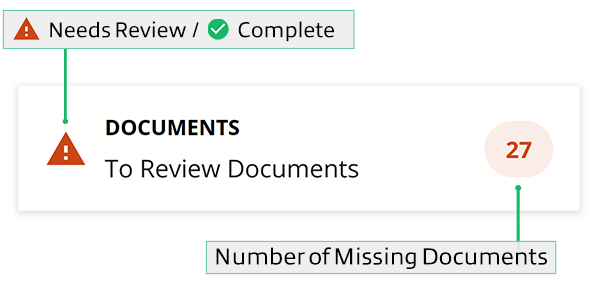
note
The
Documents
checklist item only appears on the list for clients with binders.On the client's checklist, select
Documents
to view details on the client's documents.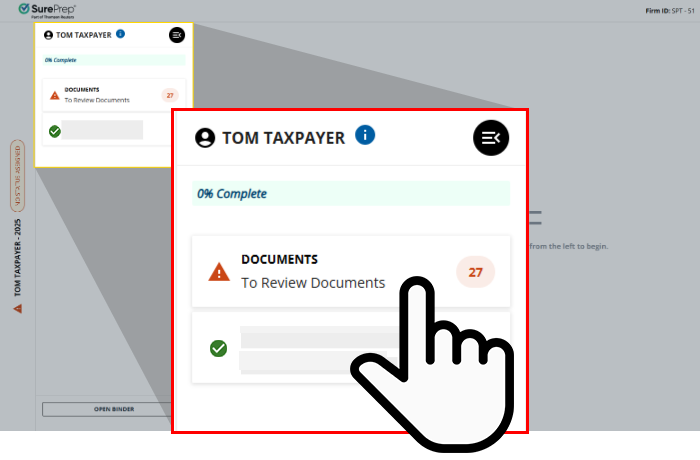
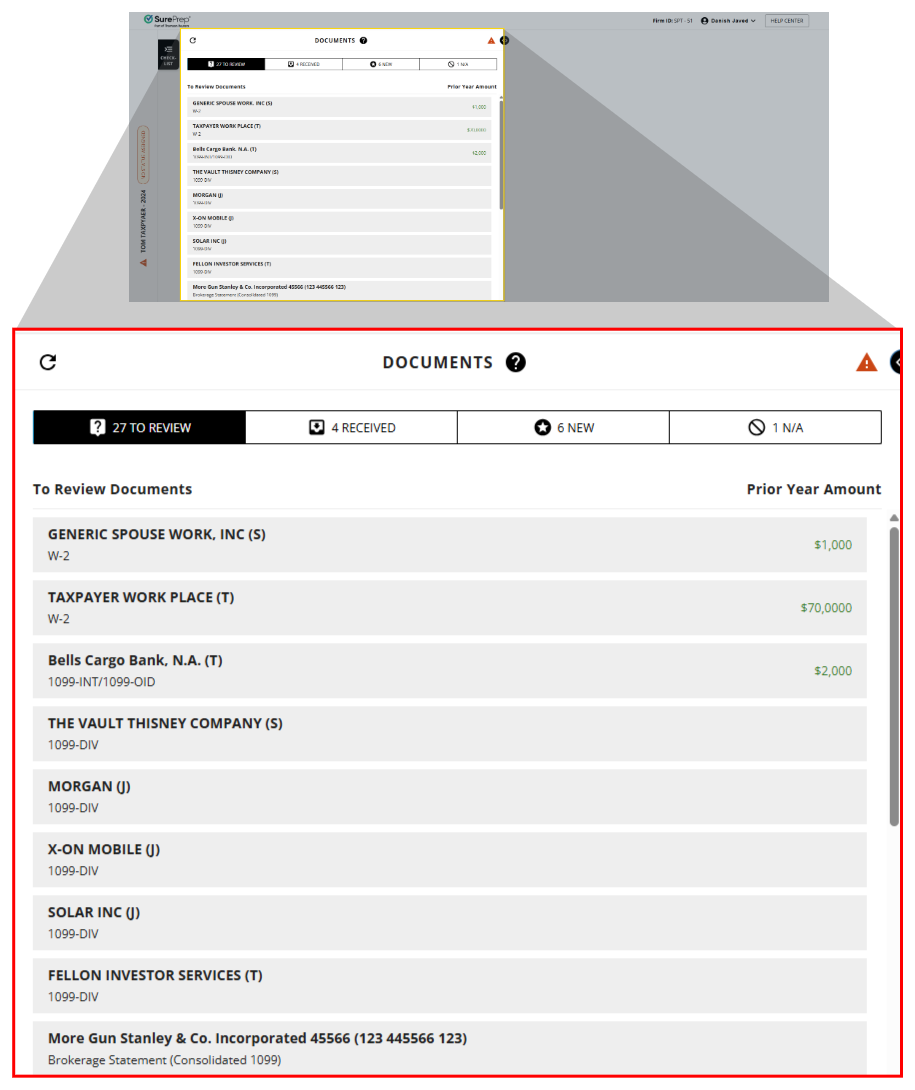
Documents checklist will appear in the middle panel.
Documents checklist header
Documents checklist lets you switch between tabs to view a complete summary of your documents.
Checklist status
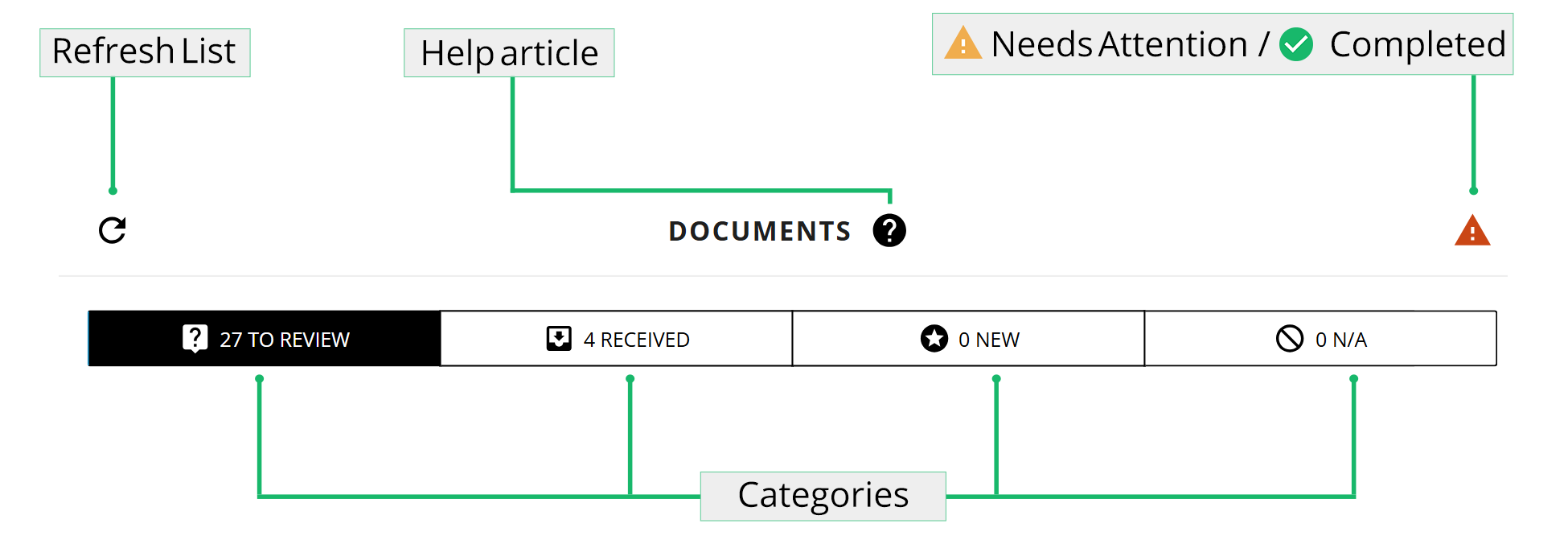
Icons on the top right indicate the following statuses:
Status | Categories | Description |
|---|---|---|
 | Complete | You'll see this status once you have addressed all the missing documents. |
 | Needs Review | You'll see this status when there are missing documents that need attention. |
Document categories
The Documents checklist is divided into the following categories:
Categories | Description |
|---|---|
To Review | Shows documents that are missing based on the proforma from the prior-year in the INDEX TREE and theFORMS tab. |
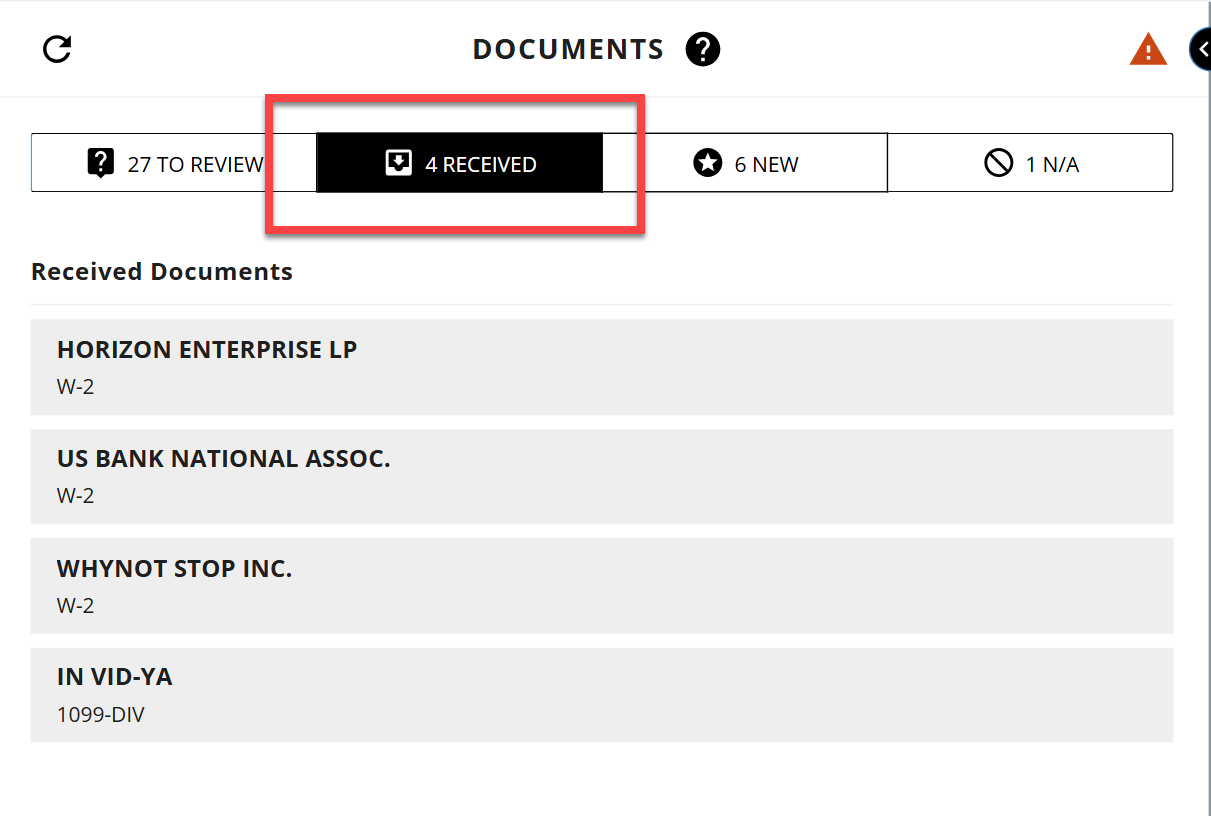
Received | Shows proforma documents that you have uploaded into the binder. |
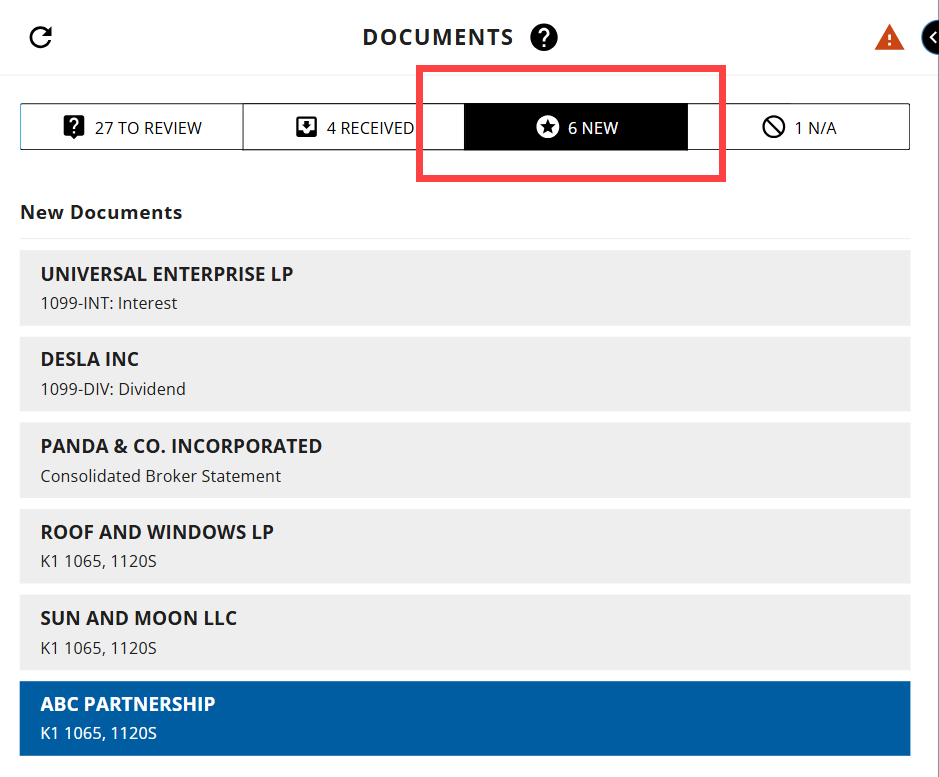
New | Shows newly uploaded documents that don't have a matching proforma available from the prior year. |
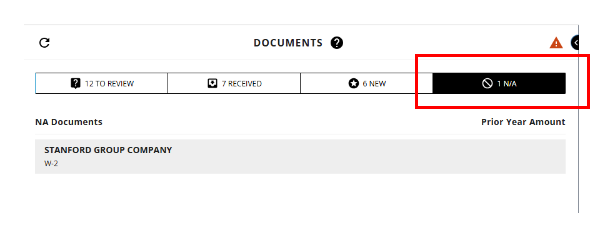
N/A | Shows proforma from the prior-year that is no longer applicable. |
To Review category tab
The
TO REVIEW
tab shows documents still missing in the review workflow based on the proforma from the prior-year. It checks every location where document information could be expected in SPbinder, including proforma in the INDEX TREE
and (input) FORMS
. It may differ from the missing document count in SPbinder by design; SPbinder remains the place to check the full missing-document list.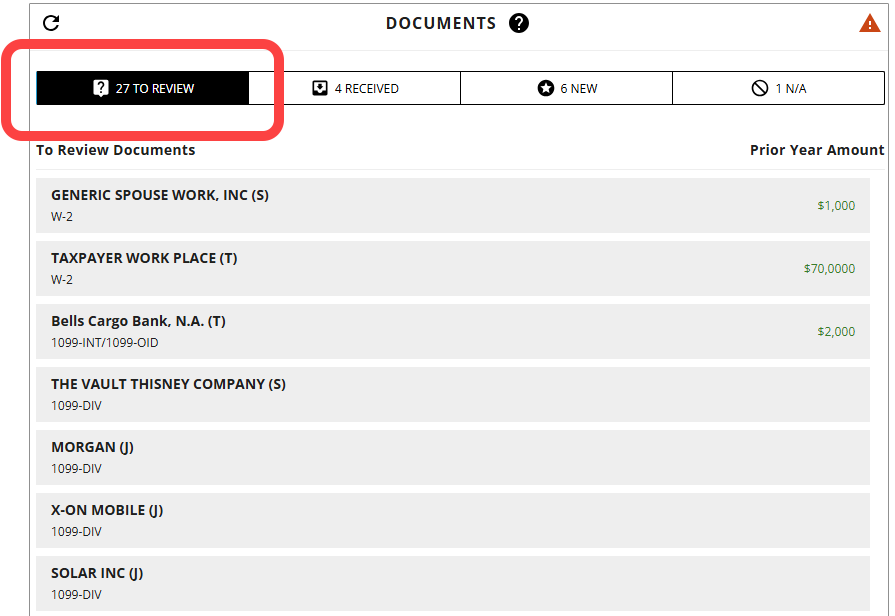
You can also see prior year amounts if available. Once you have addressed all the missing documents in SPbinder,  updates to
  .
.
Needs Review
updates to Complete
.note
If you updated the binder while the Reviewer Dashboard was open, then you can select  to update the
Refresh
to update the Documents
checklist when you save the binder.Received category tab
You can view the proforma documents that you uploaded.
The system considers Documents as
Received
under the following conditions:- OCR matched to a proforma
- Matched in the Index Tree to a proforma entity
- Adding a Workpaper shortcut into a proforma entity
Received category tab
New category tab
Shows newly uploaded documents that don't have a matching proforma available from the prior year.
Documents will be considered
new
in the following conditions:- Picked up by OCR as a new document
- Matched in the Index Tree to a non-proforma entity
- Adding a Workpaper shortcut into a non-proforma entity
New (documents) category tab
N/A category tab
Shows proforma from the prior-year that is marked by a user as no longer necessary. It also shows prior year amounts if available.
The system considers documents as
N/A
in the following conditions:- Marked as inactive on Forms
- Missing Item note cleared without an uploaded document
N/A category tab
View documents and notes
On the
Documents
checklist, select a tab (Received
, New
, or N/A
), then from the document list, select the name of the document you want to view. The To Review
tab doesn’t show any documents.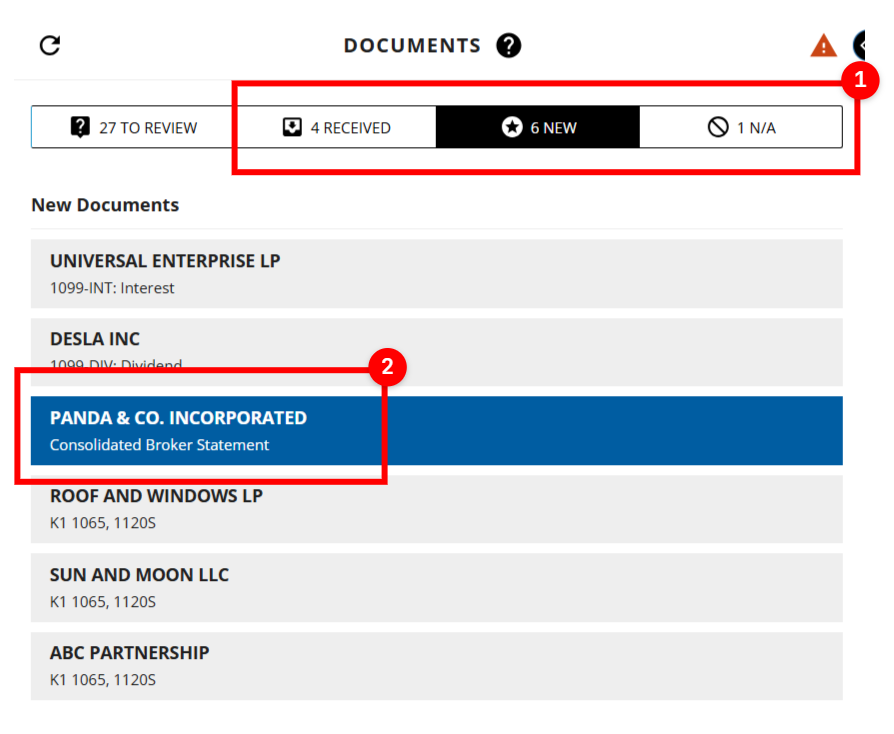
If a checklist item is associated with a document, then you can select
VIEW DOCUMENT
to view the document.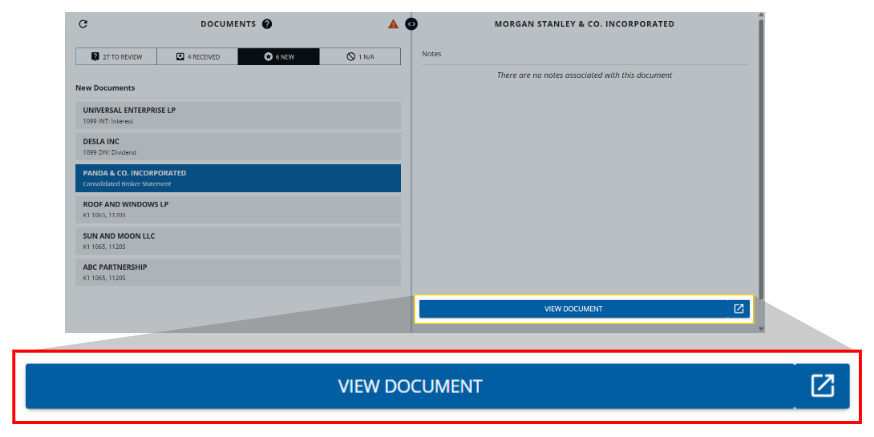
The selected document will appear on the Document Viewer screen. You can use the toolbar to zoom in/out, go to a different page, and view the document name.

Notes
Notes linked to a document will appear on the right panel.

Cleared notes will appear on the right panel in gray color. The system stamps the note with the date and time it was cleared, and the name of the person who cleared it.

Requirements
Binder Type |
|
Binder Status |
|
Leadsheets |
|
Services |
|
Tax Software |
|

