
Backup Canon DR-M260 and Canon DR-C240 with CaptureOnTouch V5 Pro
note
Canon DR-C240 and Canon DR-M260 follow the same backup process.
Once you've created the profile and finished the manual settings, complete the following steps to make a backup:
- Open your device’sStartmenu and openCaptureOnTouch V5 Profrom the program list.

- Within the taskbar, select theCaptureOnTouchscanner icon.

- From theCaptureOnTouchmenu, selectSelect Scanner

- Once theSelect Scannerwindow checkbox appears, select eitherCanon DR-C240orCanon DR-M260and selectOK.

- WithinCaptureOnTouch, selectNew documentat the top of the window.

- Once aNew documentoption appears in theSelect documentsection, select thePencilicon.

- Select theEnablecheckbox located in theUse advanced settings dialog boxsection.
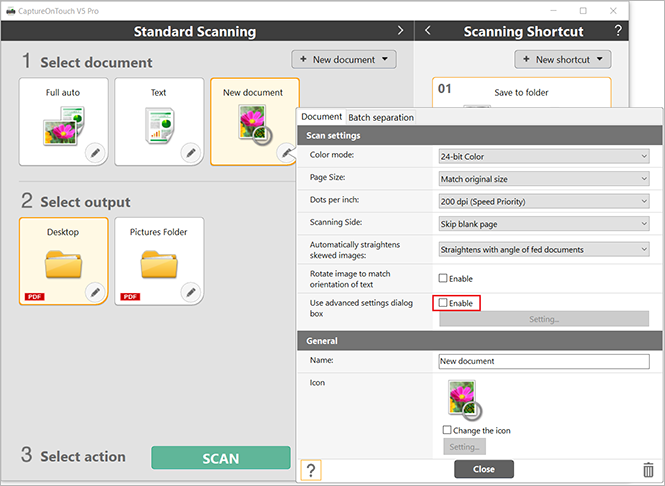
- After you’ve selected theEnablecheckbox, selectSetting.

- Once theScanner settingwindow checkbox appears, selectSurePrepand thenBack Up(X).

- When theSave Aswindow appears, enterSurePrepas theFile Name, and then selectSave.

Related Content
-
Canon scanner setup
Format: Article

