
Restore or import Canon DR-C240 with Capture Perfect 3.1
Follow these steps to restore or import
- Go to theStartmenu and openCapture perfect 3.1from the program list.
- On theScanmenu, selectSelect Scanner.

- When theSelect Scannerwindow appears, selectCanon DR-C240and selectOK.
- On theScanmenu, selectScanner Setting.

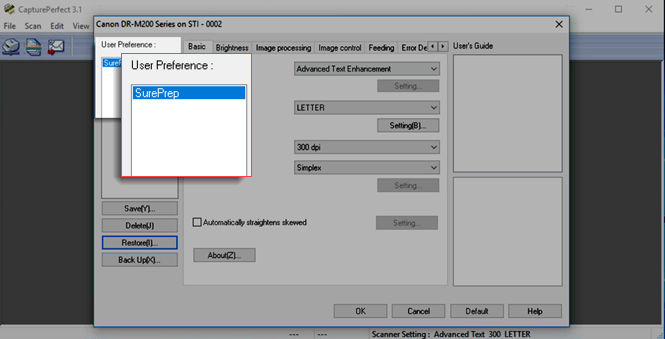
- When theScanner settingwindow appears, selectRestore.

- Select theSurePrep.datfile from the location where you saved your backup, then selectOpen.

- When theRestorewindow appears, selectYes.

- When you import theSurePrepprofile, it will appear underUser Preference.
Related Content
-
Canon scanner setup
Format: Article

