
Restore or import Canon DR-C240 with CaptureOnTouch V5 pro
Follow these steps to restore or import:
- Open your device’sStartmenu and openCaptureOnTouch V5 Profrom the program list.
- Within the taskbar, select theCaptureOnTouchscanner icon.

- From theCaptureOnTouchmenu, selectSelect Scanner

- Once theSelect Scannerwindow appears, selectCanon DR-C240and selectOK.

- WithinCaptureOnTouch, selectNew documentat the top of the window.

- Once aNew documentoption appears in theSelect documentsection, select theEdit
 icon.
icon.

- Within the resulting menu, select theEnablecheckbox located in theUse advanced settings dialog boxsection.
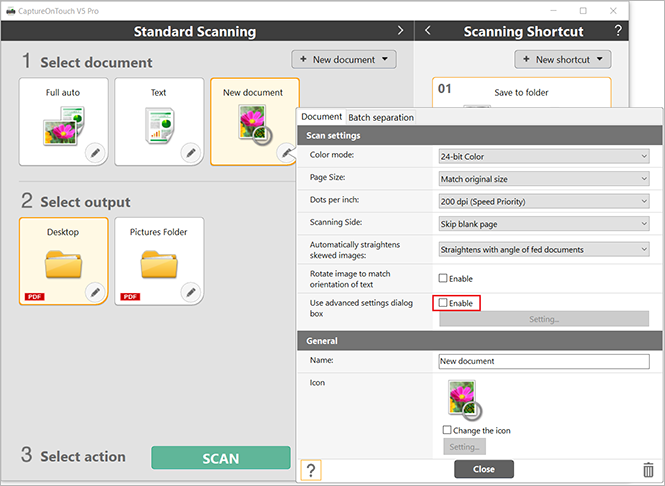
- SelectSetting.

- Once the scanner setting window, selectRestore.

- Select the file titledSurePrep-C240.datfrom the location where you previously saved/downloaded your backup, then selectOpen.

- On theRestorewindow, selectYes.
- ASurePrepprofile will appear underUser Preference. Select theSurePrepprofile, then selectOK.

- Within the currently open window, select theBatch separationtab, and set theSeparation methodoption asNo separation.

- Select theDocumenttab, go to theGeneralsection, then enterSurePrepin theNamefield. SelectCloseto continue.

- If you want to change the location where the scanned PDFs are saved, you can make the necessary adjustments in theSelect Outputsection. SelectNew Outputto create a new, separate option, or select theEdit icon to edit an existing option.
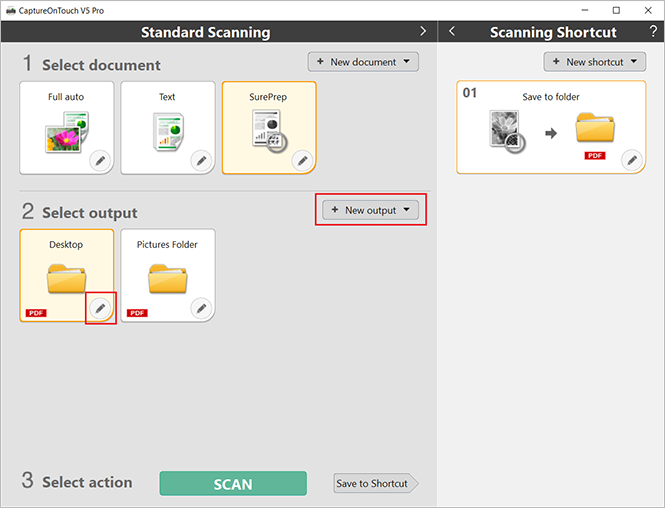
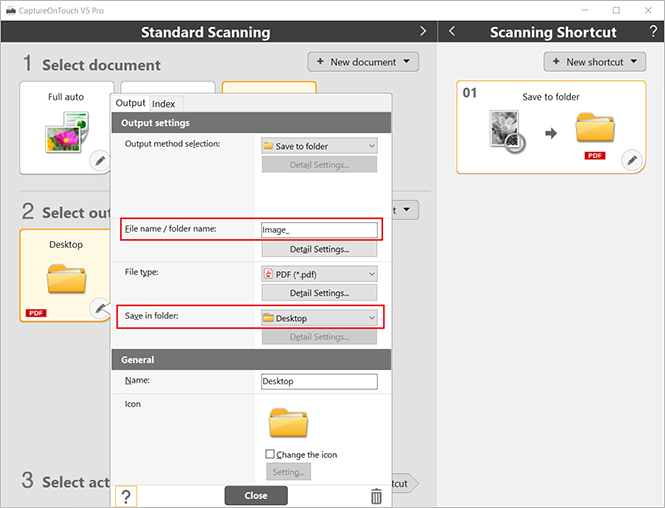
- Within the resulting menu, you can adjust the folder that the PDF will be saved to and the default file name prefix, among other settings.
- Load the pages you want to scan into the scanner, ensure theSurePrepprofile is selected, and selectSCANat the bottom of the window.

- After the scan is complete, selectFinishto complete the scanning process and save the PDFs to the selected output folder.

Download the .dat file
. Related Content
-
Canon scanner setup
Format: Article

