
Reprinting PDF to SurePrep specifications
You'll want to scan a PDF file according to SurePrep recommendation for optimal OCR results. If your PDF wasn't scanned to these specifications, you can reprint the PDF before submitting it to SurePrep.
note
Reprinting PDFs will flatten the document. You will no longer be able to edit fillable fields, and comments will be removed.
Follow these steps to reprint a PDF according to SurePrep PDF:
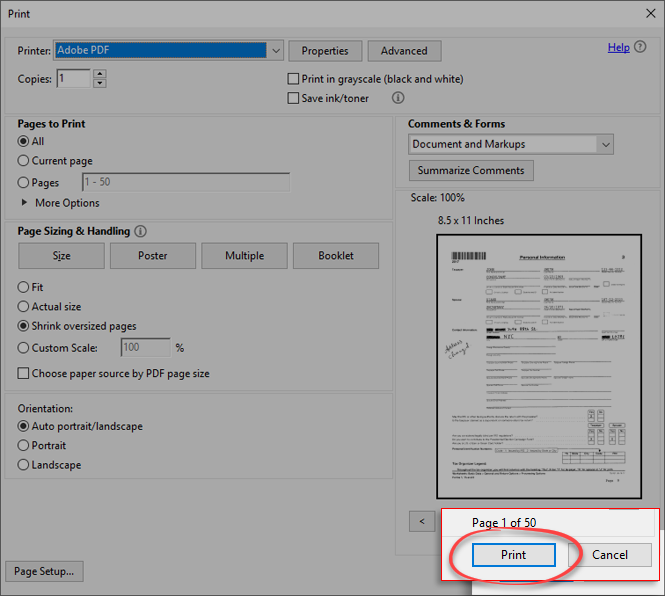
- In the PDF, go toFileand selectPrint.
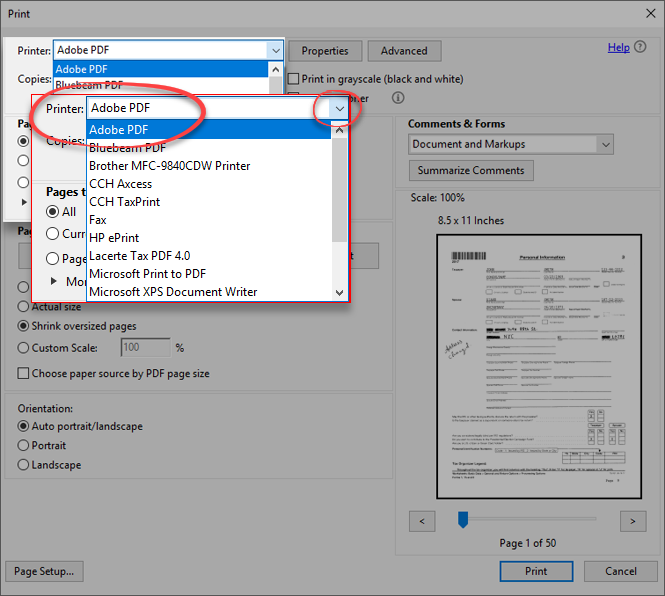
- In thePrintwindow, selectAdobe PDFfrom thePrinterfield.
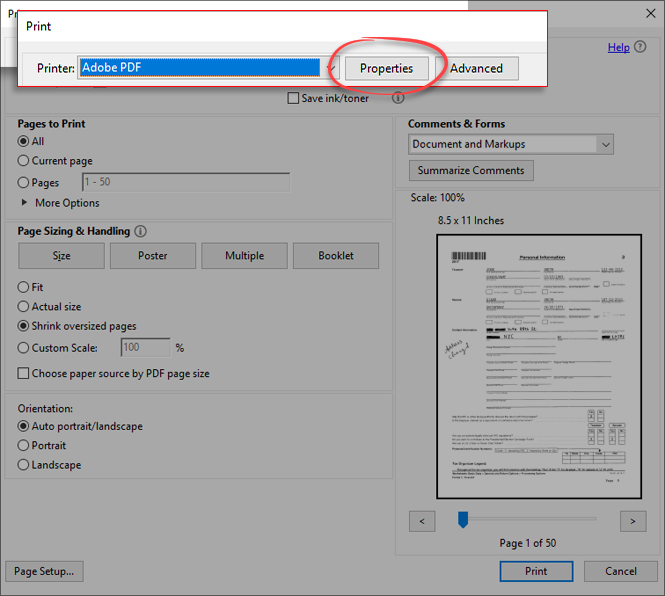
- SelectPropertiesnext to thePrinterfield.
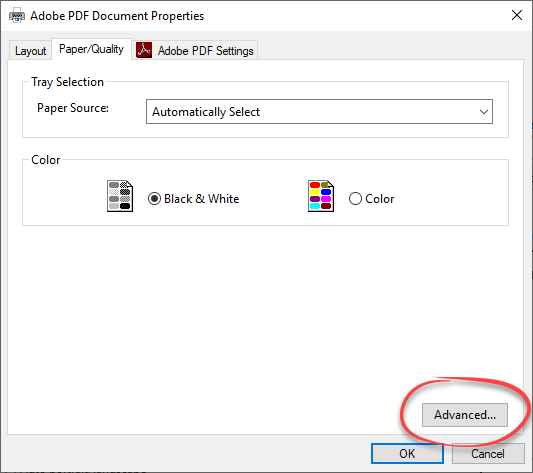
- Go to thePaper/Qualitytab and selectBlack & White.
- SelectAdvanced.
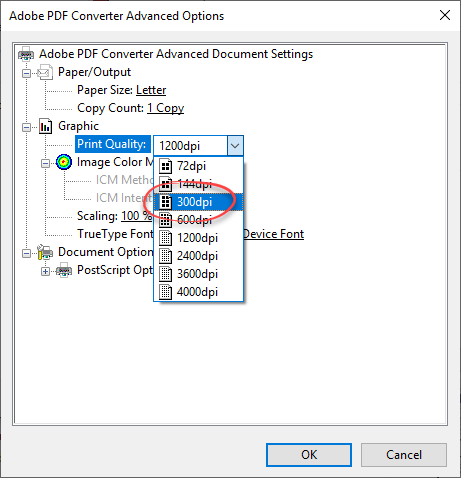
- Expand the dropdown menu forGraphicand change thePrint Qualityto300dpi.
- SelectOK, theOKagain to save your changes.
- SelectPrint.
- Choose your file location then selectSave.
The PDF will be reprinted to your selected destination.

