
Enable Two-Factor Authentication
Two-Factor Authentication (2FA) is an extra layer of security for FileRoom. It's designed to ensure that you're the only person who can access your account, even if someone knows your password. If enabled, 2FA will apply to all users at the firm level. Users can only sign in after they confirm the security code sent to their email address. 2FA is turned off by default.
note
Enabling 2FA will require all users at the firm to authenticate sign in credentials by entering a Two-Factor Authentication code sent to their email address.
Enable or turn off Two-Factor Authentication
Follow these steps to enable or turn off Two-Factor Authentication for your firm:
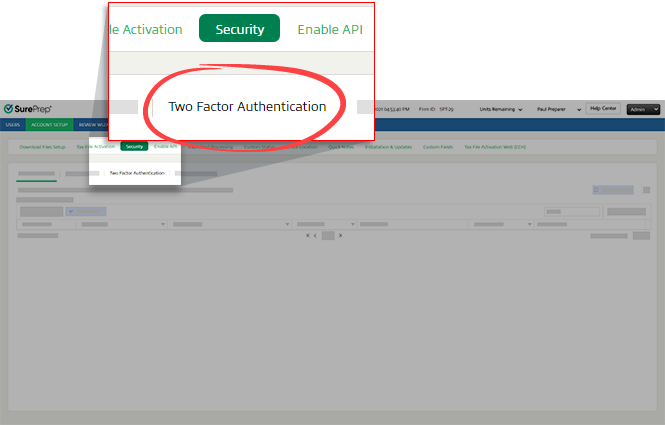
- SelectFileRoom,Admin,Account Setup, thenSecurity.
 noteOnly users with permissions to access theSecuritytab will see theSecuritytab.
 - SelectTwo-Factor Authentication.
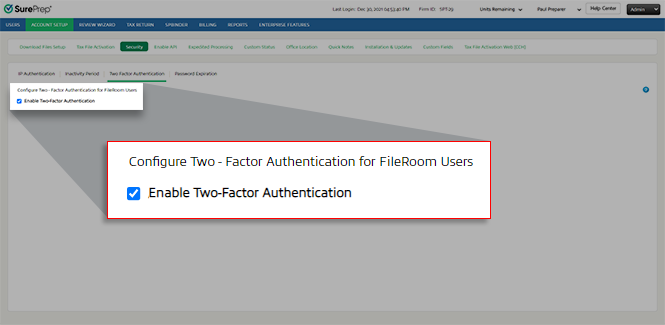
- To turn on 2FA, mark theEnable Two-Factor Authenticationcheckbox.To turn off 2FA, clear theEnable Two-Factor Authenticationcheckbox.
- In theTwo-Factor Authenticationwindow, selectYesto confirm.

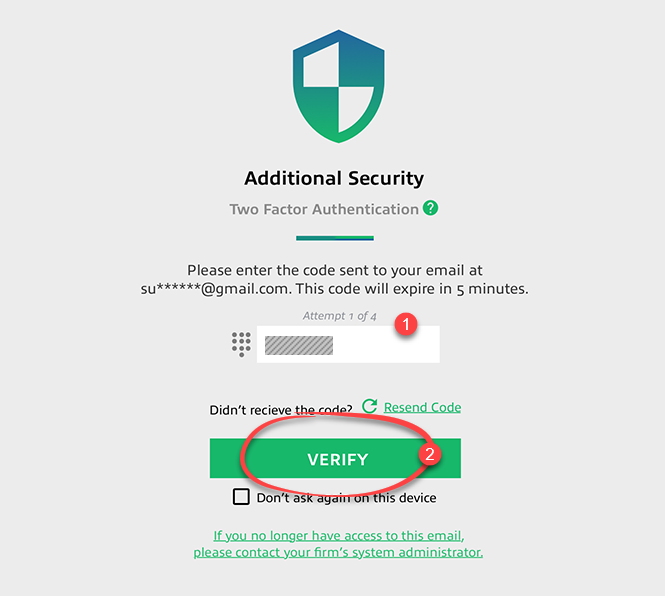
After enabling Two-Factor Authentication for your firm's domain, users attempting to sign in will need to set up Two-Factor Authentication via email. On subsequent sign-ins, users need to provide their password and the 6-digit verification code sent to their email address. Users can enter the verification code in the text field then select
VERIFY
.
note
You can mark
Don't ask again on this device
to bypass the 2FA on your next sign in attempt.If a user makes 4 failed attempts to sign in, their account is locked for 30 minutes. If you are unable to get the verification code from your email address, contact your Firm System Administrator to re-activate your account.

note
Two-Factor Authentication doesn't apply to users logged in through their firm’s portal (single sign-on (SSO) users). SSO users won’t see the Two-Factor Authentication option.
Related Content
-
Sign in to FileRoom (standard sign-in)
Format: Article,
2 min read
Article,
2 min read

