
Add, move, or delete forms
There are 2 types of
Input Forms
, Single Instance forms and Multi-Instance forms. A Single Instance form only has 1 section (for example, Miscellaneous Questions), while Multi-Instance forms have multiple sections/forms under it with multiple entity names (for example, multiple W-2 forms for different entities: ABC Inc, Road Works LLC).Single Instance Form
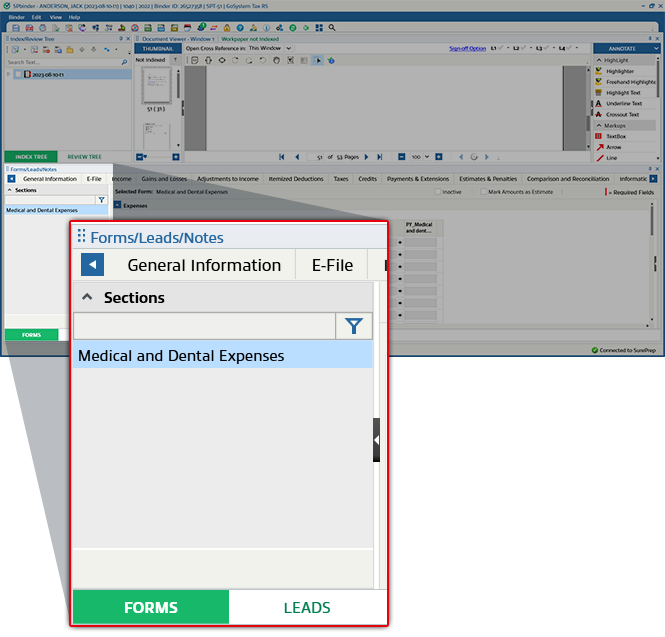
You can't add, delete, or move any Input Forms under a Single Instance Form category. You need to reference all documents under the related
Form category
.
Multi-Instance Form
You can add, delete, and move any
Input Forms
as you want under a Multi-Instance Form category.
note
Entity names in blue color are proforma from last year. Entity names in black color new entities that are added by OCR or manual added by a preparer.
Add Form
To add a new entity (that is,  .
.
Input Form
), select Add
.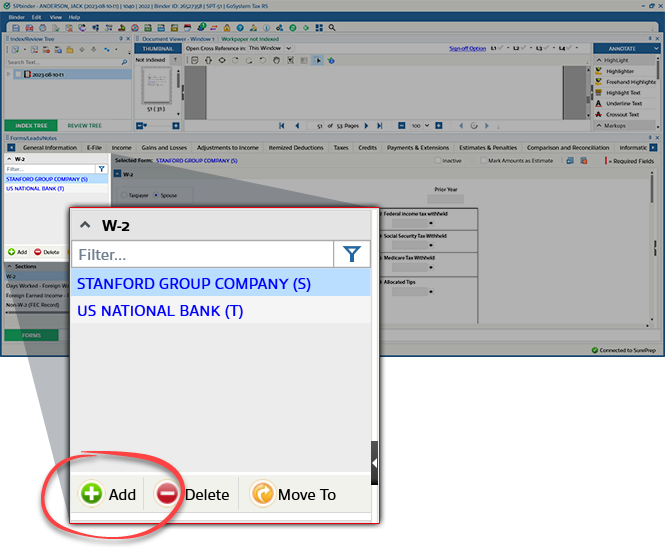
A blank line is added in the
Input form
section and blank Input fields
display on the right side of the Forms
tab.
Select the Taxpayer or Spouse radio button and enter the Payer name for the Form W-2. The same is reflected in the
Input forms
section.note
There is a maximum limit of adding certain multi-instance forms in the Forms tab.
Delete Form
To delete an entity (that is,  .
.
Input Form
) from the list, select Delete
.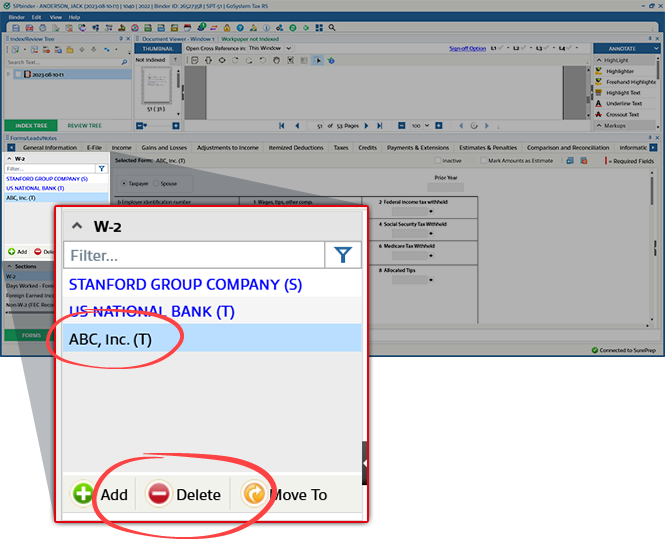
When the confirmation window appears, select
Yes
to delete Input Form
or select No
to cancel.
Move Form (i.e., Move To)
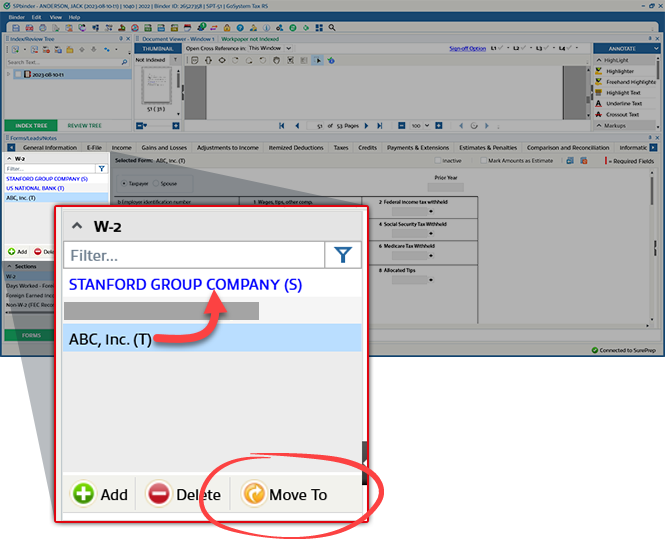
You can move references from 1  .
.
Input Form
to another Input Form
within the same category. To move references from an Input Form
, select to highlight the initial form then select Move To
.
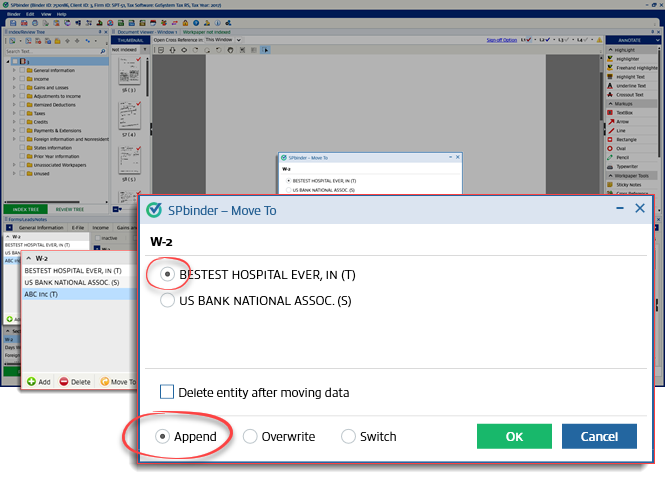
Move To window
Move To
window displays all the forms present within the same category. Select the Input Form
where you want to move the references/amounts. Once you move references, they’ll no longer exist in the initial Input Form
.note
You can also move references to an Inactive Form.

When moving references from the initial form to the target form, you can select from the following 3 options:
Append (default) | Adds values to the selected Input Form . If the selected Input Form already has pre-existing reference values, new values will be added to the pre-existing values on the target form.For example If you move Input Form ABC to EFG (via Append ), with both forms having $50 for Box 1, EFG's new value for Box 1 will be $100 after you append. |
Overwrite | Replaces any pre-existing references already present in the selected form. |
Switch | References of 2 selected forms will be interchanged. |
To delete the initial
Input Form
after its references are moved, select Delete entity after moving data
.
A confirmation window appears for any newly created forms. Once you select
OK
and the Delete entity after moving data
checkbox is not selected.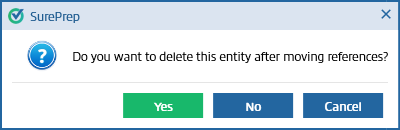
note
Entity is referring to the initial
Input Form
.Select
Yes
to delete the entity when references are moved.Select
No
if you only want to move the reference without deleting the entity. 
