
Mark amounts as estimates
To mark an amount as an estimate on the
Forms
tab, right-click the amount field, then select Mark Amount as Estimate
from the shortcut menu.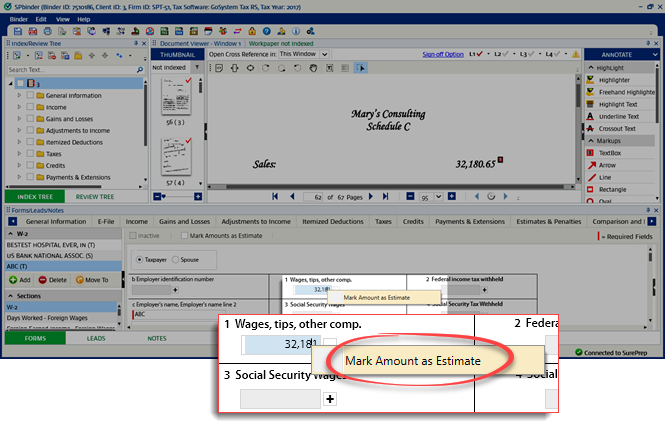
You can also mark a reference as an estimate from the source document. Right-click the reference then select
Mark as Estimate
on the shortcut menu.
Marking a field as an estimate will change the border color of the text box  in the
in the Forms
tab area.The estimated reference on the source document appears with the letter 'E' in parentheses before the reference number  .
.
.
The estimate reference will also get printed in 2050 DreamWorkpapers.
Clear Estimate
To clear the estimate, right-click the amount field in the
Forms
tab area, then select Clear as Estimate
on the shortcut menu.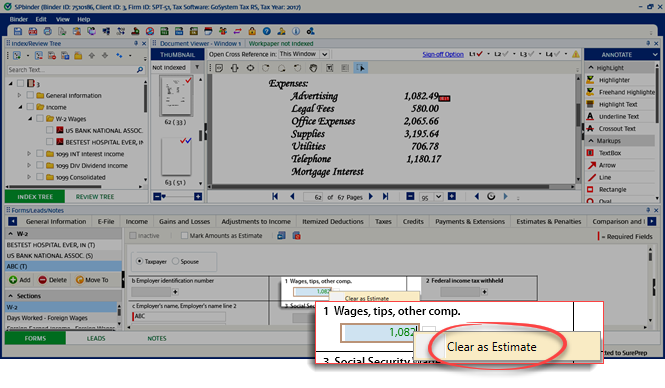
To clear the estimate for a reference or field, right-click the reference on the source document, then select
Clear as Estimate
on the shortcut menu.
When you clear the reference as an estimate, the reference on the source document and the border color of the text box change back to default.
Mark all fields as Estimate
To collectively mark all fields as estimated, select the
Mark Amounts as Estimate
checkbox on the Forms
toolbar. All the references will be marked as estimated on a particular form.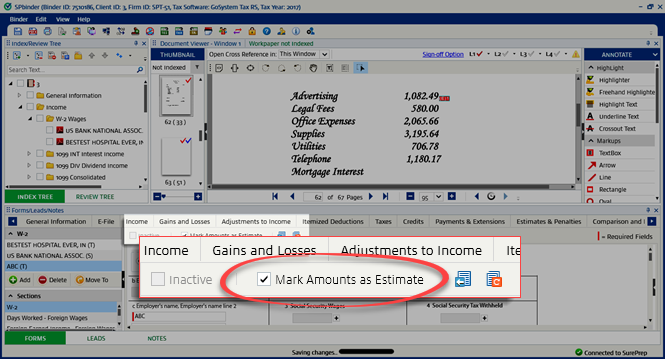
note
If you haven’t referenced any fields the checkbox for
Mark Amounts as Estimate
will not be available. To clear estimates from all fields in a form, clear the
Mark Amounts as Estimate
checkbox. You can view all estimate fields on the
Review Tree
tab, under Field(s) Marked as Estimates
.

