
Tape Total capability for every field
Amounts that are located in different sections or pages can be captured as a single value using SPbinder's Tape Total feature. Some fields may have values that are dispersed among different sections or pages. SPbinder's Tape Total feature lets you capture all the amounts and summarize them into a single field.
Follow these steps to capture multiple amounts for a field:
- To capture multiple amounts for a field, place a reference for the 1st amount to be captured the way it is normally done on the source document.Select theAddicon
 then place a reference on the source document.
- PressALT(Keyboard) and select on the source document to place a reference. You can also select and drag to highlight the amount value and let OCR enter the amount.You can pressALTand select to place multiple references for the same field. Each value will have aReference
 icon placed next to it that links you to the Forms field.noteIf you are trying to create a tape total and select on a different reference by accident, you will need to select in the correct input field on theFormstab to be able toALT+ left-click and continue creating a tape total for the reference.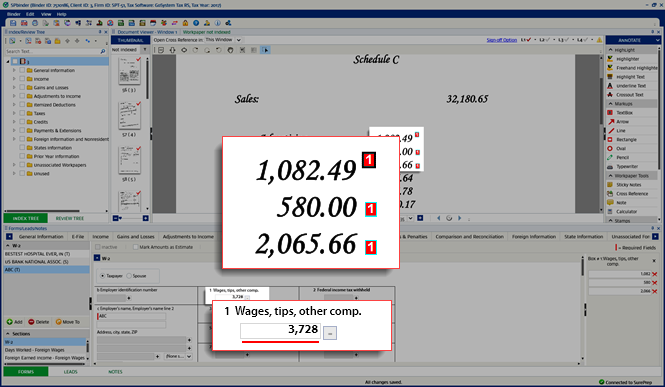
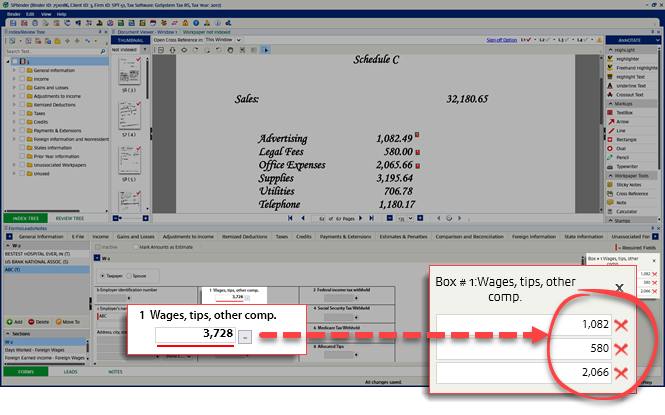
- Multiple references used to create the sum value appear on the right of theFormssection.
- Alternatively, you can select multiple references at once if the amounts are located one following the other. To select multiple references vertically, select theAddicon then drag the mouse over all the amounts together.
 The tape total of all the selected amounts will be created automatically. The tape total column will transfer to the field for which the original reference was placed.
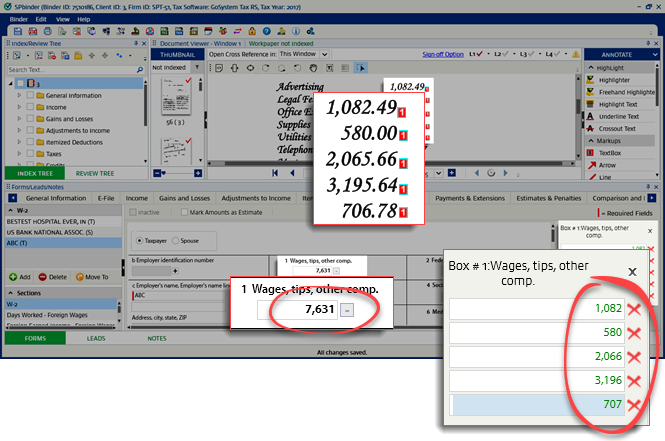 To view the tape total for a field, select on the field in theFormsSection.
 - To delete a field with tape total, go to theTape Totalsection and then delete the individual references.


