
A brief tour (getting started)
SPbinder is a paperless source document preparation tool that makes it easy to organize, bookmark, annotate, and review electronic source documents. It also provides collaboration tools that allow preparers and reviewers to create, respond to, and clear review notes. When source document preparation is complete, SPbinder allows you to create a bookmarked and organized PDF that reflects all the work done in the application.
Opening a binder
To open a binder, mouse over the
Options
column next to the Client ID
column. You will see 2 icons and a dropdown arrow appear. Select on the folder icon to open SPbinder.
note
Icons in the
OPTIONS
column are only visible when you point to the empty cell.SPbinder allows you to create and view documents. It also allows you to create Indexes for those documents.

You should see the SPbinder open with the following default components:
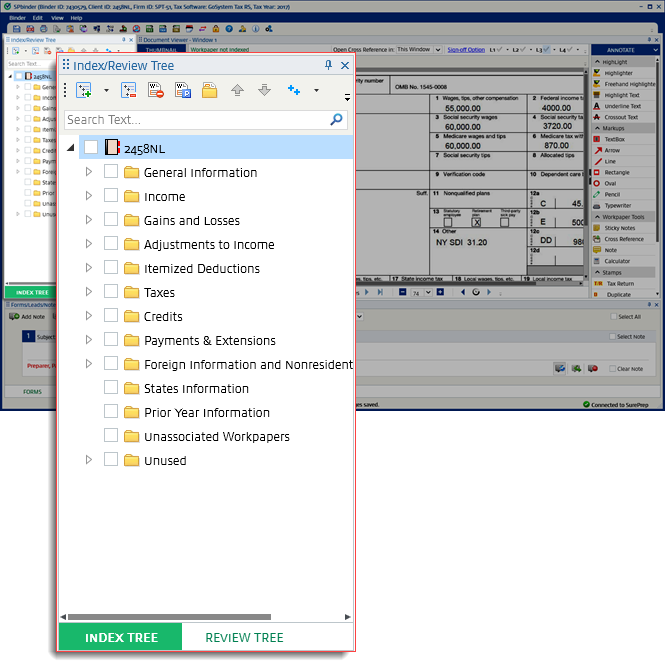
- INDEX TREE/REVIEW TREE
- Document Viewer
- Forms/Leads/Notes
INDEX TREE / REVIEW TREE (Upper left panel)
- INDEX TREE(tab) allows you to organize workpapers (like documents) in their respective folders.
- REVIEW TREE(tab) allows you to review binder documents based on various stages of the review process. You can see which documents are:
- Missing
- Appear to be blank
- Have an unreviewed field(s)
- Uncleared notes
- And much more
Document Viewer
Document Viewer
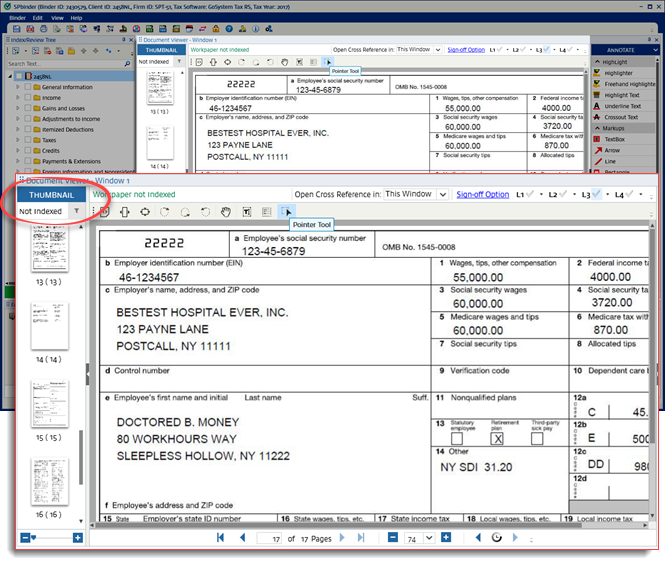
window (contains Thumbnail & Annotations as well) – shows you the workpapers you selected in the THUMBNAIL
or INDEX TREE
.
THUMBNAIL
The
THUMBNAIL
section allows you to view workpapers that haven’t been organized into a folder (likeNot Indexed
). Additionally, you can also use the filter to view workpapers that firm users haven’t signed off, marked to roll forward, or modified after sign-off.
ANNOTATE
The
ANNOTATE
section allows you to add highlights, stamps, and text to the workpaper you are viewing in the Document Viewer
window.
FORMS/LEADS/NOTES
Forms/Leads/Notes
(lower panel) – Your binder may show different tabs depending on the type of Leadsheet your binder was created with.
Tab | Leadsheet type | Description |
|---|---|---|
FORMS |
| Allows you to add, edit, and delete information captured by OCR or the preparer. By updating the FORMS tab, you also update Leadsheets and the information exported to the tax software. |
LEADS |
| Allows you to review tax document data. Shows you a holistic view of the binder amounts and their totals. |
NOTES |
| Allows you to add notes to the binder that can help reviewers and preparers. You can also associate notes with specific workpapers. |
In comparison to Custom Binders, the predefined binders have the following extra features:
- SPbinder Toolbar: View Diagnostics, Tax-Exempt Interest, Export Leadsheets to Excel, Import, and Export to Tax
- Forms
- Leads
Firms also have the option to enable the
K-1 RECLASS
tab. By enabling this feature, firms can read K-1 supplemental pages to automate tax return data entry and help users reconcile K-1 workpapers and their supplemental pages.
Dockable sections in SPbinder
This feature allows you to drag any window to any place on the screen. You can also drag windows to different screens when using dual monitors.
To relocate a window, drag the  icon on the title bar to a new location.
Dock
icon on the title bar to a new location.
While you drag the window, the picklist arrow  icons will be displayed on all 4 corners indicating where you can place the window.
icons will be displayed on all 4 corners indicating where you can place the window.
Select the icon and place it on the desired arrow  icon.
icon.
Dock
icon and place it on the desired arrow icon. 
This moves the window to the area of the selected arrow.
note
When you move 1 docked section, it will affect the location and size of other sections in the SPbinder.

note
To revert changes back to the default view, select the
View
menu and then select Reset View
from the dropdown.Additional features to explore in SPbinder
Feature highlight | Description |
|---|---|
Cross-references | Save valuable time throughout tax reviews with cross-references. This feature enables users to hyperlink two figures on any work paper in the binder, allowing reviewers to draw connections and reference other annotations. |
Notes |
|
Annotations | Use four different annotation tools to emphasize certain calls to action, next steps, or pressing concerns throughout a work paper. Implement highlights, markups, work-paper tools, and stamps. |
Leadsheets | Gather all final amounts in one place to facilitate a high-level, materiality-based review. Use cross-referenced source documents, change tracking, and variance detection to get the whole picture of a review. |
Calculator Tape | Replace your desktop 10-key calculator and cumbersome bulk orders of tape rolls with Calculator Tape, a calculator you manage and place directly on workpapers. Use it to cross-reference any amounts on the work paper captured with optical character recognition (OCR). |
Auto-indexing | Leverage AI and machine learning to auto-index non-standard documents. This technology allows the user to reference how similar documents were indexed in the prior year and applies that action to the current year. |
Multi-level Sign-off | Supports up to four levels of sign-off for compliance and accountability |
Export data to the tax software | Seamlessly transfers data to tax preparation platforms |

