
Custom Binder Type
You can create a Custom Binder Type when the standard 1040/1041 binder doesn’t suit your needs. To edit or create a Custom Binder Type, go to .

Create New Binder Type
- SelectNew Binder Type.

- A blank row will be added to the table. Enter theBinder Type,Description, andInitial. The rest of the fields will be auto-populated.noteFields that are marked with a red line
 are required. Attempting to save the binder type without filling in the required field will display a notification message.
- Select theSaveicon
 to save the binder type, or select the Cancelicon
 to cancel adding a new row.
Edit Binder Type
To edit the binder type, select the  . To confirm your edit, select the
  .
.
Edit
icon . To confirm your edit, select the Save
icon .View Binder Type
Custom Binder Type lets you sort and filter the results in your view.
Filter Column
Select the filter icon  , on the column you want to filter. A filter window will appear. Select
  to remove the filter on that column.
, on the column you want to filter. A filter window will appear. Select Filter
after you finish selecting your parameters. Select Clear Filter
to remove the filter on that column.
Sort Column
Select the column name you want to sort. An arrow icon  will appear next to the column name, with the column sorted. To switch the sorting order, select the column name again.
will appear next to the column name, with the column sorted. To switch the sorting order, select the column name again.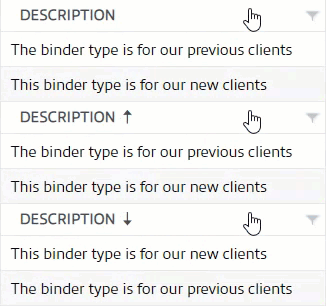
Export Custom Binder Type to Excel
Export to Excel
button enables you to export the data from the Custom Binder Type
tab to an Excel file. 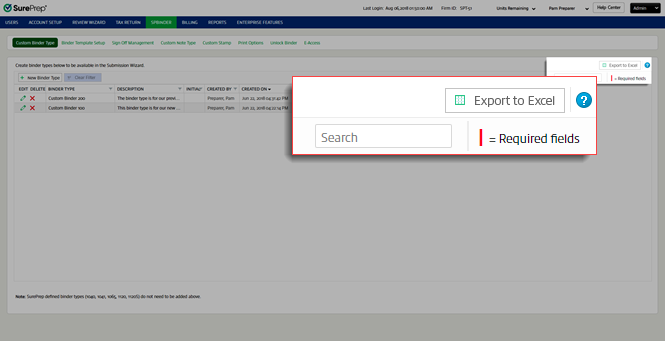
If you want specific data to be exported, use the filter functionality on individual columns, then select
Export to Excel
.note
Clear the filter if you want all results to be exported.

Select the  to view the help page.
Help
icon to view the help page.
