
Opening Binders
Opening a binder allows you to view, edit, delete, index, and review documents within the binder.
Status and Auto-locking
Status
Binder status in the
FileRoom
helps you keep track of each binder's progress. The binder can only be opened once it completes the initiation process of uploading documents. To view the binder status, go to Fileroom
and find the binder status on the Status
column.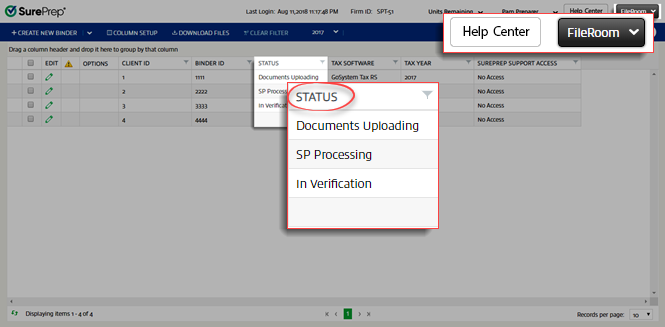
When a binder is created, it goes through the following binder status changes:
- Documents Uploading- When the documents are uploaded to the binder.
- SP Processing- When documents have been uploaded successfully.
- In Verification- Binder is ready to be opened from FileRoom.
Documents Uploading
and SP Processing
status indicate that the binder is going through a range of initial processes at SurePrep. You can't open the binder in these statuses.note
For Custom Binders, there will be no
In Verification
status after the SP Processing
status; instead the status column will be blank. You can open the binder in blank status.When the binder is ready for verification, FileRoom status will change to
In Verification,
and an email notification will be sent to you.
Auto-Locking
A binder or Review Wizard gets locked when a user (with a different User login) tries to access the binder while it's already open by another user. A notification window allows you to open the binder in read-only mode.

The locked binder can be opened, but only in Read-only mode. Select
Yes
to open the binder in Read-only mode (All the editable functionality will be disabled. You can't make any changes in the return).
The binder or the Review Wizard gets unlocked only after you (the 1st user) close the binder or Review Wizard, or after it has been unlocked by the user who has the permission to do so. The 2nd user must close and re-open the binder to edit it.
note
If you are going through the Review Wizard steps, no other user can open the Review Wizard of that same binder even in the Read-only mode.
Opening a Binder
You can then open the binder from
FileRoom
. This can be done in 2 ways as listed below:- FileRoom
- PBFX (Portable Binder Format)
Opening a binder from FileRoom
Once your binder is submitted and uploaded, it will appear in
FileRoom
.
When the submitted binder is ready to be opened, the
Status
column in FileRoom
will display In Verification
status.
Custom Binder ready to be opened, will change the status to blank instead of
In Verification
.
Once the binder is ready to be opened, follow these steps to open a binder:
- To open a binder, point to theOPTIONScolumn next to theCLIENT IDnumber.
 This will display 2 icons on theOPTIONScolumn:
- Openicon

- Save as PBFXicon

- Select theOpenicon to initiate the file download process.noteTheOpenicon and Save as PBFXicon
 in the Optionscolumn will be disabled when the binder is inDocuments UploadingandSP Processingstatuses.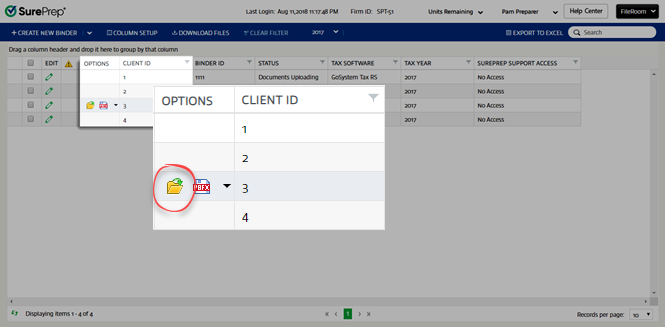
- Once the download process is complete, you can open the file from your browser's download window or your default download folder.

 If the binder is in verification status, the review wizards will open. Otherwise, the SPbinder will open.
Attention
If a binder gets stuck in a process or is canceled, an  icon appears beside the
Attention
icon appears beside the Edit
column. Point to the icon to view the process where it is stuck.
These binders can be rectified by the user and resubmitted.
To rectify the binder, select the icon. Correct the information and resubmit the binder.
Open
icon. Correct the information and resubmit the binder.Opening a binder from PBFX
When you choose the option to save the binder as PBFX while submitting the binder, it appears on your local machine at the saved location.
Follow these steps to open a Portable Binder Format (PBFX) file from a saved location:
- While creating the binder, selectCreate PBFX filein theAfter submissionoption to save a PBFX file when you selectSubmit.

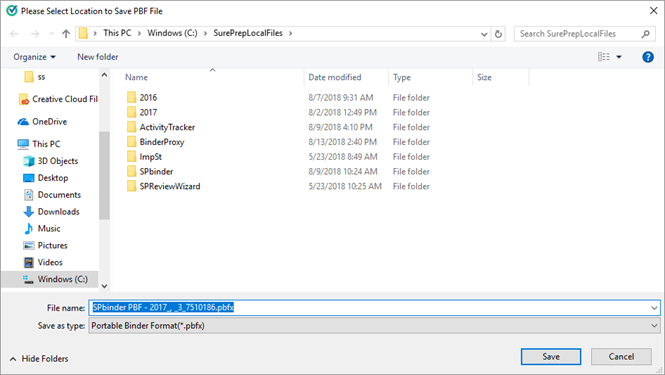
- Alternatively, you can also download the PBFX file fromFileRoom.

- Navigate to the location where you have saved the PBFX file.
- Double-click the saved PBFX to open the binder.
- In the window that appears, enter the login credentials and selectLoginto open the binder without opening SurePrep FileRoom.

Troubleshoot: Opening a blank binder
If a binder erroneously opens to a blank screen (for example, missing the Index/Review Tree, Document Viewer, Notes features), users can reset their view to properly load the binder.

To reset your view, select
View
, then Reset View
.
If the binder remains blank, contact SurePrep Support at: SurePrep.Support@thomsonreuters.com
Troubleshoot: SPbinder window not appearing on screen
When opening SPbinder, the window may not appear on your screen despite being open on your device's taskbar.
Related Content
-
Create a shortcut to a binder
Format: Article

