
Save your work
SPbinder saves data automatically as soon as you perform a function in SPbinder (for example, reference an amount or use an annotation). No manual action is needed to save your progress when working on a client's binder.
Save
Your work in SPbinder is automatically saved – no action required from you. At the bottom of the screen, you can see the save status update when you make changes in the binder.
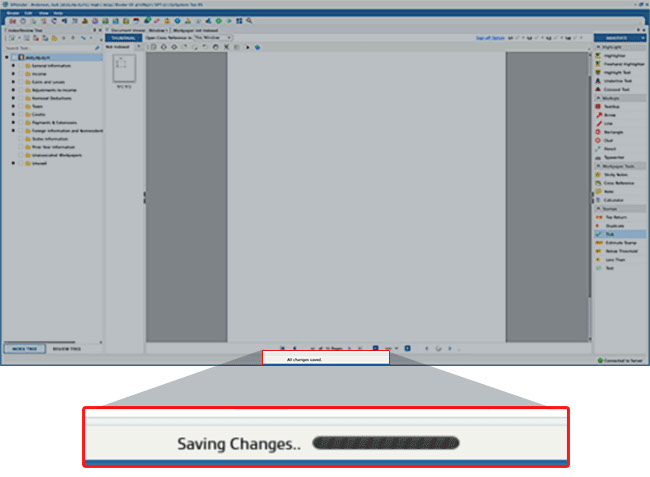
If you lose your connection to the server while saving the binder, SPbinder will attempt to reconnect and try again.

If the SPbinder is still unable to connect, a window will appear.
Select
Continue
to save a backup copy of this binder on the local machine. This can be used to update FileRoom with the changes made before the service was interrupted.Select
Cancel
to wait for SPbinder to connect and finish saving.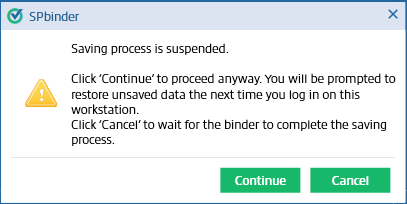
When you re-open the binder, a window will appear.
Select
Yes
to recover unsaved binder information from the locally cached copy.Select
No
to open the last saved binder from FileRoom.note
The copy of the binder that you choose to open will override the other version.

If you selected
Yes
, SPbinder will recover unsaved binder information from a locally cached copy.
If this binder has been accessed from another computer and the most recent copy has been saved on the server from that computer, you will see the following options:
Select
Yes
to recover unsaved binder information from a locally cached copy.Select
No
to open the last saved binder from FileRoom.Select
Review
to open the binder in read-only mode. Read-only mode lets you review the updated binder information saved on the server without replacing local or server binder.
Real Time Save Diagnostics
You can click the save status text to see the save diagnostics.

In the
Real Time Save Diagnostics
window, you can review if the changes you make are being automatically saved or going in error. 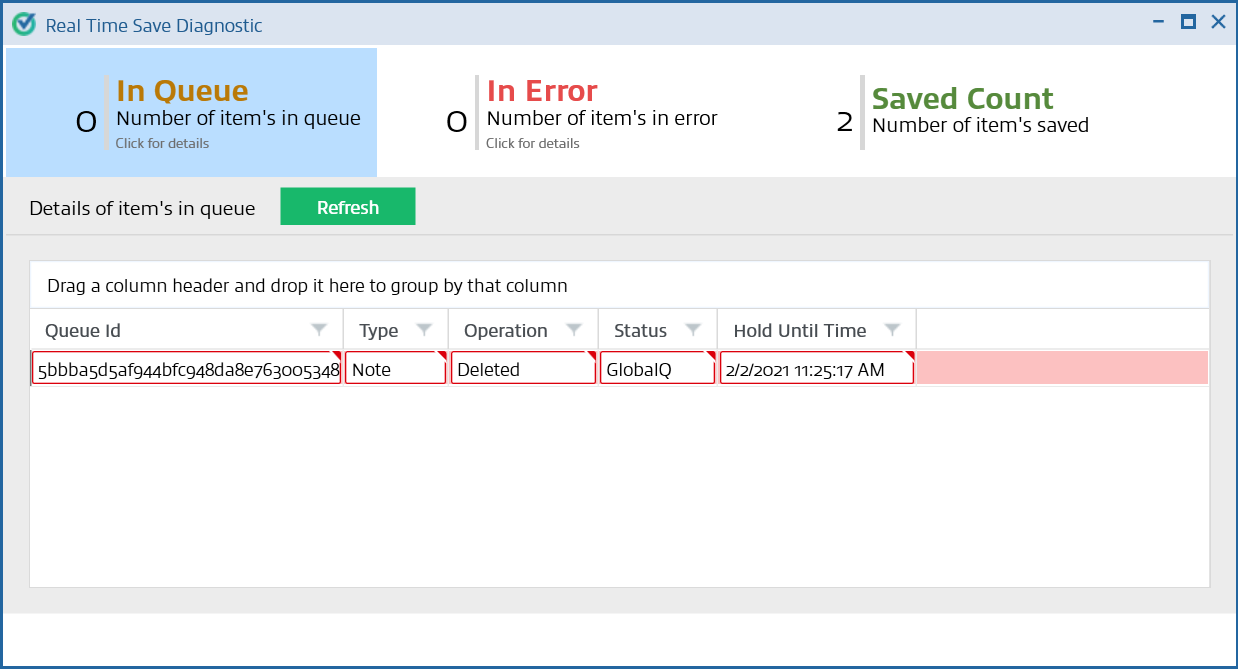
note
The
Real Time Save Diagnostics
window is for diagnostic purposes only. SPbinder saves the data automatically.Related Content
-
Create a shortcut to a binder
Format: Article

