
Add, edit, and manage indexes
Add Index
Add Index Section
allows you to add index and sub-indexes.To add indexes from the  , and then select
Index/Review Tree
toolbar. Select the Add Index
icon , and then select Add Index Section
on the dropdown menu.
You may also right-click the index folder and then select
Add Index Section
on the shortcut menu.
When an
Add Index Section
window appears, type the Section Name
, and then select Save
.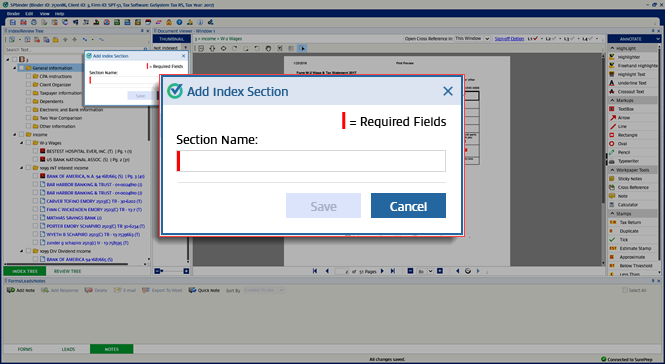
Required fields are marked with a red line  . You can point to the fields to view the tool-tip. The Save button will be disabled unless the mandatory fields are filled in.
. You can point to the fields to view the tool-tip. The Save button will be disabled unless the mandatory fields are filled in.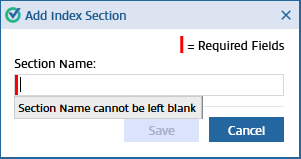
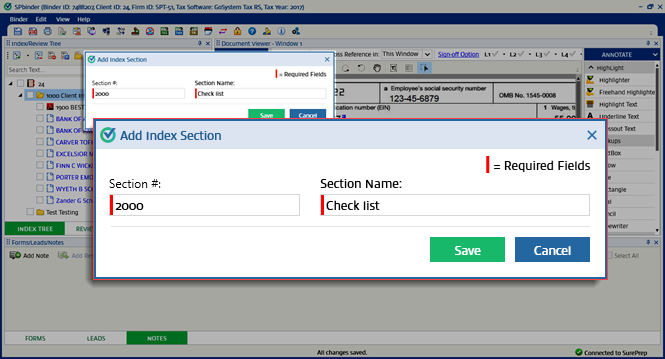
If you try to add indexes to a binder created from a binder template with index numbers,
Add Index Sections
window will ask you to type Section #
and Section
Name
.
note
Index numbers must be unique.
The
Index Tree
will display icons next to each index according to the index file type (PDF, Word Doc, Excel file, email messages).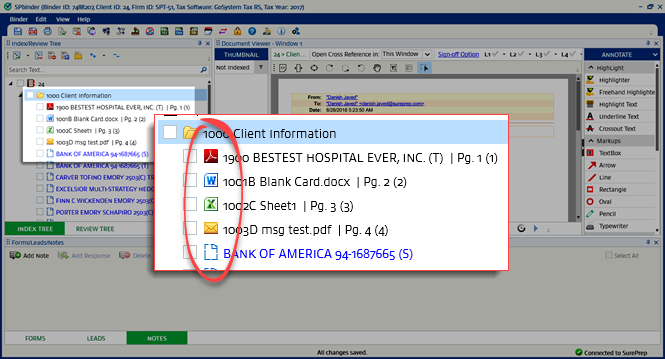
If multiple file types (PDF, Excel, Word and/or Email) are indexed to a single placeholder file, a Multi-page icon  appears before the Index name.
appears before the Index name.
Edit Index
Edit Index Section
allows you to edit the existing index names.You can edit indexes from the , and then select
Index/Review Tree
toolbar. Select the index name you want to edit and select the Add Index
icon , and then select Edit Index Section
on the dropdown menu.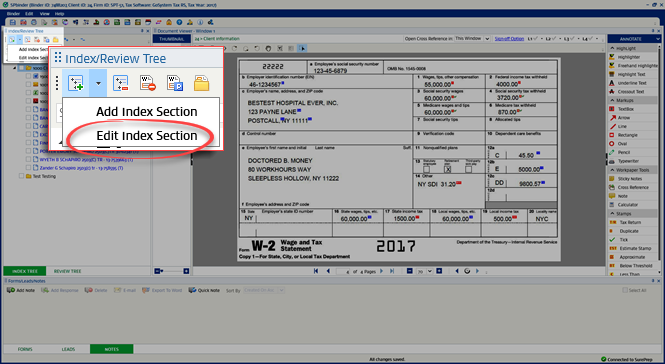
You can also right-click the index name and select
End Index Section
on the shortcut menu. 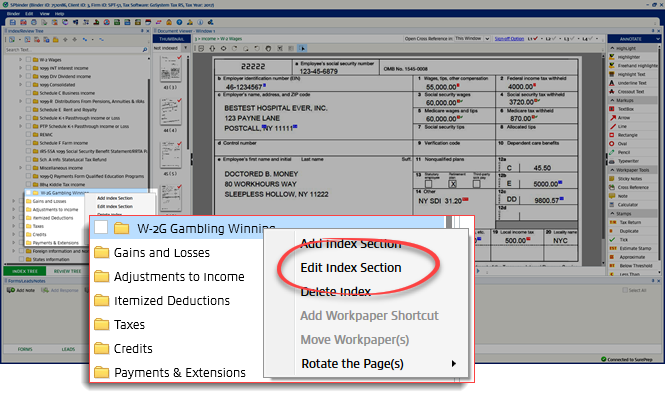
When the
Edit Index Section
window appears, type in the Section Name
field.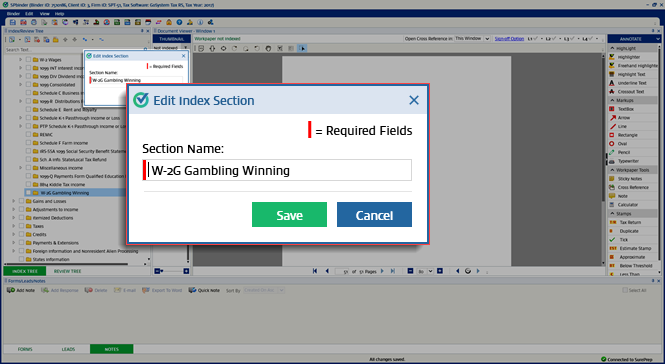
If you try to add indexes to a binder created from a binder template with index numbers,
Add Index Sections
window will ask you to type Section #
and Section
Name
.
Select
Save
to save the changes or select Cancel
to exit without saving the changes.Active Index
Active Index allows you to only view index folders and indexes with workpapers in them.
To show Active Indexes, select the  icon on the
Active Index
icon on the Index Tree
toolbar.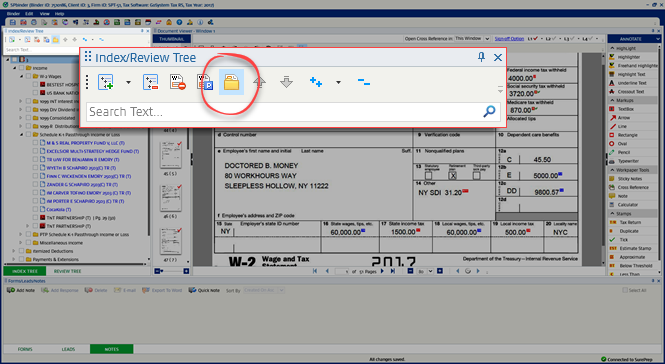
To go back to the default view, select the icon.
Active Index
icon.Move Up or Move Down
Move Up
 and
and Move Down
 icons on the
 Index/Review Tree
toolbar allow you to move workpapers up or down on the Index Tree
.note
This feature is only available in binders using custom templates with Require Index Numbers set to No.
To move a workpaper, select the checkbox for the appropriate workpaper, and then select the or icon.
Move Up
or Move Down
icon.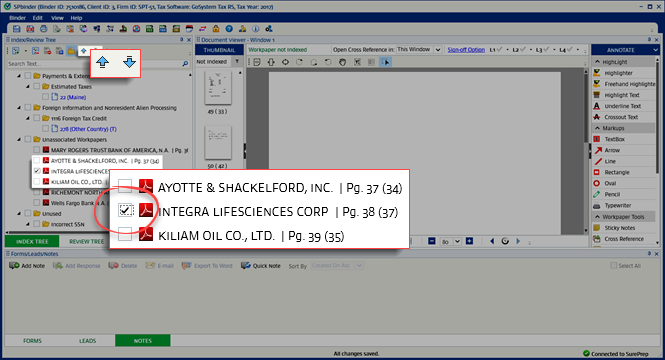
The
Move Up
icon will be unresponsive if the selected workpaper is at the top of a category.Move Down
icon will be unresponsive if the selected workpaper is at the bottom of a category.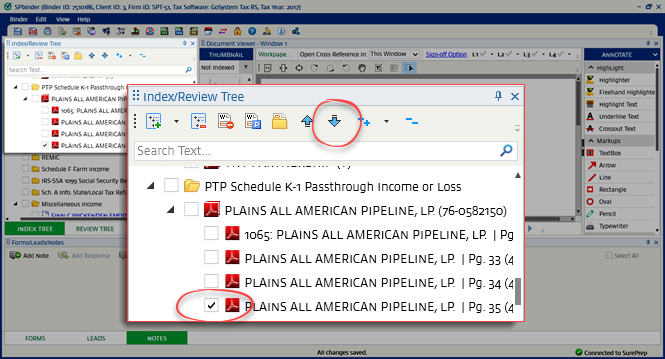
To move multiple workpapers inside a category, select the checkbox for the appropriate workpapers, and then select the or icon.
Move Up
or Move Down
icon.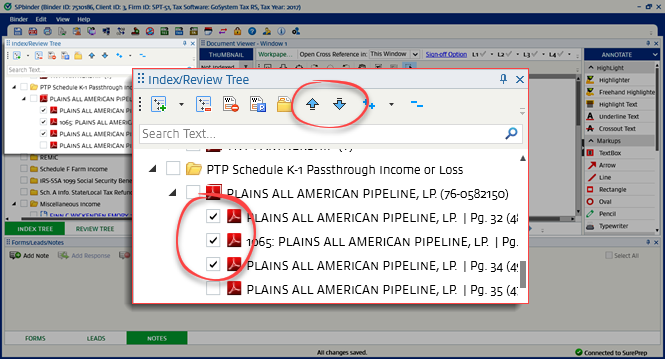
To move workpapers to another category, select the selected workpapers and drag the workpaper to a new location on the
Index Tree
.Expand
The  allows you to expand folders and the workpapers so that the documents associated with them can be viewed.
Expand
icon allows you to expand folders and the workpapers so that the documents associated with them can be viewed.The
Expand
feature has 2 options:- Expand Folders
- Expand Workpapers and Folders
Select the picklist icon  to view the dropdown option.
to view the dropdown option.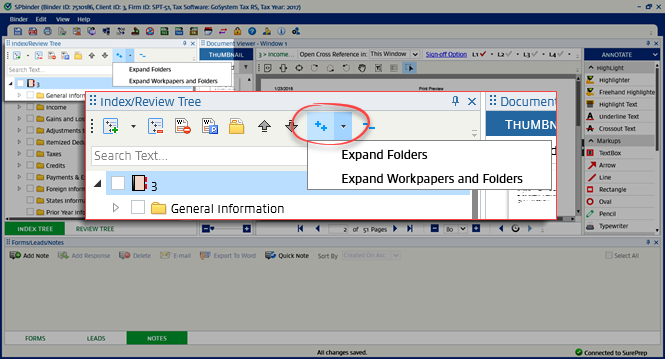
Expand Folders
Select
Expand Folders
to view folders and subfolders.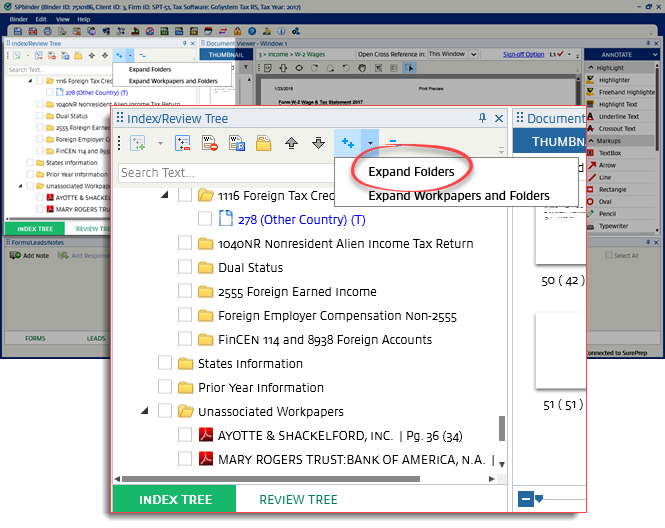
note
In case the Active folders mode is on, then only the active folders will be displayed.
mode is on, then only the active folders will be displayed.Expand Workpapers and Folders
Select
Expand Workpapers and Folders
to view workpapers, folders, and subfolders.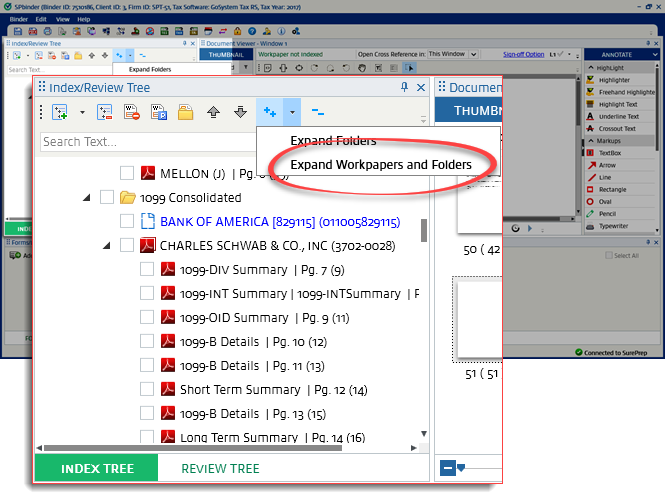
note
In case the Active folders mode is on, then only the active folders will be displayed.
Collapse All
Select the
Collapse All
icon to collapse and view the Index Tree
structure.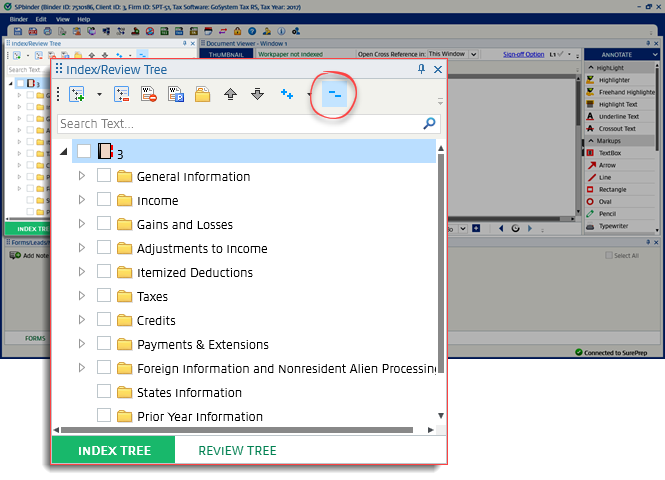
Proforma Index
SPbinder will mark any workpaper rolled forward from the previous year in  icon to indicate the current document is missing.
blue
color. If a proforma document is missing, SPbinder will place an empty placeholder proforma icon to indicate the current document is missing.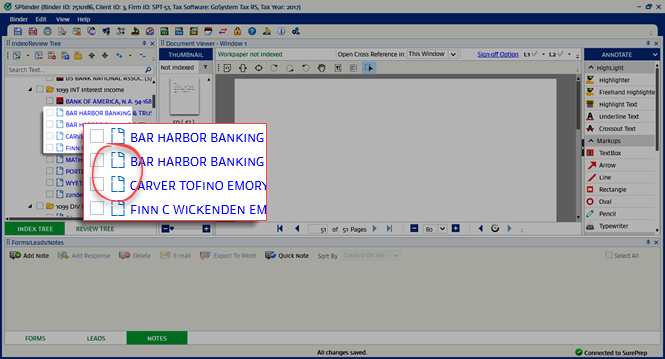
You can't edit the Proforma name, but it can be deleted from the
INDEX TREE
.To associate workpapers with a Proforma, drag the workpapers into the proforma’d index.
note
In case multiple workpapers are dropped into the proforma’d only the multi-page name will be indicated in
blue
. The workpaper names won’t change (except for the 1st workpaper dropped)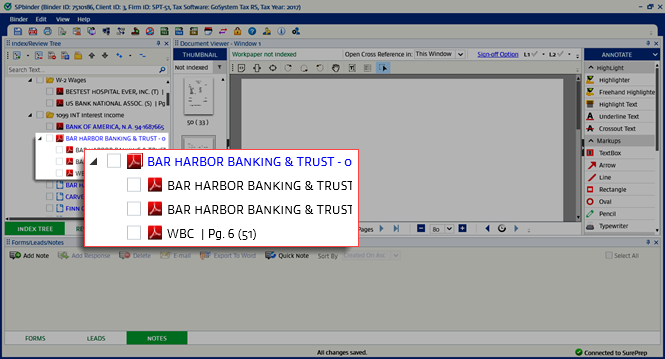
Once workpapers are associated to proforma’d index, all features of
Index tree
available for new indexes will be applicable to proforma’d indexes as well.
