
Edit, disassociate, delete, or move workpapers
Edit Workpaper
To edit the existing workpaper names, right-click the workpaper you want to edit, then select
Edit Workpaper
on the shortcut menu.
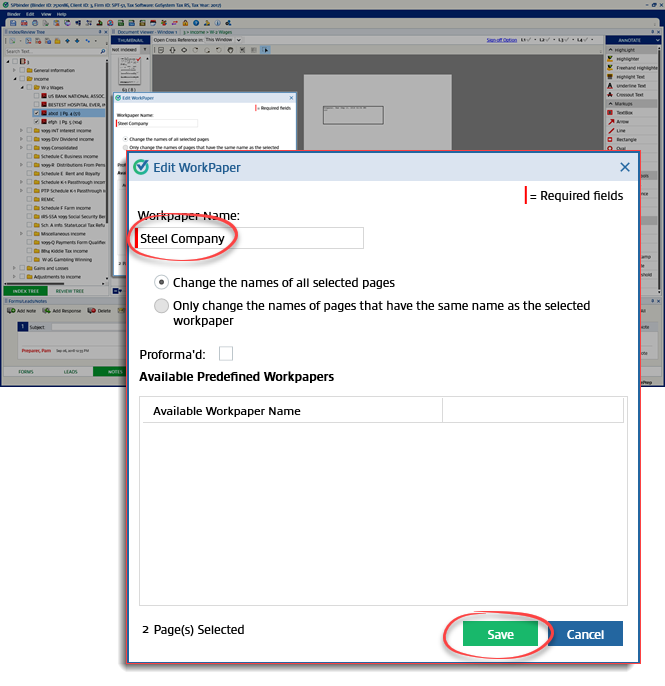
Edit WorkPaper
window will appear, you can edit the workpaper name in the Workpaper Name
field. Select Save
to save the changes or select Cancel
to exit without saving the changes.
Edit Multiple Workpapers
To edit multiple workpapers, select the checkbox for workpapers you need to edit. Right-click on any selected workpaper, then select
Edit Workpaper
on the shortcut menu.
A dialog box will appear to verify if you want to edit selected workpapers.

note
You can select
Do not ask me again
to prevent this dialog box from appearing again in the future. Select
Ok
to edit the selected workpapers.Select
Cancel
to close the window without making any changes.When the
Edit Workpaper
window appears, enter the Workpaper Name
field, then select Save
.
Disassociate Workpaper
Disassociating workpapers removes it from the
Index Tree
and moves the workpaper to the Thumbnail
panel. To disassociate a workpaper, right-click the workpaper you want to disassociate, then select Disassociate Workpaper/Remove Shortcut
on the shortcut menu.
To disassociate multiple workpapers, select the checkbox for workpapers you need to disassociate. Right-click on any selected workpaper, then select
Disassociate Workpaper
on the shortcut menu.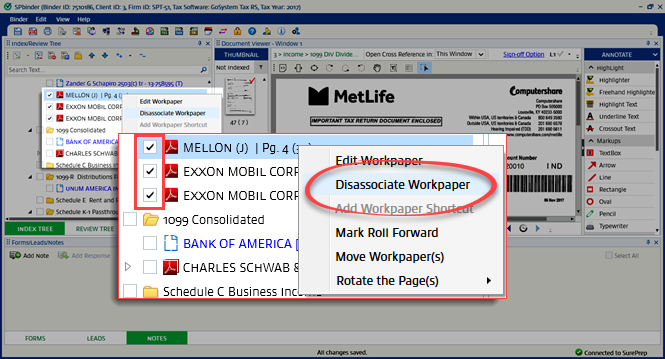
Alternatively, you can select the checkbox for workpapers you want to disassociate, then select the
Delete Index/Disassociate Workpaper
icon on the Index/Review Tree
toolbar.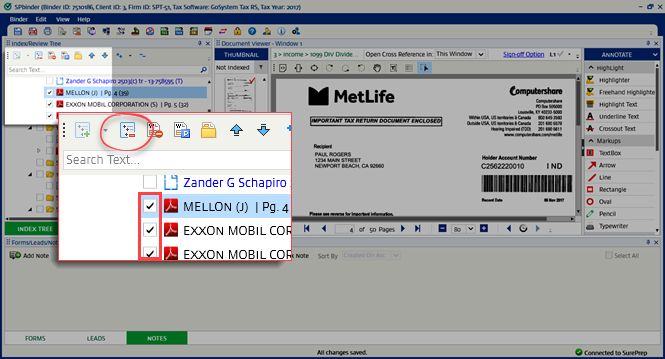
A dialog box will appear to verify if you want to disassociate selected workpapers.

Select
Yes
to disassociate workpapers and move to the Thumbnail
panel.Select
No
to close the window.The following message appears if the workpaper has cross-references or annotations.
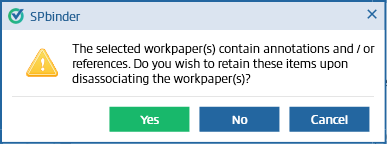
Select
Yes
to disassociate one or more workpapers and retain all the references and annotations.Select
No
to disassociate one or more workpapers along with all the references and annotations.Select
Cancel
to close the window.Delete Workpaper
Select the checkbox for the workpaper you want to delete, then select the  icon.
icon.
Delete Workpaper
icon.
A dialog box will appear to verify if you want to delete the selected workpapers.

Select
Yes
to delete the workpaper from the Index Tree
and move it to the Restore pages
window. You can then permanently delete the workpaper from the Restore pages
window.Select
No
to close the window without saving any changes.A confirmation window will appear if the workpaper has cross-references or annotations. By deleting the workpaper, you will also delete the annotations, references, and notes.

Select
Yes
to delete the workpaper from the Index Tree
and move it to the Restore pages
window.Hover
No
to close the window.You can also delete index proforma on the
Index Tree
. To delete the index proforma, right click the index proforma, and then select Delete.
note
You can also select the on the
Delete Workpaper
icon on the Index tree
toolbar.
To delete the entire index tree, select the checkbox next to the binder name, then select the .
Delete Workpaper
icon .In the window that appears select
Yes
to delete, or select No
to close the window.Move Workpaper
You can move workpapers from 1 Index to another Index. For instance, if you have erroneously associated the 1099-DIV source document in 1099-INT form, then you can move the source document from 1099-INT to 1099-DIV without disassociating the workpapers.
To move one or more workpapers, select the checkbox for each workpaper you need to move.

Right-click the destination folder where the workpaper should move, then select
Move Workpapers
from the shortcut menu.
The
Move Workpaper(s)
option will be disabled under the following conditions: - No Workpaper(s) is selected via the checkbox.
- A folder checkbox is selected.
- Attempting to move workpapers within the current parent entity form (for example, Morgan Stanley to Morgan Stanley).

The selected pages will appear in the new location.

Drag and drop
Workpapers can also be moved from 1 index to another by using the drag-and-drop feature.
Select a single workpaper or multiple workpapers, and then drag the workpapers to the desired index section.

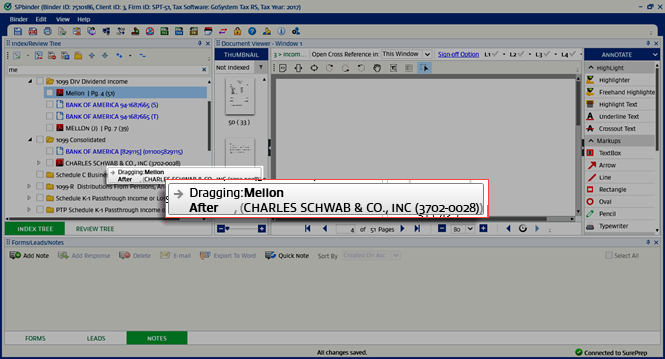
You can also drag the selected workpapers
Before
or After
the already indexed workpapers under a particular index section. A prompt message indicates if the selected pages will be placed Before
or After
the Workpaper.Move Before:

Move After:
A  icon will be shown on the prompt if you are not allowed to move the selected workpapers
Not Allowed
icon will be shown on the prompt if you are not allowed to move the selected workpapers Inside
, Before
, or After
a particular index.

