
Sign-off workpaper from the Index Tree
The
Index Tree
allows you to view sign-off levels on a workpaper and sign-off if needed.To sign off from the
Index Tree
, right-click a workpaper on the Index Tree,
point to Sign off Workpaper
on the shortcut menu, then select the sign-off level you want to sign off.
Signed-off workpapers will display a sign-off level check mark.

Each sign-off level can be assigned to a different role defined in the
Admin
section. For example, if your role is preparer, then only L1-Preparer will be enabled for sign-off.
Each colored check marks next to the workpaper indicates the current sign-off level for that workpaper. For example, if the workpaper is signed-off by L1-Preparer, then the designated check mark for L1-Preparer will appear next to the workpaper.

note
You can change the sign-off colors at
FileRoom
, Admin
, SPbinder
, then Sign Off Management
.Signing off on a document on
Index Tree
automatically checks the box for respective sign-off levels on the Document Viewer
toolbar.
Similarly, on the
Review Tree
, workpaper gets marked as reviewed in the respective Unreviewed Workpapers By
sign-off level. Reviewed workpapers are listed in bold green text.
Conversely, signing-off on the
Document Viewer
toolbar or Review Tree
also marks the workpaper as signed-off on the Index Tree
.Sign-off multiple workpapers
To sign-off multiple workpapers simultaneously, select the desired workpapers.

Right-click any selected workpaper, point to
Sign-off Workpaper
on the shortcut menu, then select the sign-off level on the extended shortcut menu.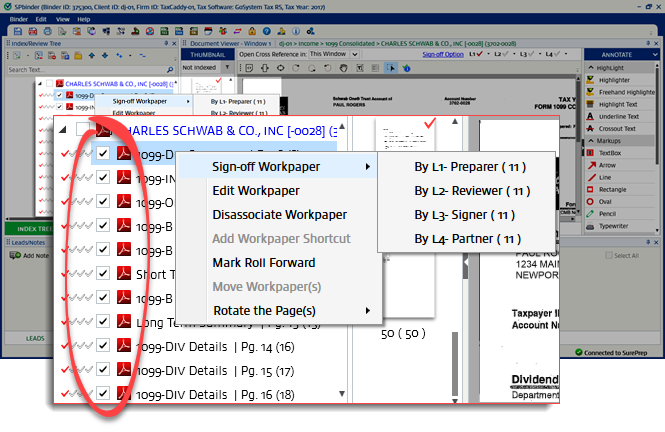
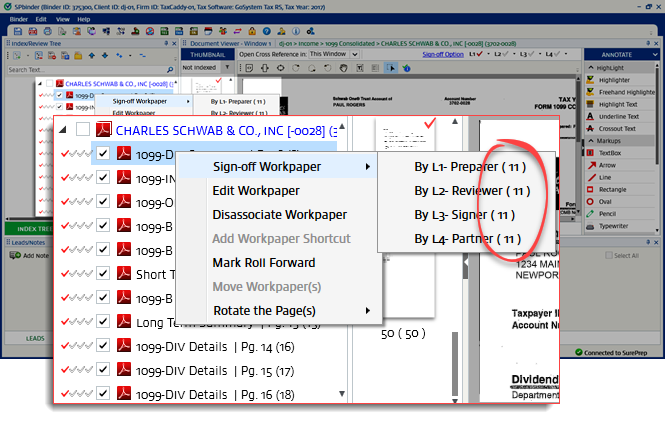
On the shortcut menu, the number in the parentheses indicates the number of the pages selected.
A  icon appears next to the workpaper if the current workpaper has been modified after being signed-off. This applies to all users at any level (Preparer, Reviewer, Partner, or Signer).
Caution
icon appears next to the workpaper if the current workpaper has been modified after being signed-off. This applies to all users at any level (Preparer, Reviewer, Partner, or Signer).

