
Add references
To capture amounts and add a reference to a document, go to the
INDEX TREE
, then select a document to view it in the Document Viewer
window.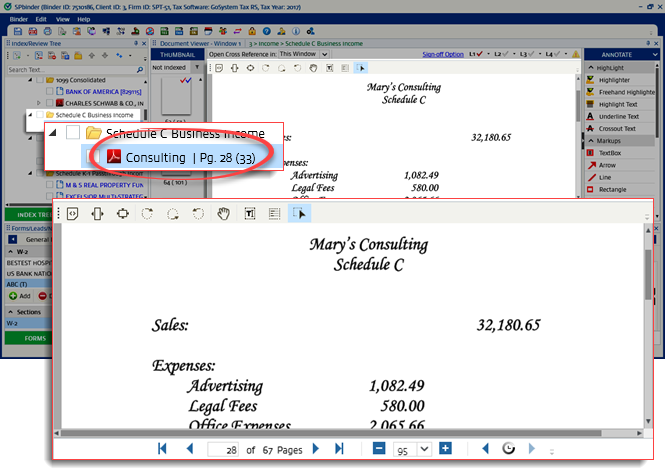
On the
FORMS
tab, select an Input Form
to place the reference.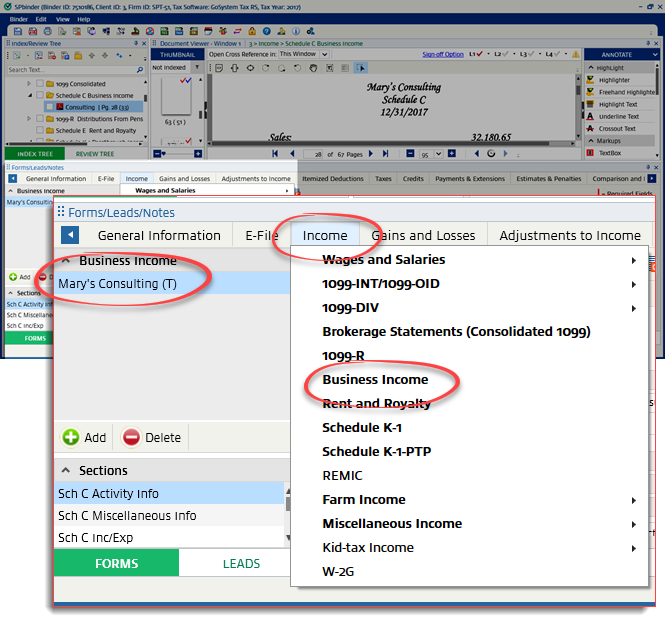
Blank
Input fields
display on the right side of the FORMS
tab.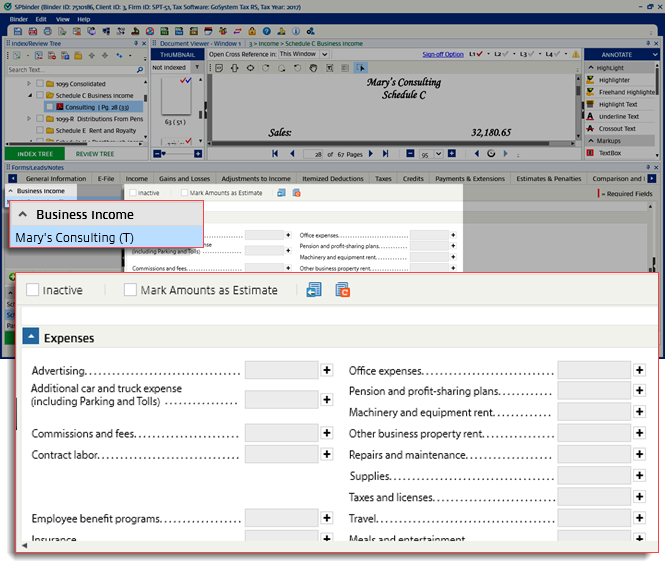
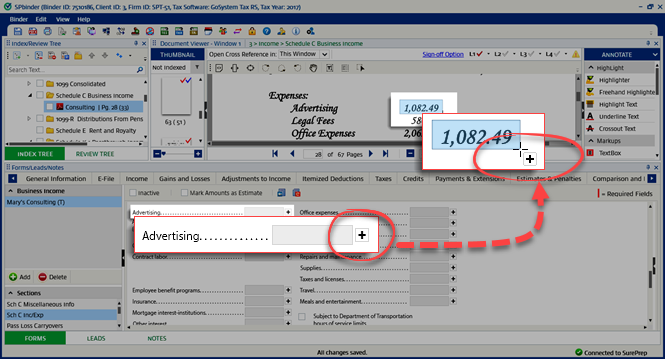
Follow these steps to automatically add a reference to the source document:
- Select theAddicon
 next to the Input Field.
 - To highlight the whole amount on the source document, select and drag the mouse pointer from the top left to the bottom right until the amount is highlighted in blue.
note
To manually add a reference, select once on the source document and enter the value manually in the
Input Field
. 
If OCR reads the data correctly, then a reference will be added to the right side of the value on the source document and the value for that field will be populated in the input form.
The will change to  .
.
Add
icon will change to Delete
icon .
If OCR is not certain about the scanned data, a pop-up will appear giving you an option either to choose the
OCR Value
or Suggested Value
.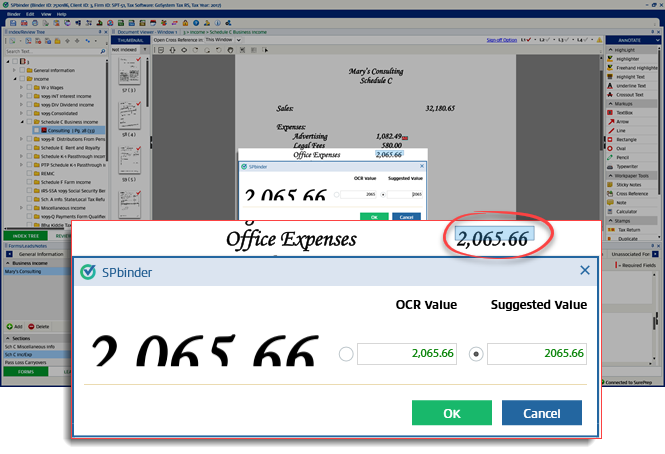
The fields for
OCR Value
and Suggested Value
are editable. You can edit and choose either of these fields by selecting the OK
.
If you select multiple amounts vertically and the OCR is not certain about scanned data, a window will appear with suggested rows filled out. You can select
OCR Value
, Suggested Value
, or Skip Value
.
You can also skip OCR by manually placing a reference on the document. With the Add icon selected, choose the source document without dragging it over the amount.
When the reference is placed on the document, no amount will be populated in the
Input Field
until entered manually.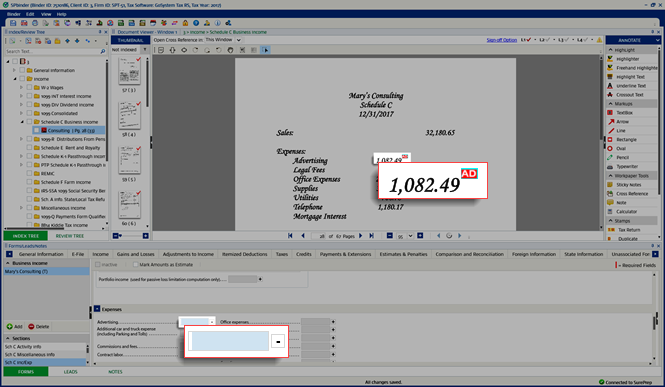
note
If a non-numeric value is entered in the field for amounts, then a
Invalid Amount
window appears and the text box border for that value will change to Red.
With the OCR referencing method you can add references only to the PDF, TIFF, TIF, and Email documents.
Placing references on the Excel file will automatically capture the cell data.
For Word documents after placing the references, you will have to manually enter the data.
Reference Types
Types of References:
- Red references: Used for the calculation of lead sheets as well as for porting data into the tax application.
- Blue references: Only used for porting data into the tax application and not for calculation of lead sheets.
- Orange references:Only used for calculation of lead sheets but not for the porting of data into the tax application.
Related Content
-
Use K-1 Reclass
Format: Article

