
1041 leadsheets documentation
- Explain all the variances in the following sequence when generating leadsheets.
- Form 1041 Page 2

- Form 1041 Page 1

- Check the type of references (Red, Blue, or Orange):
- Red references: The red reference fields are used for the calculation of leadsheets as well as for porting data into the tax software.
- Blue references: The blue reference fields are only used for porting data into the tax software and not for calculation of leadsheets.
- Orange references: The orange reference fields are only used for calculation of leadsheets and not for the porting of data into the tax software.
- The†sign indicates that user should enter data manually from Tax software into the Leadsheets. System won’t auto populate these amounts in Leadsheets.

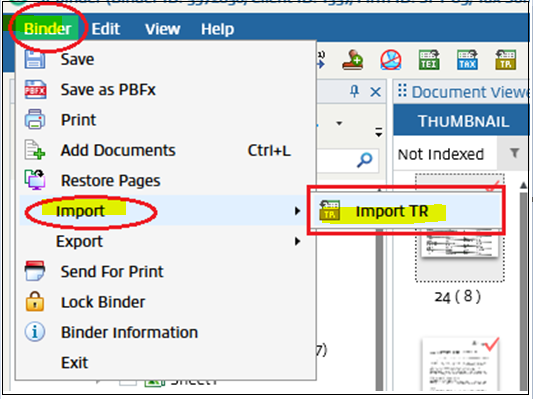
- The(T/R)sign indicates the amount for those fields populated through the Import TR process in Leadsheets. In other words, if you find an amount in a (T/R) field in the tax software, you need to either perform Import (T/R) to reflect it in leadsheets, or enter it manually in leadsheets for the (T/R) field.

- Make sure to enter the input in SPbinder and in Tax Software correctly while reconciling the Variance in Leadsheets.
- UseImport TRfor GoSystem, ProFx and CCH Tax before reconciling the variance in Leadsheets.
- Meaning of red and green asterisks next to the Variance column of Form 1041 Pg.1 and Pg.2:
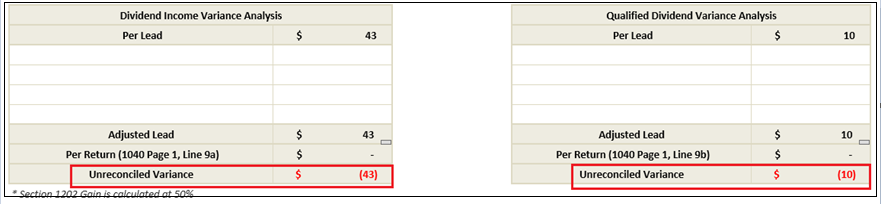
- Red: The Red asterisk sign indicates Un-Reconciled variance.

- To find the Un-Reconciled value, select the link.

- The system will take you to the respective form where you can explain the variance.
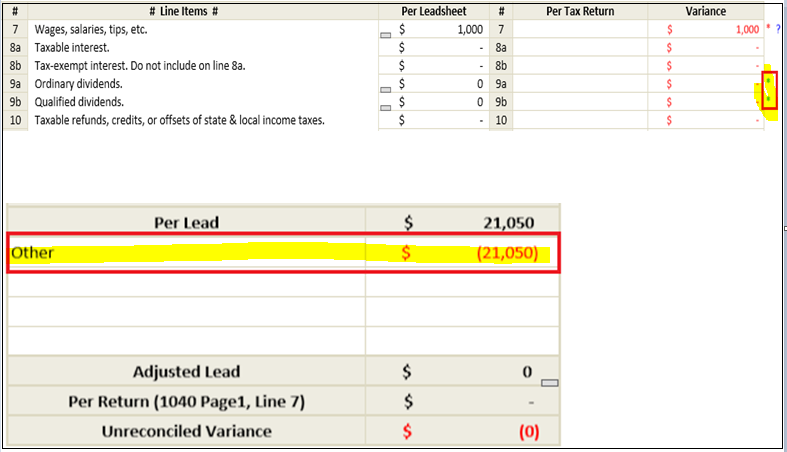
- Green:The green asterisk indicates Reconciled variance. Select the link for that line to go to the leadsheets where the variance is explained. You will be able to find the reason for the variance and amount in the variance section. Even if a zero amount is entered in the Variance column then also it would show you a green asterisk. Hence don’t enter 0 amount in the variance section.
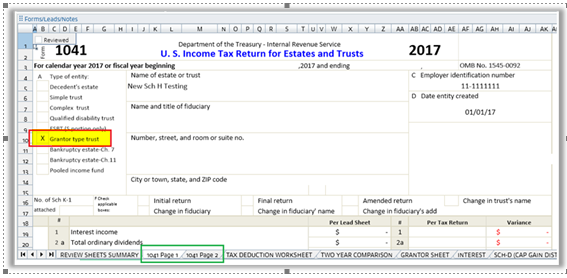
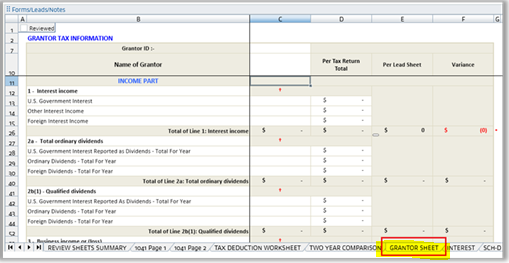
- Data won't transfer into1041 Page 1and1041 Page 2when the type of trust isGrantor Trust. Data will transfer to theGRANTOR SHEET.
- Ratio of Deductions Attributable to Tax-Exempt Income (“Exp Alloc Worksheet (Manual) sheet)"
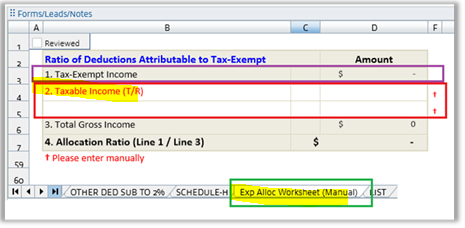 When amount of Tax-Exempt Interest shows inLine 1of “Exp Alloc Worksheet (Manual)” sheet, make sure the amount ofTaxable Incomeis entered inLine 2ofExp Alloc Worksheet (Manual)sheet from the tax software. This will help to remove variances from the Deductions.
 Follow this path to get the Gross Taxable Income amount from the Tax Software: .
note
SurePrep covers the following type of trust return fields in SPbinder and LeadSheet calculation:
- Decedent’s
- Simple Trust
- Complex trust
- Grantor type trust

