
Import tax returns (Import TR)

Import TR allows you to fetch updated (dollar) amounts from the tax software into the Leadsheets. Importing the tax return amounts into SPbinder allows you to keep the amounts in sync with the tax software and reduce Leadsheet variances (i.e., avoiding discrepancies between the tax software vs SPbinder Leadsheets).
note
This feature only applies to binders created with Leadsheet.
To import amounts from tax software into SPbinder
LEADS
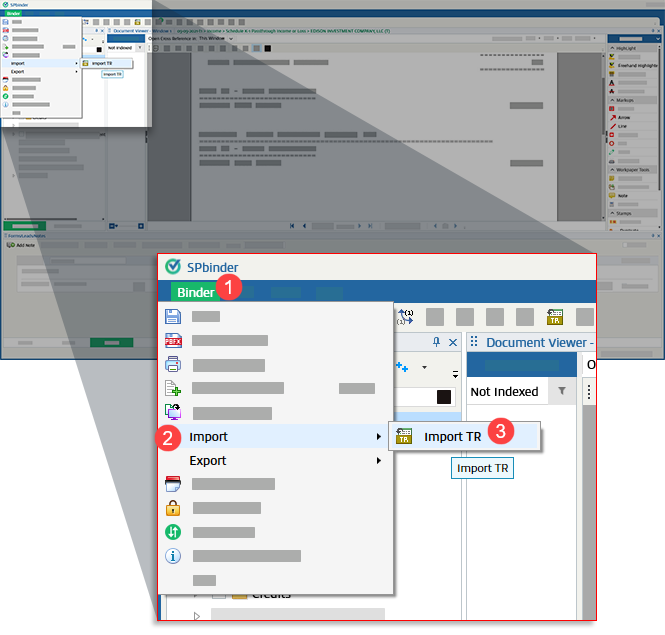
, follow these steps:Select the
Binder
menu, Import
, then Import TR
. 
You can also select the  icon on the quick access toolbar.
Import TR
icon on the quick access toolbar.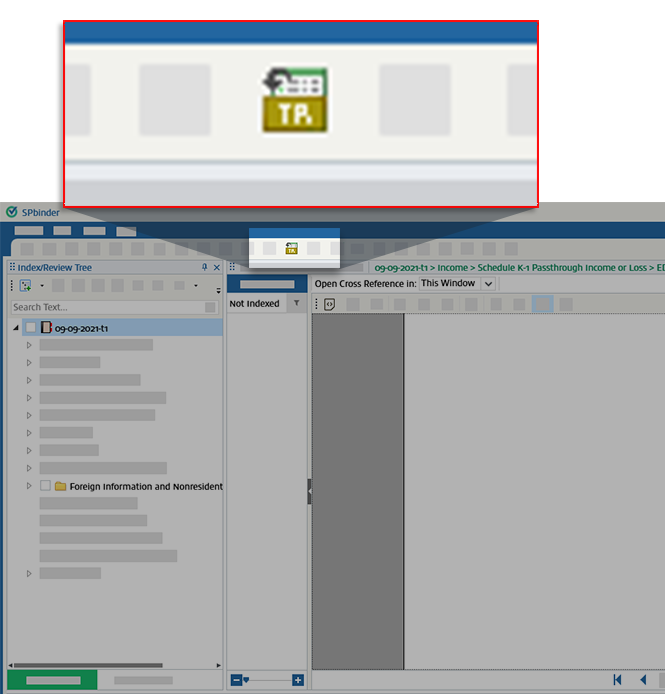
The Import TR window
The Import TR window appears differently based on the tax software selected for that binder. Scroll down to find instructions for your specific tax software.
- GoSystem Tax RS
- CCH Axcess Tax
GoSystem Tax RS
After you select
Import TR
, an Import TR window appears with two buttons. Select Proceed
to import tax return data from GoSystem Tax RS.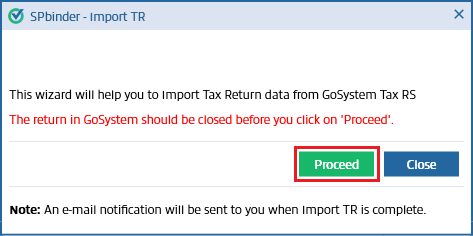
note
Before you begin the import process, make sure that the corresponding tax return is currently closed in the tax software.
The
Proceed
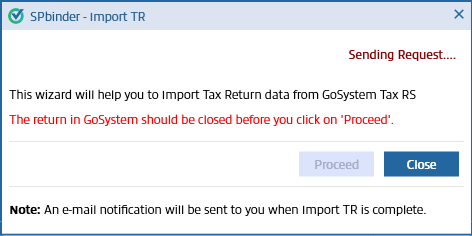
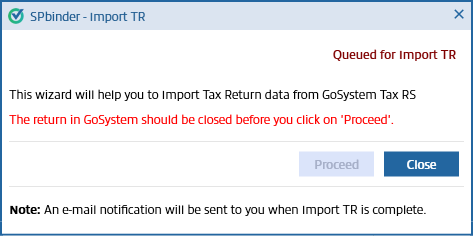
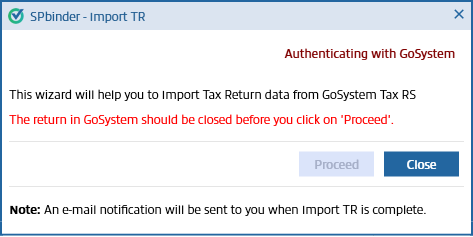
button is disabled during the import process. The Import TR window will display the following messages while it imports data:Sending Request
Queued for Import TR
Authenticating with GoSystem
After the import is complete, the
Import TR
window will update the message to Process Completed
. Select Close
to exit the Import TR
window.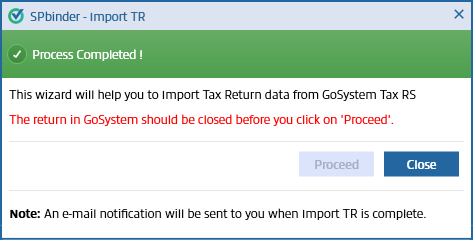
note
The system will send an email notification to your registered email address when the import process is complete.
CCH Axcess Tax
After you click
Import TR
, an Import TR window appears with two buttons. Click Proceed
to import tax return data from CCH Axcess Tax.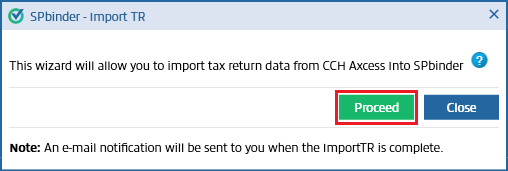
note
Before you begin the import process, make sure that the corresponding tax return is currently closed in the tax software.
The
Proceed
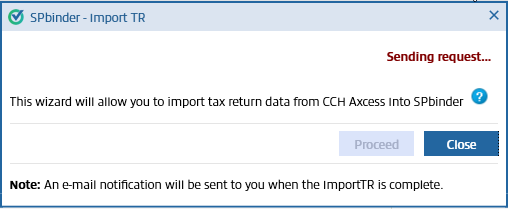
button is disabled during the import process. The Import TR window will display the following messages while it imports data:Sending request
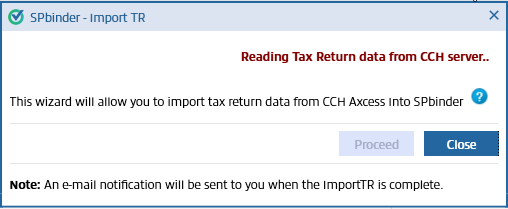
Reading Tax Return data from CCH server
After the import is complete, the Import TR window will update the message to "Process Completed!". Click
Close
to exit the Import TR window.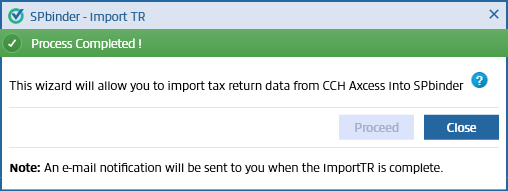
note
The system will send an email notification to your registered email address, when the import process is complete.
If your return is open in CCH Axcess Tax at the time of Import TR, a message indicating "Process Failed: CCH Axcess tax return is currently in use. Please close the CCH Axcess tax return then click on ‘Retry’. Please Contact SurePrep Support.” appears. Data from the CCH Axcess Tax to SPbinder will not be imported if the CCH Axcess Tax return is open.
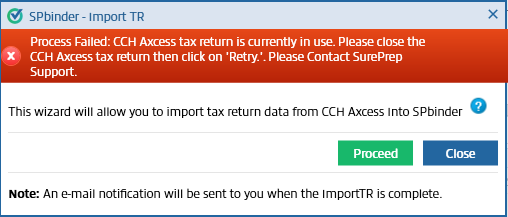
Close the tax return and click ‘
Proceed
’ again to import tax return data from CCH Axcess Tax to SPbinder.
