
Leadsheets sign off
You can review or unreview a particular cell by holding
Ctrl
and then select the cell. The reviewed cells will have green checkmarks.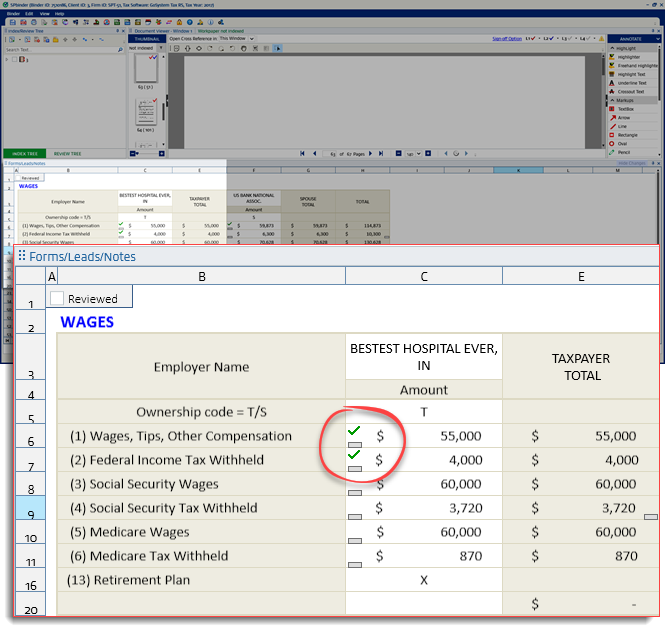
If you review/unreview a particular cell, all the related sheets in which the data transfers will also be reviewed
The cell displays the  icon if you modify/delete cell data after you have reviewed the leadsheets. The existing tickmark will be replaced by the
  icon on that cell and all other related sheets in which the data transfers.
Change Tracking
icon if you modify/delete cell data after you have reviewed the leadsheets. The existing tickmark will be replaced by the Change Tracking
icon on that cell and all other related sheets in which the data transfers.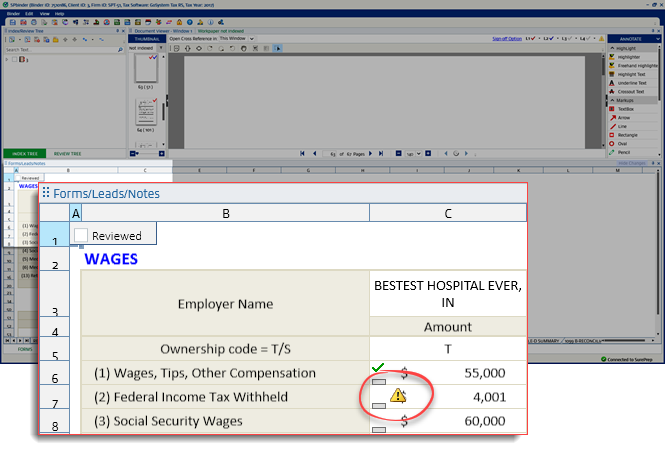
note
The icon can also be useful when you submit additional documents to the binder. Without re-evaluating the entire binder, you can spot the icon to determine which (signed-off) data was impacted by the additional submitted documents.
Change Tracking
icon can also be useful when you submit additional documents to the binder. Without re-evaluating the entire binder, you can spot the Change Tracking
icon to determine which (signed-off) data was impacted by the additional submitted documents.To clear or add the changes, double-click the icon from the sheet, particular cell, or Review Sheet Summary.
Change Tracking
icon from the sheet, particular cell, or Review Sheet Summary.As you review the icon at the sheet level, the related sheet on which it transfers, and the Review Sheet Summary will also be updated accordingly.
Change Tracking
icon at the sheet level, the related sheet on which it transfers, and the Review Sheet Summary will also be updated accordingly.
