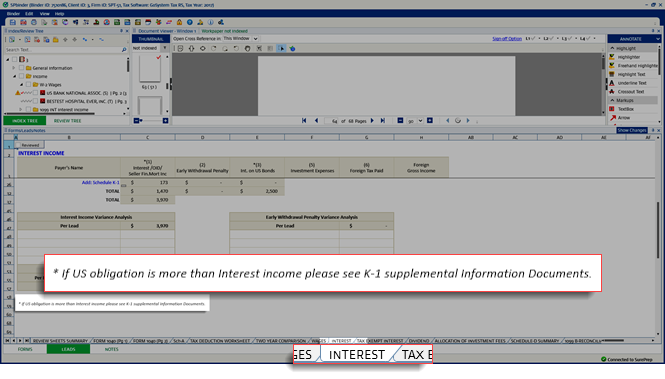
Leadsheets variance
Leadsheet variances are created when SPbinder detects discrepancies between the tax software and the amount entered in each leadsheet. Amount discrepancies that show leadsheet variances can be caused by multiple reasons, by explaining/reconciling the variance, you can explain the reason for the variance and fix any amounts that may have been entered incorrectly.
Leadsheet variance examples:
- Income may be offset by a loss carryover
- wages may be offset by exemptions
- Excess investment interest may have carried over to the subsequent year.
Reviewing Leadsheet Variances
To view the leadsheets, select the
Leads
tab in the lower viewing area.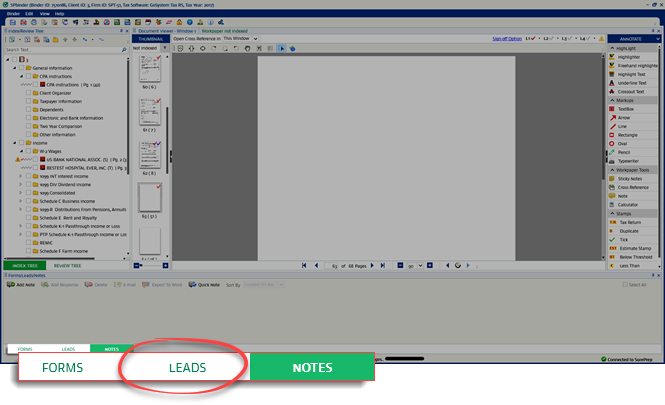
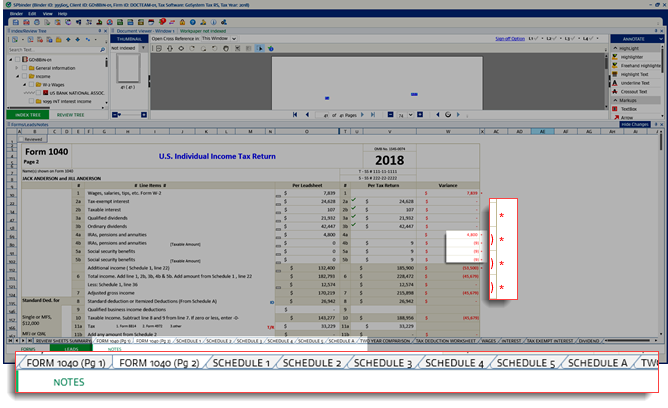
Variance analysis has to be done for
Form 1040 Page 2
, Schedule 1
, Schedule 2
, Schedule 3
, and Schedule A
.
To get help for the respective line number, you can select the question select icon that appears next to the variance column.
Once the leadsheets are populated, you can view the variance amounts displayed in red under the
Variance
column.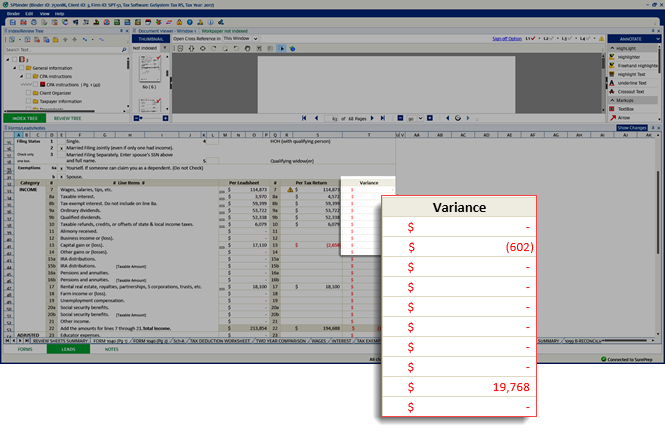
The discrepancy between the amounts in
Per Leadsheet
and Per Tax Return
are shown in the Variance
column.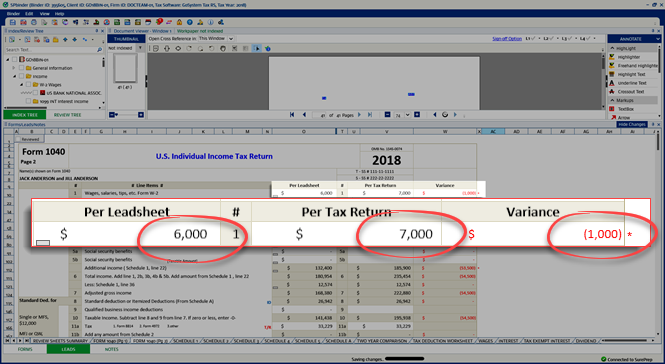
To view what caused the variance, select the
Reference Link
icon on the Per Leadsheet
amount.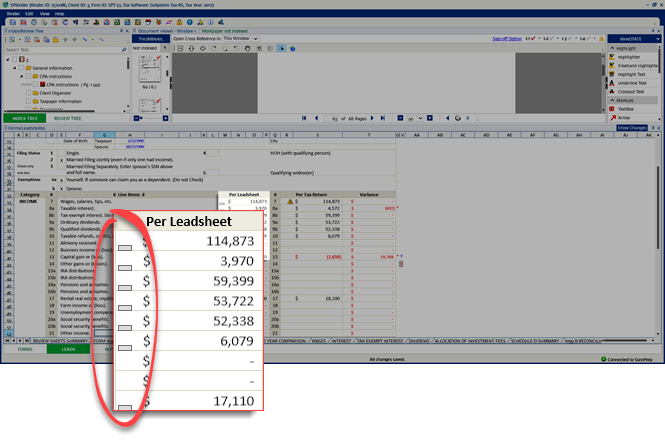
This will open the respective leadsheet. The linked leadsheet will open with the
Unreconciled Variance
amount.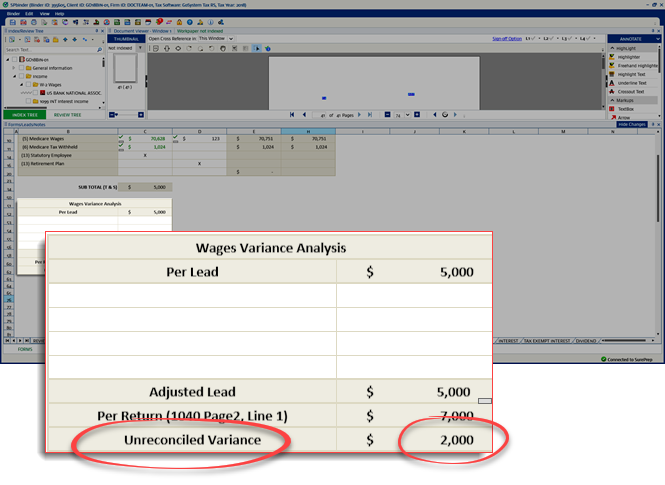
Reconcile the variance
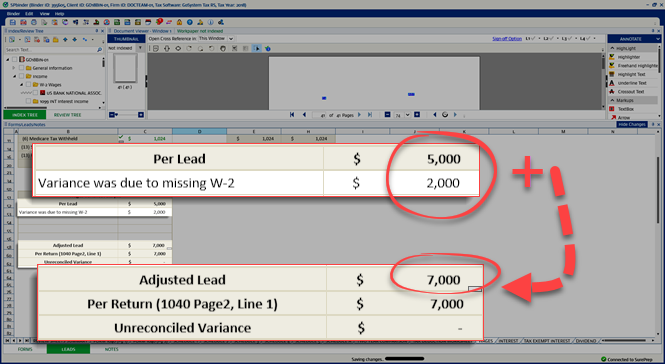
To reconcile the variance, select on an empty cell, then select the dropdown picklist to select from a list of possible explanations.
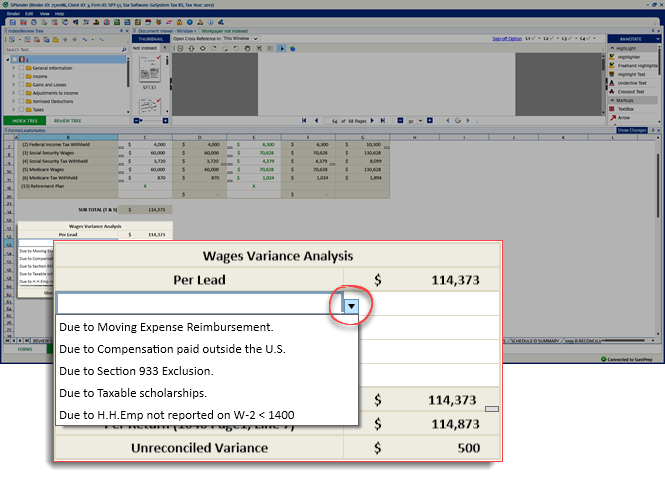
You can also manually enter the reason for the variance along with the amount to reconcile the difference between leadsheet of the respective
Input Form
.
Once all amounts are explained, the
Unreconciled Variance
will show nil.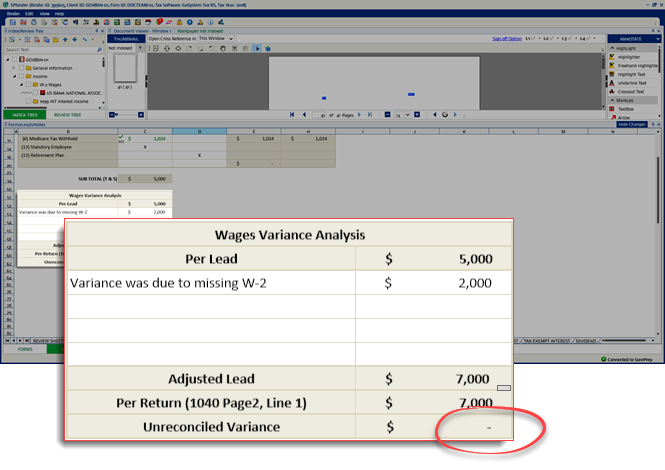
Select the  to return to the previous page.
Reference Link
icon to return to the previous page.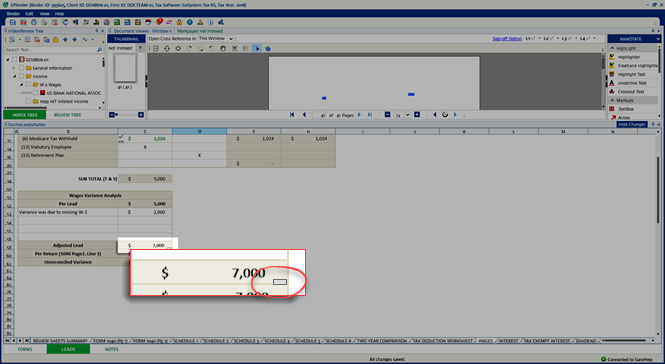
After updating the variance amount,
Per Leadsheet
and Variance
columns get adjusted according to the amount in Per Tax Return
. If Per Leadsheet
and Per Tax Return
amounts are the same then the Variance
column will no longer show a variance amount.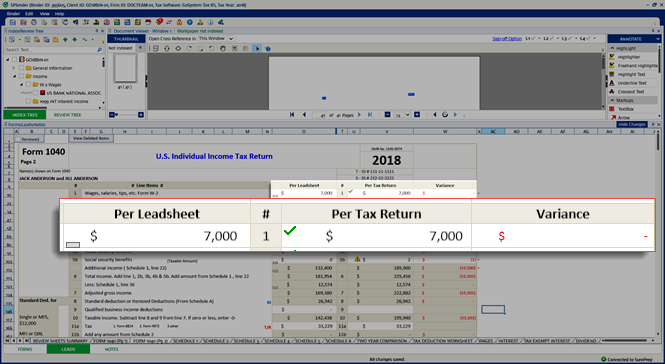
The asterisk (
*
) sign remains, implying that variance has been explained for this particular row.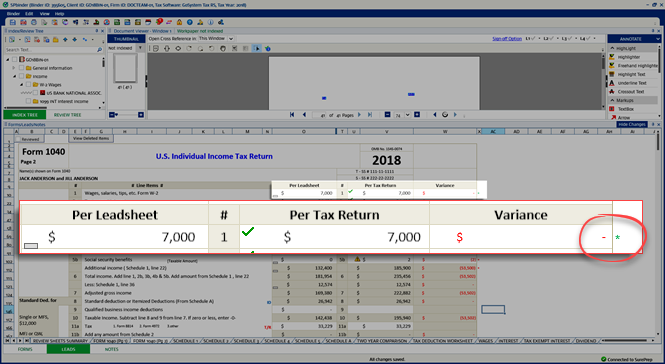
The dagger (
†
) sign indicates that the user should enter data manually from the tax software into the leadsheet.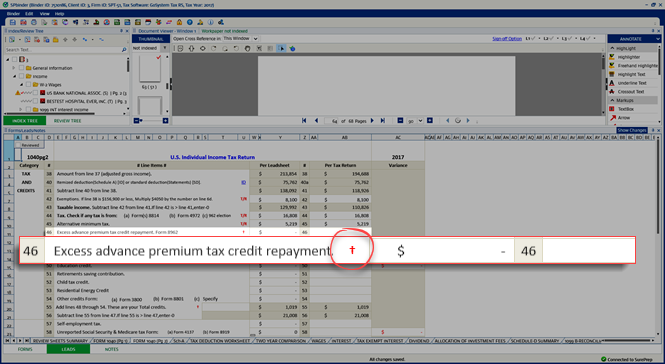
The
(T/R)
sign indicates that the amount will populate through the Import TR process.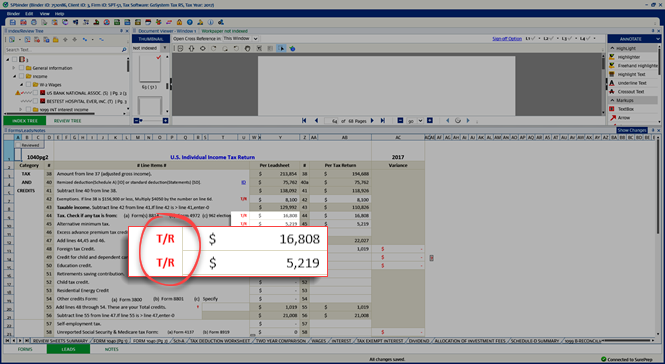
The data from line numbers with the double dagger (
‡
) sign in the Schedule K-1 Reconciliation sheet will transfer to Line 17 of Schedule 1.note
This double dagger (
‡
) sign will be displayed only in GoSystem Tax RS.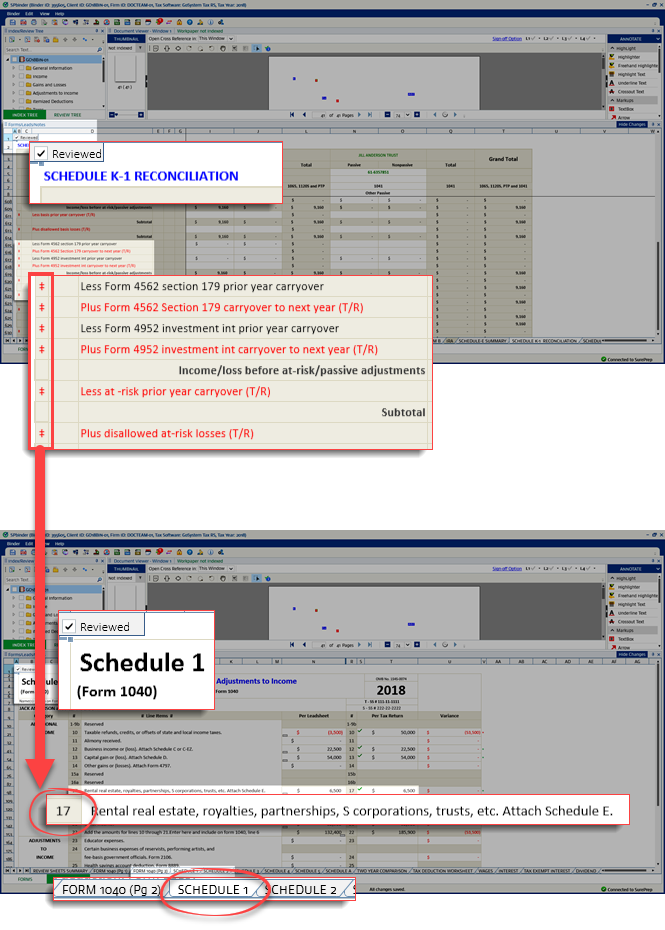
The asterisk (*) sign indicates that the data is for information purposes only.