
Leadsheet loading preference
Load selective Leadsheet data to improve Leadsheet load time
Load selective Leadsheet data
When opening the
LEADS
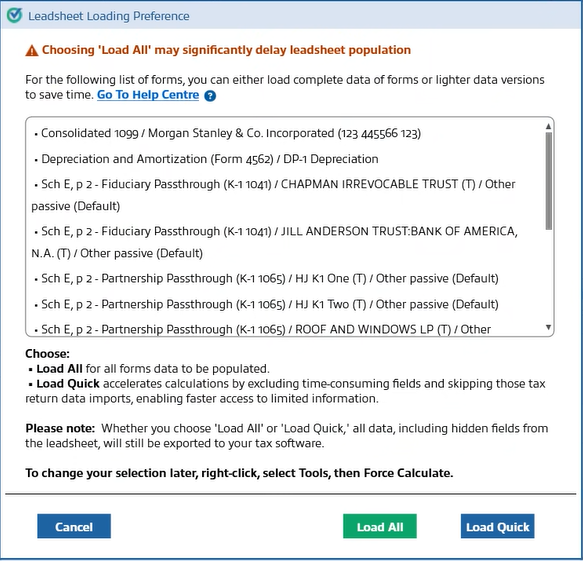
tab, SPbinder detects if your binder contains large volumes of reference information (e.g., multiple Schedule K-1s, W-2s, etc.) that could slow down Leadsheet loading. If such a scenario is detected, you will see a Leadsheet Loading Preference
modal that gives you the option to:- Load Quick: Temporarily omit specific, large data sets (such as certain Schedule K-1s, W-2, etc.) from the Leadsheet for this session, resulting in significantly faster loading. You can review all the documents that will be excluded in this window.
- Load All: Load all reference data into the Leadsheet (may result in longer loading times).
- Cancel: Cancel the Leadsheet population and return to your binder.
tip
To change your selection, right-click in a Leadsheet, select
Tools
, then Force Calculate
.Key Benefits
- Improved Performance:Leadsheets load much faster when large data sets are excluded.
- User Control:You decide what information is important for your current workflow. For example, if you are reviewing wage data and do not need Schedule K-1 details, you can exclude them and speed up your review.
- Session-Based Flexibility:Exclusions are temporary and apply only to your current session. To revisit your inclusion/exclusion choices, simply close and relaunch SPbinder. The modal will appear again, allowing you to adjust your selections.
If you selected
Load Quick
, you can go to Leadsheets and select Load Quick
to view a list of forms that were loaded quickly with limited data.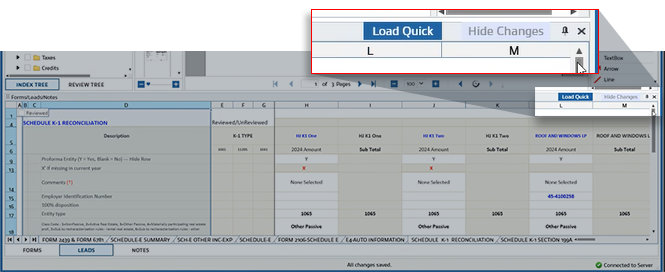
You will see a
Leadsheet Load Quick Forms
window showing you all the Leadsheet forms that were loaded with limited data.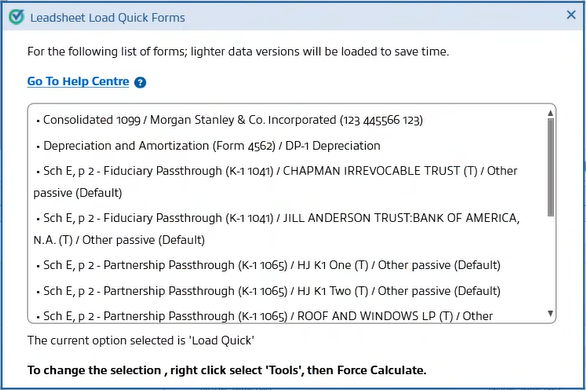
Activate Leadsheet loading preference
Some forms have a lot of information, causing Leadsheet to load slowly. Your firm can set how much information a form needs to have before SPbinder shows the user's Leadsheet loading preferences.
To activate your loading preferences, browse to
Admin
, SPbinder
, Leadsheets
, then select the Exclude leadsheet calculations for forms with high reference counts
checkbox.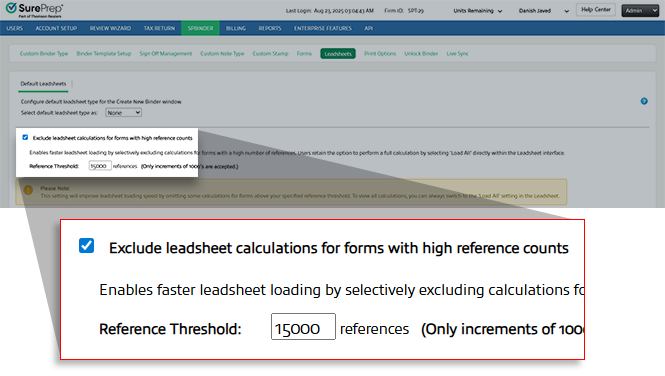
note
The
Reference Threshold
must be between 5,000 and 50,000. We recommend setting the threshold limit at 10,000 and then slowly increasing it if you believe you can manage loading more references without a significant delay in your workflow. You can increase the threshold in increments of 1,000 (for instance, you can increase the current value from 10,000 to 11,000)Once the checkbox is enabled, you can then set a threshold. To modify the threshold, enter the desired threshold into the
Reference Threshold
field.
