
State K-1 Leadsheets
The State K-1 Leadsheets in SPbinder organize data for individual entities and break it down by resident and non-resident states. You can see the totals and manually adjust amounts via State Additions and State Subtractions rows.
For your convenience, the Leadsheets are broken down into the following Resident (RES) and Non-Resident (NRE) states:
State K-1 Leadsheets: | Description |
|---|---|
RESIDENT STATE K-1 | Populate data only, no calculations. |
NONRESIDENT STATE K-1 | Populate data and calculate income/loss of each non-resident state K-1 per entity and state. |
NONRESIDENT STATE K-1 TOTAL | Total sum of income/loss for all entities combined for each non-resident state. |
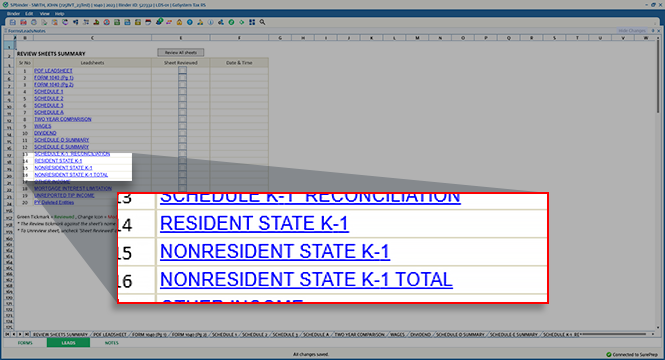
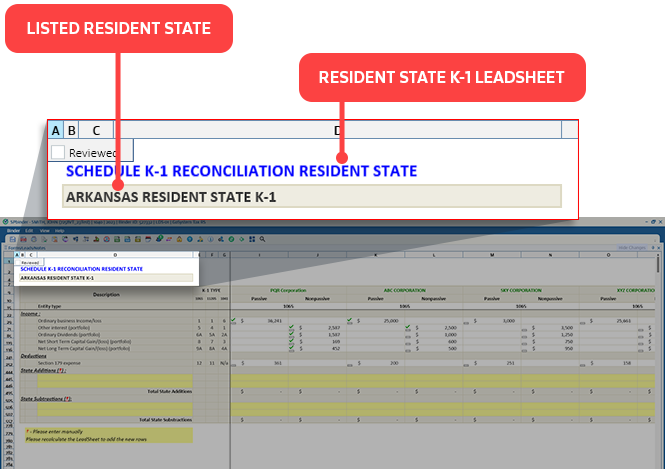
RESIDENT STATE K-1
On the Resident State K-1 Leadsheet, you will see the resident state's name and the title of the Resident State Leadsheet.
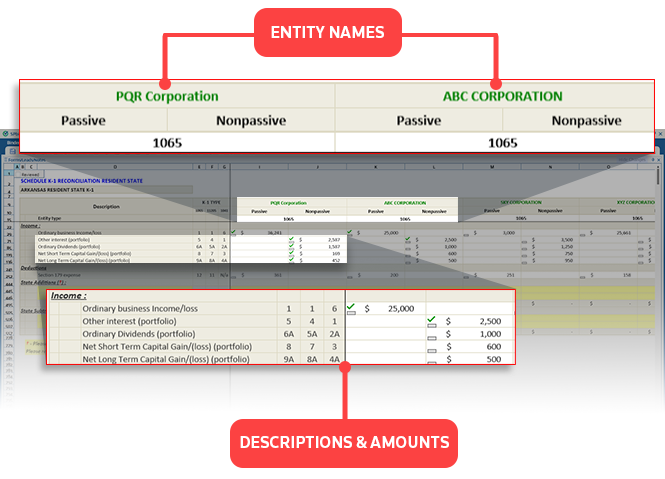
Entity names and types (for example, 1065, 1041) appear on top with their respective line descriptions and amounts.
For the Resident State K-1 Leadsheet, you can scroll to view the
Grand Total
column.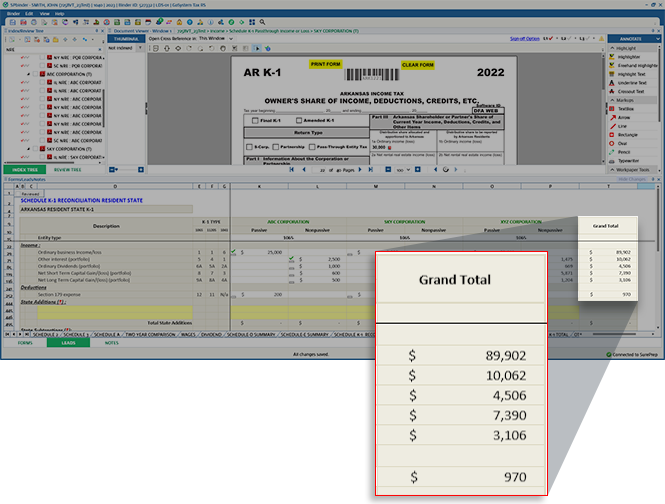
NON-RESIDENT STATE K-1
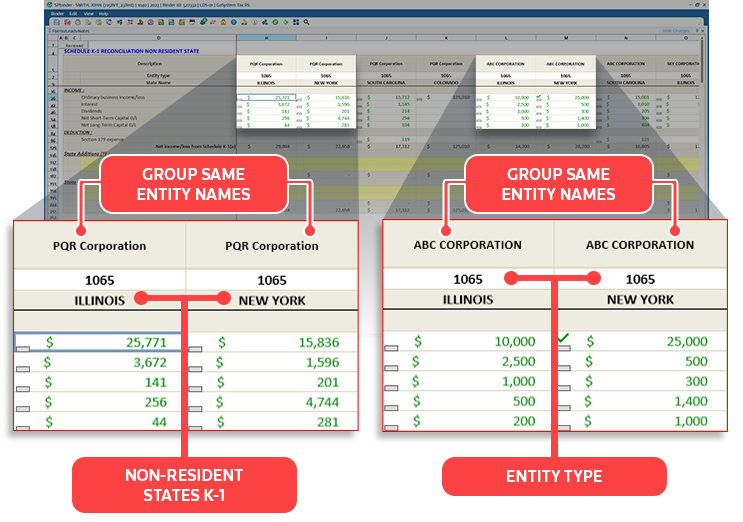
The Non-Resident State K-1 Leadsheet populates data and calculates the income and loss of each non-resident state K-1 per entity and state. The columns will be sorted based on the same entity names, and then further split based on non-resident state names.
NON-RESIDENT STATE K-1 TOTAL
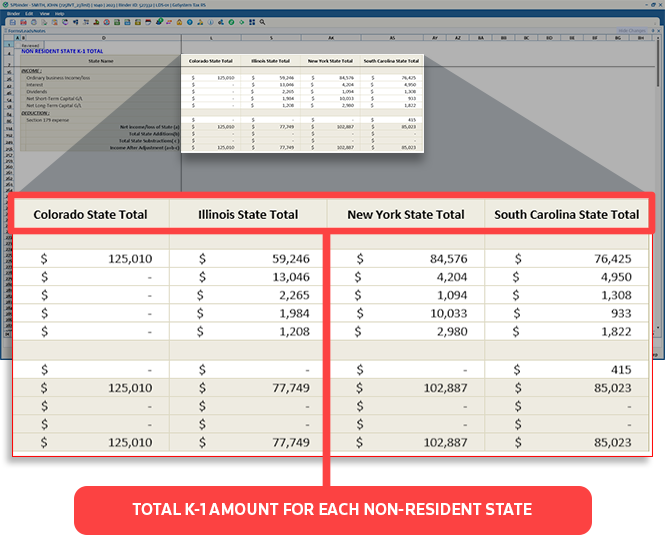
Consolidate the total sum of income/loss for all entities for each non-resident state.
Example: Combine all entities like ABC Corp + EFG Corp + IJK Corp for a non-resident state like Illinois.
State addition & State subtraction
You can also manually make adjustments by adding and subtracting amounts from the Resident and Non-Resident State K-1 Leadsheets.
To add amounts to an entity and state, go to the
State Additions
row. Locate an empty row (highlighted in yellow), add the description, and the amount you want to add to the entity.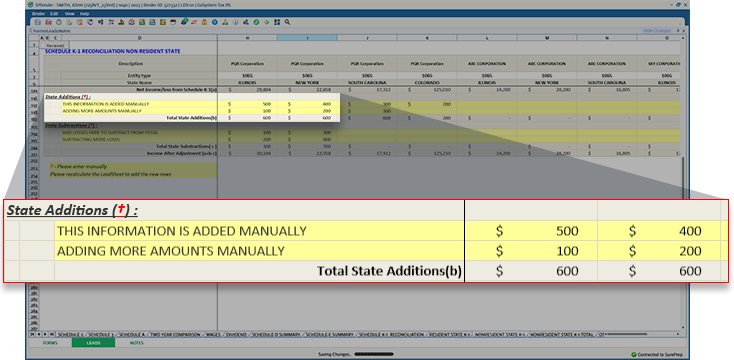
Similarly, to subtract amounts from an entity and state, go to the
State Subtractions
row. Locate an empty row (highlighted in yellow), add the description on the left column, and the amount you want to add to the entity on the right.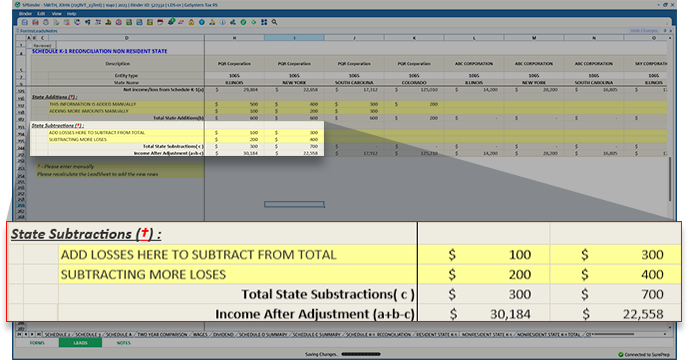
If you used up the two rows and need more rows for the
State Additions
or State Subtractions
section, Right-click anywhere on the Leadsheet, go to Tools > Recalculate
on the shortcut menu.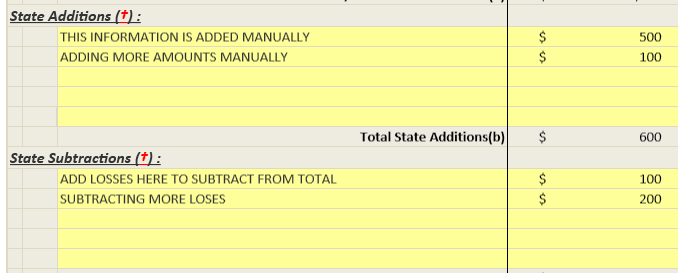
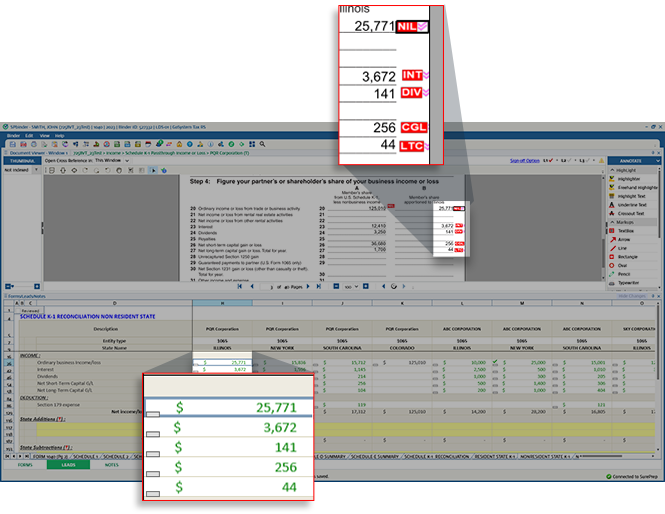
On the source documents, State K-1 amount references will appear in red to indicate the data will be exported to the tax software and populated into the Leadsheets.
State K-1 in INDEX TREE
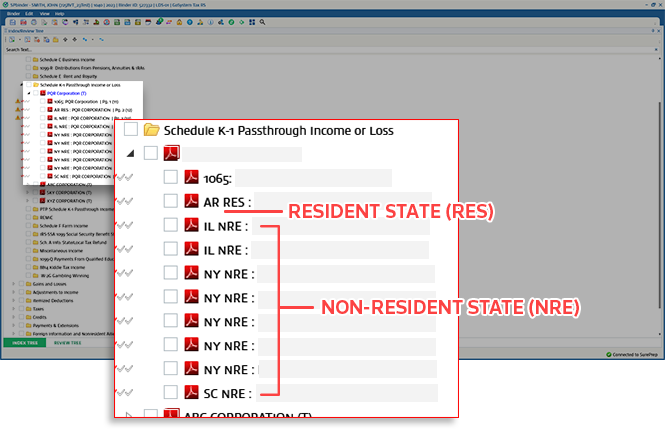
To help you identify resident and non-resident State K-1 documents, the
INDEX TREE
panel will show State K-1 entity names with the RES
(Resident State) and NRE
(Non-Resident State) prepended to the entity name.Example [State initials] + [RES or NRE]: Entity name = AR RES: ABC Corporation
note
In the
INDEX TREE
panel, type RES or NRE to filter between resident and non-resident states. You can further filter down by also including state initials (for example, NRE NY)Requirements
Field | Data |
|---|---|
Binder Type | 1040 |
Tax Year |
|
Leadsheets |
|
Services |
|
Tax Software |
|
Firm settings | Check firm-level settings to see if K-1 data is set to be captured and exported by your firm (e.g., Proforma states only, all states, or bookmark only). Go to FileRoom , Admin , Tax Return , then locate the State K-1 section. |
Related Content
-
State K-1 (Capturing State K-1)
Format: Article

