
Types of Leadsheets
Leadsheets are excel-based reconciliations that show a holistic view of the return which helps reduce the review time and increase accuracy. Leadsheets also lets you print DreamWorkpapers. SurePrep provides Classic and Simplified Leadsheets.
note
Leadsheets don’t appear automatically and have to be purchased separately. Contact your Customer Success Executive.
Classic Leadsheets
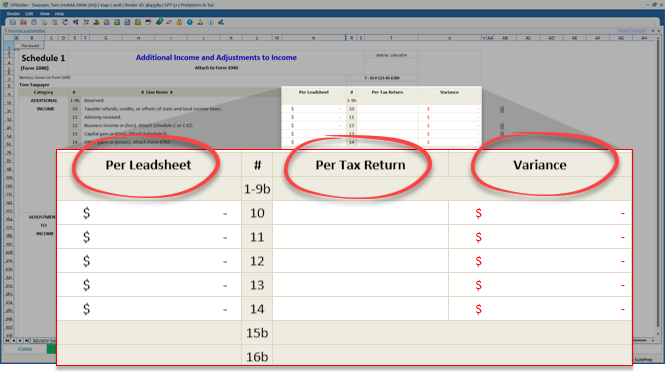
Classic Leadsheets shows the following three columns:
- Per Leadsheet- Shows the amount verified by the preparer.
- Per Tax Return- Shows the amount imported from tax software.
- Variance- Shows the variance betweenPer LeadsheetandPer Tax Return Columns.
Simplified Leadsheets
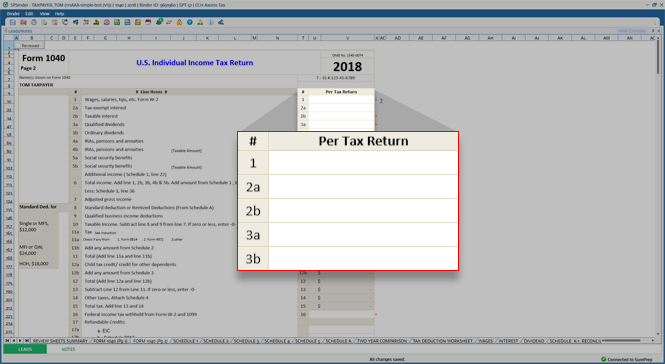
Simplified Leadsheets only shows the
Per Tax Return
column:- Per Tax Return: Shows the amount imported from tax software.
Comparison
Availability
Type | Simplified Leadsheets | Classic Leadsheets |
|---|---|---|
Binder Type | Only 1040 | 1040 & 1041 |
Tax Software |
|
* You can't import tax return data for Lacerte and UltraTax CS. You will need to enter these amounts manually. |
Columns in 1040 Pg 1, Pg 2, & Sch A | Per Tax Returns column only | Per Leadsheet , Per Tax Return , and Variance columns |
Forms Tab | Not available. Don't have to learn it. | Available. Easier to prepare the return using the Forms tab. |
Where are actions performed?
Action | Simplified Leadsheets | Classic Leadsheets |
|---|---|---|
Modify OCR Data in | Tax software | Forms tab |
Capture Standard Documents data not sent/read by OCR in | Manually input in Tax software | Forms tab |
Annotate | Manually place T/R stamps next to input data. | Automatically place Blue/Red references. Pick the data in the Forms tab. |
Capture non-standard documents | Manually input in Tax software | Forms tab. However, if data is not captured then use T/R stamps. |
Delete OCR captured data | Tax Software | Before binder export - Delete in Forms tab.After binder export - you'll need to delete in the Forms tab and the tax software. |
Where is the review completed?
Action | Simplified Leadsheets | Classic Leadsheets |
|---|---|---|
What comes in? | Manual inputs in tax software. | The output forms 1040 Pg1, Pg2, and Sch A |
How are the differences displayed | Variances are indicated by the red asterisk ( * ) | The variances column shows amounts in red |
Do I need to link the amounts in the leadsheet to the source documents? | Yes, manual linking is recommended | No, the amounts link automatically |
What happens to the T/R stamps? | In the Review Tree , items in the Unreviewed T/R stamp node are cleared/removed. | Neither removed nor linked to the leadsheets |
Is there an easier way to review the inputs made directly in the tax software? | Yes. Two new nodes will appear under the Review Tree. | No |
note
Leadsheets don’t appear automatically and have to be purchased separately. Contact your Client Success Manager.
What happens when additional documents are submitted to an existing binder?
Action | Simplified Leadsheets | Classic Leadsheets |
|---|---|---|
Binder verification has NOT been initiated | Additional Documents will merge with Originally submitted documents. When the binder goes into verification, then the additional documents will subsequently appear after the original documents. | Additional Documents will merge with Originally submitted documents. When the binder goes into verification, then the additional documents will subsequently appear after the original documents. |
Binder verification has been initiated | New documents will be processed after the original documents have been exported. | New documents will be processed automatically after the original documents complete processing. |

