
Enable/Disable Live Sync for selected binders
Live Sync automatically synchronizes information from SPbinder into the tax software in real-time.
Firms have the option to enable Live Sync for all binders (that is, firm-level option) or allow firm users the option to enable or disable Live Sync as needed on a binder-by-binder basis (that is, binder-level option).
This article applies to you if your firm settings let you enable or disable Live Sync
for selected binders
(binder-level option).If your firm has selected to enable Live Sync for all binders, you won’t have the option to disable Live Sync for individual binders, and this article won’t apply to you.
Before you start
Before you enable or disable Live Sync, use  icon from FileRoom binder
Export to Tax
to calibrate the sync. Select the Export to Tax icon from FileRoom binder OPTIONS
menu or export from within the binder.
note
Export to Tax is required anytime you want to switch between enabling or disabling Live Sync.
Enable/Disable from FileRoom
After successfully exporting information to the tax software, open the binder
OPTIONS
menu:Select
Enable Live Sync
to enable Live Sync for this binder.
Select
Disable Live Sync
to disable Live Sync for this binder.
You will see a confirmation window after Live Sync is successfully enabled or disabled. If the binder is currently open, close, and reopen the binder to finalize the changes.

note
In FileRoom, use the
Live Sync
column to see which binders are enabled or disabled. Enable/Disable from SPbinder
Alternatively, you can also enable or disable Live Sync from the Quick Access Toolbar in SPbinder.
- Select theEnable Live Sync
 icon to enable Live Sync
 - Select theDisable Live Sync
 icon to disable Live Sync

You can also use the binder menu to enable/disable Live Sync. Go to
Binder
, then Enable Live Sync
or Disable Live Sync
.
Export Reminder
Before you enable or disable Live Sync, you need to use the traditional bulk export (via
Export to Tax
) as a new save point. Export to Tax
ensures the binder is in sync with GoSystem Tax RS when it switches over to the new Live Sync mode (enable/disable).note
Don't change the Live Sync mode (enable/disable) more than once in the same session. Close and reopen the binder if you want to change the enable/disabled mode.
When attempting to enable Live Sync, you may see a notification reminding you to first complete
Export to Tax
.note
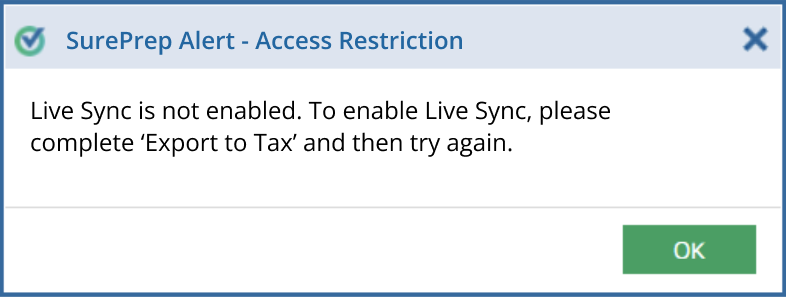
You can't enable Live Sync until the export finishes. Complete
Export to Tax
and then try again.
Similarly, when attempting to disable Live Sync, you may see a notification reminding you to first complete
Export to Tax
.note
You can't disable Live Sync until the entries are synced or exported to the tax software. Wait for all entries to sync or select
Export to Tax
and then try again.
If your firm opted to keep Live Sync enabled for all binders then Live Sync can't be disabled for individual binders. The Live Sync button will be unselectable.

Enabling Live Sync
When enabling Live Sync from inside the binder, you will be asked to reload the binder. Select
Yes
to initiate the process.
The binder will begin reloading.

You will then see the confirmation message.
Disabling Live Sync
You will see the following message if you opted to disable Live Sync for the binder.

Restrictions
Enable/Disable Live Sync is not available if:
- The binder is not ready (for example, SP Processing, In Verification) - the binder status has to be blank or in a custom status.
- The export is not complete. CompleteExport to Tax, then try again.

- Binder access is restricted to you - the binder you are trying to update is restricted for you to access. You could be restricted due to Office Locations, 7216 access Consent, or Assigned Members.


Related Content
-
Live Sync Overview
Format: Article,
9 min read
Article,
9 min read

