
Print source documents or spreadsheets
This feature facilitates printing of source documents or spreadsheets.
Follow these steps to set up print options:
- SelectBinder, thenPrint.
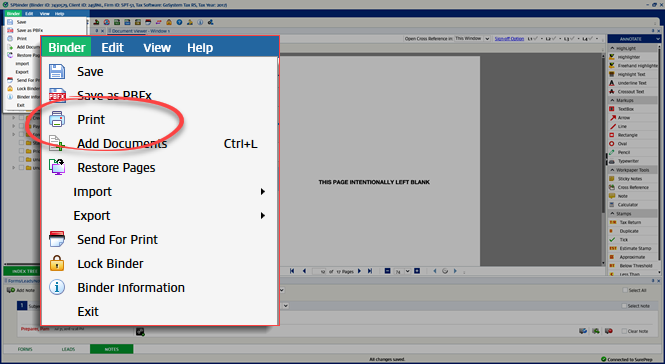 noteAlternatively, you can select thePrinticon
 from the SPbinder Toolbar.
 - ThePrint Page(s)window appears:
 2 printers display in thePrint Page(s) withsection:
- The default printer set on your machine is selected and displays as the 1st option.
- The SurePrep Printer displays as a 2nd option.
Select an option to choose a printer.The following message appears if the SurePrep Printer is not installed on your machine when you select thePrint Page(s)icon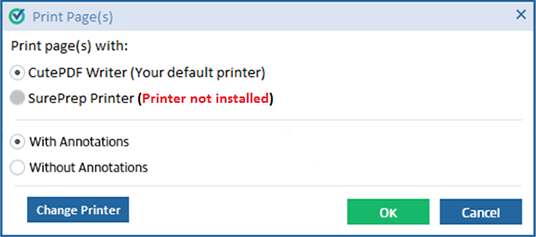 The following message appears when there is no default printer settings on your machine andSurePrep Printeris also not installed:
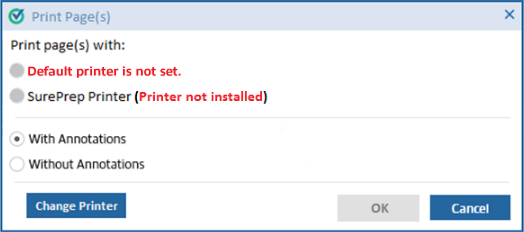 Contact SurePrep support to install SurePrep Printer. SurePrep Printer will make a printed PDF in theSurePrep Download Folderlocation on the local machine. Go to to view or edit theSurePrep Download Folderlocation.You can choose to printWith AnnotationsorWithout Annotations.
 - SelectOKto confirm print options.
 If you want to change the default printer, selectChange Printer.
- ThePrintwindow appears. Use the available options to configure the print job.
 The following features are available on thePrintwindow:All printers installed on your particular machine will be shown in theNamedropdown.SelectPropertiesto view all the properties related to the selected printer.
 Select options in the printer properties window, thenOK.
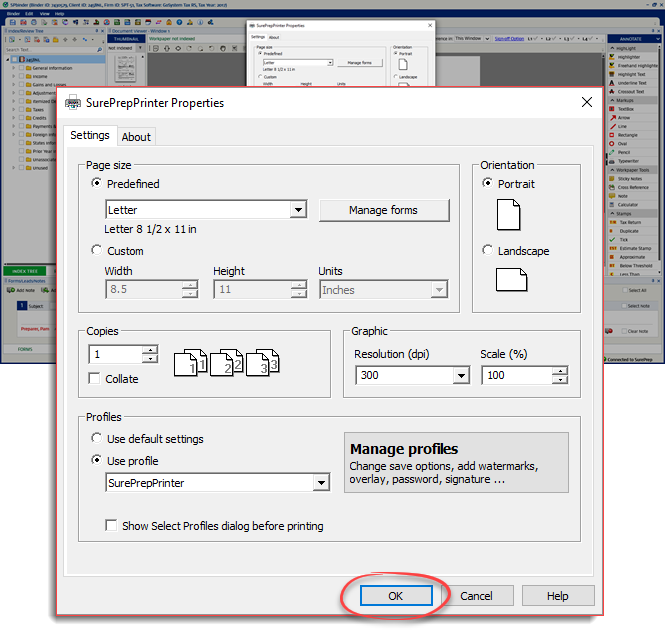 Number of copies: Use the up and down arrows to select and print multiple copies.
- SelectOKto send the selected source document or the spreadsheet for printing. Changed settings are applied to the printed documents.

Once printing is completed, the printed documents open automatically.
In SPbinder, you can print a page or sheet in the following ways:
- SelectPrintwithout selecting any source documents or spreadsheets, to print the active page or sheet.
- To print selected pages, select a page or sheet (or a shortcut of the page or sheet) in theIndex Tree/Review Tree, thenPrint.
To cancel the print and close the window, select
Cancel
.
Troubleshooting
You may not be able to use the
Print Page(s)
feature if you are currently using an outdated version of SPbinder. Upgrade to the latest version of SPbinder.


