
Review Tree - Fields Marked as Estimates
Field(s) Marked as Estimates
category lets you view all estimated fields from the Review Tree
tab.Follow these steps to view the estimated fields:
- Select theReview Treetab.

- Select theExpandicon
 next to the Field(s) Marked as Estimatesto expand it and view the fields marked as estimated.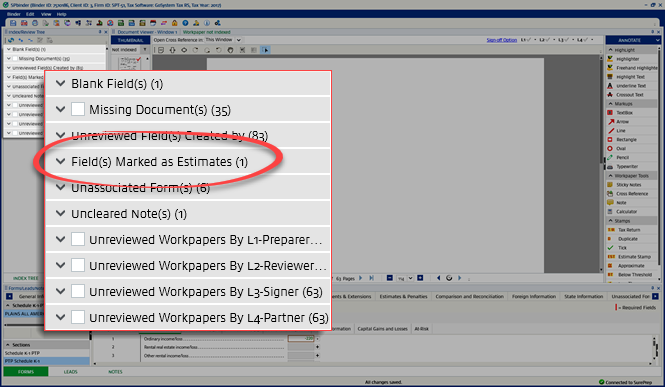
- Select theExpandicon
 to expand the category, then select the Expand
 icon on the document.
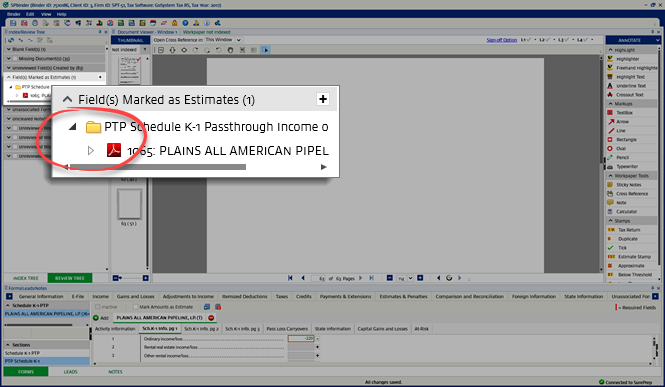
- Select the field on theReview Tree, to open the document and highlight the field in theFormstab. This lets you edit the field or clear estimate.

- Right-click the estimated field, and then selectClear as Estimate.


