
Review Tree - Missing Documents
Missing Documents
category shows a list of missing documents based on proforma information. To index(match) the missing document, drag and drop the missing document from the Thumbnail
panel to the missing proforma  document placeholder in the
 INDEX TREE
. The missing document will be removed from the list of missing documents after you index(match) the missing document.For classic leadsheets binders, you have an additional option of addressing the missing document by referencing and entering the information manually in the
FORMS
tab.Missing Documents category
To view missing documents, select the  icon to expand the
Review Tree
tab, then select the Expand
icon to expand the Missing Documents
category.
Select the  icon to expand the Index Heads/Input Form categories.
Expand
icon to expand the Index Heads/Input Form categories.
Expanded categories will show Proforma'd Input Forms rolled over from the prior year without any Input Fields.

The number in the parenthesis which appears beside the
Missing Documents
category shows the total number of missing documents.
Addressing missing documents
Go to document placeholder. The missing document will be removed from the
Index Tree
, drag the missing document from the Thumbnail
panel to the missing proforma document placeholder. The missing document will be removed from the Missing Documents
category list and the missing documents count in the parenthesis will also reduce by one.
note
If your workpaper/document is already associated with another folder, then you can also create workpaper shortcuts to address the missing documents.
Addressing missing documents using Forms (Classic Leadsheet binder only)
For classic leadsheets binders, you have an additional option of addressing the missing document by entering the information manually in the
FORMS
tab.Select the icon to open the proforma Input form on the
Proforma missing
icon to open the proforma Input form on the Forms
tab.
If this form is not needed in the current tax year, select the
Inactive
checkbox located on the Forms
tab toolbar.note
You can select or clear the
Inactive
checkbox to switch between the active or inactive form. It helps in the quick recognition and drafting of the missing items Notes.
When the
Inactive
checkbox is selected, the proforma'd form will disappear from the Review Tree. The number in the parenthesis which appears beside the Missing Documents
category will be reduced for every form selected as Inactive
.
Add a missing item note using the Review Tree category Missing Documents
While preparing tax returns, you might want to inform the taxpayer about missing information needed to complete the tax preparation for the current year.
One way of doing it in the SPbinder is to mark an email to the taxpayer using the
Email
button in the Notes
section of the SPbinder.
You may also want the missing item notes to be a part of the DreamWorkpapers as a record.
It can be done through the
Review Tree
category Missing Documents
.To ensure complete and accurate preparation of the return, it is important to verify with the taxpayer whether any information for such items is received in the current year and that it needs to be used in the tax preparation or not.
Thus, missing item notes must be written for forms listed in this category.
To add a missing item note, right-click on the form for which you want to add a missing item note, and then select
Add Form as Missing Item Note
from the shortcut menu.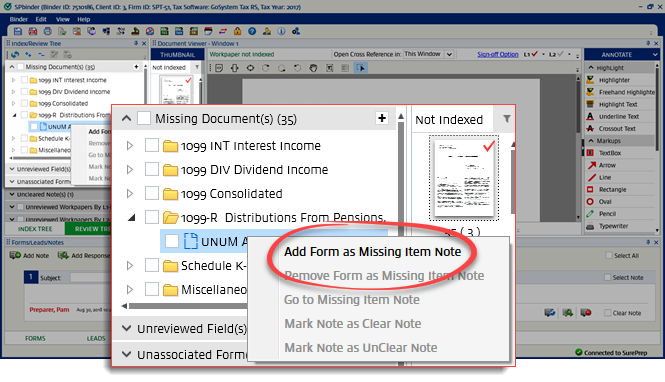
The notes section gets activated and a
Missing Item
note for that particular form gets added.If required, the prior year amount needs to be entered manually in the
Prior Year Amount
field.
A
Missing item note
icon gets added to the form icon indicating that a missing item note has been added in the Notes section for the form.
You can add missing item notes for all the forms that appear under the
Missing Documents
category.Delete missing item note using the Review Tree category 'Missing Documents'
If you have mistakenly added a missing item note or received the source document/response from the taxpayer for that missing item note, you can delete it from the Review Tree.
To delete a missing item note, right-click the form in the
Review Tree
and then select Remove Form as Missing Item Note
on the shortcut menu.
Alternatively, you can select the  on the note to delete the note.
Delete note
icon on the note to delete the note.
View missing item note
To view the missing item note directly on the
Notes
tab, right-click the form with the missing item note, then select Go to Missing Item Note
from the shortcut menu.
Add multiple missing item notes
To add missing item notes for all the forms under the
Missing Documents
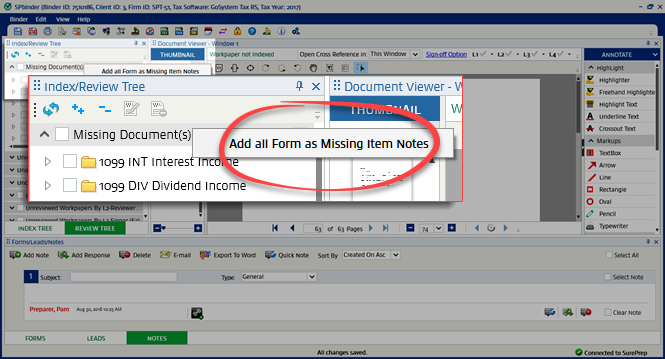
category at once, right-click Missing Documents,
and then select Add all Forms as Missing Item Notes
.An individual missing item note gets added for each proforma form that appears under this review category.
You can also add missing item notes for all forms in a particular form category such as W-2, 1099-INT.
You can add or delete missing item notes for selected proforma forms from the different form categories.
To add multiple missing item notes, select multiple proforma forms across the various form categories, right-click on any one of them and select
Add Form as Missing Item Note
.
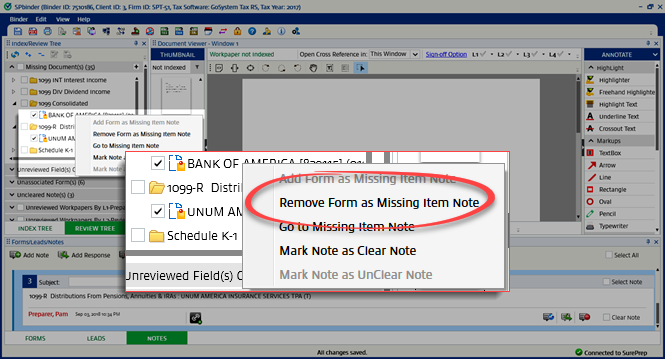
To delete multiple missing item notes, select multiple proforma forms across the various form categories, right-click on any one of them then select
Remove Form as Missing Item Note
.
When the window appears, select
Yes
to delete selected notes, or select No
to cancel.

