
Review Tree - Unreviewed Fields Created by
A user can review the fields by marking the unreviewed fields as reviewed at the parent level
Unreviewed Field(s) Created by
in the Review Tree
.
Unreviewed Field(s) Created by
has the following categories:- OCR: This level helps to review the work done by OCR.noteWhen Outsourced or 1040SCANverify returns are submitted by SurePrep, the user won’t have to review any fields under this node. These fields will be reviewed by SurePrep staff in the Outsource/1040SCANverify preparation process. Hence "0" appears in parentheses against this review node.
- User: This level lists all the fields referenced by the Preparer.noteWhen Outsourced binders are submitted by SurePrep, the user won’t have to review any fields under this node. These fields will be reviewed by SurePrep staff in the Outsource preparation process. Hence "0" appears in parentheses against this review node.
- SP: For outsource binders which are submitted by SurePrep, all the fields added by SurePrep will be shown in the SP category underUnreviewed Field(s) Created by.

User added fields will be listed under
OCR
and User
categories. The modifications done will be tracked and displayed at both the preparer as well as the reviewer level.Mark as reviewed
Follow these steps to mark unreviewed fields as reviewed:
- Select theExpandicon
 to expand Unreviewed Field(s) Created byin theReview Tree.The number in the parenthesis which appears beside the
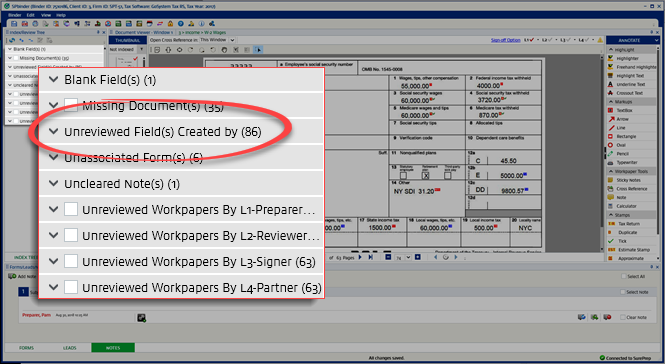 Unreviewed Field(s) Created bycategory shows the sum of all the unreviewed fields created by OCR and User.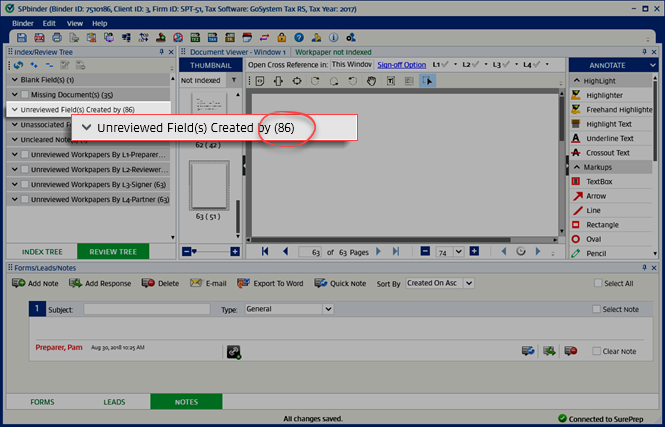
- Select theExpandicon
 to expand a category under Unreviewed Field(s) Created by.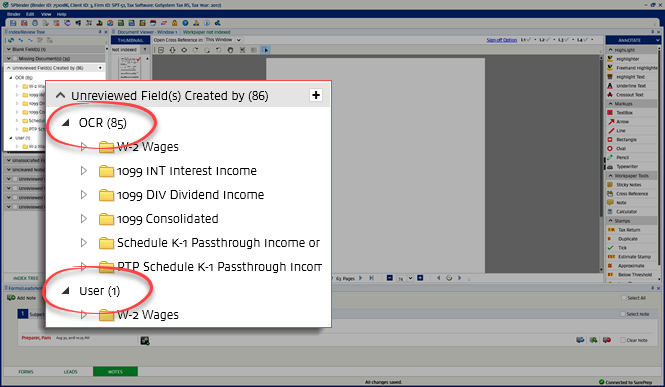
- Select theExpandicon to view documents with unreviewed fields.
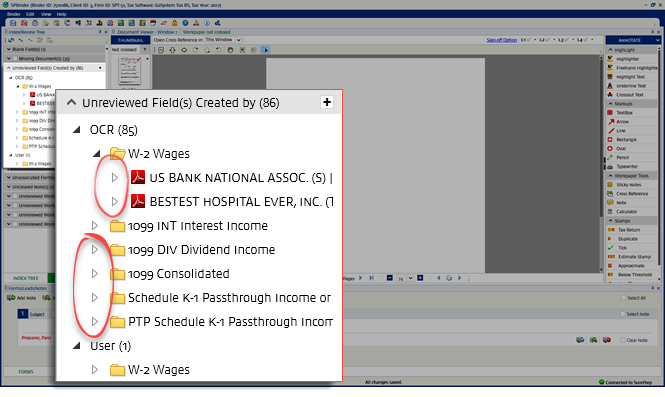
- To view unreviewed fields, select theExpandicon on the documents, and then select the Unreviewed fieldicon
 .
That particular reference will be outlined in black on the document image.
.
That particular reference will be outlined in black on the document image.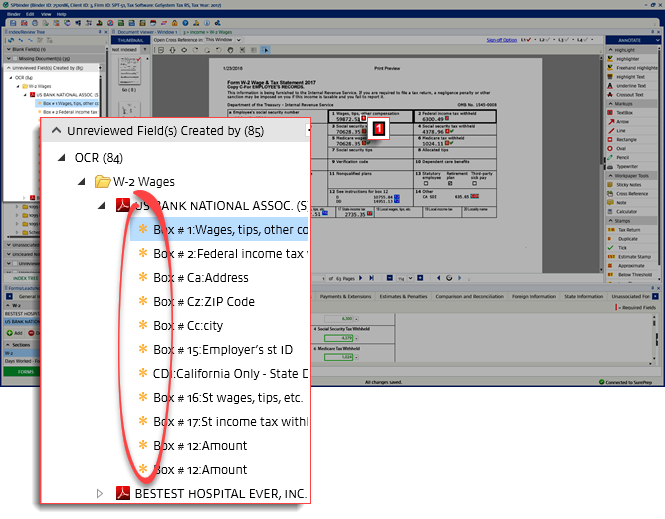
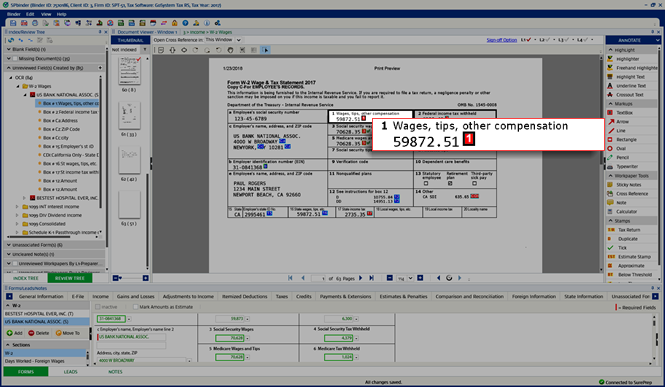
- To mark an unreviewed field as reviewed, hold theCtrlkey and select the reference itself in the image area. Alternatively, right-click the field in theReview Treeand selectMark Field as Reviewedon the shortcut menu.
 Once the field is marked as reviewed, it disappears from theReview Treeand the border color of the reference changes from Black to Green.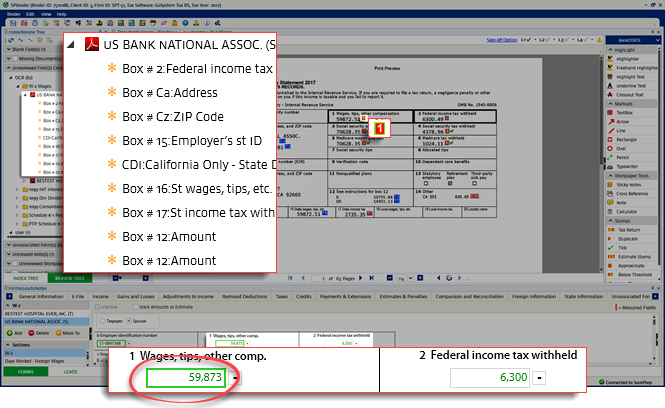
- To review all the fields simultaneously for an Input Form, right-click the Input Form name and then selectMark all Field(s) as Reviewed.

- To mark all the fields as unreviewed for re-review purposes, right-click the category description which appears under the main category ofUnreviewed Field(s) Created by, and selectMark all Field(s) as Unreviewed.


